
Before shopping for a KVM switch, ask yourself about its connectivity options, like Wi-Fi or wired protocols, and whether it fits your environment. Consider power needs—does it run on USB, Ethernet, or require an external source? Check if it’s compatible with your devices and peripherals, including high-res monitors or specialized gear. Also, think about future-proof features and workspace impact. If you keep these questions in mind, you’ll find the perfect switch, and there’s more to discover on how to choose wisely.
Key Takeaways
- Does the KVM switch support the necessary hardware and peripheral compatibility, including operating systems and high-resolution displays?
- Is the switch compatible with your existing network infrastructure and security protocols, especially for wireless or IP-based models?
- What are the power options and requirements, and does it fit your workspace’s power supply and efficiency needs?
- Does the device support future standards and scalability features like remote management and hotkey switching?
- How does the switch impact workflow efficiency, considering size, setup complexity, and device handling capabilities?
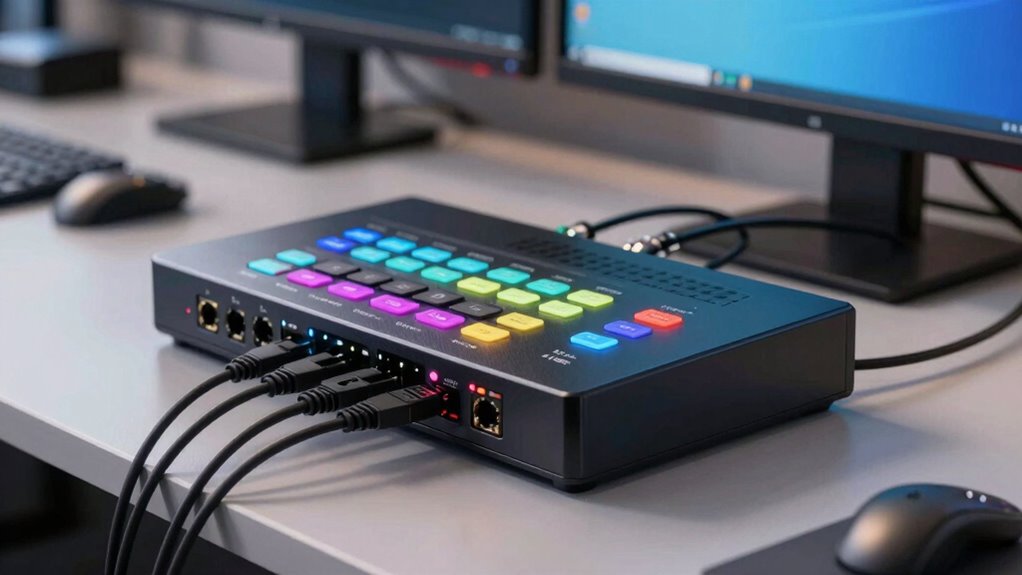
Choosing the right KVM switch can greatly streamline your workspace, but before making a purchase, it’s vital to ask the right questions. One of the first considerations is whether the device supports wireless connectivity. If you prefer a clutter-free setup or work in an environment where running cables isn’t practical, a wireless KVM switch can be a game-changer. These switches use Wi-Fi or other wireless protocols to connect your multiple computers to a single keyboard, monitor, and mouse. Ask yourself if your network environment is robust enough to handle the data transfer without lag or interruptions. Wireless connectivity offers flexibility, but it may also introduce latency or security concerns, so it’s important to verify the switch’s compatibility with your existing network infrastructure and security protocols.
Next, you need to evaluate the power requirements of the KVM switch. Some models operate solely through USB or Ethernet connections, drawing power from the connected devices, while others require an external power source. If you’re short on outlets or want to minimize cable clutter, a powered or bus-powered switch could be advantageous. However, keep in mind that powered switches might be larger and require more space, which could impact your setup. You should also consider whether the switch’s power needs align with your workspace’s power capacity, especially if you’re integrating it into a power-sensitive environment. Understanding these requirements beforehand helps prevent compatibility issues and guarantees your setup remains efficient and reliable. Additionally, knowing the power options can help you choose a model that best fits your workspace constraints. It’s also wise to check if the switch offers energy efficiency features to reduce power consumption over time. As technology standards evolve, selecting a switch that supports relevant protocols can further future-proof your investment.
Assess power needs to ensure compatibility and prevent setup issues with your workspace.
Another key question revolves around compatibility with your existing hardware and peripherals. Check if the KVM switch supports the operating systems you use, whether Windows, macOS, Linux, or others. Compatibility issues can cause frustration and delays, so verify that the switch can seamlessly integrate with your devices. Additionally, consider the types of connections your peripherals require. For example, if you have high-resolution monitors, ensure the switch supports the necessary video standards like 4K or HDMI 2.0. If you use specialized peripherals such as gaming mice or professional audio equipment, confirm that the switch can handle these without degrading performance. It’s also beneficial to review device compatibility to ensure your current setup will work smoothly with the switch.
Finally, it’s important to understand the technology standards the KVM switch supports, ensuring it aligns with your current and future setup needs. Think about the management features and scalability. Do you need a switch with remote management capabilities or hotkey switching? Will your setup expand in the future, requiring a switch that can accommodate more computers or different types of devices? Asking these questions upfront ensures you select a KVM switch that not only meets your current needs but also adapts as your setup evolves. Being thorough in your inquiry helps you avoid costly replacements and guarantees a smoother, more efficient workflow.
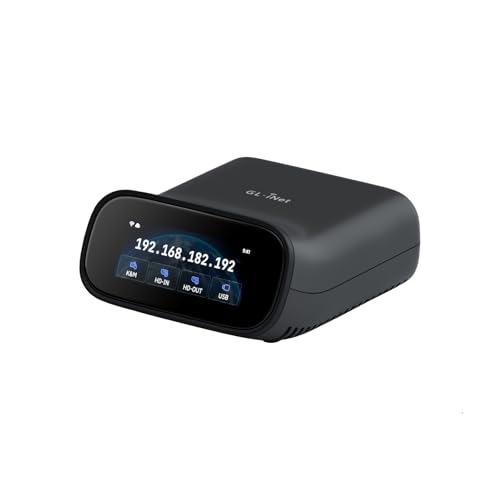
GL.iNet Comet Pro (GL-RM10) Remote KVM Over Wi-Fi, Dual Band Wi-Fi 6, 4K@30FPS Passthrough, Touchscreen, 32GB eMMC,Tailscale Support Remote Access and ATX/fingerbot for Disaster Recovery, Home Office
【Dual-Band Wi-Fi 6 Desktop KVM Device】Comet Pro supports both 2.4 GHz and 5 GHz Wi-Fi bands for a…
As an affiliate, we earn on qualifying purchases.
As an affiliate, we earn on qualifying purchases.
Frequently Asked Questions
How Does a KVM Switch Affect Network Security?
A KVM switch can impact your network security by potentially creating a network vulnerability if not properly secured. It may expose sensitive data if unauthorized access occurs. However, some models incorporate data encryption to protect transmissions between devices, enhancing security. To avoid risks, guarantee your KVM switch supports encryption and implement strong access controls, reducing the chance of data breaches and safeguarding your network environment effectively.
Can a KVM Switch Support Wireless Peripherals?
Yes, some KVM switches support wireless peripherals, but it depends on their wireless compatibility and peripheral connectivity options. You’ll want to check if the switch can connect to Bluetooth or Wi-Fi-enabled devices, such as wireless mice or keyboards. Not all models support wireless peripherals, so confirm that the KVM switch explicitly mentions wireless compatibility or offers USB or Bluetooth ports for seamless peripheral connectivity.
What Is the Lifespan of a Typical KVM Switch?
A typical KVM switch lasts between 5 to 10 years, depending on usage and build quality. You should check installation compatibility to guarantee it fits your setup and consider cable management features to prolong its lifespan. Properly managing cables reduces wear and tear, preventing damage over time. Regularly maintain and handle the switch carefully, and you’ll enjoy reliable performance for many years, making it a worthwhile investment.
Are There Eco-Friendly or Energy-Efficient KVM Options?
Think of eco-friendly KVM switches as the green warriors of your tech setup. Yes, there are energy-efficient options that help you save power and reduce your carbon footprint. Look for models boasting green certifications like ENERGY STAR, which guarantee energy savings and environmental responsibility. Choosing these switches not only benefits the planet but also cuts down your electricity bills, making your workspace smarter and more sustainable.
How Does a KVM Switch Handle Multiple Video Outputs?
A KVM switch manages multiple video outputs by connecting several devices to a single monitor, keyboard, and mouse. It handles different video resolutions, ensuring clear display without lag, and maintains device compatibility across various operating systems and hardware types. You simply select the desired device, and the switch automatically or manually adjusts to the appropriate video resolution, offering seamless control and efficient workspace management.

USB3.0 KVM Switch HDMI 4K@60Hz for 4 Computers Share 1 Monitor, KVM Switch 4 Port with 3 USB 3.0 Ports Share Keyboard Mouse, Support Button Switch, Plug and Play
【HDMI KVM Switch 4 Port】KVM Switch HDMI supports 4 computers to share 1 monitor and is controlled by…
As an affiliate, we earn on qualifying purchases.
As an affiliate, we earn on qualifying purchases.
Conclusion
Choosing the right KVM switch is like planting a sturdy seed for your tech garden—it requires careful questions to guarantee it grows strong and fruitful. By asking about compatibility, features, and future needs, you’re nurturing a decision that boosts your workflow and simplifies your setup. Don’t rush your choice; take the time to ask the right questions. With patience and insight, you’ll cultivate a seamless, efficient workspace that blossoms with productivity.

UGREEN 8K@60Hz HDMI Displayport KVM Switch 3 Monitors 2 Computers, Aluminum 4K@240Hz with 4 USB 3.0 Ports for 2 Computers Share Triple Monitors with 4 DP+2 HDMI+2 USB Cables/Power Adapter/Controller
KVM Switch 3 Monitors 2 Computers: This 2*Displayport + 1*HDMI KVM Switches allows you to switch effortlessly between…
As an affiliate, we earn on qualifying purchases.
As an affiliate, we earn on qualifying purchases.

MT-VIKI 8 Port IP KVM Switch with 17" LCD Rack Console, 1 Local & 1 Remote User, Remote Server Management up to 230ft/70m via CAT5e/CAT6, 1U Rackmount for Data Centers
【Centralized Management for 8 Servers】Control up to 8 servers, workstations, industrial PCs, DVRs, NVRs, and network devices from…
As an affiliate, we earn on qualifying purchases.
As an affiliate, we earn on qualifying purchases.