

To follow a backup plan you’ll stick to, start by choosing a simple method like cloud storage or an external drive, focusing on your most important files like photos and documents. Set a weekly routine, maybe Sunday nights, and automate the process if possible, so backups happen without fuss. Keep your backups secure with strong passwords and encrypt sensitive data. Stick with the straightforward steps, and you’ll protect your files easily — keep going to discover how to make it even simpler.
Key Takeaways
- Choose simple, reliable backup methods like cloud storage or external drives tailored to your needs.
- Set a consistent weekly schedule to back up important files, making it a routine.
- Automate backups where possible to avoid forgetting and ensure regular data protection.
- Keep backups secure by encrypting sensitive data and storing copies in multiple locations.
- Focus on backing up essential files such as documents and photos to make the process manageable.
Understanding Why Backups Matter

Backups are essential because data loss can happen unexpectedly, whether from hardware failures, cyberattacks, or simple human error. Without backups, losing important files means risking hours, days, or even years of work gone forever. Think about those precious photos, crucial documents, or work projects—you can’t just recreate everything from scratch. Data loss can disrupt your daily life, cause financial setbacks, or damage your reputation. Backups give you peace of mind, knowing that your information is safe and recoverable if something goes wrong. Recognizing the importance of backups is the first step toward protecting yourself. It’s not a matter of if, but when a problem will occur, and being prepared makes all the difference.
Choosing the Right Backup Method for You

Choosing the right backup method depends on your specific needs, the types of data you want to protect, and how quickly you need to recover it. If you value speed, cloud backups offer quick access but may cost more. For large files or slow internet, external drives are reliable. Think about how often you’ll back up—daily, weekly, or monthly—and whether automation suits you. Use this table to guide your choice:
| Backup Method | Best For |
|---|---|
| Cloud Storage | Quick recovery, remote access |
| External Hard Drive | Large files, offline backup |
| Network Attached Storage | Multiple devices, local network backup |
| USB Flash Drive | Small, critical files, portable backup |
| Automated Software | Regular, hands-off backups |
Choose what fits your schedule, budget, and comfort level.
Setting Up Your Simple Backup Routine
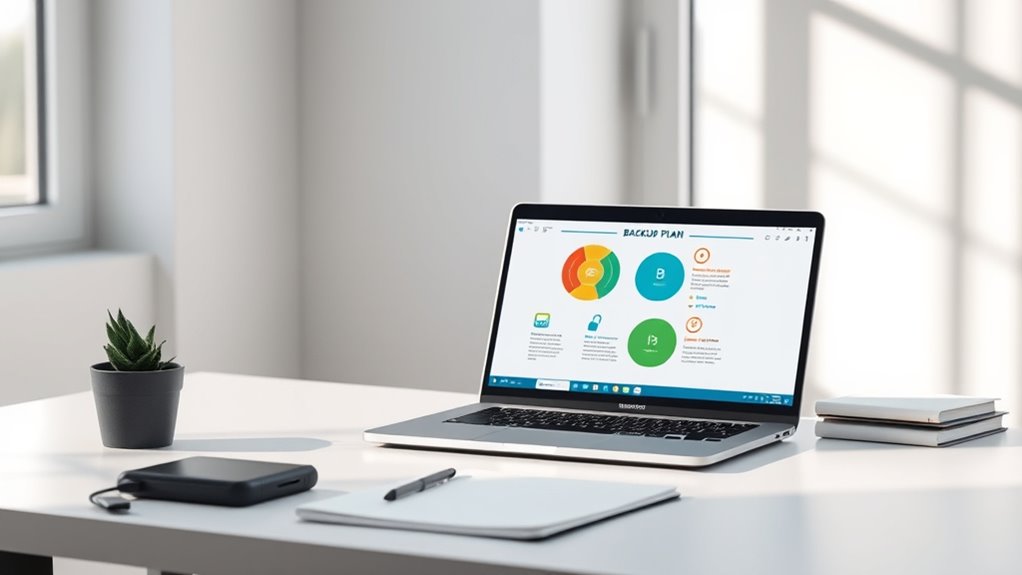
Getting your backup routine set up doesn’t have to be complicated. Start by choosing a specific time each week, like Sunday evening, to back up your files. Keep it simple: save your important documents, photos, and essential data in one folder. Use a reliable external drive or cloud service you already trust. Set a reminder so you don’t forget. Create a straightforward process: connect your external drive, copy the folder, and disconnect. If you prefer cloud backups, just upload your designated folder regularly. Avoid overthinking or adding too many steps. The key is consistency. Once you establish this basic routine, it becomes second nature, protecting your data without stress or hassle. This simple habit ensures your important information stays safe and easily recoverable.
Automating the Process to Keep It Easy
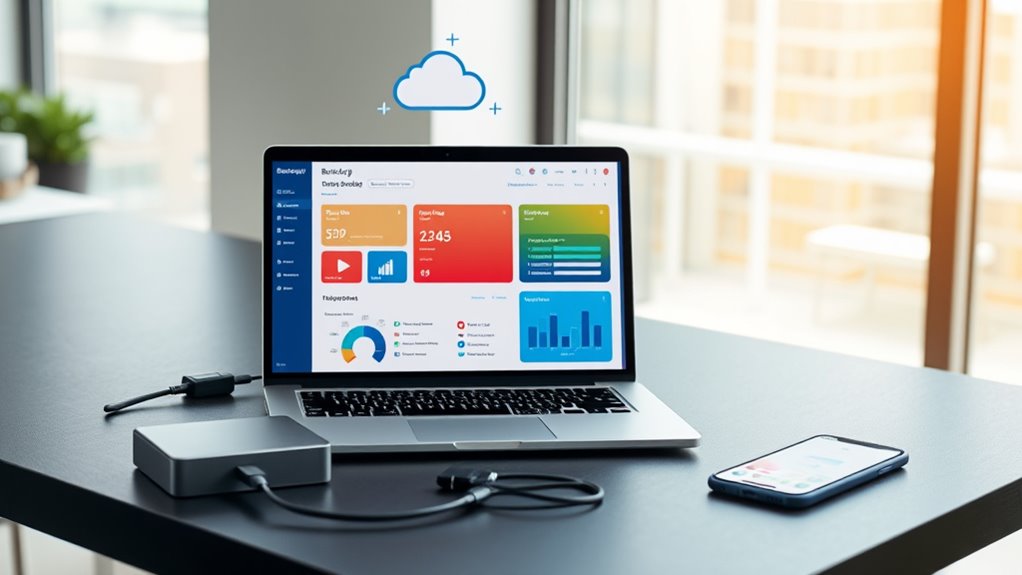
To keep your backup routine effortless, automating the process is the best way to guarantee it happens consistently without extra effort. Set up your backup system once, then let it run in the background. Many cloud services and backup tools allow you to schedule regular backups automatically. Choose a time when your computer is idle, like overnight, so backups don’t interrupt your work. Confirm your backups include all important files and are stored in a secure location. Once configured, you won’t need to think about it daily. Automating reduces the risk of forgetting or procrastinating. Plus, it gives you peace of mind knowing your data is protected without constant manual effort. This simple step keeps your backups reliable and your mind at ease.
Tips to Keep Your Backups Safe and Secure
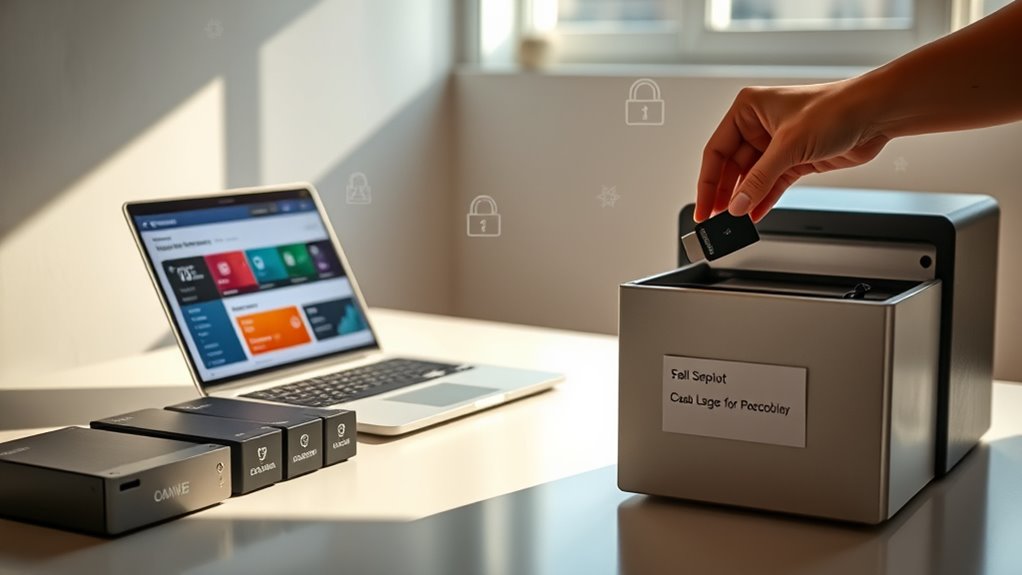
Ensuring your backups stay safe and secure requires more than just copying files; you need to take deliberate steps to protect them from theft, damage, or unauthorized access. First, encrypt sensitive data before backing up, so even if someone gets hold of your files, they can’t read them. Use strong, unique passwords for your backup accounts and enable two-factor authentication when available. Store backups in multiple locations—preferably offsite or in the cloud—to guard against physical damage. Regularly update your security measures and review access permissions. Here’s a quick overview:
| Security Tip | Implementation |
|---|---|
| Encrypt backups | Use tools like VeraCrypt or built-in encryption |
| Use strong passwords and 2FA | Protect accounts with unique passwords + 2FA |
| Store backups in multiple locations | Cloud storage and physical drives in safe places |
Frequently Asked Questions
How Often Should I Update My Backup Plan?
You should update your backup plan at least once a year, but more often if you frequently add or change files. Whenever you upgrade your devices or software, review and adjust your backups to guarantee everything’s protected. Regularly testing your backups helps confirm they work properly. Staying proactive keeps your data safe and recovery quick, giving you peace of mind knowing your information’s always secure and up-to-date.
What Storage Options Are Most Reliable for Backups?
Think of your backup storage options as the sturdy branches of a tree—reliable and strong. Cloud storage like Google Drive or Dropbox offers automatic, off-site protection, making it a top choice. External hard drives provide fast local backups but need regular updates. Combining both guarantees your data’s safety, like a safety net woven with multiple strands, so no single failure can cause data loss.
How Do I Recover Data From a Backup?
You start by locating your backup file, whether it’s on an external drive, cloud storage, or another device. Then, follow the specific restore process for that method—often opening the backup software or app, selecting the restore option, and choosing your backup file. Confirm your choice and wait as your data is transferred back to your device. Make sure your device is connected and has enough space for the restored data.
Can I Use Cloud Storage for Sensitive Information?
Think of cloud storage as a vault for your secrets; it can hold sensitive info, but you need the right lock. You should choose providers with strong encryption and clear privacy policies. Be cautious, though—trusting the cloud is like entrusting a vault; verify it’s secure and compliant with regulations. Always add extra layers of security, like two-factor authentication, to keep your sensitive info truly protected.
What Are Common Backup Mistakes to Avoid?
You should avoid neglecting regular backups, assuming they’ll never fail. Don’t forget to verify your backup files regularly to guarantee they’re usable. Avoid storing all backups in one location; spread them out to prevent loss from theft or disaster. Don’t ignore updates or security measures, as outdated backups can be vulnerable. Finally, don’t rely solely on automated backups without periodically checking their integrity—manual checks save you from surprises.
Conclusion
Now you’re all set to keep your digital life safe. Remember, a plan that’s easy to follow is a plan you’ll actually stick to—don’t let your data become a sinking ship. Keep your backups simple, automate whenever possible, and stay vigilant about security. Think of it like locking the door behind you; it’s a small step that keeps your important stuff out of trouble. Stay consistent, and you’ll be covered no matter what comes your way.