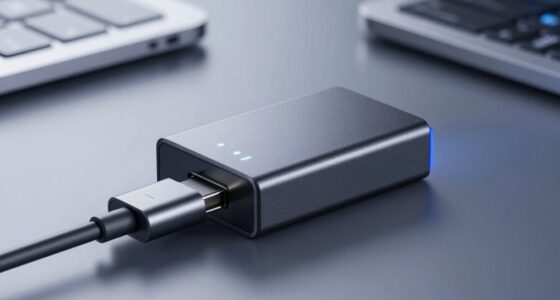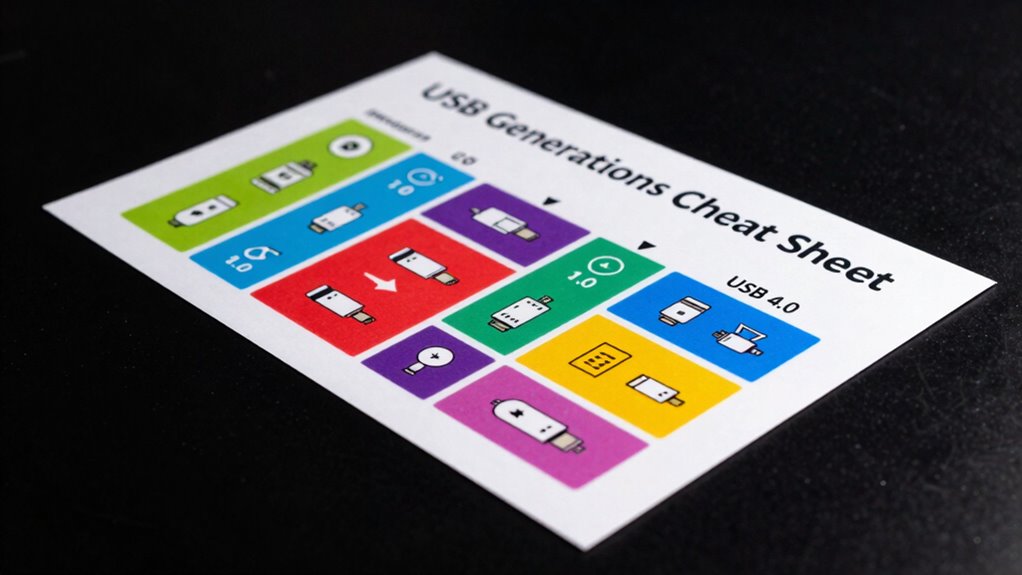
If you want to know which USB is fastest, it helps to understand the different standards. USB 1.1 is slow, offering just 12 Mbps, while USB 2.0 speeds reach up to 480 Mbps. USB 3.0 and later versions like 3.1, 3.2, and USB4 dramatically boost speeds, with USB4 hitting 40 Gbps. USB-C ports also make connections easier and faster. Keep exploring, and you’ll be able to pick the right USB for every task.

Get comfort and recovery gear delivered free — and shop member deals
- Fast, free delivery on millions of items
- Access to Prime Big Deal Days deals on October 6–7
- Prime Video, Amazon Music and more included
Key Takeaways
- USB 1.0/1.1: Up to 12 Mbps, suitable for simple peripherals, now outdated.
- USB 2.0: Reaches 480 Mbps, ideal for basic file transfers and many devices.
- USB 3.x (3.0, 3.1, 3.2): Ranges from 5 Gbps to 20 Gbps, supporting high-speed data and 4K video.
- USB-C: Reversible connector with higher power delivery and speeds, compatible with multiple standards.
- USB4: Up to 40 Gbps, consolidates previous versions for fastest, most versatile connections.
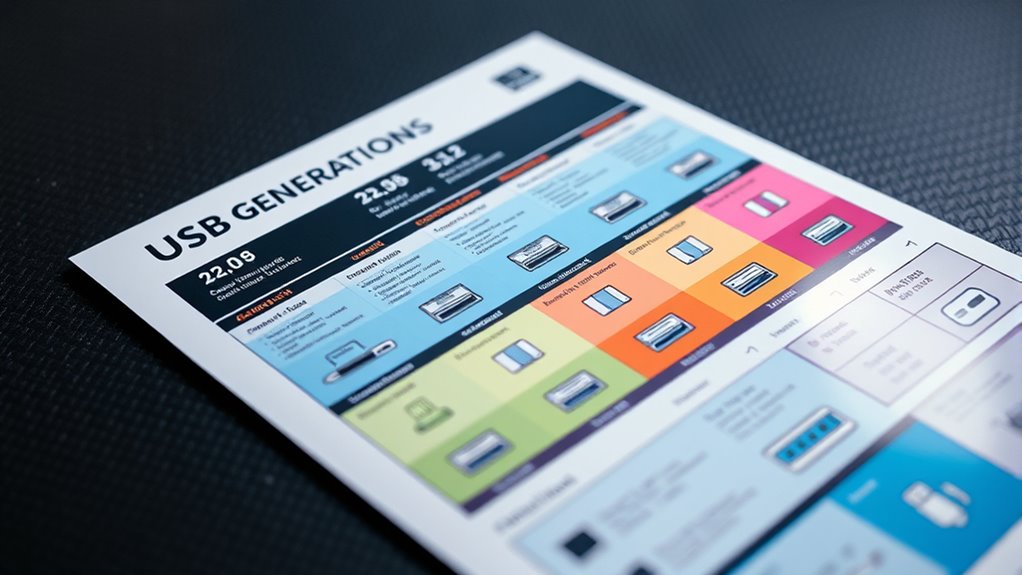
Ever wondered how USB technology has evolved over the years? It’s a fascinating journey that has dramatically transformed the way you connect and transfer data between devices. From the early days of USB 1.0 to the latest standards, each generation has brought significant improvements in data transfer speeds and device compatibility. Understanding these differences can save you time and frustration, especially when shopping for new gadgets or troubleshooting connections.
The first notable leap came with USB 2.0, which introduced data transfer speeds up to 480 Mbps. This was a huge step forward from USB 1.1, making it possible to transfer larger files more quickly and connect a wider range of peripherals like external drives, keyboards, and cameras. However, as devices became more data-intensive, the limitations of USB 2.0 became apparent. Compatibility was generally good, but the speed wasn’t always enough for high-definition video or rapid backups.
Then came USB 3.0, often branded as “SuperSpeed USB,” offering speeds up to 5 Gbps. This upgrade meant you could move large files, like high-resolution videos or extensive photo libraries, much faster than before. The increased data transfer speeds also reduced bottlenecks, so your devices worked more seamlessly together. Importantly, USB 3.0 maintained backward compatibility with previous versions, so you could still use older devices with newer ports, although at the slower speed of the older standard. This ensured that your existing peripherals didn’t become obsolete overnight, which was a relief for many users.
USB 3.1 and 3.2 brought further improvements, boosting maximum speeds up to 10 Gbps and 20 Gbps, respectively. These standards support even more demanding tasks, such as 4K video streaming and rapid data backups. Device compatibility also expanded, as newer ports and connectors like USB-C became more common. USB-C, in particular, offers a reversible design and increased power delivery, allowing you to charge devices faster while maintaining high data transfer rates. This universal compatibility alleviates confusion and makes it easier to connect a variety of gadgets without fuss.
Finally, USB4, introduced in 2019, consolidates previous standards and offers data transfer speeds up to 40 Gbps—equivalent to Thunderbolt 3. It’s designed to be highly compatible across devices, simplifying the ecosystem of USB standards you encounter daily. With this evolution, you’re now able to connect more devices at blazing-fast speeds, all while maintaining compatibility across generations. Knowing these differences helps ensure you buy the right cables and devices, avoiding bottlenecks and maximizing performance every time you plug in.
As an affiliate, we earn on qualifying purchases.
Frequently Asked Questions
How Do I Identify My Current USB Port’s Generation?
To identify your current USB port’s generation, start with USB identification by checking your device’s specifications or inspecting the port for any labels or markings. You can also use device management tools or system reports on your computer. Knowing your port’s compatibility helps guarantee you’re using the fastest data transfer options available. If you’re unsure, compare your port’s appearance to images of USB types online for quick identification.
Are Older USB Devices Compatible With the Latest Ports?
Older USB devices are generally compatible with the latest ports, but USB compatibility varies. You might need device adapters or cables to connect older devices to newer ports, especially if the physical connector differs. Keep in mind that while compatibility is often maintained, transfer speeds may be limited to the older device’s capabilities. Always check your device specifications and consider using adapters to verify smooth data transfer and functionality.
Can I Upgrade My USB Ports Without Replacing My Device?
You can’t upgrade your USB ports without replacing your device, but you can improve port compatibility by using adapters or hubs. These allow your older device to connect to newer ports, enabling faster data transfer when possible. Keep in mind, though, your device’s internal hardware limits its speed. So, for significant upgrades, consider replacing your device with one that supports the latest USB standards for better performance.
What Are the Real-World Speed Differences Between USB Generations?
Imagine USB generations as race cars; the faster the car, the quicker you transfer data. You’ll notice that newer USB versions, like USB 3.2 and USB4, offer markedly faster speeds than USB 2.0. Power delivery also improves, so your device charges quicker. Choosing the right USB cable type and understanding USB power differences matter—using a high-quality cable ensures you get the full speed and power your device needs.
How Do I Determine if My Device Truly Supports the Claimed USB Speed?
To determine if your device truly supports the claimed USB speed, check the USB connector types, like USB-C or USB-A, and verify the specifications from the manufacturer. Also, look for support for USB Power Delivery, which often indicates higher data transfer rates. Test your device with compatible cables and ports, and use speed testing tools or software to confirm actual transfer speeds match the advertised claims.
As an affiliate, we earn on qualifying purchases.
Conclusion
So there you have it, your ultimate cheat sheet—no more guessing games at the USB store. Forget about confusing numbers and endless specs; now you’re the tech wizard who knows exactly what’s fast and what’s not. Next time someone tries to sell you “latest” tech, just flash this cheat sheet and watch their confidence crumble. Happy transferring, and remember: in the world of USBs, knowledge is power—so stay savvy and don’t get fooled again!
As an affiliate, we earn on qualifying purchases.
As an affiliate, we earn on qualifying purchases.
Evergreen bestsellers Picks
bestsellers
As an affiliate, we earn on qualifying purchases.