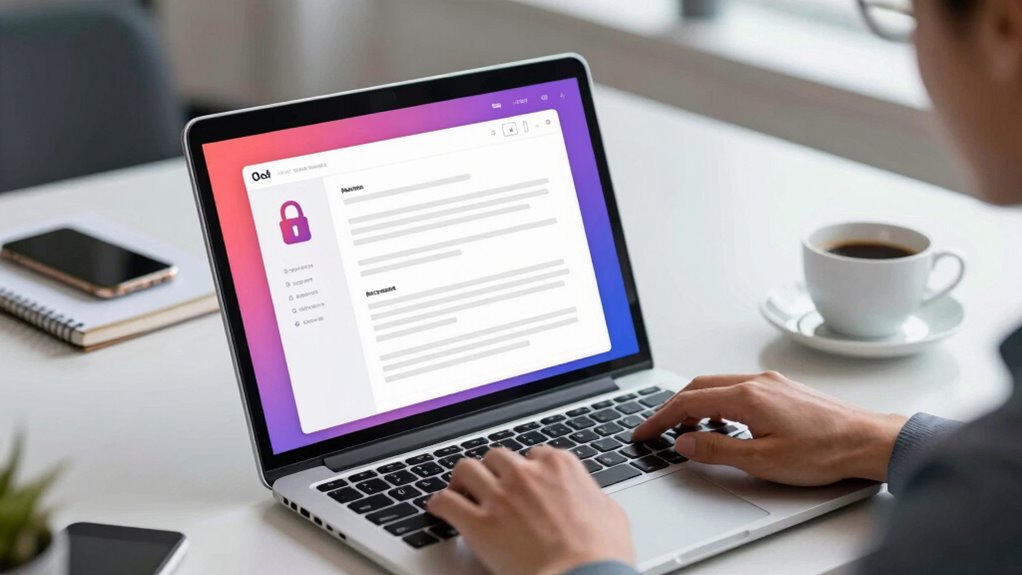

Password-protectting your PDFs is a quick and effective way to keep your sensitive info safe while sharing. By setting a strong password, you add a layer of security that prevents unauthorized access. Modern tools make encryption easy, ensuring only those with the right password can open your files. Combining this with user authentication creates a powerful security setup. Keep exploring to discover more ways to enhance your PDF security effortlessly.
Key Takeaways
- Adding a password to PDFs provides a quick layer of security, preventing unauthorized access during sharing.
- Use trusted PDF editing tools to easily apply encryption and set strong, complex passwords.
- Combining password protection with encryption enhances overall document security against interception.
- Ensure passwords are unique and include letters, numbers, and symbols for stronger protection.
- Implement additional security measures like digital signatures for layered, robust PDF security.

Protecting your PDFs with a password is one of the easiest ways to keep your sensitive information secure. When you add a password, you’re fundamentally applying a layer of protection that prevents unauthorized access. But beyond just setting a simple password, understanding encryption techniques can make your files much more secure. Encryption transforms your PDF data into an unreadable format that only someone with the correct decryption key can access. This means even if someone intercepts your file, they won’t be able to read its contents without the password. Modern encryption methods, like AES (Advanced Encryption Standard), are robust and widely trusted, ensuring your data remains safe from prying eyes.
User authentication plays a critical role in this process. When you password-protect a PDF, you’re implementing a form of user authentication, verifying that only authorized individuals can open the document. This is more than just a password prompt; it’s a security measure that confirms your identity before granting access. Strong, unique passwords are vital here, preventing brute-force attacks and dictionary-based hacking attempts. Combining user authentication with encryption techniques creates a solid security framework. The password acts as the key to decrypt the file, and the encryption algorithm protects the data during transmission or storage.
Using these security protocols isn’t complicated. Many PDF editors and security tools offer straightforward options to encrypt your files. When you set a password, the software automatically applies encryption techniques behind the scenes. As a user, you just need to choose a strong password—preferably a mix of letters, numbers, and symbols—and activate the protection feature. Once secured, the PDF can only be opened by someone who knows the password, ensuring your confidential information stays private during sharing or storage. Additionally, understanding the importance of contrast ratio can help you choose the most secure and effective encryption methods for your needs.
It’s also wise to contemplate layered security. For highly sensitive documents, you might combine password protection with digital signatures or access restrictions. These additional layers reinforce user authentication and encryption, providing even greater security. Remember, the goal is to make unauthorized access as difficult as possible, and understanding how encryption techniques and user authentication work together helps you achieve that. By taking these steps, you guarantee that your PDFs are not just password-protected but are safeguarded by modern, reliable security standards.
PDF password protection software
As an affiliate, we earn on qualifying purchases.
As an affiliate, we earn on qualifying purchases.
Frequently Asked Questions
Can Password-Protected PDFS Be Opened on Mobile Devices?
Yes, you can open password-protected PDFs on mobile devices. Most smartphones offer mobile accessibility through apps like Adobe Acrobat Reader or other PDF viewers, which support encrypted files. Just make certain your app is compatible with your device’s operating system. Once you enter the password, you’ll be able to view, edit, or share the protected PDF easily, making secure document management convenient on the go.
What Are the Best Practices for Creating Strong Passwords?
Did you know 81% of data breaches are due to weak passwords? To create strong ones, focus on password complexity by combining uppercase, lowercase, numbers, and symbols. Avoid common words or patterns. Use trusted password managers to generate and securely store unique passwords for each account. This way, you greatly reduce your risk of unauthorized access and keep your PDFs safe when sharing sensitive information.
Is There a Limit to How Many PDFS I Can Protect?
There’s no strict limit on how many PDFs you can protect with passwords, so you can use bulk protection to secure multiple files at once. However, some tools may have password limits per file or batch, depending on their capabilities. To stay safe and organized, verify each password is strong and unique. Regularly check your protection method’s guidelines to avoid any issues with large-scale PDF security.
Can Password Protection Be Bypassed or Cracked?
About 25% of encrypted PDFs are vulnerable to brute force attacks due to encryption weaknesses. Password protection isn’t foolproof; skilled hackers can bypass it using these methods. While strong passwords improve security, encryption vulnerabilities can still be exploited. So, don’t rely solely on password protection—consider additional security measures. Always stay updated on encryption techniques to guarantee your PDFs stay safe from potential cracking or bypass attempts.
How Do I Recover a PDF if I Forget the Password?
If you forget your PDF password, don’t worry—try using password recovery tools or PDF decryption software. These programs can help you unseal your file by recovering or removing the password. Make sure to choose reputable options to keep your data safe. You simply run the software, follow the instructions, and it will attempt to decrypt the PDF, giving you access again without risking data loss.
AES encryption PDF tools
As an affiliate, we earn on qualifying purchases.
As an affiliate, we earn on qualifying purchases.
Conclusion
Now that you know how easy it is to password-protect PDFs, you can share sensitive information confidently. Did you know that over 60% of data breaches involve unsecured documents? By safeguarding your PDFs in minutes, you reduce the risk of exposing private details. So, take control today—protect your files effortlessly, and keep your information safe from prying eyes. Secure sharing has never been quicker or simpler.
digital signature for PDFs
As an affiliate, we earn on qualifying purchases.
As an affiliate, we earn on qualifying purchases.
PDF security and encryption tools
As an affiliate, we earn on qualifying purchases.
As an affiliate, we earn on qualifying purchases.