
To make your computer easier to read, start by increasing the font size through display or zoom settings, which helps reduce eye strain. Enhance contrast by switching to high contrast modes, making text stand out clearly against backgrounds. Enable tools like screen magnifiers or text-to-speech features for further assistance. You can also customize resolution or use color adjustments to improve visibility. Keep exploring these options to create a more comfortable and accessible experience.
Key Takeaways
- Adjust font size through display or scaling settings to make text easier to read.
- Enable high contrast mode to improve text visibility against backgrounds.
- Use screen magnifiers to enlarge content for better viewing.
- Activate text-to-speech tools to listen to content without straining your eyes.
- Customize color schemes and contrast options to suit your visual preferences.
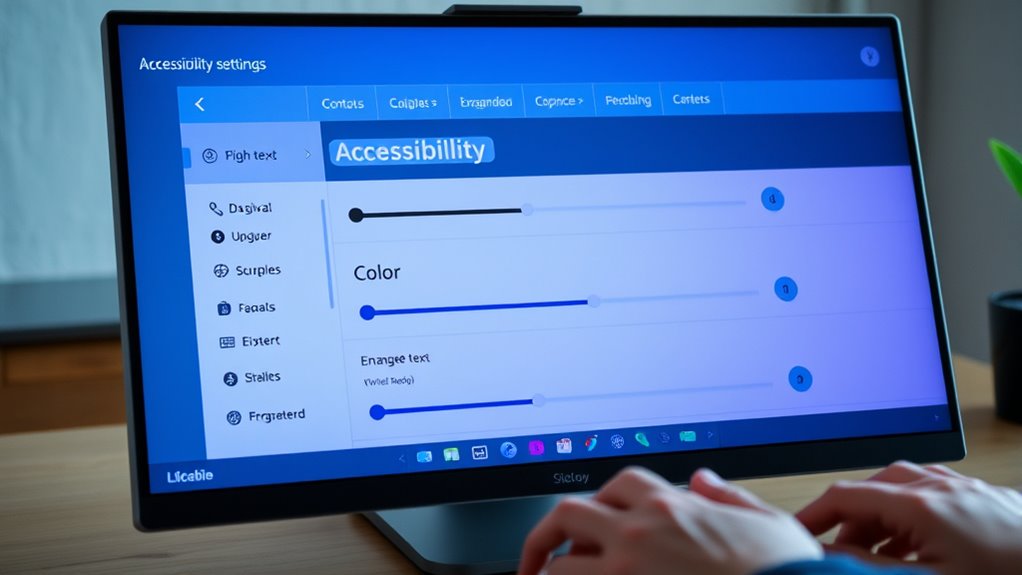
Computers have become an integral part of our daily lives, yet their complex interfaces can be intimidating for many users. One of the simplest ways to make your computer easier to read is by adjusting accessibility settings to improve visual clarity. Small font sizes and poor color contrast can strain your eyes and make reading difficult, especially over extended periods. Thankfully, most operating systems allow you to customize these features to suit your needs.
Start by focusing on font size. When text appears too small, it forces you to squint or lean closer to the screen, causing discomfort and reducing readability. Increasing the font size ensures that text is clear and easy on your eyes. On Windows, you can do this through the display settings by choosing a larger text size or scaling the entire interface. Mac users can navigate to Display preferences and adjust the resolution or use the zoom feature for a similar effect. These adjustments make reading menus, documents, and web pages effortless, so you won’t have to strain or lose focus.
Adjust font size on your computer for easier, less straining reading.
Color contrast is equally important. Low contrast between text and background can make reading tiring and cause fatigue. For example, gray text on a white background might look sleek but can be hard to discern. Instead, you should opt for high-contrast combinations like black text on a white or yellow background. Many operating systems provide built-in options for adjusting color schemes or enabling high contrast modes. These modes swap out lower contrast colors for more distinct, easier-to-read options. For example, enabling high contrast on Windows adjusts the color palette to enhance readability, making text stand out sharply against backgrounds. On macOS, you can turn on “Increase Contrast” or use accessibility features that modify color schemes for better visibility. Understanding color contrast helps you choose the most effective visual settings for your needs.
In addition to font size and color contrast, you can activate other accessibility features such as screen magnifiers or text-to-speech tools that help you focus on the content without unnecessary strain. These tools work together to create a more comfortable reading experience and reduce eye fatigue, especially if you spend hours working on your computer. Making these adjustments isn’t complicated; most operating systems guide you through the process with clear instructions, enabling you to customize your display quickly. By tweaking font size and color contrast, you’ll find that your screen becomes more inviting, allowing you to read longer and with less effort. It’s a small change that can profoundly improve your overall user experience and make your digital environment more accessible and comfortable.
Top picks for "make computer easier"
Open Amazon search results for this keyword.
As an affiliate, we earn on qualifying purchases.
Frequently Asked Questions
Can I Customize Accessibility Settings for Individual Apps?
Yes, you can customize accessibility settings for individual apps using app-specific customization and app accessibility profiles. Many operating systems let you create profiles tailored to each app, so you can modify display, text size, or contrast settings as needed. Simply access the accessibility menu, select the app, and customize the profile accordingly. This way, you guarantee each app is optimized for your readability preferences, enhancing your overall user experience.
Do Accessibility Features Work on All Operating Systems?
Accessibility features are like a universal key, but they don’t work exactly the same everywhere. Most operating systems support essential tools like screen readers and font size adjustments, but some features may be limited or vary in effectiveness. For example, a screen reader on Windows might differ from one on macOS. Always verify your OS’s accessibility options to confirm the tools you need are fully supported and work smoothly for you.
How Do I Update Accessibility Settings After a System Update?
After a system update, you should check your accessibility settings to verify they’re still configured correctly. Sometimes, updates reset these settings, so you’ll need to re-enable or adjust them. To do this, go to your device’s accessibility menu, review your preferences, and make any necessary changes. Updating your accessibility settings after a system update helps maintain a comfortable and accessible user experience, preventing potential issues caused by the reset.
Are There Accessibility Options for Non-Visual Impairments?
If you have non-visual impairments, accessibility options like screen readers and tactile feedback can transform your tech experience. You can activate speech synthesis, which reads on-screen text aloud, and enable tactile alerts that provide physical feedback. These tools help you navigate, understand, and utilize your computer more effectively. By customizing these settings, you empower yourself with enhanced ease, enabling more independent and inclusive interactions with your device.
Can I Use Third-Party Tools With Built-In Accessibility Features?
Yes, you can use third-party tools alongside your computer’s built-in accessibility features like screen magnification and speech recognition. These tools often enhance your experience by offering advanced options or customization. For example, you might add specialized screen magnifiers or voice command programs. Just confirm compatibility, and you’ll be able to create a more accessible and comfortable computing environment tailored to your needs.
Conclusion
By adjusting these five accessibility settings, you can make your computer much easier to read and navigate. Don’t you deserve a device that works for you, not against you? Taking a few moments to customize your settings can make a big difference in your daily digital experience. Why settle for less when you can tailor your computer to fit your needs perfectly? Start making these simple changes today and enjoy a more comfortable, accessible tech experience.