
Mastering essential keyboard shortcuts can save you hours each week by streamlining movement, editing, and window management. Focus on quickly switching between windows with Alt + Tab, navigating text with Ctrl + Arrow keys, and managing applications using Windows + Arrow keys. Customize shortcuts to fit your workflow and practice them regularly; they become second nature over time. Keep learning more shortcuts, and you’ll find your productivity skyrocketing with minimal effort.
Key Takeaways
- Focus on mastering a few essential shortcuts daily to build muscle memory gradually.
- Use shortcuts like Alt + Tab and Windows + D to quickly switch windows and minimize clutter.
- Practice navigation shortcuts such as Ctrl + Arrow keys and Home/End to edit and move through documents faster.
- Customize shortcuts for repetitive tasks to streamline workflows and reduce manual menu navigation.
- Consistent daily practice with key shortcuts accelerates proficiency, saving hours over time even if learning feels tedious.
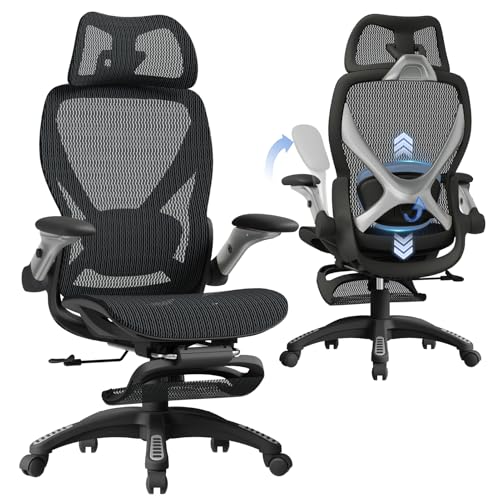
ELABEST X100 Ergonomic Mesh Office Chair with Footrest, Big and Tall Hone Desk Chair with 5D Flip-Up Arms, Adjustable 3D Lumbar Support,Gaming & Executive Computer Chairs
【Your All-Day Comfort Solution】 Premium Ergonomic Desk Chair with Footrest featuring dynamic 3D lumbar support, 5D Flip-Up Armrests,...
As an affiliate, we earn on qualifying purchases.
Mastering Basic Navigation Shortcuts
Mastering basic navigation shortcuts can considerably speed up your workflow and make computer use more efficient. Instead of reaching for your mouse, you can jump between files, folders, and applications quickly with simple keystrokes. For example, pressing Alt + Tab allows you to switch between open windows instantly, saving time searching for the right app. Using Ctrl + Arrow keys helps you navigate through text or documents without scrolling manually. Home and End keys move your cursor to the beginning or end of a line, streamlining editing. Page Up and Page Down let you scroll through pages swiftly. These shortcuts reduce unnecessary mouse movement, keeping your hands on the keyboard and maintaining your focus on the task at hand.

VIVO 48 inch Desk Converter, K Series, Height Adjustable Sit to Stand Riser, Dual Monitor and Laptop Workstation with Wide Keyboard Tray, Black, DESK-V048KB
Create Instant Active Standing: VIVO’s desk riser provides on-demand standing throughout the day for the freedom to get...
As an affiliate, we earn on qualifying purchases.
Quick Text Editing Moves

After learning how to navigate efficiently, speeding up your text editing can save even more time. Keyboard shortcuts let you quickly modify text without reaching for the mouse. For example, use `Ctrl + Shift + Left/Right Arrow` to select words swiftly or `Ctrl + X` to cut large sections. Inserting or replacing text becomes faster with `Ctrl + Insert` for copying and `Shift + Insert` for pasting. Moving the cursor within words is easy with `Ctrl + Left/Right Arrow`. Here’s a quick reference:
| Action | Shortcut | Description |
|---|---|---|
| Select word | `Ctrl + Shift + Left/Right` | Highlights entire word |
| Cut selected text | `Ctrl + X` | Removes and copies to clipboard |
| Paste | `Shift + Insert` | Inserts clipboard content |
| Move cursor word-by-word | `Ctrl + Left/Right Arrow` | Jumps across words |
| Undo last action | `Ctrl + Z` | Reverses recent change |

TRALT Office Chair Ergonomic Desk Chair, 330 LBS Home Mesh Office Desk Chairs with Wheels, Comfortable Gaming Chair, High Back Office Chair for Long Hours (Black)
Lumbar Support Ergonomic Design: Contours to the natural curve of the lumbar spine. The split lumbar support provides...
As an affiliate, we earn on qualifying purchases.
Managing Windows and Applications Efficiently
Managing multiple windows and applications efficiently is essential for maintaining a smooth workflow. Keyboard shortcuts help you switch, organize, and control your workspace quickly.
- Press `Alt + Tab` to cycle through open applications without reaching for the mouse.
- Use `Windows + D` to instantly show the desktop, minimizing all windows.
- Press `Windows + Arrow keys` to snap windows to the sides or corners for side-by-side viewing.
- Use `Alt + Space` to open a window’s menu, then press `M` to move it or resize it with arrow keys.
Mastering these shortcuts reduces clutter, speeds up multitasking, and keeps you focused on your work instead of hunting for buttons. Efficient window management becomes second nature, saving you time and frustration.

PatioMage Ergonomic Office Chair, Big and Tall Desk Chair with Adjustable Lumbar Support & Seat Depth, High Back Computer Chair, Swivel Mesh Chairs with Wheels for Home Office, Black
【Ergonomic Design】PatioMage is committed to creating the most comfortable ergonomic mesh office chair. Our office chairs are perfectly...
As an affiliate, we earn on qualifying purchases.
Customizing Shortcuts to Fit Your Workflow

Customizing your keyboard shortcuts allows you to tailor your workflow to better suit your specific needs and habits. By assigning commands to keys that feel intuitive, you reduce the time spent searching menus or remembering complex sequences. Start by identifying repetitive tasks that slow you down, then reassign shortcuts to streamline those actions. Most programs let you customize shortcuts through settings or preferences—explore these options to simplify your routine. Keep in mind, choosing logical, easy-to-remember key combinations helps maintain muscle memory. Don’t hesitate to experiment until you find a setup that feels natural. Custom shortcuts make your work more efficient, letting you focus on the task rather than browsing through menus. Personalizing your shortcuts ultimately speeds up your workflow and reduces frustration.
Tips for Memorizing and Practicing Shortcuts

Once you’ve set up your shortcuts, the next step is to memorize and practice them until they become second nature. Consistent repetition helps embed these shortcuts into your muscle memory. To speed up this process, try these tips:
- Start small—focus on mastering 2-3 shortcuts daily.
- Use them intentionally—apply shortcuts every time you perform related tasks.
- Create flashcards—write shortcut commands on one side, actions on the other.
- Practice regularly—set aside a few minutes daily to review and drill shortcuts.
Frequently Asked Questions
Are Keyboard Shortcuts Universal Across All Software?
No, keyboard shortcuts aren’t universal across all software. While some shortcuts like Ctrl+C and Ctrl+V work in many programs, others vary widely. You might find shortcuts differ between Microsoft Word, Google Chrome, or Adobe Photoshop. To save time, familiarize yourself with shortcuts specific to each app you use. Learning the most common ones can boost your efficiency, but always double-check for unique shortcuts in different software.
How Can I Customize Shortcuts in My Specific Applications?
Craft your commands carefully by exploring your application’s preferences or settings menu. Most programs let you customize shortcuts, so you can tailor-tweak keys to your tasks. Look for options labeled “Keyboard Shortcuts,” “Hotkeys,” or “Customize.” With a few clicks, you can craft convenient combos that cut clutter and streamline your workflow. Personalizing shortcuts empowers you to perform powerful, precise actions quickly, turning tedious tasks into a seamless, satisfying sequence.
What Are Some Beginner-Friendly Ways to Learn Shortcuts Faster?
To learn shortcuts faster, start with the most common ones you use daily. Use cheat sheets or printouts near your workspace for quick reference. Practice regularly by intentionally using shortcuts instead of menus. Break learning into small chunks, focusing on a few shortcuts at a time. You can also customize shortcuts to match your workflow, making them easier to remember. Over time, muscle memory will make these shortcuts second nature.
Do Shortcuts Differ Between Windows and Mac Systems?
Think of Windows and Mac shortcuts as two different languages spoken by nearby neighbors. While some words sound similar, others need translation. You’ll find familiar commands like copy (Ctrl+C or Cmd+C), but unique shortcuts exist for each system’s special features. Learning these differences helps you navigate smoothly, like understanding a neighbor’s signals. Mastering both makes you adaptable, turning tech barriers into bridges that connect you effortlessly across platforms.
Are There Tools That Can Help Me Memorize Shortcuts More Effectively?
Yes, there are tools that can help you memorize shortcuts more effectively. You can try flashcard apps like Anki or Quizlet, which let you create custom decks for your shortcuts. Interactive tutorials such as ShortcutFoo or Keybr can also reinforce learning through practice. Additionally, browser extensions or productivity apps often include shortcut trainers. Using these tools regularly makes memorization easier and helps you integrate shortcuts into your workflow seamlessly.
Conclusion
So, go ahead—waste hours memorizing shortcuts you’ll never use. Or, just keep clicking endlessly and enjoy the thrill of productivity regret. After all, who needs efficiency when you can cling to outdated habits? But if you’re brave enough to embrace these tricks, you’ll find yourself marveling at how much time you’ve suddenly gained—time better spent pretending you’re too busy to learn something new. Cheers to your future, shortcut-savvy self!