
Choosing between 27, 32, or ultrawide monitors depends on your work style and space. If you handle detailed design or video editing, a 27-inch with high resolution is ideal. For multitasking or larger workflows, a 32-inch offers more room. Ultrawide screens mimic dual monitors, great for seamless multitasking and large projects. To find out more about which setup suits you best, explore the details ahead.

Get comfort and recovery gear delivered free — and shop member deals
- Fast, free delivery on millions of items
- Access to Prime Big Deal Days deals on October 6–7
- Prime Video, Amazon Music and more included
Key Takeaways
- 27-inch monitors are ideal for detailed tasks and smaller workspaces, offering a balance of clarity and efficiency.
- 32-inch monitors support multitasking with larger viewing areas, reducing window switching and increasing productivity.
- Ultrawide monitors provide expansive screens for seamless workflows, perfect for video editing, coding, and immersive tasks.
- Ergonomic adjustments are crucial for larger and ultrawide screens to prevent strain during extended use.
- Choose based on workspace size, task complexity, and ergonomic needs to optimize comfort and workflow efficiency.
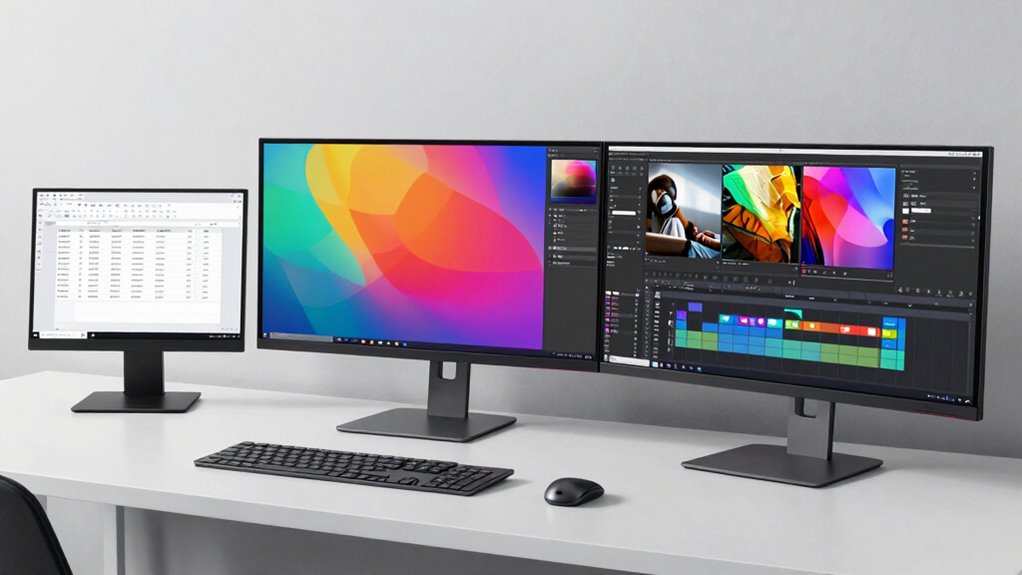
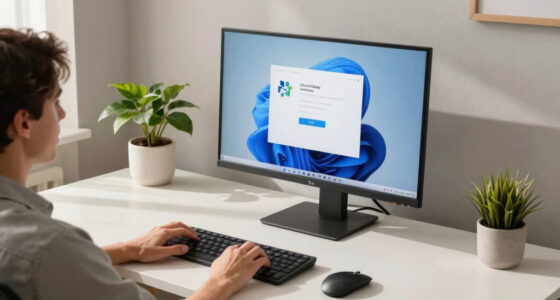
Are you struggling to choose the right monitor size for your work setup? It’s a common dilemma, and the decision hinges on several factors. One of the key considerations is screen resolution, which determines how sharp and detailed your display appears. Higher resolutions like 4K offer more workspace and crisper images, especially on larger screens, but they also demand more from your graphics card and may require scaling adjustments to keep things comfortable. Alongside resolution, ergonomic design plays an essential role. A monitor that supports adjustable height, tilt, and swivel can considerably reduce neck and eye strain, making long work sessions more comfortable regardless of size.
Choosing the right monitor involves balancing resolution and ergonomic features for comfort and clarity.
When considering a 27-inch monitor, you’re looking at a device that balances size and clarity. It’s ideal if your work involves detailed tasks like graphic design or video editing, where sharpness and fine detail matter. The 27-inch screen often comes with high resolutions, such as 1440p or 4K, giving you plenty of space for multiple windows without feeling overwhelmed. Plus, many models feature ergonomic designs, allowing you to customize your viewing angle and height, which helps maintain good posture. This size works well in smaller desks or offices where space is limited but you still want a comfortable, immersive experience.
Moving up to 32 inches, you get a larger workspace that’s perfect for multitasking. If your typical workflow involves managing several applications simultaneously or working with complex spreadsheets, a 32-inch monitor offers ample room. The larger screen size allows you to keep multiple windows open side by side, reducing the need to switch between tabs or alt-tab frequently. However, as the size increases, so do the importance of ergonomic features. You’ll want a monitor that can be adjusted easily to prevent neck strain from craning or leaning forward. Additionally, ensure the screen resolution matches the size; otherwise, the image might appear pixelated or blurry, diminishing productivity and visual comfort. Considering display resolution alongside size is crucial for optimal clarity. Proper placement and ergonomic adjustments can further enhance your comfort during extended work periods.
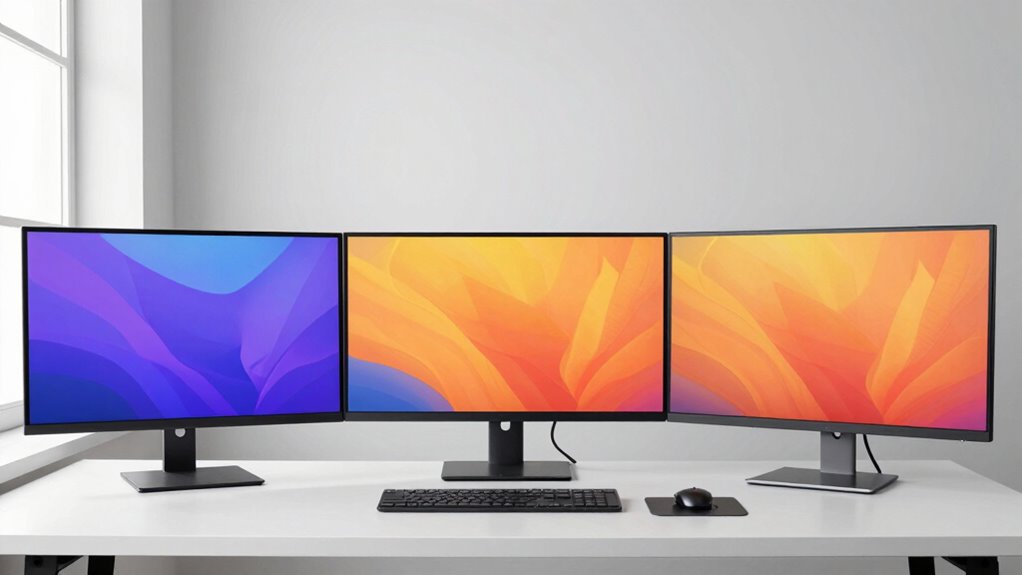
Ultrawide monitors take this a step further by providing a seamless, expansive display that mimics a dual-monitor setup without the bezel interruption. If your work involves video editing, coding, or design work that benefits from a wide timeline or multiple toolbars, ultrawide screens can streamline your workflow. They offer an immersive experience with a consistent resolution across the entire surface, helping you stay focused and organized. Just keep in mind, ultrawide monitors are generally larger and may require a more spacious desk and ergonomic adjustments to prevent neck fatigue from looking side to side. Proper placement and monitor height become even more critical to maximize comfort and minimize strain.
In the end, choosing the right layout depends on your specific needs. Whether it’s the sharp detail of a 27-inch, the expansive multitasking of a 32-inch, or the seamless work environment of an ultrawide, ensuring good screen resolution and ergonomic design will help you work more efficiently and comfortably.
27 inch 4K monitor for graphic design
As an affiliate, we earn on qualifying purchases.
As an affiliate, we earn on qualifying purchases.
Frequently Asked Questions
Can I Switch Between Different Monitor Layouts Easily?
Yes, you can switch between different monitor layouts easily, especially if you set up your workspace with cable management and color calibration in mind. Using software or monitor settings, you can quickly switch configurations to suit your task, ensuring color accuracy and tidy cables. Proper cable management makes adjustments smoother, while calibrated displays maintain consistent colors across layouts. This flexibility enhances productivity and keeps your workspace organized.
How Do I Determine the Best Resolution for Each Layout?
You determine the best resolution for each layout by considering resolution compatibility and display scaling. Start by matching your monitor’s native resolution for sharp images, ensuring compatibility with your graphics card. Adjust display scaling to make text and icons comfortable to view, especially on high-DPI screens. Test different settings to find a balance between clarity and workspace, customizing each layout to optimize your productivity and visual comfort.
Are There Specific Tasks Better Suited for Ultrawide Monitors?
Ultrawide monitors are great for tasks like video editing, gaming, and multitasking because their screen curvature offers immersive visuals and reduced eye strain. You’ll benefit from proper color calibration to make certain accuracy in creative work. For these tasks, the curved display helps you see more at once, and fine-tuning the color settings guarantees precise visuals. Overall, ultrawide monitors excel when you need expansive, engaging screens for productivity or entertainment.
What Ergonomic Considerations Are Important for Large Displays?
You should prioritize ergonomic posture and eye strain prevention when using large displays. Position the monitor at eye level, keeping your neck straight and shoulders relaxed. Guarantee the screen is about an arm’s length away to reduce eye strain, and adjust brightness and contrast to comfortable levels. Taking regular breaks and practicing proper seating can also help maintain comfort during extended use, ultimately supporting your health and productivity.
How Does Multi-Monitor Setup Compare to Single Ultrawide Screens?
A multi-monitor setup offers flexibility and workspace customization, allowing you to arrange screens for ideal ergonomics, but it requires careful monitor calibration to guarantee consistent color and brightness. In contrast, a single ultrawide screen with screen curvature provides a seamless viewing experience, reducing eye strain and minimizing bezels. Choose based on your workflow: multi monitors for multitasking or ultrawide for immersive, uninterrupted visuals.
32 inch ultrawide monitor for multitasking
As an affiliate, we earn on qualifying purchases.
As an affiliate, we earn on qualifying purchases.
Conclusion
Choosing the right monitor layout is like finding the perfect suit—you want it to fit seamlessly and enhance your work. Whether it’s the compact 27-inch, the spacious 32-inch, or the immersive ultrawide, each offers unique benefits tailored to your needs. Consider your workflow and space, then pick the one that feels just right. After all, the right monitor is the foundation of a productive, comfortable setup—like a well-tailored suit that makes you feel confident and ready to take on anything.
ergonomic adjustable monitor stand
As an affiliate, we earn on qualifying purchases.
As an affiliate, we earn on qualifying purchases.
ultrawide curved monitor for video editing
As an affiliate, we earn on qualifying purchases.
As an affiliate, we earn on qualifying purchases.
Fall Picks
fall essentials
As an affiliate, we earn on qualifying purchases.