If your monitor won’t wake up, start by checking your power settings to make certain the display isn’t turning off too quickly and adjust sleep mode options if needed. Next, verify that all cables are securely connected and swap them if you suspect a defect. Restart your computer and update your graphics drivers to rule out software issues. If problems persist, reset your monitor to factory defaults or try it with another device. Continue exploring these steps for a quick fix.
Key Takeaways
- Check and adjust power settings to prevent the monitor from sleeping too quickly or unresponsiveness.
- Confirm cable connections are secure, undamaged, and test with spare cables to rule out hardware issues.
- Power cycle the monitor and update graphics drivers to fix potential software or firmware conflicts.
- Reset monitor settings or perform factory defaults; look for firmware updates from the manufacturer.
- Test the monitor on different devices to determine if the issue is hardware-related or system-specific.
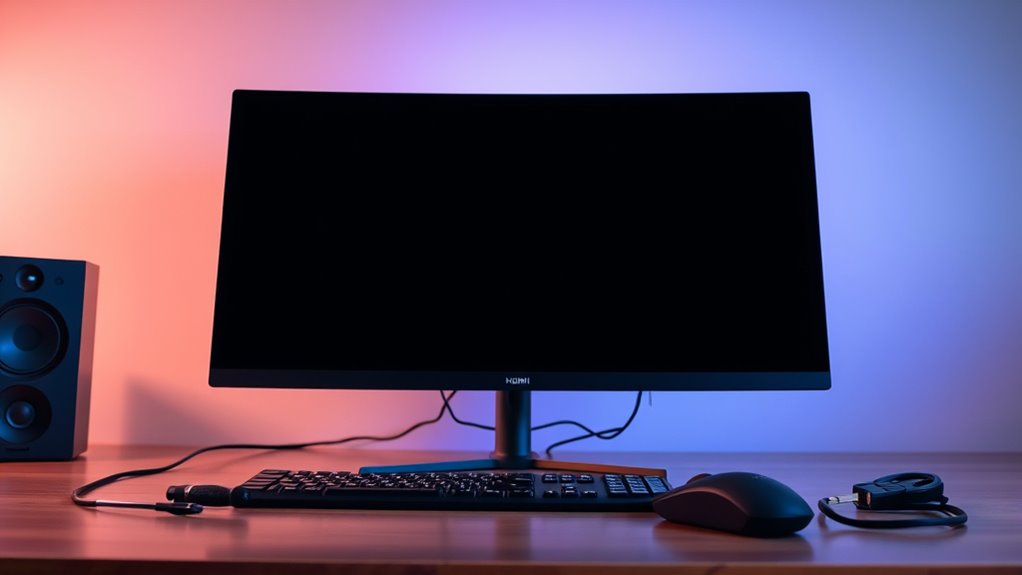
Monitor Won’t Wake Up
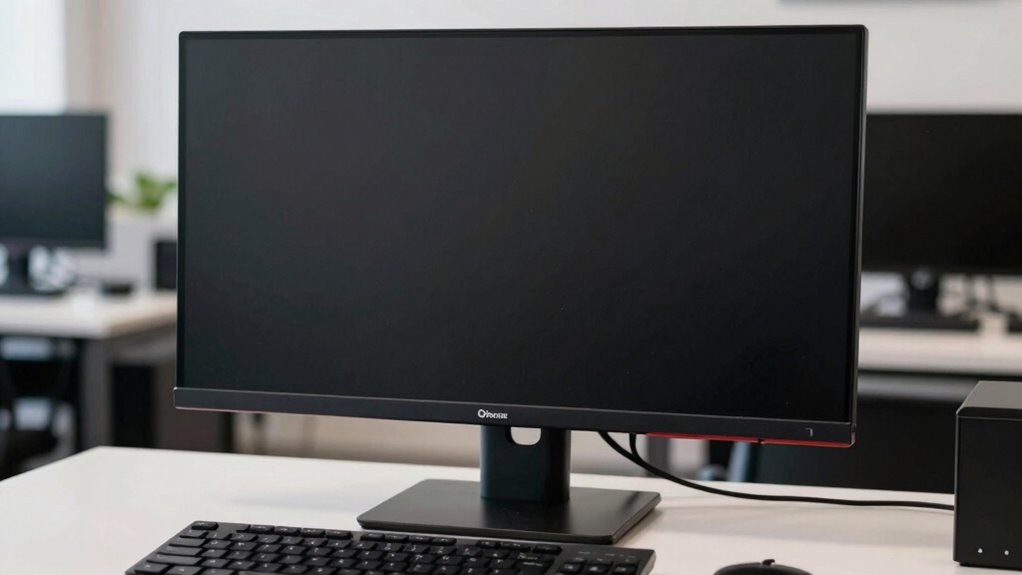
If your monitor won’t wake up from sleep mode, it can be frustrating, but you’re not alone. Many people encounter this issue, and the first step is to check your power settings. Sometimes, your computer’s power plan might be set to turn off the display too quickly or put it into a low-power state that’s hard to wake from. Head into your system’s control panel or settings menu and review your power options. Ensure that the sleep mode duration isn’t set to an overly aggressive timeframe and that your display is configured to wake easily with keyboard or mouse activity. Adjust these settings if needed, and see if that resolves the problem.
Check your power settings to ensure your display wakes easily from sleep mode.
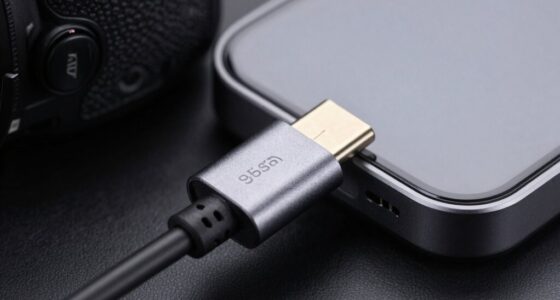
Next, examine your cable connection. A loose or faulty cable can cause the monitor to appear unresponsive or remain in sleep mode. Turn off your monitor and computer, then carefully unplug the video cable—whether it’s HDMI, DisplayPort, or VGA—and reconnect it securely. Sometimes, a simple reseat of the cable restores the connection and triggers the monitor to wake up when the system resumes. While doing this, look for any visible damage or frayed wires, as these can also prevent signals from transmitting properly. If you have a spare cable, swap it out to rule out a defective connection.
If adjusting power settings and cable connections doesn’t work, try power cycling your monitor. Turn it off completely, unplug it from the power source, and wait about a minute. Then, plug it back in and turn it on. This can reset internal components and clear any temporary glitches causing the wake-up issue. Additionally, verify that your computer’s graphics driver is up to date. Outdated or corrupt drivers can interfere with display signals and cause waking problems. Check your device manufacturer’s website for the latest updates or use your system’s device manager to automatically search for updates.
Sometimes, the problem might be related to the monitor’s internal settings or firmware. Consult your monitor’s manual or on-screen menu to see if there’s a specific setting affecting wake-up behavior. Resetting the monitor to factory defaults can also help resolve persistent issues. Finally, if nothing seems to work, try connecting the monitor to a different computer or device. This test helps determine if the issue is with the monitor itself or your computer’s configuration. By systematically checking power settings, cables, drivers, and internal configurations, you’ll save yourself time and get your display back to normal faster. Understanding monitor hardware components can also aid in diagnosing persistent issues more effectively.
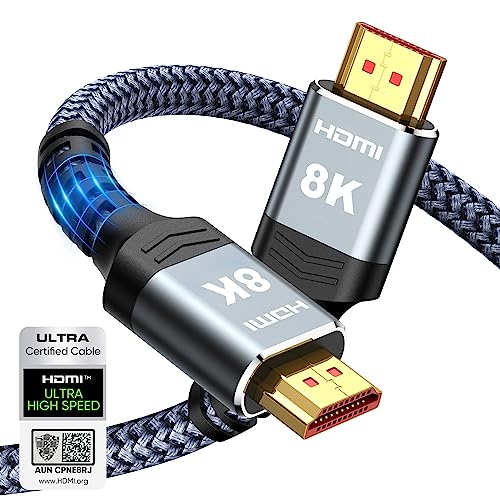
Highwings 8K 10K 4K HDMI Cable 48Gbps 6.6FT/2M, Certified Ultra High Speed
- Supports 8K at 60Hz: Ultra-high speed HDMI 2.1 cable
- High Data Transfer Rate: 48Gbps bandwidth for seamless streaming
- Backward Compatible: Compatible with HDMI 2.0 and earlier
As an affiliate, we earn on qualifying purchases.
As an affiliate, we earn on qualifying purchases.
Frequently Asked Questions
Can a Graphics Card Cause Monitor Wake-Up Issues?
Yes, your graphics card can cause monitor wake-up issues. If your graphics card isn’t properly connected or if the display resolution settings are incompatible, the monitor may fail to wake. Check your monitor cable connections and make certain the display resolution matches the monitor’s specifications. Sometimes, updating your graphics card driver or adjusting the resolution settings can resolve wake-up problems, saving you time troubleshooting unnecessary hardware.
Does Monitor Firmware Affect Its Ability to Wake?
Like a watchmaker tuning a delicate clock, updating your monitor firmware can markedly improve its ability to wake. Outdated firmware may hinder communication with your device, just as old gears cause a watch to lag. Check your display settings and make sure firmware is current; this can resolve wake issues. Keeping firmware up-to-date ensures smooth performance, preventing delays when waking your monitor and maintaining harmony between hardware and software.
How Do I Check if My Monitor’s Power Supply Is Faulty?
To check if your monitor’s power supply is faulty, start with power supply testing by unplugging your monitor and inspecting the power cord and outlet for damage. Use a multimeter to measure voltage at the power supply connector for accurate results. If voltage is inconsistent or absent, consider monitor repair techniques like replacing the power supply unit. If unsure, consult a professional for a thorough diagnosis.
Are There Specific Settings in Windows That Influence Monitor Wake Behavior?
You can influence your monitor’s wake behavior by adjusting your Windows monitor sleep settings and display timeout configurations. To do this, go to Settings > System > Power & Sleep, then customize the screen timeout durations. Lower or increase these times based on your preference. Also, verify advanced power settings to make sure that display and sleep options are properly configured, helping your monitor wake up smoothly when needed.
Can Third-Party Software Interfere With Monitor Wake Functions?
Yes, third-party software can interfere with your monitor’s wake functions. Software conflicts or driver incompatibilities might prevent your display from waking properly. You should check for recent software updates, disable or uninstall any new programs that might cause conflicts, and make sure your graphics drivers are up to date. Sometimes, third-party utilities or remote desktop tools can also interfere, so reviewing those settings helps resolve waking issues efficiently.
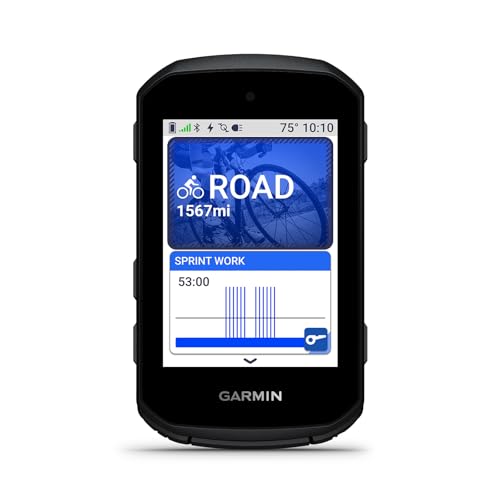
Garmin Edge® 550, Compact GPS Cycling Computer
- Vivid Color Display: Bright, easy-to-read screen with button controls
- Long Battery Life: Up to 12 hours standard, 36 hours in battery saver mode
- Smart Fueling Alerts: In-ride hydration and fueling prompts based on conditions
As an affiliate, we earn on qualifying purchases.
As an affiliate, we earn on qualifying purchases.
Conclusion
If your monitor refuses to wake up, don’t panic—try these simple fixes first. For example, Sarah nearly replaced her monitor before discovering a quick cable reconnect or reset did the trick. Remember, most issues are minor and fixable with a few easy steps. Keeping calm and following the order outlined can save you time and money. Next time your screen stays dark, you’ll know exactly what to do, saving yourself frustration and hassle.

Philips 24 Inch Computer Monitor FHD 100Hz VA VESA Flicker-Free, 241V8LB
- Display Size: 24 Inch Full HD monitor
- Resolution: 1920×1080 crisp visuals
- Panel Type: VA for high contrast
As an affiliate, we earn on qualifying purchases.
As an affiliate, we earn on qualifying purchases.

Advanced Driver Updater – Get the Latest Device Drivers for your PC | 100% Genuine Drivers | Get Improved System Performance | 1 PC 1 Year | (License Key Via Postal Service-No Backup CD)
- Easy Driver Scanning: Scan and update drivers effortlessly
- Performance Enhancement: Install latest drivers for better PC performance
- Selective Updates: Exclude incompatible drivers from updates
As an affiliate, we earn on qualifying purchases.
As an affiliate, we earn on qualifying purchases.