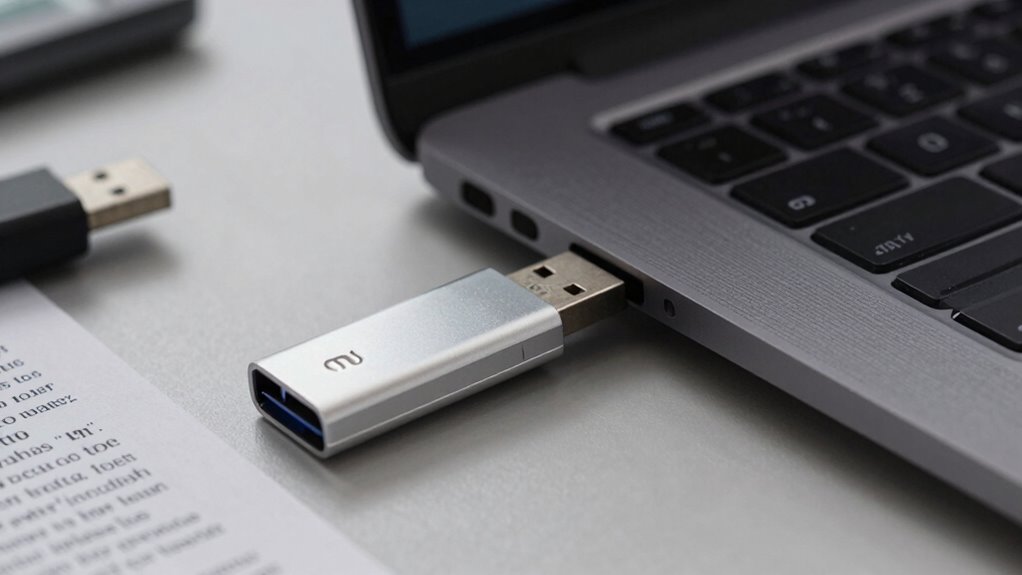

If your USB device isn’t recognized, start by reconnecting it properly and trying different ports. Update your device drivers via Device Manager and restart your system to refresh USB controllers. Make sure your Windows is fully up-to-date and consider checking the device on another PC to rule out hardware issues. These steps often fix recognition problems, and if you follow along, you’ll uncover more solutions to get your device working again.

Get comfort and recovery gear delivered free — and shop member deals
- Fast, free delivery on millions of items
- Access to Prime Big Deal Days deals on October 6–7
- Prime Video, Amazon Music and more included
Key Takeaways
- Update your device drivers through Device Manager to fix recognition issues.
- Reconnect the USB device after safely ejecting it and try different ports.
- Uninstall and restart USB controllers to reinstall drivers automatically.
- Ensure your system has the latest Windows updates and firmware installed.
- Test the device on another computer to identify hardware faults or damage.
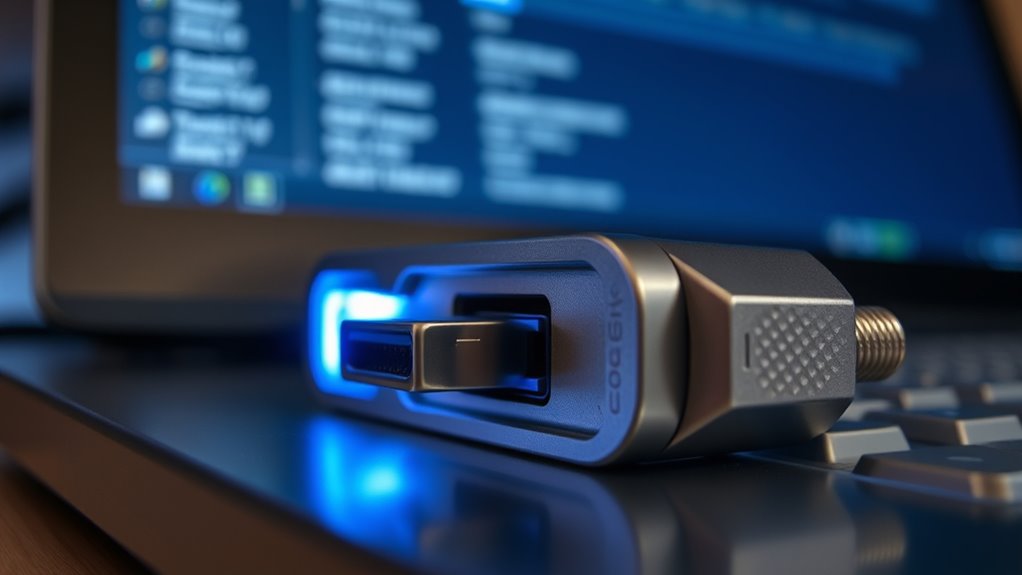
If your computer displays the “USB Device Not Recognized” error, it means your system isn’t detecting the connected device properly. This can be frustrating, but often, the fix involves some straightforward steps. The first thing you should try is updating your device drivers. Outdated or corrupt drivers are a common culprit in hardware troubleshooting scenarios and can prevent your USB device from functioning correctly. To do this, open Device Manager by right-clicking the Start button and selecting it from the menu. Locate your USB device under the “Universal Serial Bus controllers” or “Other devices” section. Right-click on the device, then choose “Update driver.” Select “Search automatically for updated driver software,” and let Windows look for the latest drivers. If Windows finds an update, install it and restart your computer to see if the problem resolves. If no update is found, visiting your device manufacturer’s website to manually download the latest driver can also be effective.
Sometimes, hardware troubleshooting involves disconnecting and reconnecting the device, especially if the driver update doesn’t help. Safely eject the USB device, unplug it from your computer, and wait a few moments before plugging it back in. Try connecting the device to a different USB port, preferably one directly attached to your computer rather than through a hub, to rule out port-specific issues. If the device still isn’t recognized, check if it works on another computer. This can determine whether the problem lies with the device itself or your system.
Another step is to restart the Windows USB controllers. You can do this through Device Manager by expanding the “Universal Serial Bus controllers” section, right-clicking each item, and choosing “Uninstall device.” After uninstalling, restart your computer. Windows will automatically reinstall the USB controllers, which can sometimes fix recognition issues caused by corrupted controller drivers. Additionally, ensure your system is fully updated. Go to Settings > Windows Update and check for available updates. Installing the latest updates can fix bugs and improve hardware compatibility.
Ensuring your system has the latest firmware updates can also help resolve hardware recognition issues, especially when dealing with high-tech gadgets. If none of these steps work, consider performing a more thorough hardware troubleshooting process. Check the device for physical damage, try connecting it to different computers, or test it on another operating system if possible. Sometimes, issues stem from hardware faults rather than software. With a systematic approach—updating drivers, troubleshooting hardware connections, and keeping your system current—you can usually resolve the “USB Device Not Recognized” error and get your device back in working order.
USB device driver update for Windows
As an affiliate, we earn on qualifying purchases.
As an affiliate, we earn on qualifying purchases.
Frequently Asked Questions
Can Using a Powered USB Hub Fix Recognition Issues?
Yes, using a powered USB hub can fix recognition issues by providing additional power to your devices. If your USB port isn’t delivering enough power, your device might not be acknowledged properly, leading to hardware repair concerns. A powered hub ensures stable power supply and better connectivity, reducing the chance of recognition problems. This simple solution often resolves the issue without needing extensive hardware repair or replacing your USB port.
How Do I Identify Faulty USB Ports Physically?
You can identify faulty USB ports by inspecting them closely for physical damage or port corrosion. Look for bent or broken pins, burn marks, or loose connections. Port corrosion appears as greenish or whiteish buildup inside the port or around the contacts. If you notice any of these issues, it indicates a faulty port. Also, test the port with different devices to see if it consistently fails to recognize them, confirming the problem.
Is It Safe to Update Device Drivers Manually?
Updating device drivers manually can be safe if you follow proper steps, but be cautious of driver conflicts and hardware compatibility issues. Always download drivers from official sources and back up current drivers before making changes. Investigate whether the new driver is compatible with your system to prevent problems. If done carefully, manual updates help fix issues like USB device recognition without risking your system’s stability.
What Are the Signs of a Damaged USB Device?
If you notice your USB device isn’t working properly, signs of damage include frequent device malfunction, such as data transfer errors or inconsistent performance. You might also see physical signs like bent pins, corrosion, or cracks. Sometimes, a damaged USB port can cause recognition issues, making the device unresponsive or causing error messages. If these signs appear, your USB device may be damaged, and you should consider testing it on another port or replacing it.
Can Malware Cause USB Recognition Problems?
Yes, malware can definitely cause USB recognition problems. It impacts your device’s drivers and system files, making it difficult for your computer to detect the USB device. This also introduces serious security risks, as malicious software can steal data or damage your system. Don’t let your guard down; malware can turn your tech into a wolf in sheep’s clothing, so always keep your security software up to date and scan regularly.
As an affiliate, we earn on qualifying purchases.
Conclusion
Now, with your USB port shining like a gateway to endless files, you can confidently reconnect your device. Imagine the moment it lights up, recognizing your effort to fix it — a small victory in your digital world. No more frustration blocking your way; just smooth data flow and seamless connection. As you eject the device, know that your troubleshooting skills have turned a frustrating glitch into a simple, satisfying fix.
As an affiliate, we earn on qualifying purchases.
external USB hard drive troubleshooting
As an affiliate, we earn on qualifying purchases.
As an affiliate, we earn on qualifying purchases.
Halloween Picks
halloween
As an affiliate, we earn on qualifying purchases.


![Anxiety Be Like [Heresvix]](https://worksetuplab.com/wp-content/uploads/2026/10/anxiety-be-like-heresvix-featured-260x140.jpg)