To understand a monitor spec sheet like an IT pro, focus on key areas: check the resolution and size to assure clarity and workspace. Look at refresh rates and response times to evaluate motion smoothness, especially for gaming or editing. Review color accuracy and gamut coverage if you need true colors. Examine connectivity options and ports for compatibility. Don’t forget ergonomics and power efficiency features. Keep exploring to master interpreting these specs for your perfect setup.
Key Takeaways
- Understand the resolution (width x height) to assess image clarity and workspace suitability.
- Check refresh rate and response time to determine motion smoothness and gaming or editing performance.
- Review color gamut coverage and calibration details for color accuracy needs.
- Examine connectivity options like HDMI, DisplayPort, and USB-C for device compatibility.
- Assess ergonomic features and power ratings to ensure comfort and energy efficiency.

Dell 27 Monitor S2725QS, 4K UHD IPS, 120Hz, 5ms, FreeSync Premium
- Blue Light Reduction: Reduces blue light to ≤35%
- High Refresh Rate: 120Hz refresh rate with FreeSync Premium
- Fast Response Time: 5ms response time for smooth visuals
As an affiliate, we earn on qualifying purchases.
As an affiliate, we earn on qualifying purchases.
Understanding Display Resolution and Size

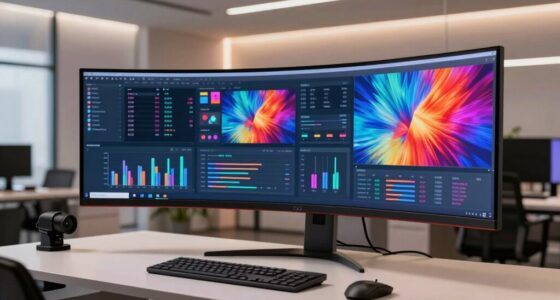
When choosing a monitor, understanding display resolution and size is essential because they directly affect image clarity and workspace. Resolution refers to the number of pixels on the screen, usually expressed as width x height (e.g., 1920×1080). Higher resolutions provide sharper images and more detail, which is vital for tasks like photo editing or design work. Screen size, measured diagonally in inches, influences how much you see at once and your overall viewing experience. Larger screens can boost productivity by giving you more space for multitasking, but they also require more desk space. Balance resolution and size to match your needs; a high-resolution display on a small screen may not be as effective as a lower resolution on a larger one.

AOC 24 Inch Gaming Monitor FHD 144Hz Fast IPS 0.5ms HDR, 24G51F
- Display Size: 24-inch Full HD monitor
- Refresh Rate: 144Hz for smooth gameplay
- Response Time: 1ms MPRT for quick reactions
As an affiliate, we earn on qualifying purchases.
As an affiliate, we earn on qualifying purchases.
Deciphering Refresh Rate and Response Time

Understanding refresh rate and response time helps you choose a monitor that matches your needs. A higher refresh rate makes motion smoother, while a faster response time diminishes blurring during fast actions. Finding the right balance between performance and cost ensures you get the best value for your gaming or work setup.
Refresh Rate Significance
Ever wonder how your monitor’s refresh rate impacts your viewing experience? A higher refresh rate means smoother motion, reducing blur during fast-paced scenes. It’s especially noticeable in gaming or fast videos, where 60Hz may feel choppy compared to 120Hz or 144Hz. Refresh rate indicates how many times per second your monitor updates the image. Here’s a quick comparison:
| Refresh Rate | Ideal Use | Motion Clarity |
|---|---|---|
| 60Hz | Everyday tasks | Basic, some blur |
| 120Hz | Gaming, fast videos | Smoother, less motion blur |
| 144Hz | Competitive gaming | Very smooth, sharp motion |
| 240Hz | Esports, ultra-fast action | Ultra-smooth, minimal blur |
| 360Hz | Professional esports | Next-level clarity |
Understanding this helps you match your monitor to your activity needs.
Response Time Impact
While a high refresh rate improves how smoothly motion appears, response time plays a key role in how quickly individual pixels change from one color to another. A lower response time means pixels update faster, reducing motion blur and ghosting effects, especially during fast-paced scenes or gaming. If response times are slow, you’ll notice trailing images or smudging, which can distract and diminish image clarity. Look for response times measured in milliseconds (ms); the lower the number, the better. Keep in mind that response time influences the clarity of rapid movements more than overall smoothness, which is primarily affected by refresh rate. Balancing a fast response time with a high refresh rate ensures sharp, fluid visuals without distracting artifacts.
Balancing Performance and Cost
Balancing performance and cost when choosing a monitor involves weighing the benefits of higher refresh rates and faster response times against their price tags. Higher refresh rates, like 120Hz or 144Hz, provide smoother motion, essential for gaming or fast-paced visuals. Faster response times reduce ghosting and motion blur, improving image clarity during quick movements. However, these features often come with a higher cost. If you mainly use your monitor for everyday tasks, a standard 60Hz display with moderate response times might suffice. Consider your specific needs and budget carefully. Investing in a monitor with a higher refresh rate and lower response time can enhance your experience, but only if it aligns with your usage and financial priorities. Finding the right balance ensures you get the best performance without overspending.
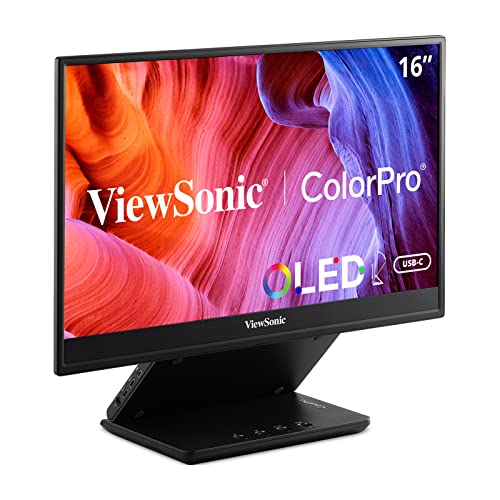
ViewSonic VP16-OLED 15.6 Inch 1080p ColorPro Monitor, OLED Display with Pantone Validated Color Accuracy for Immersive Second Screen Productivity, Advanced Ergonomics, 40W USB-C, and mini HDMI Inputs
- Display Size: 15.6 Inch Full HD OLED
- Refresh Rate: 60Hz for smooth visuals
- Portability: Lightweight at 2 lbs, compact design
As an affiliate, we earn on qualifying purchases.
As an affiliate, we earn on qualifying purchases.
Interpreting Color Accuracy and Gamut Coverage

When evaluating color accuracy and gamut coverage, you need to understand different color spaces and what they signify for your work. Look at the percentage of coverage a monitor offers in common color gamuts, like sRGB or Adobe RGB, to see how well it displays colors. Pay attention to color accuracy metrics, such as Delta E, to guarantee the monitor reproduces colors precisely.
Understanding Color Spaces
Understanding color spaces is essential for evaluating a monitor’s color accuracy and its ability to display a wide range of colors. Color spaces define the specific range of colors a monitor can reproduce, impacting how vivid or true-to-life images appear. Common color spaces include sRGB, Adobe RGB, and DCI-P3, each covering different portions of the visible color spectrum. A monitor’s color space coverage indicates how well it can reproduce colors within these standards. When reviewing specs, note the color space listed and consider your intended use. For example, photographers benefit from wider gamuts like Adobe RGB, while general users may only need sRGB. Recognizing these differences helps you select a monitor that aligns with your color accuracy needs.
Gamut Coverage Percentages
Gamut coverage percentages provide a clear measure of how much of a specific color space a monitor can display. When you see these numbers, they tell you how closely the monitor can reproduce colors within standards like sRGB, Adobe RGB, or DCI-P3. For example, a monitor with 99% sRGB coverage can display nearly all colors within that space, ensuring vibrant and accurate visuals for web work or casual use. Higher percentages mean broader color reproduction, which is vital for tasks requiring color precision. However, keep in mind that a high coverage percentage alone doesn’t guarantee perfect color accuracy—other factors like calibration also matter. Use these percentages as a baseline to assess whether a monitor meets your color display needs.
Color Accuracy Metrics
Have you ever wondered how accurately a monitor can reproduce colors beyond just coverage percentages? Color accuracy metrics, like Delta E, measure how close a monitor’s colors are to real-world references. A lower Delta E indicates more precise color reproduction, which is essential for tasks like photo editing or design work. You’ll also want to pay attention to the monitor’s calibration capabilities—some screens come factory-calibrated or support hardware calibration tools. Gamut coverage shows the range of colors a monitor can display, but color accuracy metrics reveal how faithfully it reproduces those colors. Together, these metrics help you determine if a monitor can meet your needs for color-critical work. Remember, high coverage doesn’t guarantee accurate reproduction—look for low Delta E values for true color fidelity.

BoYata Monitor Stand, Adjustable Height Metal Desktop Riser, Black
- Adjustable Height: Twist knob for height customization
- Ergonomic Design: Supports proper eye and monitor alignment
- High Weight Capacity: Supports up to 33.06 lbs with stability
As an affiliate, we earn on qualifying purchases.
As an affiliate, we earn on qualifying purchases.
Analyzing Connectivity Options and Ports

Examining the connectivity options on a monitor reveals how easily it can integrate with your devices. Look for ports like HDMI, DisplayPort, and USB-C, which support high-resolution video and fast data transfer. HDMI is common and compatible with most devices, while DisplayPort often offers higher refresh rates and better support for gaming or professional work. USB-C can transmit video, data, and power through a single cable, reducing clutter. Check the number of ports to ensure you can connect multiple devices simultaneously, such as a laptop, external drives, or peripherals. Consider whether the monitor has built-in audio jacks if you need speakers. Being aware of these options helps you choose a monitor that fits your setup and future-proof your investment.
Evaluating Panel Types and Viewing Angles

Choosing the right panel type is key to ensuring your monitor delivers the display quality you need. Different panel types impact color accuracy, response time, and viewing angles. For example, IPS panels offer wider viewing angles and better color reproduction, ideal for creative work. TN panels are faster but have narrower angles, suitable for gaming. VA panels provide high contrast and deeper blacks, perfect for multimedia. When evaluating, consider viewing angles to avoid color shifts when looking from different positions. Also, check if the panel type matches your primary use—professional editing, gaming, or general use. Understanding these differences helps you select a monitor that maintains consistent image quality from various angles. Keep these factors in mind for a display that meets your needs without surprises.
Checking for Additional Features and Ergonomics

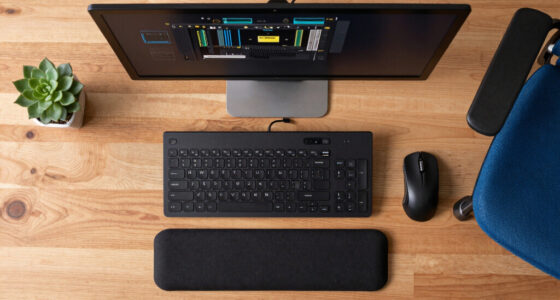
When evaluating a monitor’s features, paying attention to additional functionalities and ergonomic design can considerably enhance your overall experience. Look for features like built-in speakers, USB hubs, or HDMI and DisplayPort connections that improve versatility. Check if the monitor offers adjustable stands, including height, tilt, swivel, and pivot, to guarantee comfortable use during long sessions. Some models include blue light filters or flicker-free technology, reducing eye strain. Consider customizable options like VESA compatibility for mounting flexibility. Ergonomic features help maintain good posture and reduce fatigue, especially if you work for hours at a time. By noting these extras, you can select a monitor that not only meets your display needs but also promotes comfort and convenience throughout your workday.
Comparing Power Consumption and Energy Efficiency

To guarantee you’re making an energy-efficient choice, compare a monitor’s power consumption ratings and energy-saving features carefully. Look at the wattage listed in the specs—lower is usually better for energy savings. Check if the monitor has an ENERGY STAR rating, which indicates it meets strict efficiency standards. Consider features like automatic brightness adjustment, which dims the screen when possible, reducing power use. Also, explore if it offers power-saving modes that activate during inactivity. Finally, review user reviews or manufacturer claims about real-world energy performance.
- Wattage ratings in the specs sheet
- ENERGY STAR certification
- Brightness auto-adjustment
- Power-saving modes or features
Putting It All Together: Matching Specs to Your Needs

Matching your monitor’s specifications to your needs involves prioritizing features that align with how you use your device. If you’re a gamer, focus on high refresh rates and fast response times to ensure smooth visuals. For creative work, prioritize color accuracy, wide color gamuts, and high resolution to get detailed images. If you work long hours, look for ergonomic features like height adjustment and flicker-free technology to reduce eye strain. Professionals needing multitasking capabilities should consider larger screens and multiple inputs. Budget-conscious buyers can find solid options with balanced specs. By evaluating your primary activities, you can select a monitor that enhances your productivity and comfort without overspending on unnecessary features. Remember, the best monitor fits your specific needs rather than chasing every high-end spec.
Frequently Asked Questions
How Do I Determine the Best Monitor Size for My Workspace?
To determine the best monitor size for your workspace, consider how much desk space you have and what you’ll use the monitor for. If you’re working with detailed tasks like editing or gaming, go for a larger screen, around 27 inches or more. For general tasks or limited space, a 24-inch monitor works well. Make sure you can comfortably view the screen without straining your eyes or neck.
What Are the Differences Between LED, OLED, and LCD Panels?
LED, OLED, and LCD panels each offer unique visuals. LED screens use tiny bulbs behind an LCD to illuminate pixels, providing bright images and energy efficiency. OLED panels have organic compounds that emit light independently, offering deeper blacks and vibrant colors. LCDs rely on a backlight, making them more affordable but less contrast-rich. With OLED, you get stunning contrast; LED offers brightness; LCDs are budget-friendly options.
How Important Is HDR Support for Everyday Use?
HDR support can markedly enhance your everyday experience, making images brighter, more vibrant, and detailed. If you watch movies, play games, or edit photos, HDR offers noticeable improvements, creating a more immersive viewing experience. However, for basic tasks like browsing or word processing, HDR isn’t essential. You should prioritize it if visual quality matters to you, but it’s not a must-have for routine use.
Can I Upgrade Monitor Components Like the Stand or Bezel?
Think of your monitor as a custom car—you can often upgrade the stand or bezel to match your style. Many monitors have modular designs, allowing you to swap out parts for better ergonomics or aesthetics. Check if your model supports these upgrades; some are designed for easy customization. Just like tuning a vehicle, upgrading components can enhance your experience without needing a whole new monitor.
What Warranty or Support Options Should I Consider?
You should look for manufacturers that offer thorough warranties, ideally covering at least three years, and check if they provide on-site or remote support options. Consider extended warranty plans for added security, and verify the availability of technical assistance, repairs, or replacements. Reading customer reviews and the company’s support reputation helps ensure you’ll get reliable service, so you can confidently choose a monitor with solid warranty and support options.
Conclusion
Now that you know how to read a monitor spec sheet, you can confidently choose the perfect display for your needs. Remember, understanding the specs isn’t just about technical details—it’s about finding the right balance for your work or play. So, next time you’re shopping, ask yourself: are you really getting what you need or just chasing numbers? After all, isn’t the ultimate goal a monitor that truly serves you?