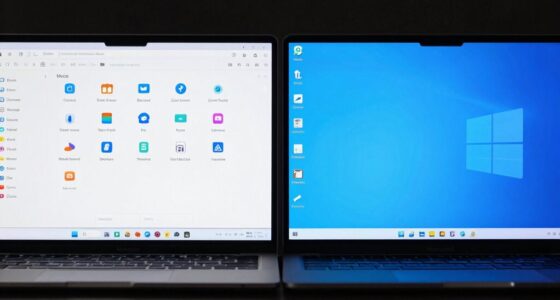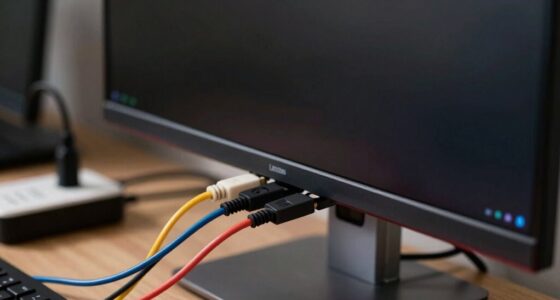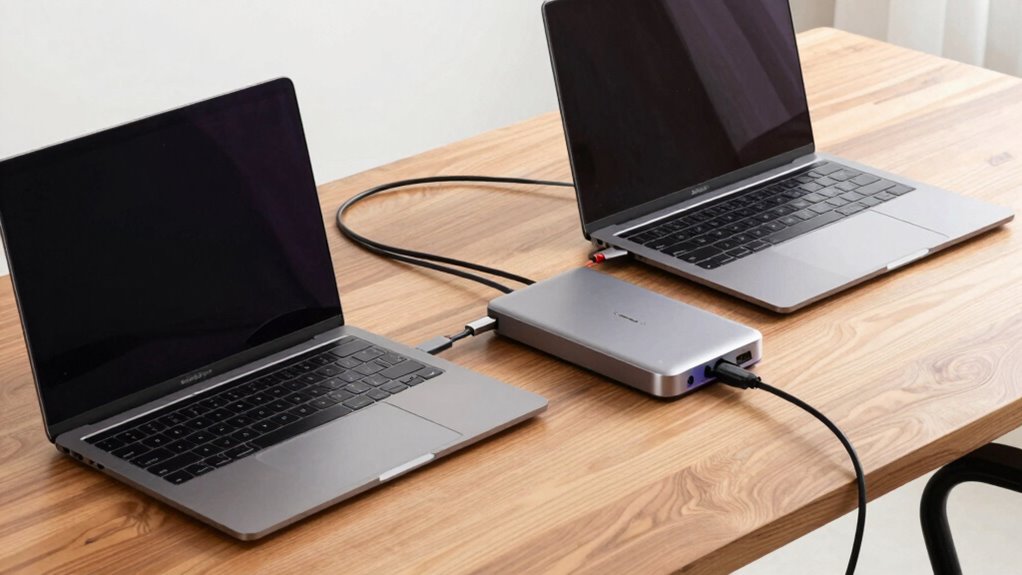

If you’re comparing docking needs, you’ll notice Windows laptops offer broader compatibility with more ports, supporting various peripherals and power delivery options easily. They work smoothly with a wide range of docking stations, making setup flexible and scalable. Macs, on the other hand, rely on proprietary accessories and have limited port options, which can restrict customization. To understand the specific differences and find the best fit for your setup, you’ll find more insights if you keep exploring.

Get comfort and recovery gear delivered free — and shop member deals
- Fast, free delivery on millions of items
- Access to Prime Big Deal Days deals on October 6–7
- Prime Video, Amazon Music and more included
Key Takeaways
- Windows laptops typically support a wider range of docking stations with more ports and power delivery options.
- MacBooks often use proprietary connectors, limiting compatible docking station choices and flexibility.
- Windows systems generally offer better peripheral compatibility, reducing the need for adapters.
- MacBooks may require additional adapters for legacy devices and specialized hardware.
- Power delivery standards on Windows enable charging multiple devices simultaneously, unlike some Mac setups.

When choosing between a MacBook and a Windows laptop, your docking needs can considerably influence your decision. One of the key factors to consider is peripheral compatibility. Macs tend to have a more limited range of compatible peripherals out of the box, especially if you’re using specialized equipment like external graphics cards, legacy devices, or certain external displays. While Macs support standard peripherals such as keyboards, mice, and basic external drives, you might encounter challenges with more niche or older devices. Windows laptops, on the other hand, generally offer broader peripheral compatibility thanks to their more diverse port options and wider driver support. If you rely on a variety of external devices or specialized hardware, a Windows machine could give you more flexibility without requiring additional adapters or drivers.
Macs have limited peripheral support, especially with specialized devices; Windows offers broader compatibility and more flexible options.
Power delivery options are another critical aspect that differs between these systems. With a MacBook, especially recent models, Thunderbolt 3 or Thunderbolt 4 ports support power delivery, allowing you to charge your laptop through the same cable used for data transfer or connecting peripherals. However, Apple’s ecosystem often emphasizes specific proprietary accessories, which can limit your choices. Windows laptops, particularly those designed for docking, typically feature a wider array of ports—such as USB-C, USB-A, HDMI, DisplayPort, and Ethernet—making it easier to connect multiple devices simultaneously. Many Windows docking stations support power delivery across multiple ports, so you can charge your laptop while running multiple peripherals. This versatility means you’re less dependent on proprietary chargers or single port solutions, giving you more freedom to customize your setup. Moreover, the compatibility of docking stations can significantly impact how smoothly your setup integrates, especially considering the diverse range of available docking options. It’s also important to note that the availability of power delivery standards can vary significantly between systems, affecting how many devices you can connect and charge simultaneously.
As an affiliate, we earn on qualifying purchases.
Frequently Asked Questions
Are Docking Stations Compatible With All Macbook Models?
Docking stations aren’t compatible with all MacBook models, mainly due to compatibility issues. Newer MacBooks with Thunderbolt 3 or 4 ports generally work well, but older models may face limitations. Power delivery is a key factor—you need a docking station that provides sufficient power for your specific MacBook. Always check the compatibility details and power delivery specifications before purchasing to guarantee smooth functionality with your MacBook.
Do Windows Laptops Support Thunderbolt Docking?
Yes, many Windows laptops support Thunderbolt docking, but it depends on Thunderbolt compatibility. If your Windows laptop has Thunderbolt 3 or 4 ports, you can enjoy the docking versatility these connections offer, including fast data transfer and multiple display support. It’s crucial to verify your laptop’s specifications to confirm Thunderbolt compatibility, as not all Windows models feature this technology. This way, you maximize your docking station’s capabilities seamlessly.
Can I Use a Single Dock for Multiple Macbook Models?
Yes, you can use a single dock for multiple MacBook models, but it’s like fitting a square peg into a round hole if the dock isn’t universally compatible. Look for one with universal compatibility and power delivery options that work across different models. This guarantees you won’t be stuck with a dock that only fits one MacBook, saving you from constant upgrades and frustration. A versatile dock makes your workflow seamless and efficient.
What Are the Security Features of Docking Stations for Mac and Windows?
Docking stations boost security for both Mac and Windows by offering wireless connectivity options that reduce cable clutter and potential theft. They also feature robust power management, ensuring your devices stay charged securely. Many docks include hardware security slots or support encryption, helping prevent unauthorized access. You can confidently use a docking station, knowing it enhances your device’s security through better connectivity and power controls.
How Do Docking Needs Differ for Gaming Laptops?
You’ll find that gaming laptops need docking stations designed for high gaming performance and hardware customization. Prioritize docks with robust GPU support, multiple DisplayPorts, and fast data transfer to enhance graphics and gameplay. You also want options for expanding RAM or storage, so choose docks that offer easy connectivity for peripherals and upgrades. This guarantees smooth gaming experiences and flexible hardware upgrades, making your gaming setup more powerful and adaptable.
As an affiliate, we earn on qualifying purchases.
Conclusion
Just like choosing the right key to open a door, your laptop docking needs depend on your unique journey. A MacBook is like a sleek, elegant key designed for a specific door, while a Windows laptop offers a versatile set of keys for many doors. Knowing what fits your destination guarantees smooth sailing. So, pick your key wisely, and open the door to productivity tailored perfectly to you.
USB-C docking station for Windows
As an affiliate, we earn on qualifying purchases.
As an affiliate, we earn on qualifying purchases.
Thunderbolt 3 docking station for MacBook
As an affiliate, we earn on qualifying purchases.
As an affiliate, we earn on qualifying purchases.
Fall Picks
fall essentials
As an affiliate, we earn on qualifying purchases.