To avoid eye fatigue while working on spreadsheets, optimize your visual environment by choosing clear, sans-serif fonts like Arial, maintaining a font size of 10-12 points. Adjust your monitor for proper positioning at eye level, reduce glare with anti-reflective filters, and match screen brightness to ambient light. Take regular breaks, like looking into the distance for 20 seconds every 20 minutes, and maintain good posture. Keep these tips in mind to work comfortably longer—there’s more to discover below.

Get comfort and recovery gear delivered free with Prime
- Fast, free delivery on millions of items
- Prime Video, Amazon Music and more included
- Member-only deals all year
Key Takeaways
- Use clear, sans-serif fonts like Arial or Calibri at 10-12 points for easy reading.
- Adjust monitor brightness and contrast to match ambient lighting, reducing harsh glare.
- Position your monitor at eye level and maintain proper distance to minimize strain.
- Apply anti-glare filters and keep screens clean to prevent reflections and eye fatigue.
- Take regular 20-second breaks every 20 minutes, focusing on distant objects to relax eye muscles.
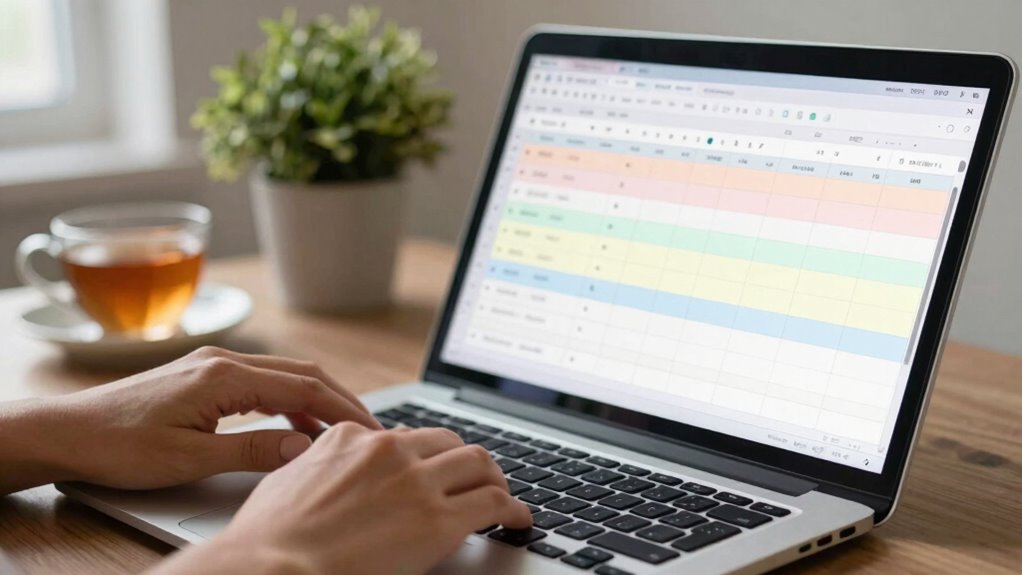
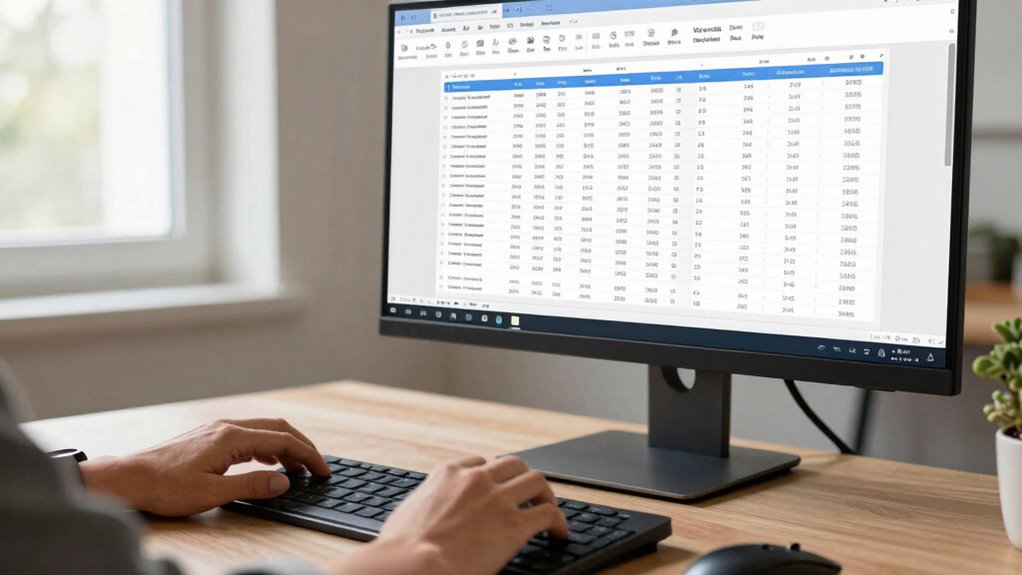
Have you ever felt your eyes strain after hours of staring at a spreadsheet? It’s a common issue, especially when working with long rows of data or complex formulas. The secret to reducing that eye fatigue often lies in simple adjustments, like font optimization and minimizing screen glare. When you optimize your font, you’re making it easier to read without squinting or leaning in closer. Choose a clear, sans-serif font like Arial or Calibri, and set it to a size that’s comfortable—usually between 10 and 12 points. Avoid overly decorative fonts or tiny text, which can cause unnecessary strain. Consistent, well-chosen fonts help your eyes process information more smoothly, decreasing fatigue and improving focus over extended periods. Additionally, display settings such as contrast and resolution can significantly impact visual comfort. Proper monitor positioning can also make a difference, as it ensures your eyes are aligned naturally with the screen, reducing strain. To further enhance visual ergonomics, consider adjusting your workspace to promote natural eye movement and reduce repetitive strain. Screen glare is another major culprit behind eye discomfort. When reflections bounce off your screen, your eyes work harder to distinguish content, leading to fatigue faster. To combat this, adjust your monitor’s position so that light sources, such as windows or lamps, aren’t directly reflecting on the screen. You can also use matte screen protectors or anti-glare filters to diffuse reflections. Adjusting your screen’s brightness to match ambient lighting minimizes harsh contrasts, making it easier for your eyes to scan data without strain. Dimming the screen slightly below the maximum brightness often creates a more comfortable viewing experience, especially in dimly lit rooms. Moreover, adjusting color temperature settings can help reduce blue light emission, which is known to cause eye strain during prolonged use. For added comfort, consider enabling night mode or blue light filters, especially when working in low-light environments. Beyond font optimization and reducing glare, consider tweaking other display settings. Increasing contrast can help delineate cell borders and data points, making spreadsheets easier to interpret. Also, enable high-resolution displays if possible, as sharper images reduce eye effort. Remember, the quality of your monitor plays a significant role; a good display with accurate color and sharp text presentation can make a huge difference in your comfort level. Taking regular breaks is crucial too. Every 20 minutes, look away from your screen for at least 20 seconds, focusing on something in the distance. This practice relaxes your eye muscles and prevents strain from prolonged focus. Additionally, maintaining proper posture—keeping your monitor at eye level and sitting at a comfortable distance—reduces the need to squint or lean forward, which can exacerbate eye fatigue.
As an affiliate, we earn on qualifying purchases.
Frequently Asked Questions
What Are the Best Screen Settings for Spreadsheet Use?
Set your screen to a comfortable brightness level and guarantee proper color calibration to reduce eye strain. Use a larger font size, like 12 to 14 points, so you don’t squint or strain your eyes. Adjust contrast for clarity, and consider enabling dark mode if available. These settings help you view spreadsheets comfortably, minimize fatigue, and improve overall readability during long sessions.
How Can I Reduce Glare on My Monitor?
Did you know that up to 90% of eye strain comes from glare and blue light? To reduce glare, position your monitor to avoid reflections from windows or lights, ideally at eye level and perpendicular to bright sources. Adjust the monitor’s tilt and use an anti-glare screen protector if needed. Also, enable blue light filters to lessen eye fatigue and improve comfort during long spreadsheet sessions.
Are There Specific Fonts That Are Easier to Read?
You’ll find fonts with high clarity, like Arial, Verdana, or Calibri, easier to read on screens. These fonts are clean and simple, reducing eye strain. Adjust your text size to make sure it’s comfortably visible—don’t go too small or too large. Combining clear fonts with appropriate size helps you read spreadsheets effortlessly, minimizing eye fatigue. Experiment with these options to discover what works best for your eyes and workspace.
What Ergonomic Tools Help Prevent Eye Strain?
Coincidentally, ergonomic tools like blue light filters and monitor stands make a big difference in preventing eye strain. You can reduce blue light exposure with filters, which ease eye fatigue during long hours. Using ergonomic monitor stands helps position your screen at eye level, decreasing neck and eye tension. Together, these tools create a more comfortable workspace, allowing you to focus longer without discomfort or fatigue.
How Often Should I Take Breaks While Working?
You should take a break every 20 minutes to reduce eye strain. During these breaks, look away from your screen and focus on distant objects to relax your eyes. Incorporate eye exercises like blinking frequently and rolling your eyes. Also, limit exposure to blue light by using screen filters or glasses, especially during long work sessions. Regular breaks and eye exercises help prevent fatigue and keep your vision comfortable.
As an affiliate, we earn on qualifying purchases.
Conclusion
By adjusting your viewing habits and embracing gentle techniques, you turn your screen into a calm lake rather than a turbulent sea. With each mindful glance, you anchor yourself in clarity, preventing eye fatigue from pulling you under. Think of your eyes as delicate flowers—nurture them with proper lighting and breaks, and they’ll bloom with focus and importance. Remember, reading spreadsheets is a journey, not a storm—navigate it with care, and your vision will thank you.
As an affiliate, we earn on qualifying purchases.
As an affiliate, we earn on qualifying purchases.
Columbus Day / Indigenous Peoples' Day Picks
long weekend sales
As an affiliate, we earn on qualifying purchases.