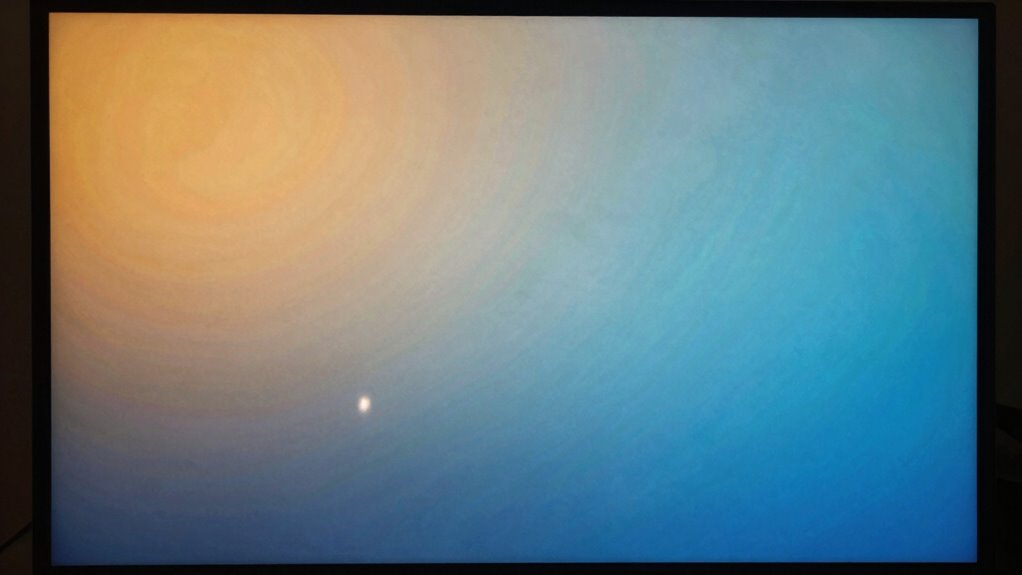

Your monitor may look ‘warm’ or ‘cool’ because of its color temperature settings, ambient lighting, or calibration. Warm tones add yellowish or reddish hues, while cool tones bring bluish shades. External lighting and incorrect adjustments can shift colors unexpectedly. To fix this, adjust the monitor’s color temperature, use calibration tools, or modify your environment’s lighting. Continuing will help you understand how to achieve balanced colors and maintain consistency over time.

Get comfort and recovery gear delivered free with Prime
- Fast, free delivery on millions of items
- Prime Video, Amazon Music and more included
- Member-only deals all year
Key Takeaways
- Monitor color temperature settings like “Warm” or “Cool” can cause the display to appear yellowish or bluish.
- Ambient lighting conditions influence how monitor colors are perceived; warm lights make screens look cooler, and vice versa.
- Incorrect calibration or default factory settings may result in unintended warm or cool color tones.
- Adjust monitor’s color temperature or white point settings through display menus for more accurate colors.
- Regular calibration using test images or tools helps maintain true color balance and fix unwanted warm or cool hues.
As an affiliate, we earn on qualifying purchases.
Understanding Color Temperature and Its Impact on Your Screen
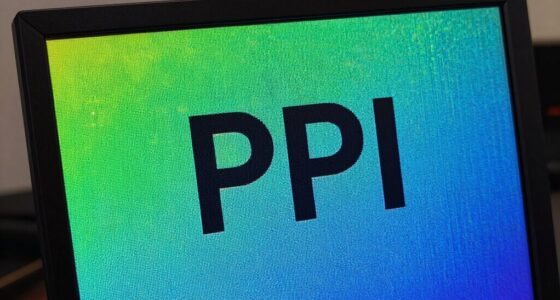
Understanding color temperature is essential because it directly affects how your screen’s colors appear. When you adjust the color temperature, you change the warmth or coolness of the display’s overall tone. A warmer setting produces yellowish or reddish hues, making images feel cozy or nostalgic. Conversely, a cooler setting adds bluish tones, giving a crisp, modern look. Your monitor’s color temperature influences how natural skin tones appear and how vibrant images seem. Most displays have preset options like “Warm,” “Neutral,” or “Cool,” but you can customize it further for perfect results. Recognizing how these settings impact your viewing experience helps you choose the right balance, whether you’re editing photos, watching movies, or working on documents.
monitor color temperature adjustment
As an affiliate, we earn on qualifying purchases.
As an affiliate, we earn on qualifying purchases.
Common Causes of Color Shifts on Monitors

Color shifts on monitors often happen due to external factors like ambient lighting, which can influence how colors appear on your screen. However, other common causes include outdated or incorrect display drivers that can distort color rendering, and hardware issues like a failing graphics card or aging monitor panels that lead to color inconsistencies. Calibration problems also play a significant role; if your monitor isn’t properly calibrated, colors may appear warmer or cooler than intended. Additionally, user adjustments—such as manually changing color temperature settings or using preset modes—can unintentionally cause shifts. Finally, manufacturing defects or damage from physical impacts can alter how your monitor displays colors. Identifying the root cause helps you take targeted steps to restore accurate color representation.
As an affiliate, we earn on qualifying purchases.
How Ambient Lighting Affects Monitor Colors

Your room’s lighting can considerably influence how monitor colors appear. Bright or warm lighting might make your display look different than in a darker setting. Understanding how ambient light affects your perception can help you adjust your monitor for more accurate colors.
Room Lighting Impact
Ambient lighting in your room can considerably influence how monitor colors appear. Bright, warm, or colored lights can make your screen look different than intended, often causing your images to seem warmer or cooler than they actually are. For example, a yellowish or orange glow from lamps can give your display a warm hue, while cool white or bluish lighting can make everything look colder. To improve color accuracy, aim for neutral, balanced lighting that doesn’t cast strong color tints on your monitor. Avoid harsh or colored lights directly facing your screen. Instead, opt for soft, indirect lighting that minimizes reflections and color distortions. Proper ambient lighting helps your monitor’s colors appear more true to life, making adjustments more effective.
Color Perception Variability
Since lighting conditions in your environment can change how you perceive monitor colors, it’s important to recognize that ambient light directly influences how accurate your display appears. Different lighting, whether natural sunlight or artificial bulbs, can make colors look warmer, cooler, or more muted. For example, yellowish incandescent lighting can give everything a yellow tint, while bluish fluorescent lights might make colors appear colder than they actually are. Your eyes adapt to these conditions, so what looks neutral in one setting might seem off in another. To get an accurate color representation, try to view your monitor under consistent lighting or use neutral, white light sources. Adjusting your environment helps ensure your monitor’s colors are perceived more accurately and consistently.
ambient light monitor adjustment
As an affiliate, we earn on qualifying purchases.
As an affiliate, we earn on qualifying purchases.
The Role of Monitor Settings in Color Accuracy

Monitor settings play a crucial role in ensuring color accuracy, directly impacting how images and videos appear on your screen. Adjusting options like brightness, contrast, and color temperature can make a significant difference. Proper calibration helps you see true colors, whether you’re editing photos or just enjoying media. Keep in mind that incorrect settings may cause colors to look overly warm or cool, skewing your perception. Use your monitor’s menu to tweak these settings for ideal color fidelity. Here’s a quick overview:
| Setting | Effect |
|---|---|
| Color Temperature | Changes overall warmth or coolness |
| Brightness | Affects overall luminance |
| Contrast | Enhances differences between shades |
| Gamma | Adjusts mid-tone brightness |
Differences Between Warm and Cool Color Tones

Understanding the difference between warm and cool color tones is essential for achieving the desired visual effect. Warm tones, like reds, oranges, and yellows, create a cozy, inviting atmosphere and add vibrancy to images. Cool tones, such as blues, greens, and purples, evoke calmness, professionalism, and a sense of serenity. Warm colors tend to appear more energetic and stimulating, while cool colors feel more relaxed and subdued. Your monitor’s color temperature influences how these tones are displayed, affecting how images and videos look. Recognizing these differences helps you adjust your settings to match your intended mood or purpose. Whether you’re editing photos or just setting up your workspace, understanding warm versus cool tones ensures your display aligns with your preferences.
Diagnosing Hardware-Related Color Issues
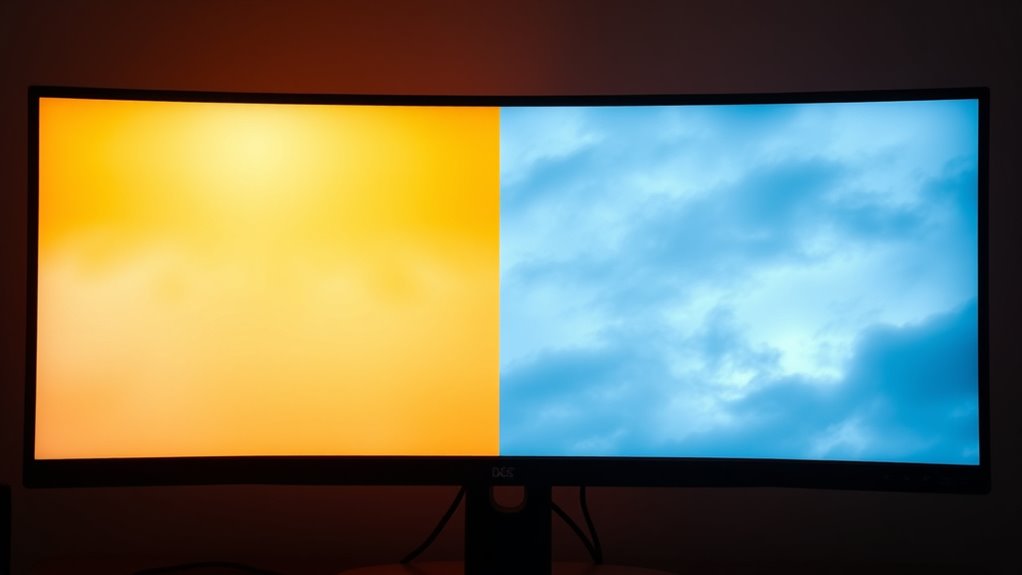
Hardware issues can often cause unexpected color problems on your display, making it challenging to achieve accurate and consistent tones. Start by checking your monitor‘s physical connections—loose or damaged cables can distort colors. Next, inspect the monitor for any signs of hardware malfunction, such as flickering, dead pixels, or uneven brightness. If your monitor has built-in color settings, reset them to default to eliminate calibration errors. Consider testing your monitor on a different computer or with another cable to rule out compatibility issues. Additionally, check if your graphics card drivers are up to date; outdated or corrupted drivers can affect color rendering. If problems persist after these steps, hardware failure might be the cause, and professional repair or replacement could be necessary.
Using Calibration Tools to Correct Color Temperature
To correct your monitor’s color temperature, start by selecting an appropriate calibration device that fits your needs. Once you have it, follow the instructions to adjust your display’s color settings for accurate results. Finally, save your calibration profile to guarantee consistent color accuracy across your work.
Selecting Calibration Devices
Choosing the right calibration device is vital for accurately adjusting your monitor’s color temperature. The device you select directly affects the accuracy of your calibration and the quality of your display. Consider these options:
- Colorimeters: Affordable and user-friendly, ideal for casual use and basic calibration.
- Spectrophotometers: More precise, suitable for professional work where color accuracy is critical.
- Hardware calibration tools with software: Offer extensive control, often combining color measurement with detailed calibration settings.
Your choice depends on your needs, budget, and how critical color accuracy is for your tasks. Investing in a quality calibration device ensures your monitor displays colors correctly, reducing the need for frequent adjustments and enhancing your overall viewing experience.
Adjusting Color Settings
Once you’ve selected the right calibration device, it’s time to fine-tune your monitor’s color temperature. Start by opening the calibration software and locate the color temperature or white point adjustment settings. Use the tool’s guided instructions to display test images designed to reveal warm or cool tones. Adjust the sliders or controls until the white appears neutral—neither too yellow nor too bluish. Focus on achieving a balanced, natural-looking white that suits your environment and preferences. Remember, small tweaks can make a big difference, so proceed gradually. Once you’re satisfied with the adjustments, save your new settings or profile. This guarantees your monitor consistently displays accurate colors, eliminating unwanted warm or cool tones.
Saving Calibration Profiles
After you’ve adjusted your monitor’s color temperature, it’s indispensable to save your calibration profile to guarantee consistent, accurate colors across your display. This profile acts as a record of your settings, so you don’t have to redo adjustments every time. Saving your calibration ensures that your preferred color balance remains intact, whether for photo editing, gaming, or general use. Most calibration tools and monitor settings allow you to create and store profiles directly on your device or through software. Be sure to name your profile clearly to distinguish it from others. Regularly updating and saving new profiles helps maintain color accuracy over time, especially as your display ages or ambient lighting changes. This step is crucial for reliable, professional-quality visuals.
Adjusting Software Settings for Better Color Balance

Adjusting the software settings on your monitor is an effective way to achieve a more accurate and balanced color display. Start by opening your display calibration or color settings, which can usually be found in your operating system’s control panel or display menu. Adjust the brightness, contrast, and color temperature sliders to see immediate changes. For a cooler look, increase the blue tones; for a warmer appearance, boost the red and yellow hues. Many monitors also have preset modes like sRGB or standard; switching between them can improve color accuracy. Additionally, you can use built-in calibration tools or third-party software to fine-tune your settings. Regularly tweaking these options helps maintain a balanced display tailored to your environment and preferences.
Tips for Maintaining Consistent Monitor Colors Over Time
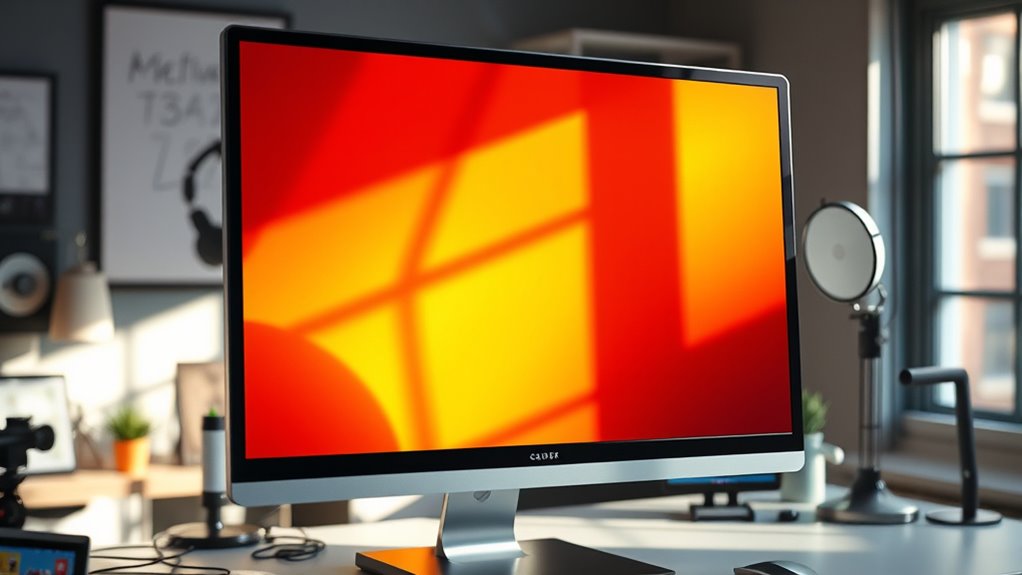
To keep your monitor’s colors consistent over time, it’s essential to establish a routine for calibration and maintenance. Regularly checking your display ensures that color shifts don’t go unnoticed. You can do this by:
- Scheduling periodic calibration sessions, ideally every few months, using calibration tools or software.
- Keeping your monitor clean, removing dust and fingerprints that affect color accuracy.
- Monitoring ambient lighting conditions, as changes in room light can alter perceived colors and impact calibration.
Sticking to this routine helps prevent color drift and maintains your display’s accuracy. Consistent calibration also reduces eye strain and improves your overall workflow. Make it a habit, and your monitor’s colors will stay true over time.
When to Seek Professional Calibration Services
While regular home calibration can keep your monitor looking good day-to-day, there are times when professional calibration services become necessary. If you notice persistent color inaccuracies, such as uneven brightness or hues that won’t correct with basic adjustments, it’s time to seek expert help. Professionals use specialized equipment to achieve precise, industry-standard color accuracy. Consider professional calibration if you work in photography, design, or video editing, where color fidelity matters. Additionally, if your display has hardware issues like dead pixels or persistent color shifts, a professional can diagnose and fix these problems. Below is a comparison of scenarios that indicate professional calibration is advisable:
| Issue | When to Seek Help | Benefit of Professional Service |
|---|---|---|
| Persistent color inaccuracies | After multiple adjustments | Precise, reliable color correction |
| Hardware malfunctions | Display defects or dead pixels | Hardware diagnostics and fixes |
| Need for color standard compliance | Professional projects or printing | Industry-standard calibration |
| Significant brightness shifts | Inconsistent brightness levels | Consistent, uniform display |
| Custom color profiles required | Specific color workflows | Accurate, tailored calibration |
Frequently Asked Questions
Can Monitor Color Temperature Affect Eye Strain or Visual Comfort?
Yes, monitor color temperature can affect your eye strain and overall comfort. A warmer setting reduces blue light, helping lessen eye fatigue during long use, while cooler temperatures can cause discomfort or headaches if too bright or harsh. Adjusting your monitor’s color temperature to a comfortable level, ideally around 6500K, can improve visual comfort and reduce strain, making your screen easier on your eyes during extended periods.
How Does Monitor Age Influence Color Accuracy and Temperature Shifts?
As your monitor ages, its color accuracy and temperature tend to shift, often by about 5-10% over several years. This means colors may appear less vibrant and warmer or cooler than they originally were. You might notice your display looks off during tasks like photo editing or graphic design. Regular calibration and timely replacement can help maintain consistent color performance, preventing eyestrain and ensuring your visuals stay true to life.
Are There Specific Industries That Require Precise Color Calibration?
Yes, industries like photography, graphic design, printing, and video editing require precise color calibration. You need accurate colors to guarantee your work looks consistent across devices and in print. Misaligned colors could lead to costly mistakes or miscommunication with clients. Regular calibration helps maintain color fidelity, ensuring your images, videos, or prints match your creative intent perfectly. Investing in proper calibration tools is essential for maintaining industry standards.
What Is the Ideal Color Temperature for Different Types of Work?
For most work, aim for a color temperature of around 6500K, which mimics natural daylight and offers balanced colors. Creative professionals, like photographers or designers, may prefer slightly cooler (7500K) or warmer (5000K) settings depending on their project needs. For general tasks, sticking near 6500K provides clarity and accuracy. Adjust your monitor based on your environment and personal preference for ideal comfort and precision.
Can Software Updates Alter My Monitor’s Color Display?
A software update can subtly change your monitor’s color display. Developers often tweak calibration settings to improve performance or fix bugs, which might shift colors slightly. You may notice a warmer or cooler tone afterward. To keep things consistent, check your display settings or calibration tools after updates. If colors seem off, adjusting the color temperature manually or restoring default settings can help restore your preferred display appearance.
Conclusion
By understanding color temperature, adjusting your settings, and maintaining your monitor, you guarantee consistent, accurate colors. Recognize the signs of color shifts, explore calibration options, and consider professional help when needed. Keep your environment well-lit, update your software, and regularly check your display. With these steps, you’ll enjoy vibrant, true-to-life images and a more comfortable viewing experience, making your monitor’s colors look just right—brightening your work and your day.
Columbus Day / Indigenous Peoples' Day Picks
long weekend sales
As an affiliate, we earn on qualifying purchases.