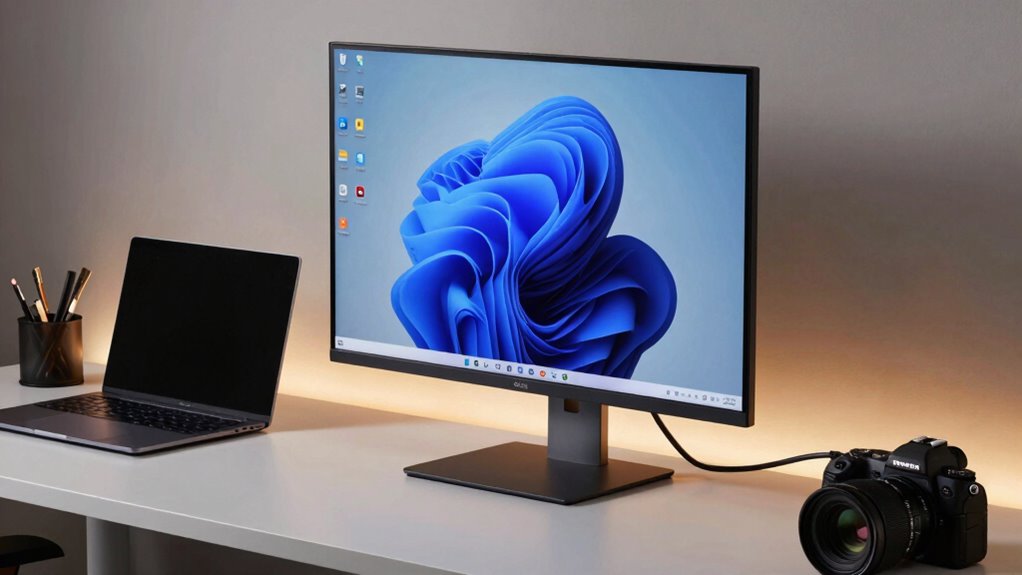

DisplayPort MST lets you connect multiple monitors through a single port by daisy chaining screens, which expands your workspace and reduces cable clutter. It works by splitting the graphics bandwidth into multiple streams, allowing each monitor to receive its own signal. Keep in mind, both your monitors and graphics card must support MST for this to work effectively. To understand how to set up and optimize your multi-monitor configuration, there’s more to explore.
Key Takeaways
- DisplayPort MST enables daisy chaining multiple monitors from a single port, expanding workspace efficiently.
- It uses Multi-Stream Transport technology to split graphics bandwidth into separate streams for each monitor.
- Monitors must support MST and have DisplayPort outputs to be compatible with daisy chaining.
- The total bandwidth from the graphics card limits resolution and refresh rate across all connected monitors.
- Proper setup involves connecting monitors in sequence and configuring settings in the operating system.

Have you ever wondered how to connect multiple monitors with just one port? If you’re looking to expand your workspace without cluttering your desk with numerous cables, DisplayPort Multi-Stream Transport (MST) might be exactly what you need. MST allows you to daisy chain multiple monitors from a single DisplayPort output, making your setup cleaner and more efficient. But before diving in, it’s essential to understand how it manages the graphics bandwidth and how daisy chaining works to ensure your monitors perform smoothly.
At its core, DisplayPort MST cleverly splits the available bandwidth of a single port into multiple streams, each dedicated to a different monitor. This means that your graphics card’s output capacity—its graphics bandwidth—becomes a critical factor. If your graphics card can’t supply enough bandwidth, the resolution, refresh rate, or overall quality of your displays might suffer. For example, connecting three 4K monitors at high refresh rates demands significant bandwidth. In such cases, you might need to lower the resolution or refresh rate to maintain a stable connection across all screens. Understanding your graphics bandwidth helps you plan how many monitors you can connect and at what quality, preventing performance bottlenecks.
DisplayPort MST divides bandwidth among monitors, so your graphics card’s capacity limits resolution and refresh rate options.
Daisy chaining is the key feature that makes this possible. Instead of running separate cables from your computer to each monitor, you connect the first monitor directly to your computer’s DisplayPort output. Then, using a DisplayPort cable, you link this monitor to the second one, and so on, creating a chain. Each monitor in the chain receives the display signal and passes it along to the next. This setup simplifies cable management and saves ports on your graphics card. However, not all monitors support daisy chaining, so it’s important to check if your monitors have the necessary DisplayPort outputs and support MST. Additionally, the contrast ratio of your monitors can influence how well you perceive differences in dark and bright scenes, especially in multi-monitor setups where consistent image quality is desired.
To set up a daisy chain effectively, you also need to ensure your graphics driver and monitor firmware support MST. Once everything is compatible, you configure your display settings in your operating system to recognize the multiple monitors. The beauty of DisplayPort MST is that it’s transparent to most users—once set up, your system treats all monitors as separate displays, allowing you to extend your desktop or mirror content seamlessly.

Displayport MST Hub, 4K@120Hz Display Port Splitter for Dual Monitors, DP to Dual DP Adapter 1 in 2 Out, DisplayPort Splitter Extended Display, Monitor Splitter for Laptop, Desktop, Graphics Card
【Display Port Splitter 1 In 2 Out】The DisplayPort splitter is designed to mirror or extend video signals from…
As an affiliate, we earn on qualifying purchases.
As an affiliate, we earn on qualifying purchases.
Frequently Asked Questions
Can Displayport MST Support 4K or Higher Resolutions Simultaneously?
Yes, DisplayPort MST can support 4K or higher resolutions simultaneously, but resolution limitations depend on your hardware requirements. Your GPU must have enough bandwidth and support MST daisy-chaining. Verify your cables and monitors also support high resolutions. If any hardware component falls short, you’ll experience reduced resolutions or performance issues. Check your device specifications to confirm whether your setup can handle multiple 4K displays via MST.
Is Any Special Hardware Required to Set up Displayport MST?
You don’t need special hardware to set up DisplayPort MST, but your hardware requirements include a compatible graphics card that supports MST and DisplayPort 1.2 or higher. The setup process is straightforward: connect your monitor daisy-chained or use MST hubs, then configure your display settings in your operating system. Guarantee your cables are high-quality and capable of handling the bandwidth needed for high resolutions and multiple screens.
What Are Common Compatibility Issues With Displayport MST?
You might face compatibility issues with DisplayPort MST if your cable isn’t compatible, your graphics driver isn’t up-to-date, or your monitor doesn’t support MST. Always make certain your cable supports Multiple Stream Transport, keep your drivers current, and verify that your hardware can handle MST features. Troubleshooting these common issues can help you set up a seamless multi-monitor display without headaches.
How Does MST Affect Overall Display Performance and Latency?
MST can slightly affect your display performance and latency by introducing minimal signal degradation, which might cause occasional flickering or color issues. You may also notice increased input lag, especially with high-refresh-rate monitors or complex setups. While generally manageable, these effects can impact fast-paced gaming or detailed design work. To minimize problems, verify your cables and hardware support the latest standards and keep your drivers updated.
Can Displayport MST Be Used With Daisy-Chained Monitors From Different Manufacturers?
Think of connecting monitors like building a puzzle; using DisplayPort MST with monitors from different manufacturers can be tricky. While some monitors support MST, others may not, leading to compatibility issues. To make certain of smooth performance, check each monitor’s compatibility and use high-quality cables. If one piece doesn’t fit, the whole picture can be compromised, so verify monitor compatibility before daisy-chaining for seamless multi-screen setups.

ASUS ProArt PA278CV 27 Inch 1440p QHD USB-C Professional Monitor
Calman Verified Delta E < 2 & 100% sRGB: Ensure true-to-life colors for professional creative artwork with this…
As an affiliate, we earn on qualifying purchases.
As an affiliate, we earn on qualifying purchases.
Conclusion
Think of DisplayPort MST like a skilled conductor guiding an orchestra from a single baton. With just one port, you can summon a symphony of multiple screens, each playing its own unique melody. As the conductor seamlessly switches between instruments, MST manages your displays effortlessly. Embrace this technology and transform your workspace into a harmonious concert of productivity, where one connection open(s) a world of visual possibilities—making your digital symphony truly limitless.

IVANKY VESA Certified 8K DisplayPort Cable 1.4, 32.4Gbps DP Cable 6.6ft
[VESA Certified DP to DP Cable 1.4] This 8K DisplayPort Cable 1.4(NOT HDMI) is officially certified by VESA…
As an affiliate, we earn on qualifying purchases.
As an affiliate, we earn on qualifying purchases.

Display Port Splitter for Dual Monitors, 4K@120Hz DisplayPort to Dual DisplayPort Adapter, Displayport MST Hub, Monitor Splitter, Dual Monitor Adapter for Laptop, Desktop, Graphics Card and More
【Display Port Splitter 1 In 2 Out】The DisplayPort splitter is designed to mirror or extend video signals from…
As an affiliate, we earn on qualifying purchases.
As an affiliate, we earn on qualifying purchases.