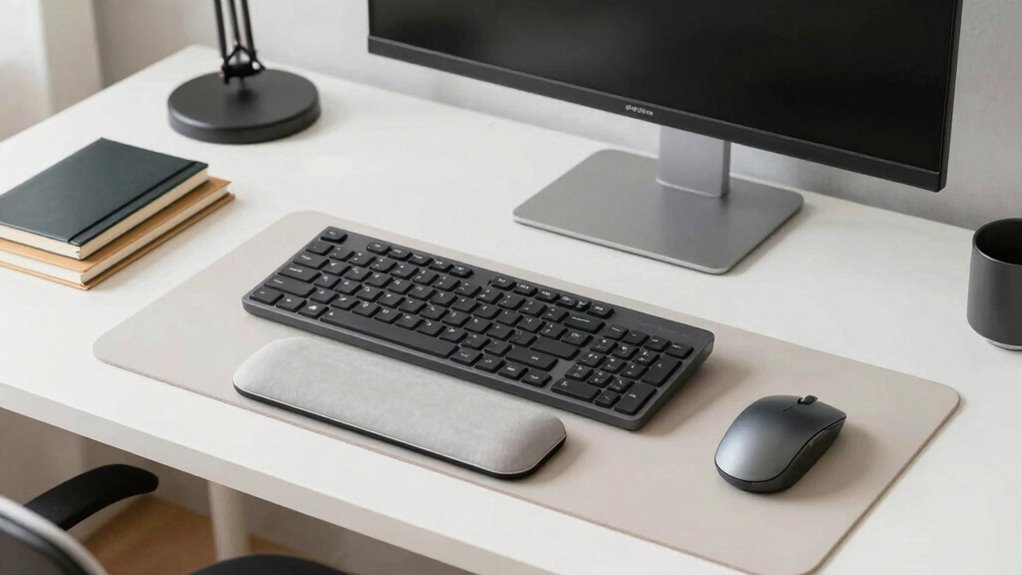
To ease wrist and hand strain, make small adjustments like setting your chair height so your feet are flat and your knees are level, keeping your keyboard and mouse aligned, and using wrist supports or cushions. Adjust your desk height to keep your forearms parallel to the floor, and maintain neutral wrist positions. Take frequent breaks and perform gentle hand exercises. Keep your workspace organized and clutter-free for smooth movements. For more helpful tips, explore the details below.
Key Takeaways
- Maintain a neutral wrist position by adjusting keyboard tilt and using ergonomic supports like wrist rests.
- Position your mouse and keyboard at the same level, with forearms parallel to the floor.
- Keep frequently used items within easy reach to minimize unnecessary stretching.
- Take regular short breaks and perform gentle hand and wrist stretches every 20-30 minutes.
- Adjust chair height and monitor position to promote proper posture and reduce strain on wrists and hands.
Adjusting Your Chair Height and Position
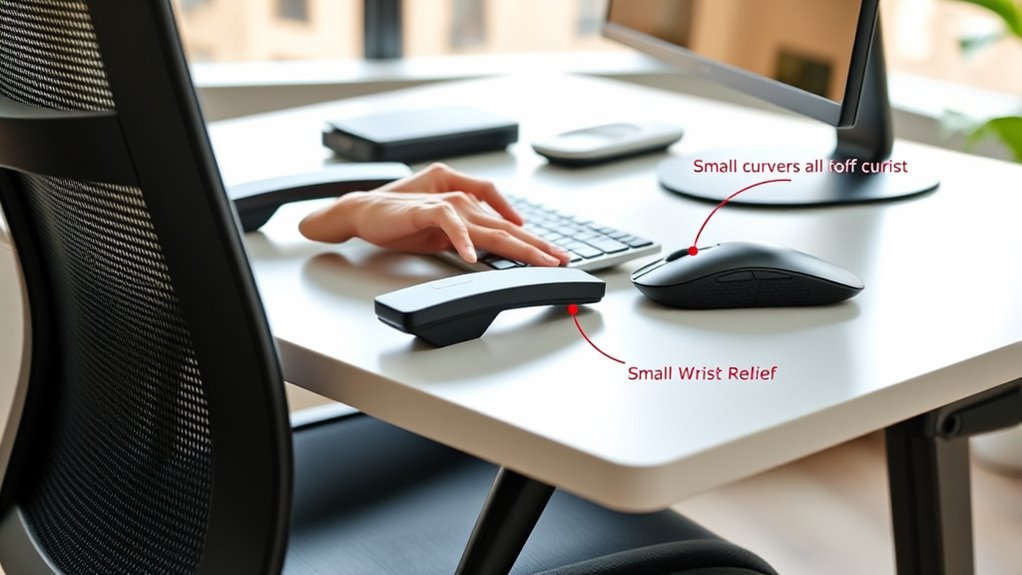
To guarantee proper wrist and hand support, start by adjusting your chair height so that your feet are flat on the floor and your knees are roughly level with your hips. When your chair is at the right height, your arms can rest comfortably at your sides without raising or lowering them to reach your work surface. This helps prevent strain on your shoulders and wrists. Make sure you sit back fully in the chair, supporting your lower back. Your elbows should form about a 90-degree angle, with your forearms parallel to the ground. Avoid slouching or leaning forward, as this can cause awkward wrist positions. Making these adjustments encourages better posture and reduces tension in your hands and wrists during long periods of work.
Proper Keyboard Placement and Angle

To prevent strain, position your keyboard so your wrists stay neutral and relaxed. Adjust the tilt to keep your hands comfortable and avoid bending your wrists awkwardly. Using supports or cushions can help maintain proper alignment and reduce discomfort during long periods of typing.
Maintain Neutral Wrist Position
Maintaining a neutral wrist position is essential for reducing strain and preventing discomfort when typing. To achieve this, position your keyboard so your wrists remain straight and in line with your forearms. Avoid bending your wrists upward, downward, or to the sides. Keep the keyboard at a height where your elbows are close to your body and form about a 90-degree angle. Use a keyboard tray if necessary to lower or raise the keyboard to the correct height. Your wrists should rest gently on the desk or a wrist support without bending. Focus on keeping your hands relaxed and your movements natural. Regularly check your wrist posture to prevent developing strain or repetitive stress injuries over time.
Adjust Keyboard Tilt Properly
Adjusting your keyboard tilt properly is essential for maintaining comfort and preventing strain during long typing sessions. When you set the right tilt, you reduce wrist extension and minimize discomfort. To get it just right:
- Start with a flat position to keep your wrists neutral and avoid excessive bending.
- Slightly tilt the keyboard upward if you notice your wrists drooping, which can cause fatigue.
- Avoid extreme angles—too steep can increase strain, and too flat may compromise ergonomics.
Finding the right tilt encourages a natural hand position, reducing pressure on your wrists and hands. Making small adjustments can dramatically decrease discomfort and prevent long-term issues. Proper tilt is a simple yet powerful way to support your wrist health during extended work or typing periods.
Use Support for Comfort
Have you considered how proper support can enhance your comfort while typing? Using supports like wrist rests or ergonomic pads helps keep your wrists in a neutral position, reducing strain. Position your keyboard so it’s level with your elbows, avoiding a steep tilt that can cause awkward wrist angles. If your keyboard has adjustable feet, set it to a flat or slightly negative tilt, depending on what feels best. Proper support minimizes pressure points and helps maintain natural wrist alignment, preventing discomfort and fatigue. Remember, support isn’t just about cushions; it’s about placement and angle that promote stability. Small adjustments to your keyboard’s position and using support tools can make a significant difference in comfort, especially during long typing sessions.
Choosing Ergonomic Mouse Options

When choosing an ergonomic mouse, consider how its shape fits your hand to reduce strain. Look for size options that match your grip style and hand dimensions for maximum comfort. Also, explore button customization features to make your workflow more efficient and less repetitive.
Ergonomic Shape Benefits
Choosing an ergonomic mouse with the right shape can considerably reduce strain on your wrist and hand. The shape directly influences comfort and how naturally your hand rests during use. When you select a mouse designed with ergonomic principles, you create a more natural hand posture, reducing tension and fatigue. Consider these benefits:
- Minimizes repetitive strain by supporting your hand’s natural curve.
- Reduces pressure points that can lead to discomfort or pain.
- Encourages proper alignment of your wrist and arm, preventing long-term issues.
A well-shaped ergonomic mouse feels intuitive, almost like an extension of your hand, helping you work longer without discomfort. Prioritizing shape guarantees your hand stays relaxed, making your workspace more comfortable and healthier over time.
Size and Fit Options
Selecting an ergonomic mouse that fits well in your hand is key to maintaining comfort and reducing strain. To find the right size, consider the width, length, and height of the mouse relative to your hand. A mouse that’s too small may cause you to grip tightly, increasing tension, while one that’s too large can force your hand into an awkward position. Measure your hand from the tip of your middle finger to the base of your palm, then choose a mouse within that range. Look for options labeled for small, medium, or large hands, and try them out if possible. Proper fit guarantees your hand remains in a natural position, minimizing fatigue and discomfort during long hours at your desk.
Button Customization Features
Have you considered how button customization features can enhance your ergonomic mouse experience? Customizable buttons let you assign commands directly to the mouse, reducing repetitive movements and strain. Imagine the relief of:
- Simplifying complex tasks with a single click
- Reducing finger fatigue by minimizing unnecessary button presses
- Increasing efficiency, so you can work longer without discomfort
Choosing a mouse with these features allows you to tailor your setup precisely to your needs, making your workflow smoother and more comfortable. With intuitive customization, you’ll spend less time reaching awkwardly for keys or adjusting your hand position. This small change can markedly reduce wrist tension and hand fatigue, giving you greater control and comfort throughout your workday.
Using Wrist Supports and Cushions
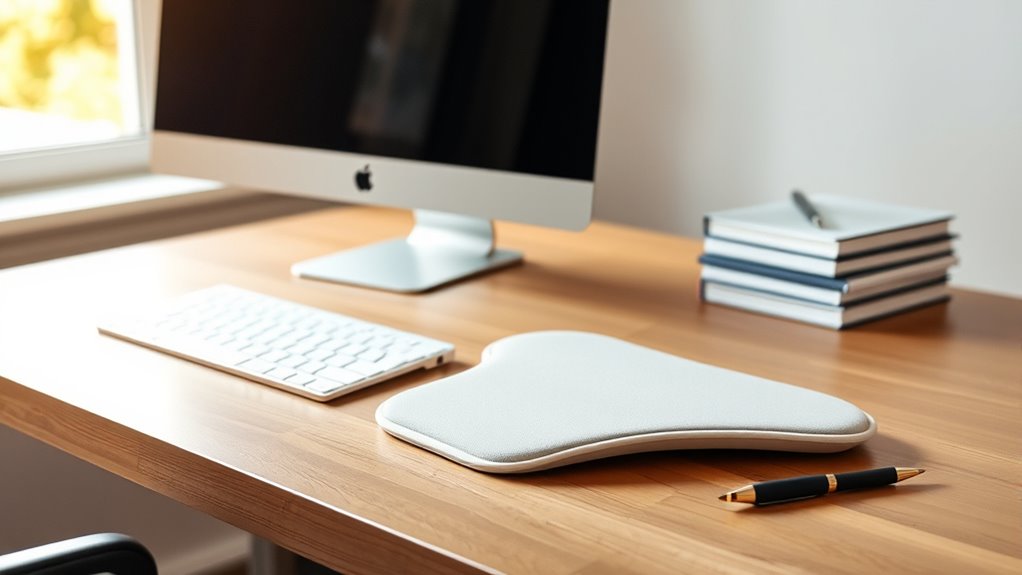
Wrist supports and cushions can substantially reduce strain on your hands and wrists during extended computer use. They help keep your wrists in a neutral position, preventing unnecessary bending or twisting. When choosing a support, consider its firmness and height to match your desk and chair setup. A good cushion should feel comfortable yet supportive without raising your wrist too high or too low.
| Support Type | Ideal Use Case |
|---|---|
| Gel Wrist Pad | For light padding and flexibility |
| Foam Wrist Rest | For firm, consistent support |
| Memory Foam Cushion | For customized comfort |
Using the right support can make a noticeable difference, reducing fatigue and discomfort during long hours at your desk.
Optimizing Desk Height and Surface Layout
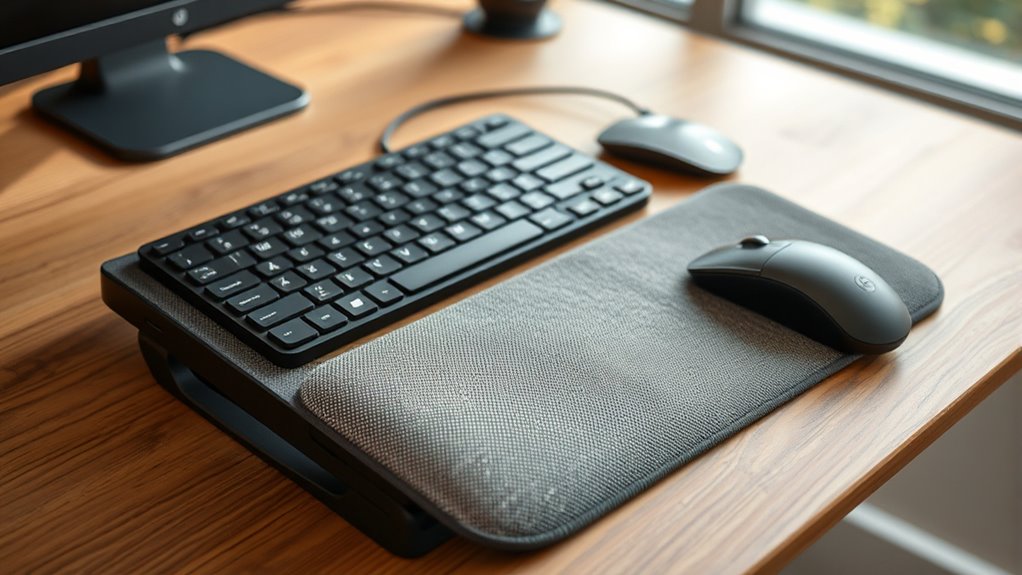
Adjusting your desk height and organizing your surface layout are essential steps to promote proper hand and wrist positioning. When your desk is at the right height, your elbows stay near a 90-degree angle, reducing strain. Proper surface layout ensures everything you need is within easy reach, minimizing awkward movements. To optimize your workspace:
Adjust your workspace to promote comfort and reduce strain with proper desk height and organized layout.
- Set your desk height so your forearms are parallel to the floor when typing.
- Arrange frequently used items close by to avoid unnecessary stretching.
- Keep your mouse and keyboard aligned to maintain a natural wrist position.
These small adjustments can prevent discomfort and improve your posture. Feeling comfortable at your workspace boosts focus and reduces fatigue. Taking control of your setup brings relief and makes your workday more manageable.
Incorporating Breaks and Hand Exercises
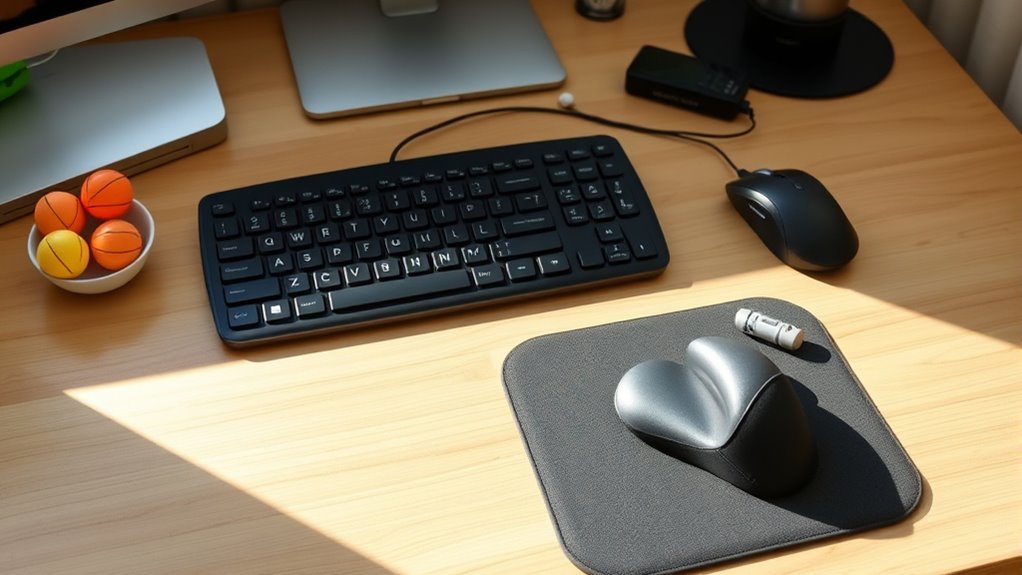
To prevent strain and fatigue, incorporating regular breaks and hand exercises into your routine is essential. Take short, frequent breaks—every 20 to 30 minutes—to stretch your hands and wrists. During these breaks, do gentle movements like wrist circles, finger stretches, and fist opens to release tension. Hand exercises help improve circulation and flexibility, reducing the risk of discomfort or injury. Consider using a timer or reminder to prompt you to step away from your desk periodically. Simple activities like rolling your shoulders, stretching your fingers wide, or squeezing a stress ball can make a big difference. Consistent breaks and targeted exercises keep your hands limber, decrease strain, and promote better comfort throughout your workday.
Organizing Your Workspace for Accessibility
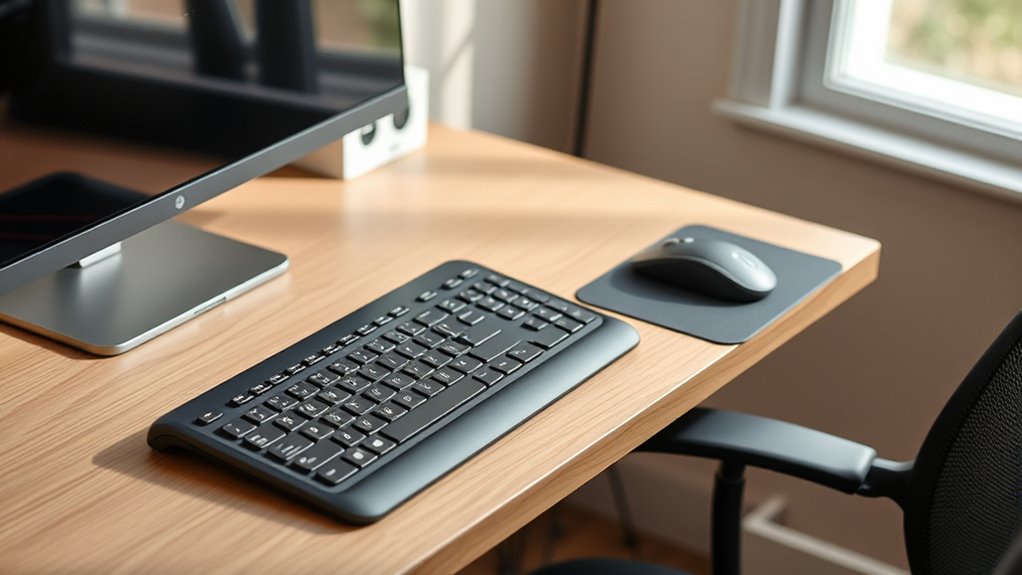
Incorporating regular breaks and exercises helps reduce hand and wrist strain, but organizing your workspace effectively can further enhance comfort and accessibility. A well-arranged desk minimizes unnecessary movements and reduces fatigue. To create an accessible workspace:
- Place frequently used items within easy reach—avoid stretching or twisting.
- Keep your mouse and keyboard aligned to prevent awkward angles.
- Use adjustable supports or stands for monitors to keep screens at eye level.
These simple adjustments can make a significant difference, easing tension and preventing discomfort. When your workspace is thoughtfully organized, you reduce strain and create a more efficient, comfortable environment. Small changes in how you arrange your tools and equipment can lead to big relief over time.
Selecting Supportive Flooring and Mats
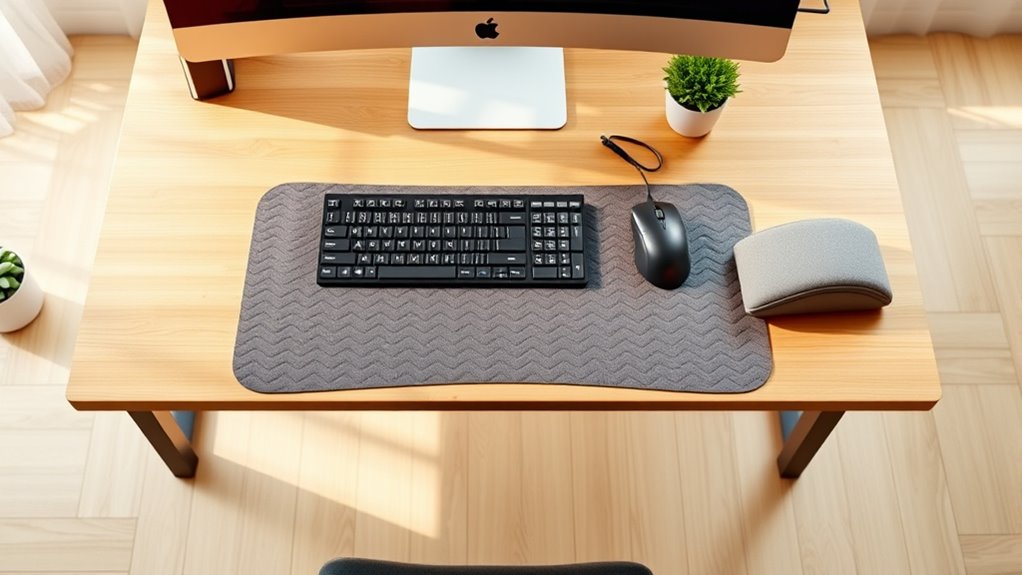
Choosing the right flooring and mats is essential for creating a supportive workspace that reduces pressure on your hands and wrists. A cushioned anti-fatigue mat can provide extra comfort if you stand while working, helping to distribute your weight evenly and reduce fatigue. When selecting mats, look for those with enough padding to absorb shock without being too soft, which can cause instability. For flooring, consider surfaces that aren’t overly hard or slippery, like rubber or textured vinyl, to prevent slips and provide gentle support. If you have a standing desk, alternating between standing and sitting can lessen strain. Proper flooring and mats help minimize pressure points, improve posture, and make your workspace more comfortable, especially when you spend long hours at your desk.
Frequently Asked Questions
How Can I Tell if My Current Desk Setup Is Causing Discomfort?
You’ll notice discomfort if your wrists or hands feel sore, numb, or tingling after work. If your posture causes you to hunch or strain your neck and shoulders, that’s a sign your setup isn’t ideal. Pay attention to any persistent pain or fatigue during or after typing. Also, if you find yourself frequently adjusting your position or experiencing difficulty maintaining comfort, your desk setup might need improvement.
Are There Specific Materials Best for Wrist Support Cushions?
You should look for wrist support cushions made with memory foam or gel-filled materials, as they conform to your wrist shape and provide excellent cushioning. Avoid hard plastics or stiff materials that can cause pressure points. Opt for covers made of breathable fabric like mesh or cotton to prevent overheating. The best cushions are adjustable, so you can customize height and angle for maximum comfort and support during long work sessions.
What Are Signs I Need a More Specialized Ergonomic Device?
If you experience persistent pain or numbness in your wrists or hands, you probably need a specialized ergonomic device. Studies show that improper support can increase wrist strain by up to 50%. If you notice tingling, weakness, or difficulty moving your fingers, it’s time to upgrade your setup. Pay attention to discomfort during or after work—these signs mean your current device isn’t providing enough support, and a more tailored solution could bring relief.
Can Desk Layout Affect Overall Posture Beyond Wrist Comfort?
Yes, your desk layout can considerably impact your overall posture. If your monitor is too high or low, you might crane your neck, causing strain. A cluttered workspace can lead to awkward reaching and twisting. Properly arranging your essentials promotes natural alignment, reducing shoulder, back, and neck tension. When your desk supports good posture, you feel more comfortable and less prone to pain throughout the day, boosting productivity.
How Often Should I Adjust My Ergonomic Setup for Best Results?
You should adjust your ergonomic setup at least once a month to maintain ideal comfort and posture. Pay attention to any signs of discomfort or fatigue, and make small changes as needed. Regular check-ins help prevent strain and improve productivity. Remember, your body changes over time, so staying proactive with adjustments ensures your workstation remains supportive and comfortable, reducing long-term health issues.
Conclusion
With small shifts and simple setups, you’ll see significant relief. By balancing your chair, keyboard, and mouse, you create comfort and control. Incorporate easy exercises and ergonomic accessories to ease wrist woes. Organize your workspace for accessibility, and don’t forget to take breaks. These tweaks transform tension into tranquility, making your desk a haven of health. Remember, tiny tweaks promote terrific, tension-free typing and terrific, trouble-free tasks!