

One common mute button mistake that makes meetings awkward is forgetting to unmute yourself after muting, leading to awkward silences and missed input. You might also mute yourself unintentionally, causing confusion or interrupted conversations. These errors often happen when you’re multitasking or distracted. Recognizing when you’re muted and others are talking can prevent misunderstandings. If you keep these tips in mind, you’ll learn ways to handle and avoid these common distractions with ease.
Key Takeaways
- Forgetting to unmute after muting can cause awkward pauses and misunderstandings during discussions.
- Mute button mistakes often lead to misinterpretation of disinterest or disengagement by other participants.
- Technical errors like accidental muting or unmuting disrupt meeting flow and create uncomfortable silences.
- Relying solely on visual cues like icons without confirming audio status increases mute-related mishaps.
- Staying calm and quickly correcting mute errors helps maintain professionalism and reduces meeting awkwardness.
Common Reasons People Forget to Unmute
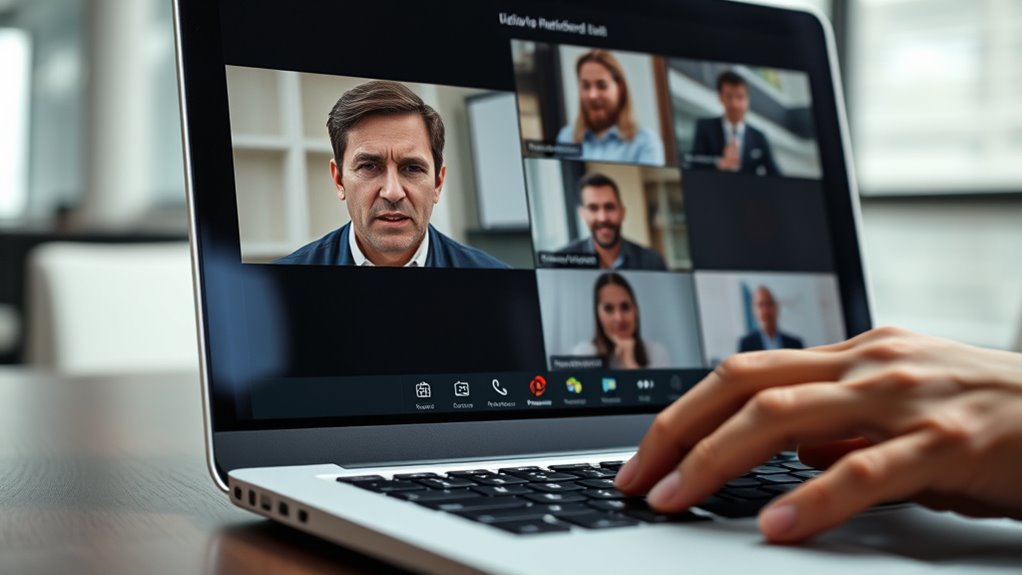
Have you ever started a video call only to realize you’re muted? It happens more often than you think. Sometimes, you forget to unmute because you’re focused on the meeting’s content, not your audio. It’s easy to get distracted by notes or other tasks, causing you to overlook the mute button. You might also be used to muting yourself to avoid background noise, and then forget to unmute when you need to speak. Technical issues or unfamiliar interfaces can add to the confusion, making it harder to remember. Additionally, if you’re multitasking or feeling overwhelmed, unmuting can slip your mind. These common reasons stem from distraction, habit, or interface challenges, leading to unintentional silence during essential moments.
How Muting Can Be Misinterpreted During Meetings

Even when you mute yourself intentionally, others might misinterpret your silence as disinterest or disagreement. They can see your muted status as a sign you’re disengaged, even if you’re listening attentively. This misunderstanding can lead to miscommunication, making collaboration awkward. To clarify your intentions, consider using visual cues or verbal affirmations.
| Muted Status | Possible Interpretation |
|---|---|
| Muted | You’re listening, not ignoring |
| Unmuted | You’re actively participating |
| Silence | Could mean disengagement or focus |
Being aware of these perceptions helps you manage how your mute button impacts others. When in doubt, briefly unmute to confirm you’re engaged, preventing unnecessary misinterpretations during meetings.
The Impact of Silent Moments on Meeting Dynamics

Silent moments during meetings can considerably influence group dynamics, often shaping perceptions of engagement and understanding. When pauses occur, they may signal that someone is confused, disengaged, or uninterested, even if that’s not the case. These quiet periods can make others feel uncomfortable or uncertain about whether the discussion is progressing effectively. On the flip side, brief silences can also give participants a chance to process information or gather their thoughts, fostering more thoughtful contributions. However, if silent moments stretch too long, they risk creating awkwardness or misinterpretation. As a participant, you might think others are bored or disengaged, which can influence your own behavior. Recognizing the impact of these pauses helps you better navigate meeting dynamics, minimizing misunderstandings and encouraging more open communication.
Recognizing When You Are Muted and Others Are Talking

How can you tell if you’re muted while others are speaking? Usually, your video window or microphone icon indicates your mute status. If the icon shows muted, you’re silent, but others might still be talking. Sometimes, there’s no clear signal, so it’s easy to miss. To avoid missing conversations, recognize these clues:
| Clue | What to Check | Why it Matters |
|---|---|---|
| No audio feedback | Confirm your mic icon is unmuted | You may be muted without realizing |
| Visual cues from others | Watch their reactions | They may be waiting for you |
| Your video display | Check for activity on your screen | Indicates if your mic is active |
| Meeting chat | Look for comments or questions | Others might indicate your silence |
Stay alert to these signs to stay engaged and avoid awkward moments.
Tips for Keeping Track of Your Mute Status
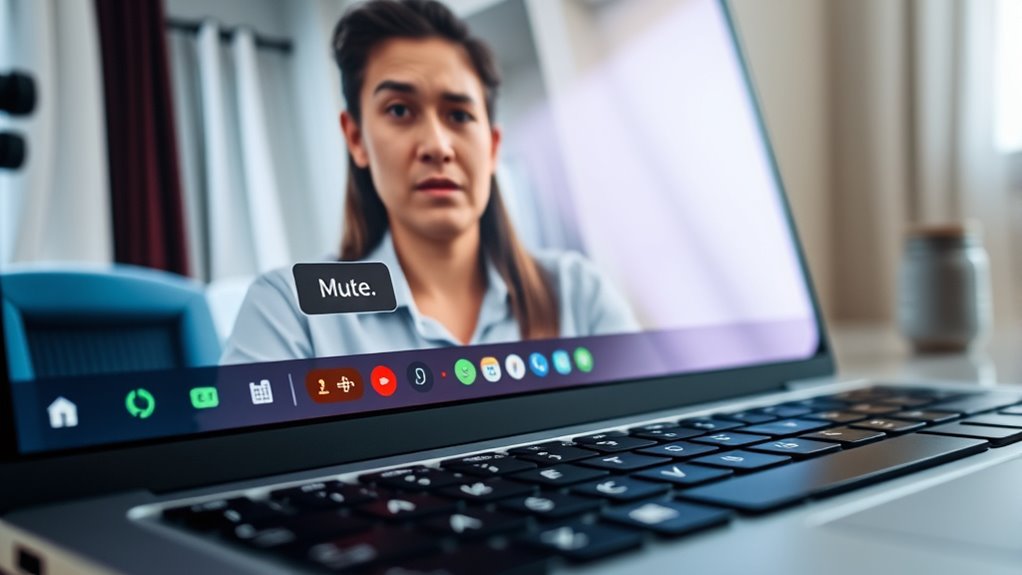
To stay aware of your mute status during a meeting, it’s helpful to develop simple habits that keep you in check. First, make a habit of glancing at the microphone icon regularly, especially before speaking. If you see it’s active, mute yourself right away, even if you’re not planning to talk. Conversely, unmute only when you’re ready to contribute. Before speaking, take a quick moment to double-check your mute status—pause, ensure the icon indicates you’re unmuted, and then speak confidently. Setting a mental routine, like muting when you join and checking your icon before speaking, reduces accidental muting mishaps. Small, consistent habits keep you aware and prevent awkward moments during meetings.
Technology Features That Help Prevent Muting Mishaps

Many video conferencing platforms now include features designed to prevent muting mishaps, making it easier for you to stay aware of your mute status. For example, some platforms display a visual indicator, like a highlighted microphone icon or a colored border around your video feed, so you instantly know if you’re muted or unmuted. Others offer automatic alerts—such as a sound or pop-up message—if you mute yourself unexpectedly or forget to unmute when speaking. Some systems even provide a “self-awareness” feature that shows a small badge or icon during meetings. These tools help you avoid accidental silence or unintentional interruptions, ensuring smoother communication. By leveraging these built-in features, you can reduce awkward moments and focus more on engaging with your team.
Best Practices for Clear Communication in Virtual Settings

Make sure to unmute yourself when you’re about to speak so your message isn’t lost. Use visual cues like raising your hand or nodding to signal you want to contribute. Clear communication relies on active participation and non-verbal signals to keep everyone on the same page.
Unmute When Speaking
Unmuting yourself at the right moments is essential for effective communication during virtual meetings. When you speak, verify you’re unmuted so your message comes through clearly. Avoid lingering on mute, which can cause confusion or delays, and remember to mute again after speaking if background noise persists. Timing matters—unmute just before you start talking and mute promptly afterward to minimize disruptions. Pay attention to cues from the host or meeting leader; they may signal when it’s your turn or remind you to unmute. Consistently unmuting when speaking keeps the conversation flowing smoothly and shows respect for others’ time. Practice these habits to prevent awkward silences and ensure everyone understands your contributions. Clear, timely communication relies on unmuting at the right moments.
Use Visual Cues
Using visual cues enhances communication clarity during virtual meetings, especially when verbal cues alone aren’t enough. Keep your camera on whenever possible; it allows others to see your facial expressions and gestures, which convey tone and emotion. Nod to show understanding or agreement, and maintain eye contact with the camera to engage participants. Use hand signals or subtle movements to emphasize points or indicate you want to speak. Pay attention to colleagues’ visual cues—if someone looks confused, clarify your message. Be aware of your background and lighting, making sure your face is clearly visible. These visual signals help create a more natural, engaging interaction, reducing misunderstandings. By actively using visual cues, you foster better connection and ensure your message lands effectively.
What to Do When You Realize You’ve Been Muted Unintentionally

Realizing you’ve been muted unintentionally can be uncomfortable, but staying calm is key. First, quickly check your microphone icon to confirm you’re muted. If you see the mute symbol, don’t panic—simply unmute yourself with a quick click. If you’re unsure whether your audience can hear you, briefly say, “Can everyone hear me?” or type in the chat. Keep your tone friendly and composed. If you accidentally interrupt or speak while muted, apologize briefly once you’re unmuted. Remember, everyone understands technical hiccups happen. Avoid over-apologizing or drawing too much attention to the mistake. Instead, smoothly continue with your point. Staying calm and confident helps you regain control of the meeting and minimizes awkwardness.
Frequently Asked Questions
How Can Team Leaders Prevent Mute-Related Misunderstandings?
To prevent mute-related misunderstandings, you should encourage your team to double-check their microphones before speaking. Remind everyone to unmute themselves when they want to contribute, and suggest using visual cues like raising hands or typing in chat. Setting clear meeting norms and periodically confirming who’s speaking can also help. These steps foster better communication and reduce awkward moments caused by forgotten mutes.
What Are the Best Cues to Signal You’re About to Speak?
You can signal you’re about to speak by raising your hand or making eye contact with the speaker, creating a natural flow. Pausing briefly before speaking also signals your intent. You might also use verbal cues like saying, “I have a quick point,” or “Can I add something?” These signals help others recognize you’re ready to contribute, reducing awkward moments and ensuring smoother, more inclusive meetings.
Are There Specific Tools to Alert Others When You Mute or Unmute?
Yes, many video conferencing platforms offer visual cues when you mute or unmute. For example, Zoom displays a microphone icon with a slash when muted, and some tools allow custom notifications or status indicators. You can also use a virtual hand raise feature or chat messages to alert others. These tools help guarantee everyone knows your speaking status, reducing awkward moments and improving communication flow during meetings.
How Do Cultural Differences Influence Mute Etiquette in Virtual Meetings?
Cultural differences play a big role in mute etiquette during virtual meetings. In some cultures, remaining muted when not speaking is seen as respectful, while others expect participants to signal when they want to speak. You should pay attention to these cues and adapt your behavior accordingly. Be aware of regional norms and observe how others handle mute/unmute actions to guarantee you’re respectful and avoid misunderstandings.
What Training Methods Improve Participants’ Mute Awareness Skills?
You can improve your mute awareness skills through interactive training, such as role-playing scenarios, where you practice muting and unmuting appropriately. Incorporate regular reminders or visual cues during meetings, and use short, engaging tutorials to reinforce best practices. While some may think training isn’t necessary, consistent practice helps you recognize mute cues naturally, reducing awkward moments and ensuring smoother communication.
Conclusion
So, next time you forget to unmute, just embrace the silence—your audience will surely appreciate the suspense. Remember, a muted moment is the universe’s way of reminding you to double-check your tech, not your brilliance. After all, nothing screams professionalism like a good old-fashioned mute mishap. Stay vigilant, stay unmuted, and turn those awkward silences into moments of comedic gold—because in virtual meetings, silence is truly golden.