
If your webcam lags, hidden issues like outdated drivers, insufficient hardware, poor lighting, or slow internet could be to blame. First, lower your resolution and improve lighting to ease camera processing. Make sure your software and drivers are up to date, and test your internet speed. Often, addressing these factors in order can fix most lag problems. If you’re curious about more causes and solutions, you’ll find useful tips ahead.
Key Takeaways
- High camera resolution increases processing load, causing lag; lowering resolution improves performance.
- Poor lighting conditions force excessive auto-focus and auto-exposure, taxing hardware and adding lag.
- Outdated drivers or streaming software create bottlenecks; updating ensures better compatibility and reduced lag.
- Slow or unstable internet connection leads to buffering and delay, regardless of camera settings.
- Using underpowered hardware limits high-resolution video processing, contributing to webcam lag.
Webcam lag can be frustrating, especially when you’re trying to join a video call or stream smoothly. One of the key factors influencing lag is your camera resolution. If your webcam is set to a high resolution, like 4K or even 1080p, it requires more processing power and bandwidth to transmit that detailed video. When your device or internet connection can’t keep up, it causes delays and choppy footage. Lowering your camera resolution to 720p or even 480p can substantially reduce lag because it demands less from your hardware and network, allowing for a smoother experience.
Lighting conditions also play a vital role in webcam performance. Poor lighting can cause your camera to struggle with focusing and capturing clear images, which in turn can introduce lag. When the lighting is insufficient, your webcam’s auto-exposure and auto-focus features work harder to compensate, consuming more processing resources and time. This extra effort can slow down video transmission, resulting in delays. To improve performance, ensure your environment is well-lit with soft, even lighting. Avoid harsh backlighting or overly dim areas, as these can cause your camera to struggle and lag. Using a dedicated lamp or ring light can help maintain consistent lighting and improve image quality, reducing the workload on your camera’s internal technology. Additionally, vetted privacy and security measures, such as updating drivers and software, can help prevent lag caused by outdated or conflicting programs.
Beyond resolution and lighting, other hardware and software factors contribute to lag. For example, an older or underpowered computer may struggle to process high-resolution video in real-time, causing delays. Similarly, outdated webcam drivers or streaming software can create bottlenecks. Make sure your drivers are up to date and your software is optimized for your system. Your internet connection is also critical; a slow or unstable connection can cause buffering and lag, regardless of your camera settings. Running a speed test and ensuring you have a stable, high-speed connection can make a noticeable difference.

Anker PowerConf C200 2K Webcam for PC/Laptop/Mac, Computer Camera, Low-Light Correction, AI-Noise Canceling Mics, Adjustable Field of View, Built-in Privacy Cover, Stereo Mics, for Meeting
2K Ultra-Clear Resolution: Enjoy sharp, detailed video with this 2K resolution webcam for professional-grade conferences, enhancing your PC…
As an affiliate, we earn on qualifying purchases.
As an affiliate, we earn on qualifying purchases.
Frequently Asked Questions
Can Webcam Lag Affect All Video Conferencing Platforms Equally?
Webcam lag can affect all video conferencing platforms equally, but its impact varies depending on factors like video compression and network bandwidth. When your internet connection has limited bandwidth, you’ll notice lag across platforms because they all rely on similar data transmission methods. Video compression also plays a role, as inefficient compression can cause delays regardless of the platform. Upgrading your connection or adjusting settings can help reduce lag universally.
How Does Ambient Lighting Influence Webcam Lag?
Ambient light can influence webcam lag by affecting your camera’s focus and exposure. When there’s insufficient ambient light, your webcam struggles to adjust, leading to delays and lag. Bright, well-lit environments help your camera focus quickly, reducing lag. To improve your video quality, guarantee consistent ambient light and avoid backlighting, which can cause your camera to constantly refocus, ultimately minimizing lag and enhancing overall performance.
Is There a Difference in Lag Between Built-In and External Webcams?
Yes, there’s a difference in lag between built-in and external webcams. External webcams often have better lens quality and sensors, reducing sensor delay and providing smoother video. Built-in webcams may have more sensor delay due to lower-quality components and integrated design limitations. Upgrading to an external camera can improve your video experience, especially if you choose one with high-quality sensors and lenses for minimal lag and clearer images.
Can Antivirus Software Cause Webcam Lag?
Antivirus software can cause webcam lag like a traffic jam slowing down cars. It often results from antivirus conflicts and software interference, which can block or slow down your webcam’s data flow. To fix this, check your antivirus settings, update your software, or temporarily disable it to see if lag improves. Staying vigilant helps prevent conflicts and keeps your webcam running smoothly, ensuring clear, lag-free video calls.
What Hardware Upgrades Best Reduce Webcam Latency?
Upgrading your hardware can substantially reduce webcam latency. Focus on ensuring your computer’s hardware compatibility, especially with your webcam’s specifications, and upgrade your CPU and RAM if needed. Additionally, keep your drivers updated—outdated drivers can cause lag. Consider a dedicated USB port for your webcam to improve data transfer speeds. These steps help your system process video more efficiently, resulting in smoother, lower-latency webcam performance.
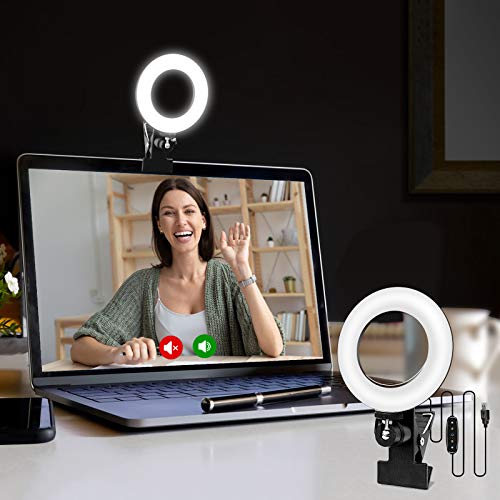
Cyezcor Video Conference Lighting Kit, Ring Light for Monitor Clip On,for Remote Working, Distance Learning,Zoom Call, Self Broadcasting and Live Streaming, Computer Laptop Video Conferencing
【ADJUSTABLE TEMPERATURE AND BRIGHTNESS】Our video conference lights have 3 color temperatures (white light/warm light/natural light) which are 3200k-6800k,…
As an affiliate, we earn on qualifying purchases.
As an affiliate, we earn on qualifying purchases.
Conclusion
By understanding the hidden causes of webcam lag, you can identify the root issues, optimize your settings, and upgrade your hardware. Addressing your network, updating drivers, and reducing background processes all contribute to smoother performance. Troubleshoot with patience, test your fixes systematically, and stay proactive. Ultimately, resolving webcam lag involves awareness, action, and persistence—because a seamless video experience depends on your commitment to improving each component, each step, and each moment.

NexiGo N60 1080P Webcam with Microphone, Software Control & Privacy Cover, USB HD Computer Web Camera, Plug and Play, for Zoom/Skype/Teams, Conferencing and Video Calling
【Full HD 1080P Webcam】Powered by a 1080p FHD two-MP CMOS, the NexiGo N60 Webcam produces exceptionally sharp and…
As an affiliate, we earn on qualifying purchases.
As an affiliate, we earn on qualifying purchases.

DbillionDa Cat 8 Ethernet Cable 40Gbps 2000MHz, 6FT Heavy-Duty for Indoor/Outdoor Use, High-Speed Wired Internet Cable, Gold-Plated RJ45, Weatherproof & UV Resistant for Gaming, PC, Router, Modem
Designed for Outdoor & Direct Burial Installations – Heavy-duty double-shielded Cat8 Ethernet cable minimizes EMI/RFI interference and delivers…
As an affiliate, we earn on qualifying purchases.
As an affiliate, we earn on qualifying purchases.