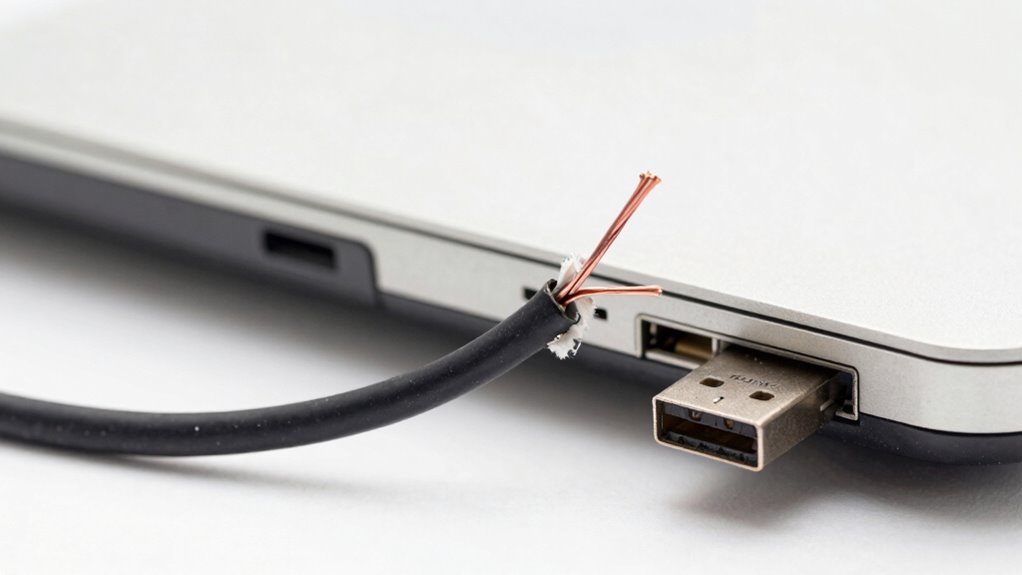

If your cables are fraying or your ports feel loose or wobble, it’s a clear warning sign you shouldn’t ignore. Visible damage like cracks, peeling, or discoloration can lead to connection issues and decrease charging or data transfer speeds. You may also notice difficulty plugging in devices, intermittent signals, or ports feeling unstable. Overheating or strange smells indicate internal damage, putting your device at risk. Learning more can help you prevent costly repairs and keep your tech running smoothly.

Get comfort and recovery gear delivered free with Prime
- Fast, free delivery on millions of items
- Prime Video, Amazon Music and more included
- Member-only deals all year
Key Takeaways
- Visible fraying or cracking of cable insulation indicates potential internal wire damage and increased electrical risk.
- Ports that wobble or shift during connection suggest looseness, risking poor contact and connection failure.
- Frequent disconnects, intermittent signals, or slow data transfer point to damaged or loose ports.
- Overheating, burn marks, or unusual smells around cables or ports signal internal damage and potential safety hazards.
- Difficulty maintaining secure connections or increased device heating during charging may warn of cable or port deterioration.
USB cable with reinforced fray protection
As an affiliate, we earn on qualifying purchases.
As an affiliate, we earn on qualifying purchases.
Visible Damage and Wear on Cables
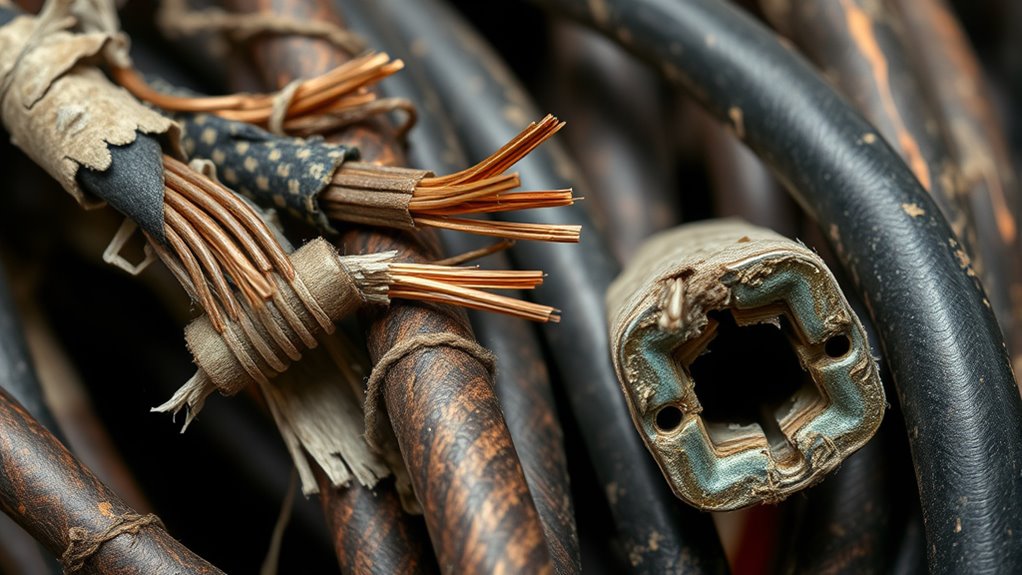
Over time, cables can show clear signs of damage and wear that affect their performance. You might notice fraying at the edges, exposing the internal wires, or see the outer insulation cracking and peeling. These damages weaken the cable’s structure, increasing the risk of electrical issues or short circuits. Bends and kinks can also cause internal wire breakage, leading to intermittent connections. Sometimes, discoloration or burn marks appear, indicating overheating or electrical faults. If you spot any of these signs, don’t overlook them. Worn or damaged cables are safety hazards and can cause devices to malfunction. Replacing frayed or worn-out cables promptly ensures reliable connectivity and reduces the risk of electrical accidents. Regular inspections help catch issues early before they worsen.
As an affiliate, we earn on qualifying purchases.
Difficulty Connecting or Disconnecting Devices

Have you ever struggled to connect or disconnect a device from a port? If so, it’s a sign something’s off. Difficulty plugging in or unplugging can indicate a loose port or worn connector. You might notice resistance, or that the device doesn’t fit snugly. Ignoring this can lead to connection failures or damage over time. To help identify issues, consider this quick overview:
| Symptom | Possible Cause |
|---|---|
| Force required to connect | Loose port or damaged connector |
| Device disconnects easily | Worn or misaligned port |
| Connection feels unstable | Partial port damage or debris |
Don’t dismiss these signs—they’re early warnings that your equipment needs attention before more serious problems arise.
replacement USB-C charging cable
As an affiliate, we earn on qualifying purchases.
As an affiliate, we earn on qualifying purchases.
Intermittent or Unstable Connectivity
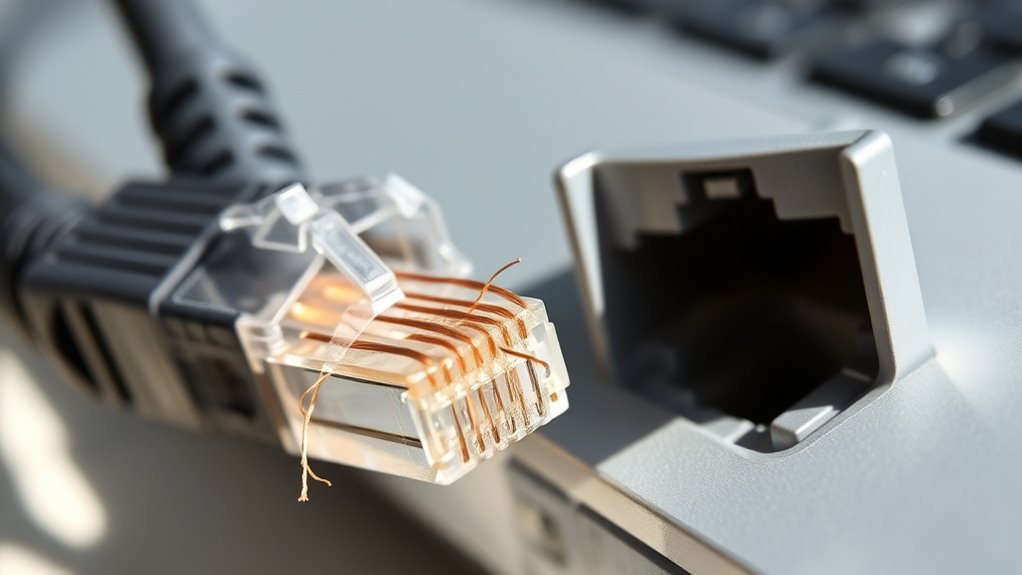
If your connection drops frequently or you experience sudden network losses, your cables or ports might be the culprit. Unexplained signal fluctuations can also point to loose or damaged connections. Addressing these issues quickly can restore stability and prevent ongoing disruptions.
Connection Drops Frequently
Frequent connection drops can be frustrating, especially when you’re in the middle of important work or streaming your favorite show. These interruptions often signal underlying issues with your cables or ports. To troubleshoot, check these key areas:
- Inspect cables for fraying or visible damage – damaged cables can cause unstable connections.
- Ensure ports are clean and free of debris – dirt or dust can disrupt signal transfer.
- Test different cables and ports – ruling out faulty hardware helps identify the problem.
- Secure connections tightly – loose ports or connectors can cause intermittent drops.
Addressing these issues promptly can restore stable connectivity and prevent further frustration. Ignoring frequent drops might lead to longer-term hardware damage or increased troubleshooting down the line.
Sudden Network Losses
Sudden network losses can disrupt your online activities at any moment, making it difficult to maintain a stable connection. You might experience brief interruptions during video calls, lag spikes while gaming, or pages that refuse to load. These issues often stem from loose or frayed cables, damaged ports, or faulty hardware. When cables are worn out or ports become loose, signals can cut in and out unexpectedly. Sometimes, the problem isn’t your internet service but physical connection points. Check for visible damage, ensure cables are securely plugged in, and inspect ports for debris or corrosion. Addressing these issues promptly can restore stability and prevent ongoing frustration. Recognizing early signs of loose or damaged connections helps you avoid prolonged disruptions and maintain a reliable network.
Unexplained Signal Fluctuations
Unexplained signal fluctuations can cause your internet connection to become intermittent or unstable, often without warning. These sudden changes might disrupt your streaming, gaming, or browsing. To troubleshoot, consider these key points:
- Check for visible cable damage or fraying, which can interrupt signals.
- Ensure ports are securely connected; loose connections cause instability.
- Test different devices to rule out device-specific issues.
- Monitor for interference from other electronics or wireless devices near your setup.
If you notice frequent drops or inconsistent speeds, it’s likely due to a loose port or damaged cable. Addressing these issues early can save you from more significant connectivity problems later. Staying vigilant helps keep your network stable and reliable.
As an affiliate, we earn on qualifying purchases.
Excessive Heat or Unusual Smells
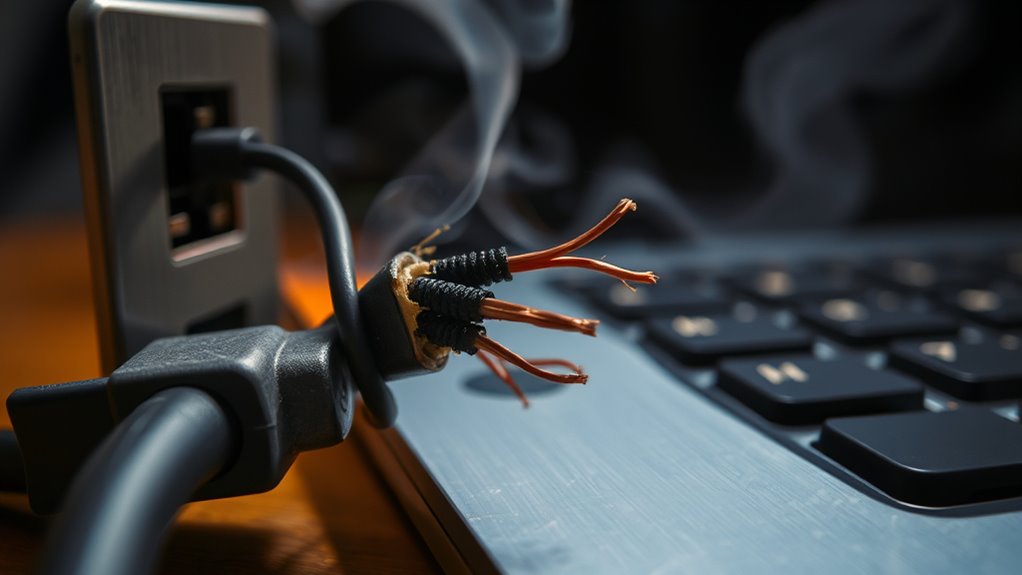
If your cable or port starts to feel unusually hot or emits a strange smell, it’s a clear sign that something isn’t right. Overheating can indicate electrical issues, such as short circuits or poor connections, which can damage your equipment or pose fire risks. The smell might be burnt plastic or ozone, both signaling internal damage. Don’t overlook these warning signs; unplug the device immediately to prevent further damage or hazards. Check for visible signs of melting, discoloration, or burnt components around the port or cable. Continuing to use it can lead to electrical failure or fire. If heat or smells persist, consider replacing the cable or having a professional inspect your equipment to ensure safety.
Physical Looseness or Wobbling of Ports
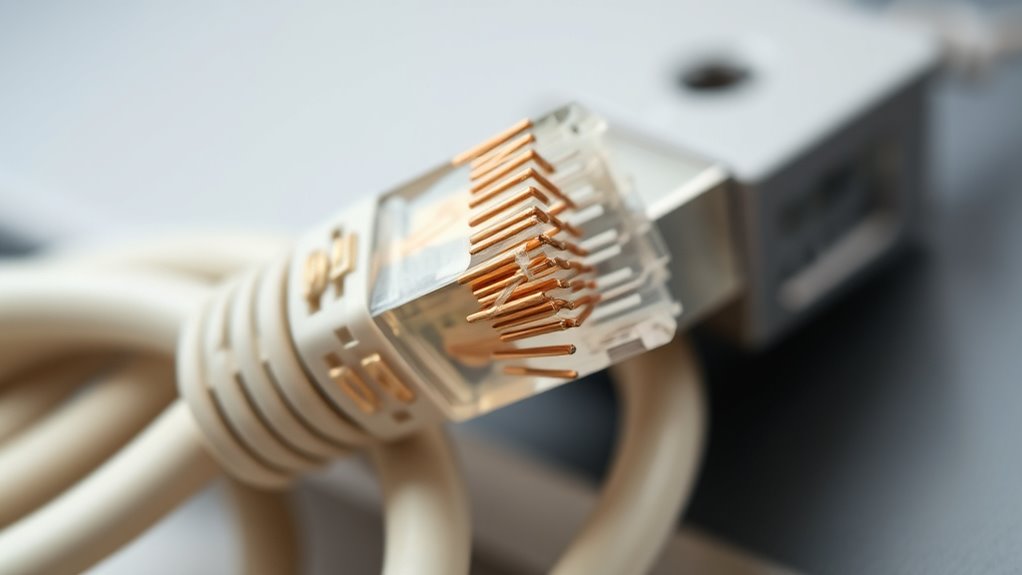
You might notice your device’s port wobbles or feels loose when you connect cables. This instability can cause poor connections or intermittent signals. Recognizing these signs early helps prevent further damage and keeps your device stable.
Signs of Port Wobble
A wobbly or loose port is often one of the first signs that something isn’t right with your cable connection. You might notice the port shifting or moving slightly when you plug in or adjust your cable. Here are some signs to watch for:
- The port feels unstable or wobbles when touched.
- The cable doesn’t stay securely connected without extra effort.
- You hear a faint clicking sound when plugging in or unplugging.
- The connection intermittently drops or feels loose during use.
These symptoms indicate the port’s physical integrity is compromised. Ignoring them can lead to further damage or connection issues. Regularly inspect your ports to catch wobbling early before more serious problems develop.
Impact on Device Stability
Wobbly or loose ports don’t just signal a minor issue—they can directly impact your device’s stability. When ports wobble or feel unstable, your device may experience intermittent connections or sudden disconnections. This instability can lead to data transfer errors, system crashes, or even hardware damage over time. Loose ports increase the risk of electrical arcing, which can harm internal components and reduce the lifespan of your device. Additionally, physical looseness can create strain on internal circuits, causing long-term damage that’s costly to repair. If you notice your ports wobbling or feel loose, it’s a sign that the connection isn’t secure. Addressing this early prevents potential device malfunctions, maintains performance, and extends the lifespan of your equipment.
Reduced Device Performance or Charging Issues
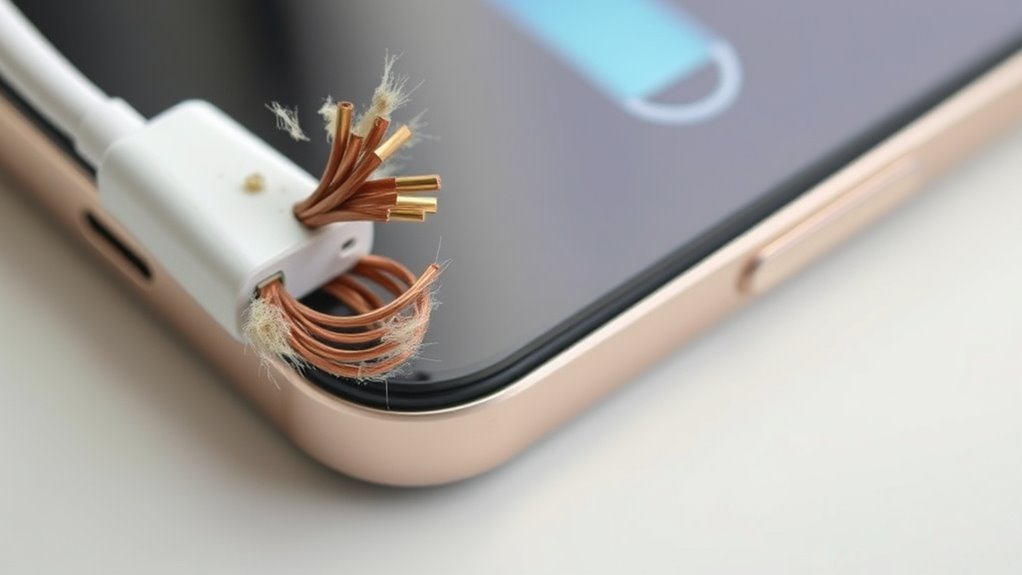
Loose or frayed cables can particularly disrupt your device’s performance and charging capabilities. When cables wear out, you may notice slower charging or inconsistent data transfer. This happens because damaged cables don’t establish a stable connection. Here are some signs to watch for:
Damaged cables can cause slow charging, data transfer issues, and connection instability.
- Unpredictable charging speeds – your device takes longer or stops charging unexpectedly.
- Data transfer failures – files won’t sync or transfer properly.
- Device overheating – poor connections cause extra strain, leading to heat.
- Frequent disconnects – cables disconnect with slight movement, interrupting use.
Ignoring these signs can lead to further damage or potential data loss. Replacing frayed or loose cables early helps maintain ideal device performance and avoids costly repairs or replacements down the line.
Frequently Asked Questions
How Can I Prevent Cable Fraying Before It Starts?
To prevent cable fraying before it starts, handle your cables gently and avoid bending them sharply. Use cable protectors or spiral wraps to shield vulnerable spots, and keep cables away from foot traffic or pinch points. Unplug cables carefully, avoiding excessive pulling. Regularly inspect your cables for signs of wear, and replace any damaged ones promptly. Proper storage, like coils and hangers, also helps extend their lifespan and prevents fraying.
Are Loose Ports Always a Sign of Damage?
You might think loose ports always mean damage, but sometimes they just get worn over time. If a port feels loose, it could be a sign of internal wear or a poor connection, not necessarily damage. However, it’s wise to check for other issues like corrosion or debris. Regularly inspecting and gently tightening connections can help prevent further problems, saving you from more costly repairs later.
Can Using Cheaper Cables Cause More Wear and Tear?
Yes, using cheaper cables can cause more wear and tear. They often lack quality materials and sturdy construction, leading to quicker fraying, broken connectors, or loose ports. When you opt for inexpensive cables, you risk damaging your device’s ports and experiencing frequent connection issues. Investing in higher-quality cables may cost more upfront, but it guarantees durability, reduces wear, and keeps your devices functioning smoothly over time.
What Tools Are Best for Inspecting Port Damage?
You can’t afford to miss even a tiny crack or loose connection, so the best tools are a magnifying glass and a flashlight. Use the magnifier to zoom in on small damage and the flashlight to illuminate dark ports, revealing hidden issues. For more advanced inspection, a USB port tester or a multimeter can detect electrical faults. These tools guarantee you catch damage early before it causes costly problems.
When Should I Replace a Damaged Cable or Port?
You should replace a damaged cable or port as soon as you notice fraying, exposed wires, or loose connections. Ignoring these signs can cause further damage or data loss. If the cable no longer fits securely or if the port feels loose or wobbly, it’s time for a replacement. Acting promptly guarantees your devices stay connected reliably and helps prevent potential damage to your equipment.
Conclusion
Ignoring cable fraying or loose ports is like ignoring cracks in a dam—you risk a sudden, damaging failure. I once ignored a loose port, only to have my device suddenly stop working during an important call. Don’t wait for disaster; address these warning signs early. Regular checks can prevent costly repairs and data loss. Stay vigilant, and treat your tech like a trusted friend—you’ll thank yourself when it counts most.
Halloween Picks
halloween
As an affiliate, we earn on qualifying purchases.