

The ‘Triangle Rule’ guides you to arrange your keyboard, mouse, and notepad to form a compact, ergonomic triangle on your desk. Place your keyboard directly in front at elbow height, keep your mouse close on your dominant side, and position the notepad slightly to the side and lower for easy access. This setup helps reduce strain, improve posture, and boost productivity. To optimize your workspace further, explore tips on maintaining this triangle during long work sessions.
Key Takeaways
- The Triangle Rule positions keyboard, mouse, and notepad to form a small, ergonomic triangle for efficient workflow and reduced movement.
- Proper placement ensures each item is within arm’s reach, minimizing strain and maintaining natural arm and wrist posture.
- The keyboard should be directly in front at elbow height, with the mouse close on the dominant side.
- The notepad is placed slightly to the side and at a lower or equal height, enabling quick note-taking without stretching.
- Regular adjustments and positioning checks help maintain the triangle, preventing discomfort during long work sessions.
Understanding the Triangle Rule and Its Benefits

The Triangle Rule is a simple yet effective guideline that helps you optimize your desk layout for better efficiency and comfort. By arranging your workspace following this rule, you minimize unnecessary movement and reduce strain. The idea is to position your keyboard, mouse, and notepad so they form a small, manageable triangle. This setup keeps everything within easy reach, allowing you to switch between tasks seamlessly. The benefits are clear: you’ll experience less fatigue, increased productivity, and better ergonomics. When your key tools are arranged correctly, you avoid awkward stretches and repetitive motions that can cause discomfort or injury over time. The Triangle Rule encourages a thoughtful layout that supports your workflow while protecting your physical well-being.
Identifying the Key Components: Keyboard, Mouse, and Notepad

Your desk setup depends on placing essential items like the keyboard, mouse, and notepad within easy reach. Following placement guidelines helps guarantee ergonomic accessibility and reduces strain. Let’s explore how to identify and position these key components effectively.
Essential Desk Items
Essential desk items form the foundation of an efficient workspace. The keyboard, mouse, and notepad are your primary tools for productivity and organization. Your keyboard should be comfortable, easy to access, and positioned for ideal typing ergonomics. The mouse needs to fit comfortably in your hand, allowing smooth movement without strain. Keep it close enough to reach naturally, avoiding unnecessary stretching. The notepad serves as a quick reference for ideas, reminders, or tasks you want to jot down instantly. It should be within arm’s reach, so you can easily jot notes without disrupting your workflow. Together, these items create a streamlined setup that minimizes movement and maximizes efficiency. Prioritizing their placement helps establish a functional, comfortable workspace that promotes focus and productivity.
Placement Guidelines Overview
To create an effective workspace, you need to position your keyboard, mouse, and notepad thoughtfully. Place your keyboard directly in front of you at a comfortable height, ensuring your wrists remain straight while typing. Position the mouse close to the keyboard’s right or left side, depending on your dominant hand, so your arm stays relaxed. The notepad should be within easy reach, ideally slightly to the side and slightly lower than your keyboard, reducing strain when taking notes. Keep all three components aligned in a triangle, with a comfortable distance between them, to promote natural movement and minimize reaching. Proper placement helps maintain good posture and keeps your workflow smooth, setting a solid foundation for ergonomic efficiency.
Ergonomic Accessibility
Ensuring ergonomic accessibility means clearly identifying and positioning the key components—the keyboard, mouse, and notepad—in a way that minimizes strain and promotes comfort. You want each item within easy reach, reducing unnecessary movement. Place your keyboard directly in front of you, at a height where your elbows stay close to your sides and your wrists remain neutral. The mouse should sit close to the keyboard, at the same height, so you can switch between them smoothly. Keep your notepad nearby but slightly to the side, within arm’s reach, so you don’t stretch or twist your neck. Adjust your chair and desk height to maintain a natural posture. Prioritize comfort over convenience, ensuring you can work efficiently without straining your back, neck, or wrists.
Ideal Placement for Your Keyboard in the Triangle
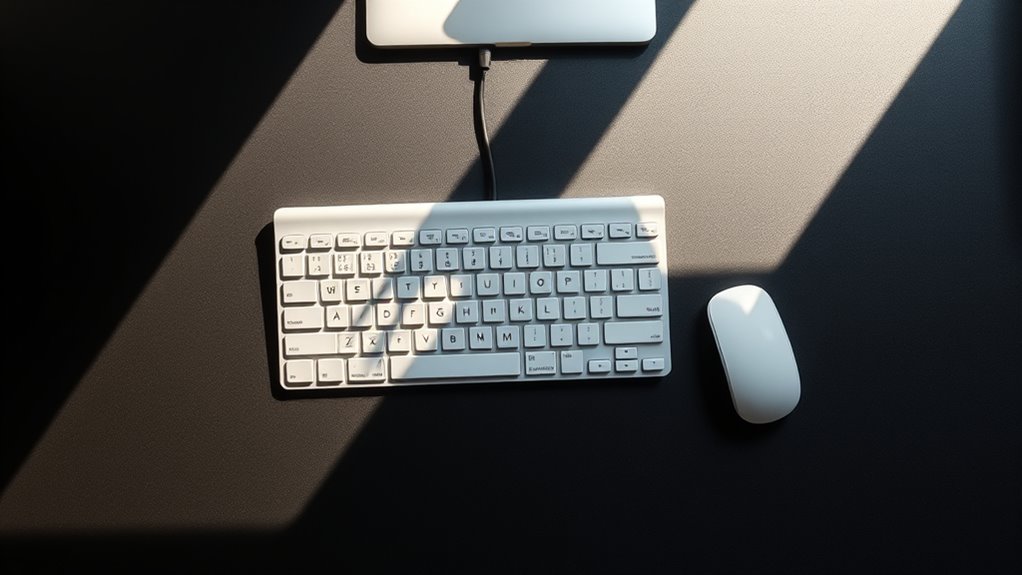
Position your keyboard so your arms stay relaxed and comfortable, reducing strain during use. It should be placed within the triangle formed by your mouse and notepad, keeping everything within easy reach. This setup guarantees symmetry and supports better arm posture throughout your work.
Maintain Arm Comfort
Proper arm comfort hinges on placing your keyboard within easy reach and at the right height, so your arms can stay relaxed and supported. Keep your elbows close to your body, forming a 90 to 110-degree angle. The keyboard should be positioned so your wrists remain straight and not strained upward or downward. Avoid lifting your shoulders or stretching your arms too far forward. Adjust your keyboard height if necessary—using a desk riser or adjustable keyboard tray—to ensure your forearms are parallel to the floor. Maintaining this neutral position minimizes fatigue and reduces strain on your shoulders and neck. Remember, a comfortable arm position helps you work longer without discomfort and promotes better posture overall.
Center for Symmetry
To achieve ideal comfort and efficiency, your keyboard should sit directly in front of you, centered within the triangular workspace formed by your monitor, keyboard, and mouse. This central placement guarantees balanced accessibility and reduces strain on your shoulders and wrists. When the keyboard is aligned with your body’s midline, you maintain a natural arm and hand position, preventing awkward reaches. The keyboard’s center should align with your nose or sternum, creating symmetry that promotes better posture. Keep the keyboard close enough so your elbows stay relaxed and your forearms remain parallel to the desk. Proper centering helps you work more comfortably, minimizes fatigue, and encourages consistent, ergonomic movements. Prioritize symmetry in your setup to support long-term health and productivity.
Positioning the Mouse for Optimal Ergonomics
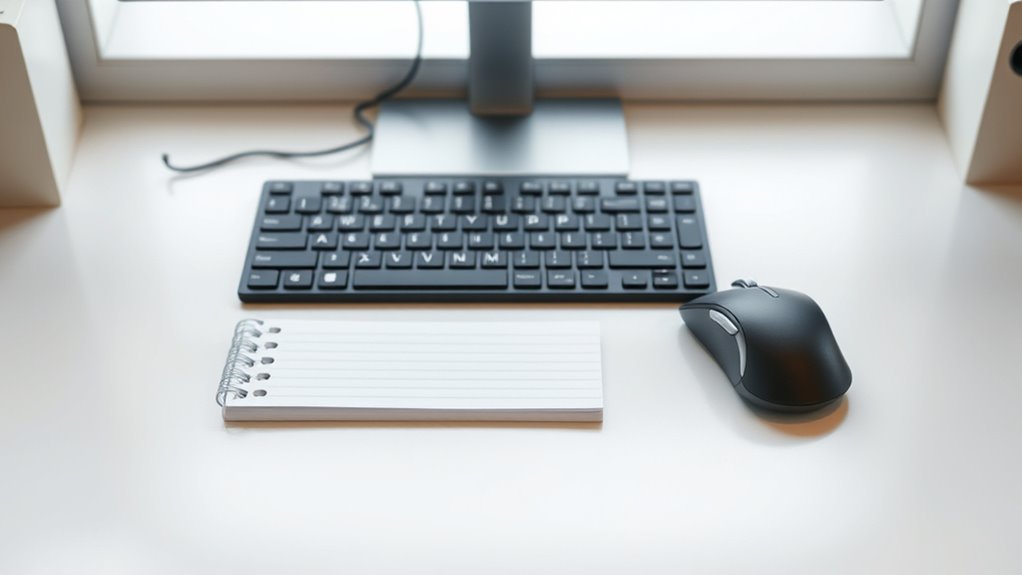
Ensuring your mouse is positioned correctly is essential for reducing strain and preventing repetitive stress injuries. Place your mouse close to your keyboard so you don’t have to reach or stretch your arm. Keep it at the same height as your wrist to maintain a neutral position. Your elbow should stay relaxed and close to your body, with your forearm parallel to the desk. Avoid elevating or dropping your mouse; a flat, stable surface works best. Use a mouse pad with wrist support if needed to keep your wrist straight and comfortable. Move the mouse using your whole arm rather than just your wrist to minimize fatigue. Proper positioning helps maintain good posture and reduces the risk of discomfort during long work sessions.
Locating Your Notepad for Easy Access

Have you ever spent valuable time searching for your notepad when you need it most? To prevent this, place your notepad within easy reach, ideally close to your mouse and keyboard. Keep it on your dominant side, so you can quickly jot down notes without stretching or disrupting your workflow. A dedicated spot on your desk, like a small stand or corner, helps keep it accessible but out of the way. Make sure it’s at a comfortable height, so reaching for it doesn’t cause strain. Consistency is key—always return it to this spot after use. This simple adjustment ensures you won’t waste time hunting for your notepad, allowing you to stay focused and productive. An accessible notepad is a small change with a big impact.
Creating the Perfect Triangle: Step-by-Step Setup

Creating the perfect triangle on your desk starts with positioning your key workspace elements thoughtfully. First, place your keyboard directly in front of you, ensuring your elbows stay close to your sides and your wrists are straight. Position your mouse close to the keyboard, about an arm’s length away, so your arm remains relaxed. Your notepad should sit slightly to the side, within easy reach without stretching. Keep all three items equidistant, forming a balanced triangle that minimizes movement and strain. Adjust the height of your chair and monitor to keep your eyes level and your posture upright. Make sure there’s enough space between each element to avoid clutter. This setup will promote comfort and efficiency throughout your workday.
Adjusting Your Workspace for Comfort and Efficiency
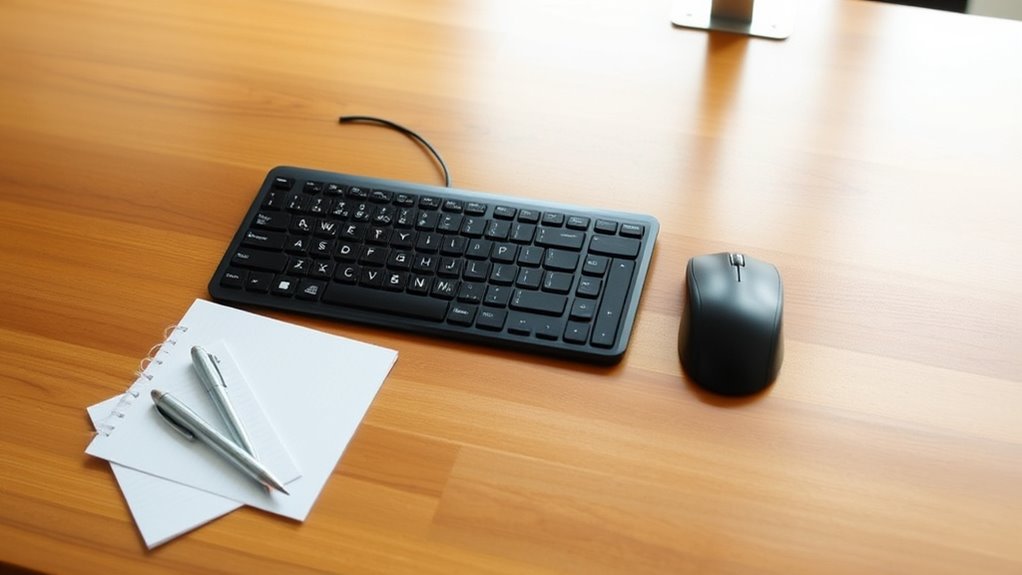
To maximize comfort and efficiency, you need to make small yet deliberate adjustments to your workspace. Begin by ensuring your keyboard is at elbow height, so your arms stay relaxed and your wrists remain straight. Position your mouse close enough to avoid reaching, reducing strain. Your notepad should be within easy reach, ideally on the same level as your keyboard, to maintain a natural arm position. Adjust your chair height so your feet rest flat on the floor, and your knees are at a 90-degree angle. Keep your monitor directly in front of you, about an arm’s length away, with the top at eye level. These tweaks help prevent fatigue, improve posture, and keep your workflow smooth without unnecessary movement.
Common Mistakes to Avoid When Applying the Rule
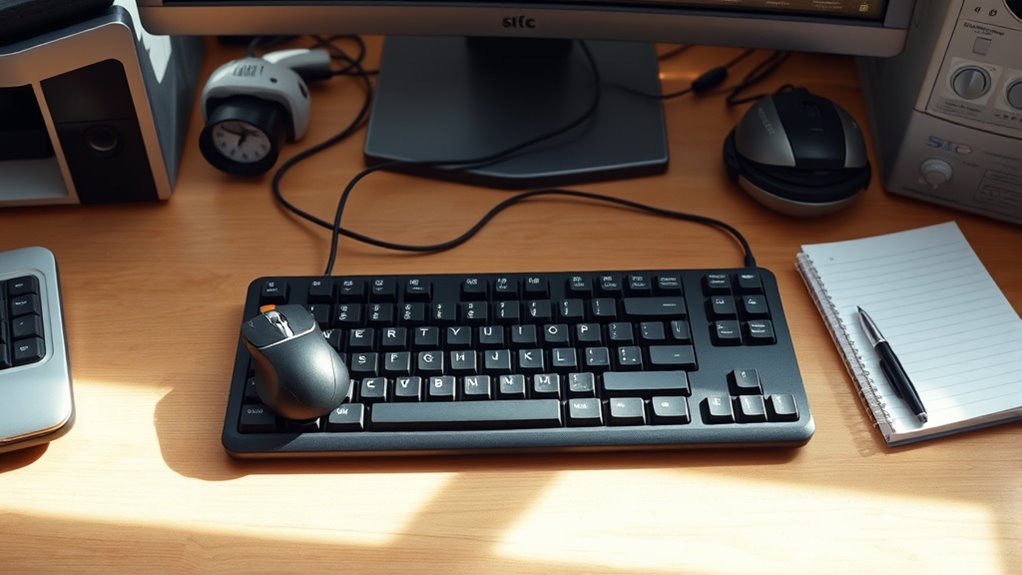
One common mistake is neglecting to double-check your adjustments after setting up your workspace. You might assume everything is perfect once you’ve positioned your keyboard, mouse, and notepad, but small shifts can cause discomfort or inefficiency. Failing to test the setup during actual work can lead to poor posture, strain, or unnecessary movement. It’s essential to sit naturally and perform typical tasks to see if the triangle remains comfortable and accessible. Overlooking this step might mean missing subtle misalignments that cause fatigue or discomfort over time. Always revisit your workspace after initial setup, making minor tweaks as needed. This ensures your triangle remains optimized for comfort, reduces strain, and promotes better productivity throughout your work sessions.
Tips for Maintaining the Triangle During Extended Work Sessions

Maintaining the triangle setup during long work sessions requires mindful adjustments and regular checks. Periodically pause to reassess your workspace, ensuring your keyboard, mouse, and notepad stay within arm’s reach and form a comfortable triangle. Keep your monitor at eye level to prevent strain, and avoid stretching or twisting your body to access your tools. Use ergonomic accessories, like wrist rests or adjustable stands, to keep your setup aligned. If you notice your arm reaching or your posture shifting, reposition your items immediately. Take short breaks every hour to stretch and reset your position. This habit minimizes fatigue and keeps your workspace efficient. Staying conscious of your triangle throughout the day helps maintain comfort, reduces strain, and boosts productivity over extended periods.
Frequently Asked Questions
How Do I Modify the Triangle Rule for Dual-Monitor Setups?
To modify the triangle rule for dual-monitor setups, position each monitor so that your primary screen is directly in front of you, with the secondary slightly angled inward. Keep your keyboard centered between both screens, and place your mouse close to your primary monitor for easy access. This setup minimizes neck and eye strain, creating a comfortable workspace. Adjust monitor heights to align top edges for seamless viewing.
Can the Triangle Rule Be Applied to Standing Desks?
Of course, you can apply the triangle rule to standing desks—because who doesn’t love reinventing ancient wisdom for modern stances? Just position your keyboard, mouse, and notepad in a triangle, and stand tall in ergonomic bliss. Keep your elbows close, wrists straight, and eyes level. It’s the same principle, just with a little more energy and a lot less sitting. Who knew standing could be so geometrically satisfying?
What Adjustments Are Needed for Different Chair Heights?
You need to adjust your chair height so that your elbows stay at a 90-degree angle when typing or using the mouse. If your chair is too high, lower it until your forearms are parallel to the desk. If it’s too low, raise it so your shoulders stay relaxed. Keep your monitor at eye level and maintain good posture to prevent strain. Regularly check and fine-tune your setup for comfort.
Is the Triangle Rule Suitable for Laptop Workstations?
The triangle rule isn’t perfect for laptop workstations because laptops have integrated keyboards and screens, limiting your ability to position each element ideally. Instead, you should elevate your laptop with a stand, use an external keyboard and mouse, and position everything within easy reach. Focus on maintaining good posture by keeping your screen at eye level, your wrists straight, and your arms relaxed to prevent strain during extended use.
How Often Should I Reassess My Desk Layout for Ergonomics?
Think of your desk as a garden that needs regular tending. You should reassess your ergonomic setup every few months or whenever you notice discomfort or fatigue. Small changes can make a big difference, just like pruning a plant helps it thrive. Keep an eye on your posture, adjust your equipment, and stay mindful of how you feel. Regular checks guarantee your workspace remains comfortable and healthy, nurturing your productivity.
Conclusion
Remember, mastering the triangle rule might seem simple, but it’s easy to overlook the obvious and get comfortable with inefficiency. Keep your keyboard, mouse, and notepad perfectly aligned and you’ll wonder how you ever worked without it. Ironically, the smallest adjustments can make the biggest difference—so don’t dismiss the power of a well-placed triangle. After all, comfort and productivity are just a few inches away, if you’re willing to pay attention.