For comfortable and clear viewing, your monitor should be about 20 to 30 inches away from your face, or roughly an arm’s length. This distance helps reduce eye strain, prevents headaches, and guarantees you see details easily. Make sure your monitor is at eye level and avoid glare from lights or windows. If you keep these guidelines in mind, you’ll find your workspace more comfortable—continue exploring for more tips to perfect your setup.
Key Takeaways
- Maintain a monitor distance of 20-30 inches (about an arm’s length) for optimal clarity and comfort.
- Adjust the monitor so the top of the screen aligns with your eye level to reduce neck strain.
- Use the 20-20-20 rule: every 20 minutes, look 20 feet away for 20 seconds to reduce eye fatigue.
- Ensure the monitor is positioned to minimize glare from lights or windows, enhancing visibility.
- Regularly measure and adjust your setup to keep the monitor at a comfortable distance consistent with ergonomic guidelines.
Understanding the Ideal Viewing Distance

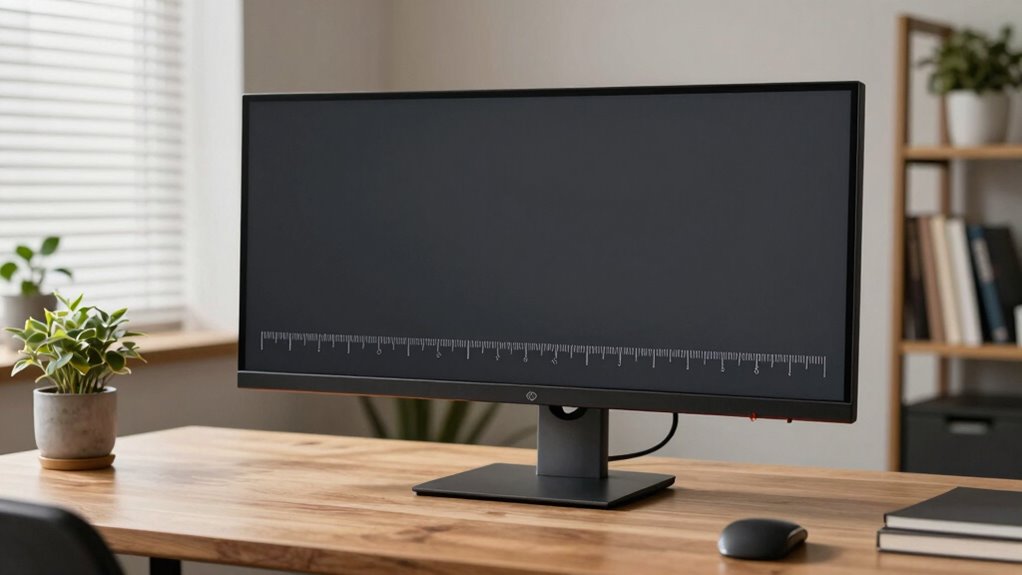
Understanding the ideal viewing distance is essential for enjoying your monitor without straining your eyes or missing details. To find this distance, sit comfortably and position your eyes about an arm’s length away from the screen, usually 20 to 30 inches. This distance helps you see the entire display clearly without leaning forward or squinting. If your monitor is too close, you might strain your eyes or experience headaches; if it’s too far, you’ll have trouble reading small text or noticing details. Adjust your chair or monitor height to maintain a natural viewing angle. Remember, the goal is a comfortable, balanced distance that minimizes eye fatigue while maximizing clarity and immersion.
The 20-20-20 Rule and Eye Health
To protect your eyes during long hours at the monitor, applying the 20-20-20 rule is highly effective. Every 20 minutes, look at something 20 feet away for at least 20 seconds. This simple habit helps reduce eye strain and prevents digital eye fatigue. When you focus on your screen for extended periods, your blink rate drops, leading to dry, irritated eyes. The 20-20-20 rule encourages regular breaks, giving your eye muscles a chance to relax and reset. It also helps prevent headaches, blurred vision, and discomfort caused by prolonged screen time. Incorporating this rule into your routine is easy and can considerably improve your eye health, making it a practical, proactive step for anyone spending hours in front of a monitor.
How to Measure Your Current Monitor Distance
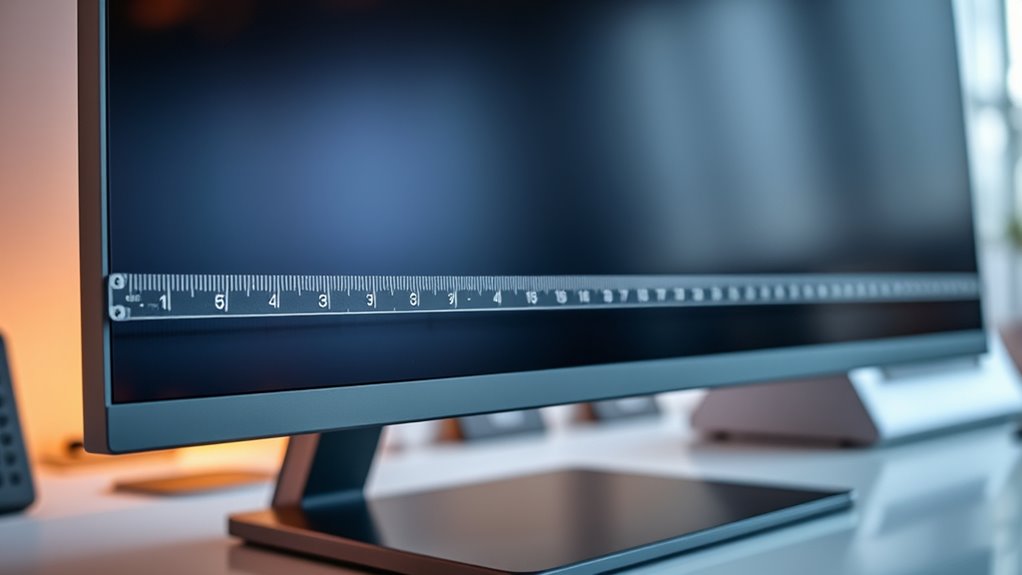
Measuring your current monitor distance is a simple but important step to make sure your eyes are comfortably supported. First, sit in your usual working position with your eyes level with the top of the screen. Use a tape measure or ruler to note the distance from your eyes to the front of the monitor. Keep your head straight and relaxed; don’t lean forward or backward. If you’re using a laptop, measure from your eyes to the screen’s surface. Write down this measurement. This will give you a baseline to determine if your monitor is at an ideal distance or if adjustments are needed. Accurate measurement helps you create a comfortable, ergonomic setup that reduces eye strain.
The Role of Monitor Size and Resolution

The size and resolution of your monitor directly influence how comfortably you can view content without straining your eyes. Larger screens offer more workspace, but if your resolution isn’t high enough, images and text can appear blurry or pixelated, causing eye fatigue. Conversely, a high-resolution monitor on a small screen can make details sharper, reducing eye strain. When selecting a monitor, consider how size and resolution work together: bigger screens with higher resolutions deliver clearer images at closer distances, so you can sit comfortably without squinting or leaning in. Keep in mind that larger monitors might require you to adjust your viewing distance to avoid overstretching your eyes. Balancing size and resolution helps optimize your setup for both comfort and visual clarity.
Adjusting Your Setup for Comfort and Productivity

To improve your comfort and productivity, start by aligning your monitor to eye level so you don’t strain your neck. Keep the screen at a ideal distance to reduce eye fatigue, and position it to minimize glare from lights or windows. Making these adjustments helps create a workspace that’s both healthier and more efficient.
Correct Eye Level
Adjusting your monitor to eye level is essential for comfort and productivity. When your screen is positioned correctly, you avoid neck strain and keep your focus on your work. To achieve this, ensure the top of your monitor is roughly at eye level, so you look slightly downward when viewing the screen.
Imagine:
- Your monitor’s height aligns with your eye line when seated comfortably.
- You’re not tilting your head up or down for extended periods.
- The monitor is directly in front of you, avoiding side angles.
- Your neck remains relaxed and not strained forward or backward.
These adjustments help maintain good posture and reduce fatigue, allowing you to work longer and more comfortably without unnecessary discomfort.
Optimal Viewing Distance
Once your monitor is set at eye level, finding the right viewing distance is key to staying comfortable and focused. Generally, your monitor should be about an arm’s length away, roughly 20 to 30 inches from your eyes. This distance helps reduce eye strain and allows you to see the screen clearly without leaning forward or squinting. If your monitor is too close, you might feel eye fatigue or headaches; too far, and you’ll strain to read small text. Adjust the distance based on your screen size and resolution. Larger monitors may require sitting slightly farther back, while smaller screens can be closer. The goal is to maintain a comfortable, natural viewing position that minimizes effort and maximizes productivity.
Reduce Screen Glare
Screen glare can cause significant eye strain and discomfort, especially if you work in bright or sunny environments. To reduce glare, start by adjusting your monitor’s position, avoiding direct sunlight. Use curtains or blinds to control natural light. Consider an anti-glare screen protector or matte finish monitor to diffuse reflections. Additionally, reposition your workspace so bright lights aren’t directly behind or in front of your screen. Keep your monitor clean and free of fingerprints or smudges that can intensify glare. Here’s what you can do:
- Shift your monitor away from windows or bright light sources
- Use adjustable blinds or curtains to block sunlight
- Add an anti-glare filter or matte screen
- Position your desk to minimize reflections from lamps or overhead lighting
These steps help create a more comfortable, glare-free viewing experience.
Common Mistakes That Affect Your Monitor Placement
One common mistake is ignoring eye level alignment, which can cause neck strain and discomfort. Placing your monitor too close or too far can also lead to eye fatigue and poor posture. Additionally, overlooking glare sources can create glare and make it harder to see your screen clearly.
Ignoring Eye Level Alignment
Ignoring eye level alignment is a common mistake that can lead to discomfort and strain during long hours at your desk. When your monitor sits too high or low, you’ll strain your neck, cause eye fatigue, and develop headaches. To avoid this, guarantee your monitor’s top edge is at or just below eye level. Imagine:
- Your eyes looking slightly downward at the screen
- Maintaining a relaxed neck posture
- Preventing unnecessary stretching or tilting
- Reducing strain on your shoulders and back
Proper alignment keeps your head straight and your eyes naturally focused. If your monitor is too high, you’ll crane your neck; too low, and you’ll slouch. Aligning your monitor correctly improves comfort and helps maintain good posture throughout the day.
Placing Monitor Too Close
Have you ever noticed how sitting too close to your monitor can cause eye strain and discomfort? When your monitor is too near, your eyes work harder to focus, leading to fatigue and headaches. It also increases the likelihood of neck and shoulder tension as you strain to see details clearly. Plus, being too close can distort your perception of colors and contrast, making it harder to work or enjoy media comfortably. To avoid these issues, position your monitor at a distance where you can view the entire screen comfortably without leaning forward or squinting. Aim for about an arm’s length away—roughly 20 to 30 inches—so your eyes can relax while maintaining a clear, unobstructed view. Proper placement not only enhances comfort but also supports better eye health.
Overlooking Glare Sources
Are you aware that glare from windows or lights can substantially reduce your screen visibility and cause eye strain? Overlooking glare sources is a common mistake that hampers your comfort and productivity. To avoid this, consider the placement of your monitor relative to light sources. For example, you might face a window directly, creating glare on your screen. Or, bright overhead lights can reflect off your monitor’s surface. You should also watch out for reflective surfaces nearby that bounce light into your eyes. Additionally, using blinds or curtains can help control natural light. Being mindful of your environment ensures you don’t strain your eyes unnecessarily and can work comfortably for longer periods. Proper monitor placement includes managing these glare sources effectively.
Tips for Maintaining Good Screen Habits

Maintaining good screen habits is essential for protecting your eyes and overall well-being. First, follow the 20-20-20 rule: every 20 minutes, look at something 20 feet away for at least 20 seconds. This helps reduce eye strain and refreshes your focus. Keep your monitor at an appropriate distance, generally about arm’s length, to prevent strain and promote comfort. Adjust your screen’s brightness and contrast to match ambient lighting, avoiding glare and harsh reflections. Take regular breaks to stretch and move around, which benefits your posture and circulation. Finally, verify your workspace is well-lit but not overly bright, minimizing glare and eye fatigue. These habits help keep your eyes healthy and improve your overall screen experience.
Frequently Asked Questions
Can Ergonomic Monitors Help Reduce Eye Strain?
Yes, ergonomic monitors can help reduce eye strain. They are designed with features like adjustable height, tilt, and glare reduction, allowing you to position the screen for ideal comfort. These adjustments help keep your eyes at a proper distance and reduce the need for excessive blinking or squinting. By choosing ergonomic monitors, you support healthier viewing habits, which can lessen fatigue and discomfort during long hours of work or gaming.
How Often Should I Adjust My Monitor Position?
You should adjust your monitor whenever you notice discomfort or strain. Regular tweaks help you stay comfortable and maintain good posture. Aim to reposition it at least once every few weeks or when your tasks change. Keep an eye on your neck, eyes, and back, and listen to what your body tells you. Small, consistent adjustments make a big difference over time, ensuring your workspace remains ergonomic and supportive.
Does Monitor Height Affect Viewing Distance?
Yes, monitor height affects your viewing distance. When your screen is at eye level, you naturally sit closer, reducing eye strain and improving comfort. If the monitor is too high or low, you tend to lean forward or backward, increasing the distance and causing discomfort. Adjust your monitor so the top of the screen aligns with your eyes, helping you maintain an ideal distance and a more ergonomic posture.
Are There Recommended Distances for Dual Monitor Setups?
For dual monitor setups, keep each screen about an arm’s length away, roughly 20-30 inches. Position them so the tops are at or slightly below eye level to reduce neck strain. Maintain a comfortable viewing angle, ideally 30 degrees or less from your line of sight. Adjust the distance based on your screen size and personal comfort to prevent eye fatigue and promote good posture.
How Does Ambient Lighting Influence Optimal Monitor Placement?
Ambient lighting can totally make or break your screen time. Bright lights or glare will turn your monitor into a blinding portal, forcing you to squint or strain your eyes like a detective on a cold case. To avoid this, position your monitor where natural or artificial light doesn’t reflect or cause glare. Use soft, indirect lighting to keep your workspace comfortable, so your eyes stay happy and your focus sharp.
Conclusion
Finding the right monitor distance isn’t just about comfort—it’s about protecting your eyes and boosting your productivity. Are you willing to ignore the risks of poor placement and settle for discomfort? By applying these simple tips, you can create a setup that keeps you healthy and focused. Don’t wait until eye strain or fatigue take over—take control now and make your workspace work for you. After all, your eyes deserve the best care.