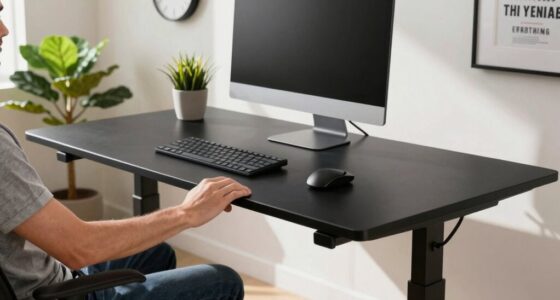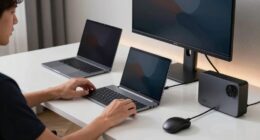
During winter, it’s key to match your monitor’s brightness with your ambient lighting to reduce eye strain and glare. Avoid fighting your screen by manually lowering brightness and adjusting your room’s lighting—using soft, even illumination helps. Position your monitor away from bright windows or reflections, and consider anti-glare screens. Properly managing both ambient and screen settings creates a comfortable workspace. Keep exploring ways to optimize your setup for a clearer, more comfortable experience all season long.

Get comfort and recovery gear delivered free with Prime
- Fast, free delivery on millions of items
- Prime Video, Amazon Music and more included
- Member-only deals all year
Key Takeaways
- Manually adjust monitor brightness to match the dim winter ambient lighting for comfortable viewing.
- Use soft, evenly distributed indoor lighting to reduce glare and prevent your monitor from appearing overly bright.
- Enable display features like “night mode” or “blue light filters” to soften brightness and color temperature in darker rooms.
- Position your monitor away from windows and bright light sources to minimize glare and reflections.
- Incorporate anti-glare screen protectors and indirect lighting to create a glare-free, cozy workspace during winter months.

As winter days grow shorter and darker, adjusting your brightness settings can make your indoor environment more comfortable and energy-efficient. When the sunlight fades early, your screen’s brightness becomes even more noticeable, often leading to screen glare that can strain your eyes and cause discomfort. To combat this, it’s essential to find a balance that reduces glare without making your monitor too dim to see clearly. First, evaluate your ambient lighting. During winter, ambient lighting can be insufficient or uneven, which heightens the contrast between your screen and the surrounding environment. If your room is poorly lit, your monitor might appear overly bright, causing eye fatigue. Conversely, if your ambient lighting is too harsh or direct, it can reflect off your screen, creating glare and making it harder to focus. Aim for soft, evenly distributed lighting that complements your screen rather than competes with it. Using lamps with adjustable brightness or indirect lighting can help create a cozy, glare-free environment.
Adjust your monitor’s brightness to match your ambient lighting. Many screens have automatic brightness settings, but these aren’t always reliable, especially in winter when the light levels change throughout the day. Manually reduce the brightness so the screen isn’t overpowering the room’s lighting. When your monitor is too bright, your eyes work harder to process the display, leading to fatigue and headaches. On the other hand, if it’s too dim, you might strain your eyes trying to see details, which isn’t ideal either. The goal is to set a level that’s comfortable for extended periods of work or leisure, aligning with your room’s ambient lighting. Incorporating monitor calibration can further optimize your display settings for eye comfort and clarity.
Another helpful tip is to utilize features like “night mode” or “blue light filters,” which reduce eye strain in darker environments. These settings often soften the overall screen brightness and color temperature, making viewing more comfortable during winter evenings. It’s also worth considering the placement of your monitor—positioning it away from windows or bright light sources can cut down on glare and reflections. If you can’t avoid reflective surfaces, try an anti-glare screen protector, which can considerably reduce screen glare caused by ambient light.
In the end, managing your brightness settings during winter isn’t just about comfort; it’s about protecting your eyes and reducing energy consumption. By adjusting your ambient lighting, tailoring your monitor’s brightness, and minimizing glare, you create a more pleasant and health-conscious workspace that makes those shorter, darker days a little easier to handle.
Frequently Asked Questions
How Do I Adjust Brightness for Different Lighting Environments?
To adjust your monitor’s brightness for different lighting environments, start by setting a comfortable color temperature that matches your surroundings. Use your monitor’s settings menu to tweak the contrast ratio and brightness levels accordingly—brighter for well-lit rooms and dimmer for darker spaces. Consider enabling automatic adjustments if available, which helps maintain best visibility without straining your eyes all day.
What Are the Best Settings for Eye Comfort During Winter?
Imagine you’re in a vintage movie scene—soft lighting and cozy vibes. For winter eye comfort, set your monitor’s color temperature to warmer tones, around 3000K-4000K, to reduce eye strain. Adjust contrast optimization to prevent glare and harsh whites. Keep brightness slightly lower than in summer, around 120-150 cd/m², and enable blue light filters. These tweaks help your eyes stay comfortable during those long winter work sessions.
Can Monitor Brightness Affect My Sleep Cycle?
Yes, monitor brightness can affect your sleep cycle. When you use bright screens at night, especially with blue light, it can disrupt your circadian rhythm and make falling asleep harder. To improve sleep cycle tips, reduce blue light exposure by enabling blue light reduction features or wearing blue light glasses in the evening. Lowering your monitor brightness during nighttime hours also helps your body wind down naturally.
Are There Automatic Brightness Adjustment Tools Available?
Think of your monitor gently adjusting to the day’s changing light, like a chameleon blending with its surroundings. Yes, automatic brightness adjustment tools exist, using ambient light sensors to fine-tune your screen’s glow. These tools help prevent eye strain and keep your workspace comfortable. You can enable built-in features on your devices or install third-party software, making your monitor adapt seamlessly to your environment without you having to lift a finger.
How Often Should I Recalibrate My Monitor’s Brightness?
You should recalibrate your monitor’s brightness whenever you notice color or brightness inconsistencies, typically every few months or after significant changes in lighting conditions. Regular monitor calibration ensures brightness consistency, so your display remains accurate and comfortable to view. Don’t wait for issues; periodic recalibration keeps your monitor performing at its best and prevents eye strain, especially during winter when lighting varies, making your visual experience smoother and more reliable.
Conclusion
So, next winter, don’t keep fighting your monitor’s brightness. Instead, embrace the glow, let it be your cozy companion in the dark. After all, who knew that turning down your screen could actually brighten your day? Ironically, by simply adjusting a few settings, you’ll find more clarity—both in your screen and your mood. It’s the easiest way to brighten your winter, without the glare of constant frustration.
Fall Picks
fall essentials
As an affiliate, we earn on qualifying purchases.