Setting up dual 4K displays with a single dock can seem straightforward, but it’s more complicated than it looks. Wireless signals may interfere, and hardware or bandwidth limits can hinder performance. Power delivery might fall short, causing issues with charging or flickering. Compatibility and software constraints can also prevent dual 4K functionality. Understanding these technical and connectivity challenges is key—keep exploring to get a clearer picture of what’s really involved.
Key Takeaways
- Hardware and bandwidth limits can restrict simultaneous dual 4K output despite claims.
- Wireless interference and workspace setup issues can undermine dock reliability for high-res displays.
- Power delivery capabilities may fall short of supporting multiple 4K monitors and device charging simultaneously.
- Compatibility and connection standards like USB-C or Thunderbolt may limit dual 4K functionality.
- Software and driver limitations can prevent achieving full dual 4K resolution and stability.
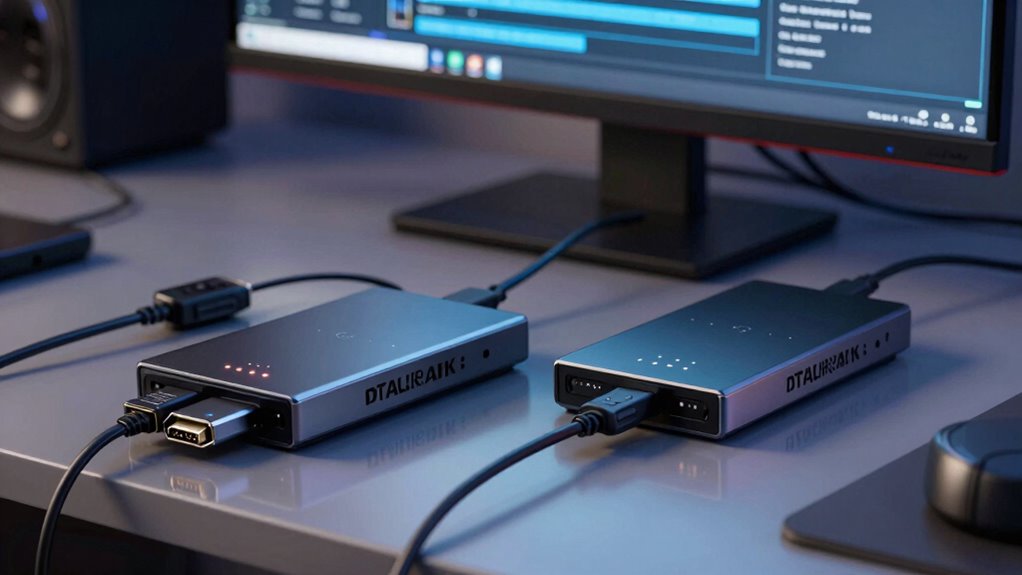
While it might seem straightforward to connect two 4K displays using a dual dock, the reality is more complex than it appears. You might assume that plugging in a dual dock will effortlessly expand your screen real estate, but several technical factors can complicate this seemingly simple setup. One of the biggest hurdles is ensuring reliable wireless connectivity. While many docks advertise seamless wireless connections, in practice, maintaining high-resolution video over Wi-Fi or Bluetooth can be challenging. Wireless signals are prone to interference from other devices, walls, and distance, which can cause flickering, lag, or even complete disconnections. If your workspace isn’t optimized for wireless connections, you may find that your dual 4K setup becomes unreliable, forcing you to rely on wired connections instead. Additionally, some docks may not support wireless display protocols, further limiting your options for cable-free setups. Understanding connection standards and their limitations is crucial for achieving a stable dual 4K display experience. Ensuring your hardware supports adequate bandwidth is also vital for smooth performance, especially when handling high data transfer rates needed for 4K displays. Sometimes, even with the right hardware, software limitations such as outdated drivers can hinder the setup process. Power delivery is another critical aspect that complicates dual 4K dock claims. High-resolution displays, especially 4K monitors, demand significant power, and not all docks are built to handle this load efficiently. Some docks claim to deliver enough power to run multiple 4K monitors while simultaneously charging your laptop, but in reality, their power delivery capabilities can fall short. This can result in your laptop charging slowly or not at all, or your monitors flickering or disconnecting when under load. The power delivery specifications of a dock must match or exceed the requirements of your devices, and many manufacturers oversell their capabilities, leading to frustration. Additionally, understanding the bandwidth limitations of connection standards like USB-C or Thunderbolt is essential, as they can restrict performance when sharing resources between multiple high-resolution displays and peripherals. Compatibility issues can also make dual 4K claims more complicated. Not all laptops support dual 4K output over a single connection, and some require specific ports or drivers to function correctly. Even if your hardware technically supports it, software limitations or outdated drivers can prevent the dual 4K setup from working smoothly. You might find that only one display works or that the resolution defaults to a lower setting, defeating the purpose of a dual 4K setup.

WAVLINK Pro Dual 4K@60Hz Universal Docking Station | USB 3.0/USB-C Laptop Dock for Mac (M1-M5, Neo) & Windows | 2 HDMI/DP, Gigabit Ethernet, USB 3.0 | Home Office & Multi-Screen Productivity.
Designed for Everyday Work and Multitasking: This universal docking station uses DisplayLink technology to connect up to two…
As an affiliate, we earn on qualifying purchases.
As an affiliate, we earn on qualifying purchases.
Frequently Asked Questions
What Are the Key Differences Between Single and Dual 4K Docks?
The key differences between single and dual 4K docks lie in display resolution capabilities and docking station design. A single 4K dock supports one high-resolution monitor, while a dual 4K dock manages two displays at 4K resolution simultaneously. This means dual docks require more bandwidth and power, making them more complex. You’ll find dual docks ideal if you need to connect multiple high-res monitors, but they demand higher performance from your docking station.
How Do Power Requirements Vary Between Dual 4K Docks?
You might find it surprising, but dual 4K docks typically demand more power, impacting power efficiency and energy consumption. As you connect multiple high-resolution displays, the dock’s power requirements increase to support the extra bandwidth and processing. This means you’ll need a more robust power supply to guarantee smooth operation. Keep in mind, higher power demands can lead to greater energy consumption, so balancing performance with efficiency is crucial for ideal setup.
Are There Compatibility Issues With Different Laptop Brands?
Yes, compatibility issues can arise with different laptop brands. Some docks may not work seamlessly due to brand-specific hardware or software differences. You should check for brand compatibility, ensuring the dock supports your laptop model. Additionally, keep driver updates current, as outdated drivers can cause connectivity or display problems. Ensuring your laptop’s firmware and drivers are up-to-date helps prevent potential compatibility issues with dual 4K docks.
Can Dual 4K Docks Support High-Refresh-Rate Monitors?
You might be surprised, but dual 4K docks can support high-refresh-rate monitors—if your bandwidth isn’t limited. It all depends on the dock’s specs and the cable’s capacity. Refresh rate demands more bandwidth, which can strain the dock’s capabilities, especially at higher settings. To guarantee smooth performance, check if the dock supports the monitor’s refresh rate and has enough bandwidth for both 4K displays and high-refresh-rate output.
What Troubleshooting Tips Exist for Dual 4K Dock Connectivity?
To troubleshoot dual 4K dock connectivity, start by ensuring your firmware is up-to-date, as updates can fix bugs and improve compatibility. Next, check your cable quality; use high-quality, certified cables to guarantee stable connections. Restart your devices and reconnect everything. If issues persist, try different cables or ports. These steps often resolve connectivity problems, helping your dual 4K setup function smoothly.

Plugable Thunderbolt 4 Dock with 100W Charging, Thunderbolt Certified, Laptop Docking Station Dual Monitor Single 8K or Dual 4K HDMI for Windows and Mac, 4X USB, Gigabit Ethernet (TBT4-UD5)
Thunderbolt Certified & Award-Winning Performance: Officially recognized as the Best Thunderbolt Dock 2025 by Wirecutter, this Thunderbolt docking…
As an affiliate, we earn on qualifying purchases.
As an affiliate, we earn on qualifying purchases.
Conclusion
Understanding the complexities behind dual 4K dock claims helps you make smarter choices. It’s not just about the number of ports or resolution—compatibility, bandwidth, and power delivery also matter. Did you know that over 60% of users report issues with dual 4K setups? Being aware of these hidden challenges can save you time, frustration, and money. So, before you buy, dig a little deeper—your perfect setup depends on it.

Anker Laptop Docking Station Dual Monitor, 8-in-1 USB C Hub, 4K Dual Monitor with 2 HDMI, 1 Gbps Ethernet Hub, 85W Power Delivery, SD Card Reader, for XPS and More (Charger not Included)
The Anker Advantage: Join the 50 million+ powered by our leading technology.
As an affiliate, we earn on qualifying purchases.
As an affiliate, we earn on qualifying purchases.

Microsoft 4K Wireless Display Adapter – Wireless, 1068879
Display wirelessly to a 4K TV or monitor over Miracast. Now with upgraded resolution to support TVs and…
As an affiliate, we earn on qualifying purchases.
As an affiliate, we earn on qualifying purchases.