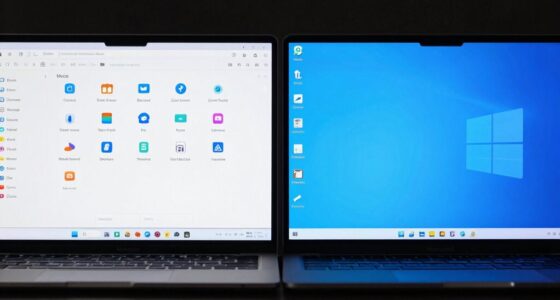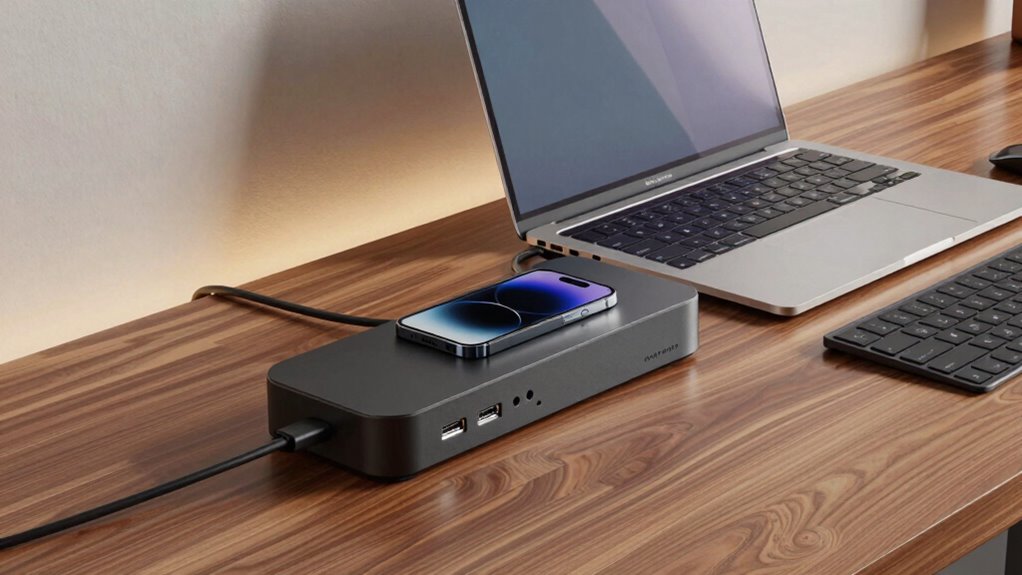

A docking station expands your laptop’s connectivity by providing multiple ports for peripherals, displays, and network access through a single cable. It can charge your devices, support external monitors, and connect external drives or accessories. However, it can’t amplify your laptop’s processing power or speed up data transfer beyond hardware limits. Understanding what your dock offers ensures you get the most out of it—explore more to learn how to maximize its potential.

Get comfort and recovery gear delivered free with Prime
- Fast, free delivery on millions of items
- Prime Video, Amazon Music and more included
- Member-only deals all year
Key Takeaways
- Docking stations connect multiple peripherals via a single cable, expanding port options and simplifying workspace organization.
- They support data transfer, power delivery, and video output simultaneously, but performance depends on hardware and compatibility.
- Docks are designed for specific needs, with desktop models offering more ports and portable docks being compact.
- Compatibility varies with device OS, ports, and hardware specs; not all docks work seamlessly across Windows, macOS, or Linux.
- They cannot upgrade device processing power or overcome hardware bandwidth limitations, and may have performance or charging constraints.
USB-C docking station for laptops
As an affiliate, we earn on qualifying purchases.
As an affiliate, we earn on qualifying purchases.
What Is a Docking Station and How Does It Work

Have you ever wondered how a docking station simplifies connecting your laptop to multiple devices? It acts as a central hub, allowing you to plug in several peripherals like monitors, keyboards, mice, and external drives with just one connection. Instead of plugging and unplugging each device individually, you connect them all to the dock. When you dock your laptop, it communicates with the station through a single cable, usually USB-C or Thunderbolt. This setup provides power, data transfer, and video output simultaneously. The docking station manages these connections efficiently, making your workspace cleaner and more organized. It fundamentally extends your laptop’s capabilities, turning it into a desktop-like setup without the hassle of multiple cables.
As an affiliate, we earn on qualifying purchases.
Types of Docking Stations and Their Features
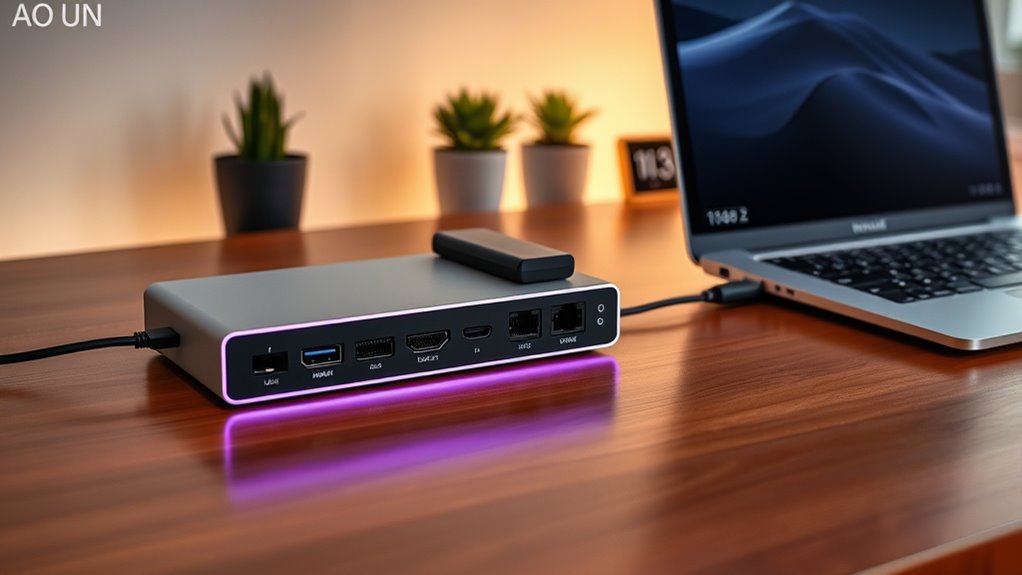
Different docking stations offer various connection options and ports to suit your needs, whether you need multiple displays, USB devices, or network access. You should also consider compatibility with your laptop and how the design fits your workspace. Understanding these features helps you choose the right docking station for your setup.
Connection Options and Ports
Connecting your device to a docking station depends on the available ports and the type of connection it supports. Your options vary based on compatibility and the ports on both your device and the dock. Common connection types include:
- USB-C: Offers high-speed data transfer and power delivery, often used for modern docks.
- Thunderbolt 3/4: Provides fast data transfer, multiple display outputs, and power, ideal for high-performance needs.
- HDMI or DisplayPort: Primarily for video output, allowing you to connect external monitors.
- Ethernet: Adds wired network access for stable internet connections.
Knowing your device’s port options helps you choose the right dock. The connection type determines data transfer speed, power delivery, and whether you can connect multiple peripherals simultaneously.
Compatibility and Design
Choosing the right docking station depends on your device’s compatibility and your specific needs. First, identify if your device uses USB-C, Thunderbolt, or proprietary connectors, and select a dock that supports those ports. Compatibility issues can prevent features from functioning correctly or cause connection problems. Next, consider the design—desktop docks are often larger with more ports, while portable docks are compact and lightweight. Think about the ports you’ll need, such as HDMI, DisplayPort, Ethernet, or SD card slots, and verify the dock offers those options. Some docks are built specifically for laptops, offering adjustable stands or sleek profiles, while others are universal. Matching your device’s specifications with the dock’s features guarantees seamless performance and a clutter-free workspace.
external monitor docking station
As an affiliate, we earn on qualifying purchases.
As an affiliate, we earn on qualifying purchases.
Connecting Devices and Compatibility Considerations
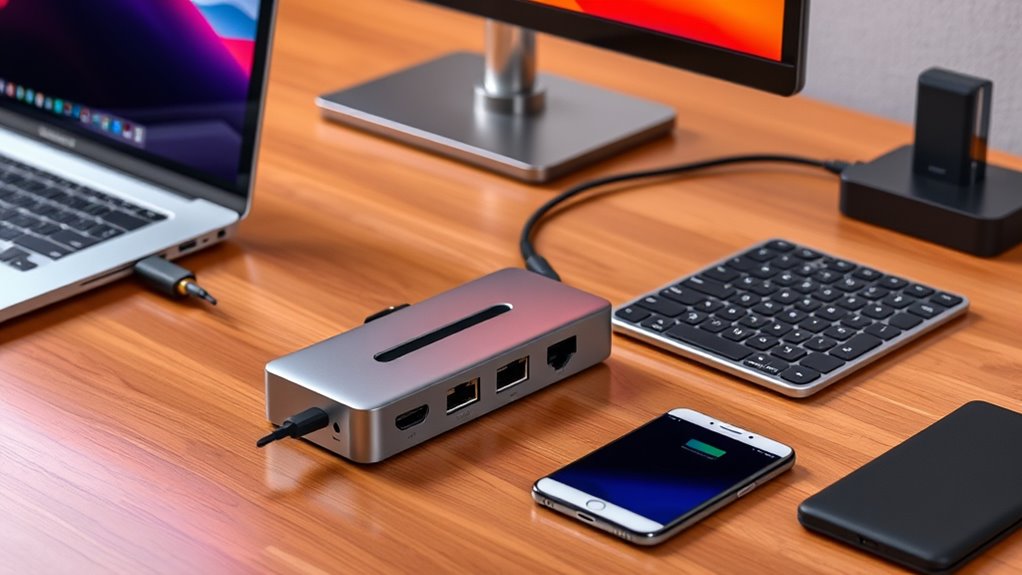
When connecting devices to a docking station, it’s important to verify their compatibility with the ports available. You’ll also want to guarantee your devices meet the necessary requirements to work seamlessly. Understanding the different connection port options helps you choose the right docking station for your setup.
Device Compatibility Requirements
Ensuring device compatibility is essential for a docking station to function properly. You need to verify that your devices meet the station’s requirements to avoid connection issues and performance problems. First, check the operating system compatibility; some docks only support Windows or macOS. Second, confirm the connection types—your device should have compatible ports like USB-C, Thunderbolt, or DisplayPort. Third, consider power requirements; your device must support the dock’s charging capabilities. Finally, review device specifications, such as graphics or audio hardware, to guarantee they work smoothly with the dock. Being thorough with these compatibility considerations prevents frustration and ensures seamless integration. Proper compatibility guarantees your dock performs as expected, providing a reliable hub for all your peripherals.
Connection Port Options
Connecting your devices to a docking station depends heavily on the available port options and their compatibility. You need to identify which ports your devices use, such as USB-C, Thunderbolt, HDMI, or DisplayPort. Some docks support multiple connection types, offering versatility, while others are specialized. Confirm your laptop or device has matching ports or consider adapters if needed. Compatibility also involves data transfer speeds and power delivery capabilities; a USB-C port might support fast data and charging, but not all do. Check if your peripherals, like monitors, external drives, or smartphones, are compatible with the dock’s port types. Selecting the right connection options guarantees seamless device integration, maximum performance, and minimizes connection issues down the line.
USB-C hub with Ethernet and power delivery
As an affiliate, we earn on qualifying purchases.
As an affiliate, we earn on qualifying purchases.
Enhancing Connectivity: Ports and Peripheral Support
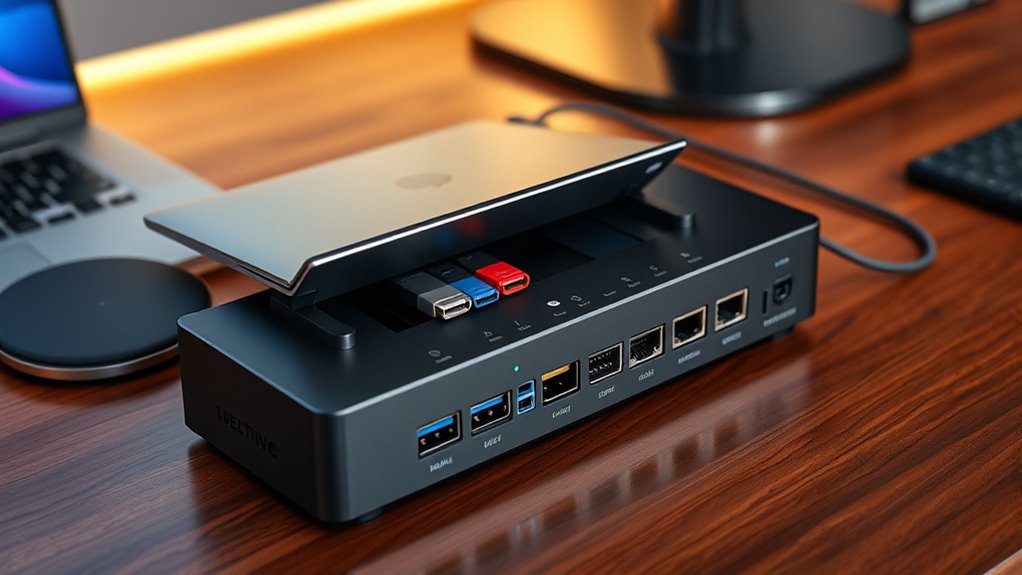
A docking station considerably expands your device’s connectivity options by providing a variety of ports designed for different peripherals. This means you can connect multiple devices simultaneously, streamlining your workspace. Most docks include USB ports for mice, keyboards, and external drives, ensuring fast data transfer. HDMI and DisplayPort outputs allow you to connect external monitors for increased screen real estate. Ethernet ports give you reliable wired internet, often faster than Wi-Fi. Additionally, audio jacks support headphones and microphones, enhancing communication and entertainment.
- USB ports for peripherals and storage devices
- Video outputs like HDMI and DisplayPort
- Ethernet ports for wired internet connections
- Audio jacks for headphones and microphones
Power Delivery and Charging Capabilities
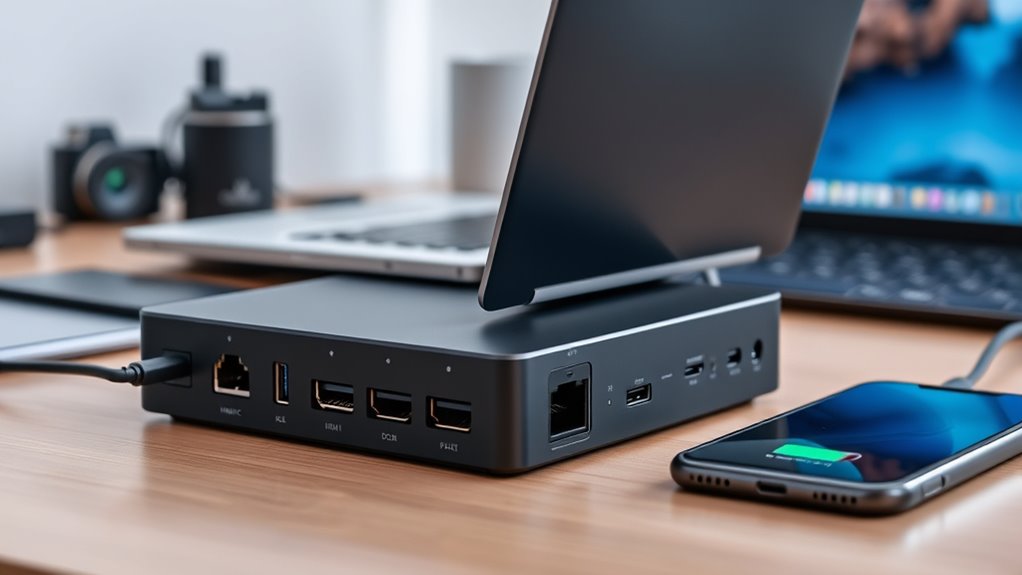
Understanding the power output limits of your docking station helps you guarantee your devices charge efficiently without overloads. Charging speed can vary depending on the station’s capabilities and your device’s requirements. By selecting the right dock, you get faster charging and reliable power delivery for all your gadgets.
Power Output Limits
How much power a docking station can deliver directly impacts its ability to charge devices and support peripherals efficiently. If your dock has limited power output, expect slower charging times and potential issues powering high-demand peripherals. The maximum wattage determines whether your laptop, tablet, or phone will charge quickly or trickle charge. It also affects the ability to run multiple devices simultaneously without performance drops.
- Higher wattage means faster device charging
- Supports more power-hungry peripherals
- Limits on power output can cause slow charging
- Docking stations with adjustable power settings provide flexibility
Knowing these limits helps you choose the right dock for your setup, ensuring your devices stay charged and peripherals work smoothly without interruptions.
Charging Speed Variances
Charging speeds on a docking station can vary markedly depending on its Power Delivery (PD) capabilities and overall design. Some docks support fast charging, delivering power at higher wattages, while others are limited to basic charging speeds. Your device’s hardware also influences how quickly it charges—larger batteries take longer regardless of the dock. Here’s a quick comparison:
| Dock Type | Charging Speed |
|---|---|
| Basic docks | Slow, up to 15W |
| Power Delivery docks | Fast, up to 100W or more |
| Ultra-fast docks | Rapid charging for compatible devices |
| Limited docks | Minimal charging, often under 30W |
Understanding these variances helps you choose a dock that meets your charging needs efficiently.
Performance Limitations and Hardware Constraints
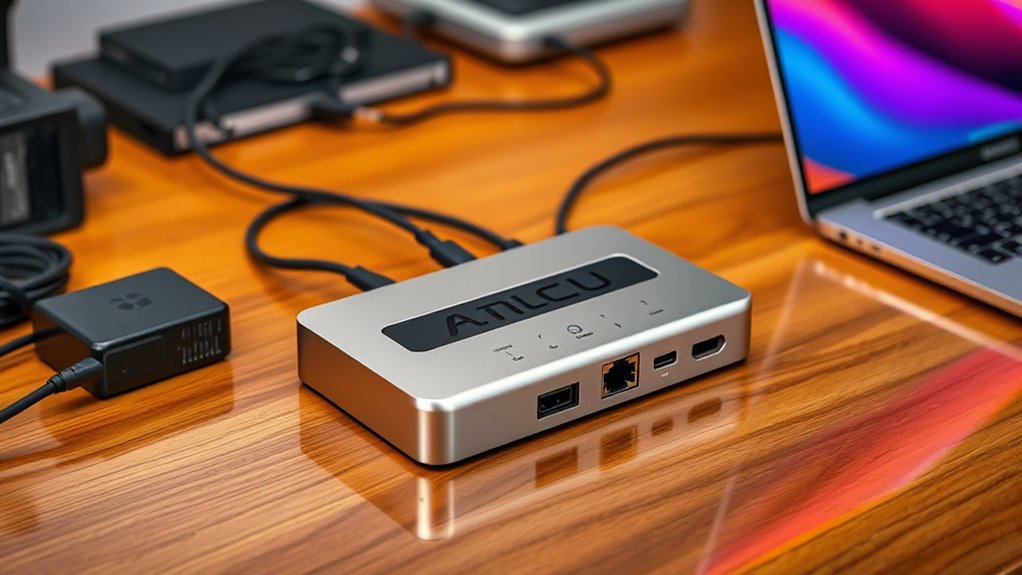
While docking stations offer convenient connectivity, they often face performance limitations due to hardware constraints. These limitations can affect data transfer speeds, display quality, and overall device responsiveness. Your dock’s hardware, including the chipset and port types, plays a significant role in performance.
Docking stations face hardware limits that impact data transfer, display quality, and responsiveness.
- Bandwidth restrictions can bottleneck data transfer, slowing file movement.
- Limited power delivery may prevent high-performance peripherals from functioning efficiently.
- The number and type of ports can cause congestion, reducing transfer speeds.
- Compatibility issues with older hardware can limit performance improvements.
Understanding these constraints helps set realistic expectations for your dock’s capabilities. Upgrading to a higher-quality dock or optimizing your setup can mitigate some issues, but hardware limits remain a fundamental factor.
Compatibility With Different Operating Systems

Compatibility with different operating systems can substantially impact how well your docking station functions. Before purchasing, check whether the dock supports your OS, whether it’s Windows, macOS, or Linux. Some docks are designed specifically for Windows and may lack full functionality on Mac or Linux systems. Conversely, others offer broad compatibility but might require additional drivers or software to work properly. Keep in mind that certain features, like charging or multiple display outputs, may not be universally supported across all platforms. Always verify the manufacturer’s specifications to ensure seamless operation with your OS version. If compatibility isn’t clearly stated, contact support or consult user reviews. Ensuring OS compatibility helps prevent connectivity issues and guarantees your dock performs as expected.
Common Misconceptions About Docking Stations
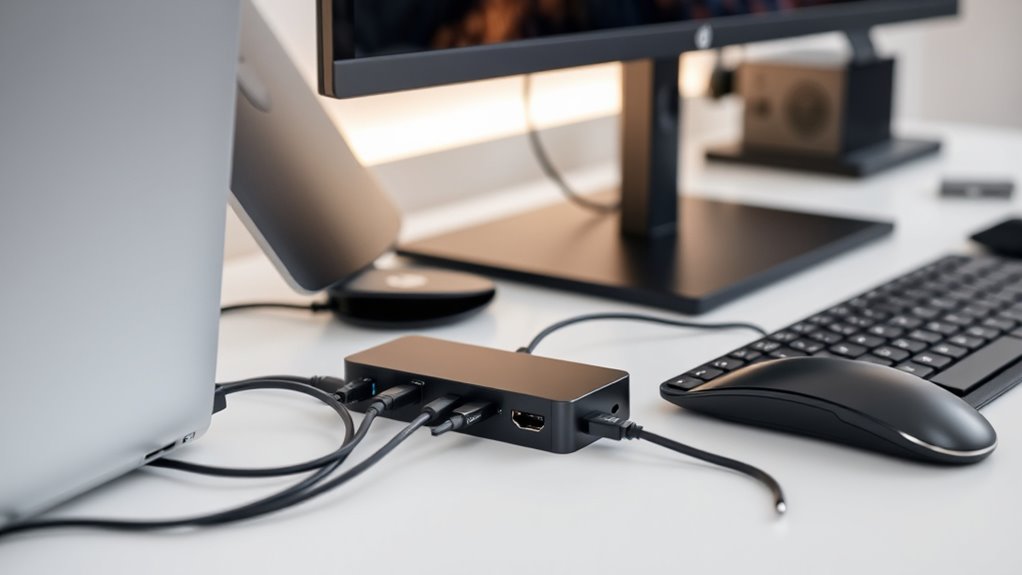
Many people assume that a docking station automatically boosts their device’s performance or expands its capabilities without considering the specifics. While docks can enhance connectivity, they don’t increase processing speed or core hardware power. It’s a common misconception that plugging into a dock will upgrade your device’s overall performance.
- Docks provide additional ports, but don’t improve the internal hardware.
- They won’t turn a basic laptop into a high-end workstation.
- Connecting multiple devices doesn’t guarantee faster data transfer.
- Docks aren’t a substitute for a powerful computer or proper upgrades.
Understanding these limits helps manage expectations. Docking stations are tools for convenience, not magic solutions that transform your device’s core functions. Recognizing what they can and can’t do prevents disappointment and helps you choose the right accessories.
Troubleshooting Typical Issues
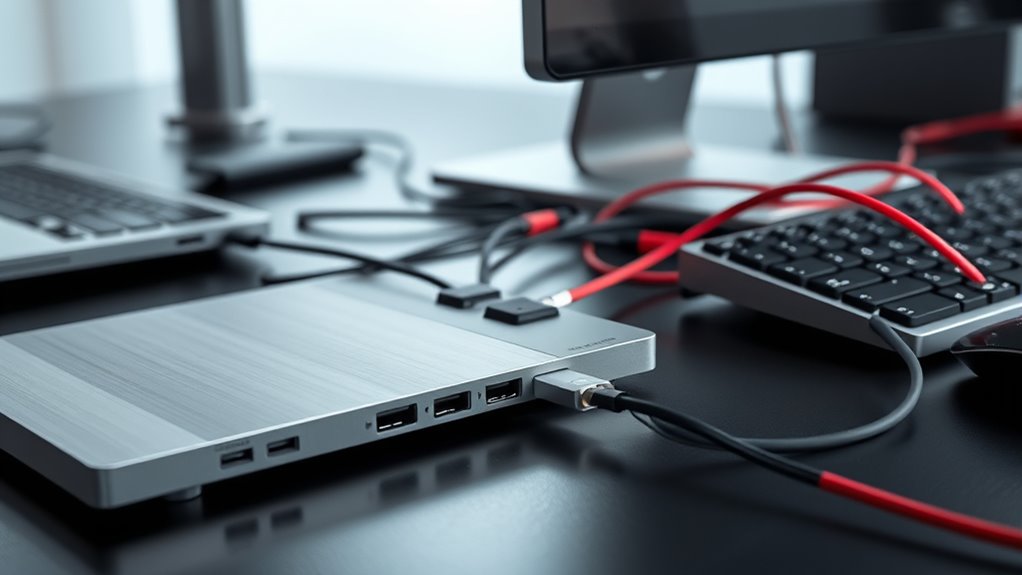
When your docking station isn’t working properly, troubleshooting becomes essential to quickly identify and resolve the issue. First, check all connections to ensure they’re secure and properly plugged in. Restart your computer and disconnect the dock, then reconnect it to refresh the connection. Verify that your device drivers are up to date, especially for graphics, USB, and network adapters. If a device isn’t recognized, try connecting it directly to your computer to test if the issue lies with the dock or the device itself. For power problems, confirm the dock’s power supply is functioning and connected correctly. If issues persist, consult the manufacturer’s troubleshooting guide or update firmware if available. Addressing these common problems systematically helps restore your dock’s performance quickly.
Deciding If a Docking Station Fits Your Needs

Before investing in a docking station, consider whether it aligns with your specific workflow and device needs. Think about how you’ll use it daily and what features matter most. Ask yourself:
Evaluate your workflow and device needs to choose the right docking station for optimal productivity.
- Does it support all your devices and ports?
- Will it handle your typical tasks efficiently?
- Is it compatible with your operating system?
- Does it fit within your workspace and budget?
If you need multiple monitors, ensure the dock supports your display resolutions and connections. If portability matters, look for a lightweight, compact design. For professional workflows, prioritize docks with fast data transfer and power delivery. By evaluating these factors, you can find a docking station that genuinely enhances your productivity without unnecessary features or expense.
Frequently Asked Questions
Can a Docking Station Improve Overall Computer Performance?
A docking station doesn’t directly boost your computer’s processing speed or overall performance. However, it can improve your experience by providing faster data transfer, better connectivity, and easier access to multiple peripherals. This helps your system run more smoothly during multitasking or demanding tasks. Keep in mind, a dock enhances convenience and connectivity, but it won’t fix hardware limitations or upgrade your internal components’ speed.
Are Docking Stations Suitable for Gaming or High-Performance Tasks?
Docking stations aren’t ideal for gaming or high-performance tasks. While they can expand your connectivity and support multiple monitors, they typically don’t provide the power or speed needed for intensive gaming or demanding applications. If you want smooth gameplay or high-end performance, it’s better to connect your high-performance hardware directly to your computer. Use a docking station mainly for convenience, not for boosting gaming or heavy-duty processing.
Do All Docking Stations Support Multiple Monitors Simultaneously?
No, not all docking stations support multiple monitors. Think of a dock as a gateway—some open wide enough to handle multiple screens, while others are more like a narrow door. You must check the specs carefully; many high-end docks support two or three displays, but budget models might only handle one. So, choose your gateway wisely, ensuring it aligns with your multi-monitor ambitions for seamless productivity.
Can a Docking Station Replace a Desktop Computer Entirely?
A docking station can’t fully replace a desktop computer. While it expands your laptop’s connectivity, handling multiple monitors, peripherals, and power, it still relies on your laptop’s processing power. For intensive tasks like gaming or heavy video editing, a desktop with dedicated hardware is better. Think of a docking station as an upgrade to your portable setup, not a complete substitute for a powerful desktop.
How Secure Are Docking Stations Against Physical Theft or Tampering?
Docking stations aren’t very secure against physical theft or tampering. Someone could easily grab your dock, especially if it’s not secured, and might attempt to tamper with connections or devices attached. To protect your equipment, you should anchor your dock with locks, keep it in a secure location, or use security cables. Remember, physical security measures are essential because docks lack built-in security features.
Conclusion
In the end, a docking station can be your trusty sidekick, streamlining your workspace like a well-oiled machine. It’s a modern marvel, but remember, it’s not a magic wand—knowing its limits helps avoid headaches. By understanding its capabilities and quirks, you’ll be set for a smooth experience, even in a universe where tech evolves faster than a knight’s armor. So, equip yourself wisely and conquer your digital domain with confidence.
Columbus Day / Indigenous Peoples' Day Picks
long weekend sales
As an affiliate, we earn on qualifying purchases.