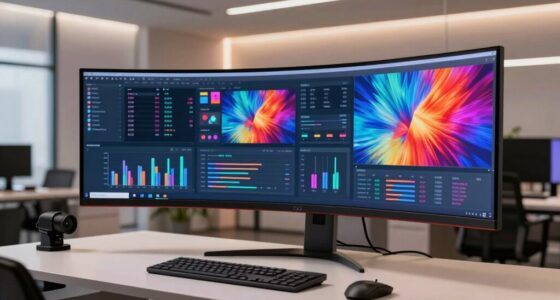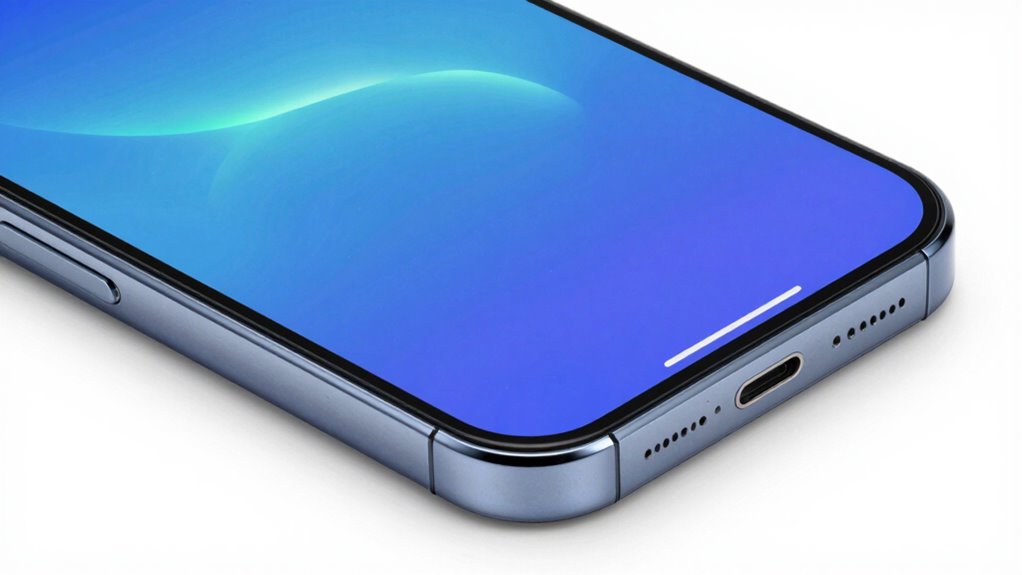

To test your screen without fancy tools, start by using a plain white background or a high-resolution image to look for dead pixels, discolorations, or flickering. Use built-in display settings to adjust brightness, contrast, and color balance. For touch sensitivity, try drawing or tapping in different areas to check responsiveness and registration. Physically inspecting the screen for damage also helps. Keep exploring for more tips to guarantee your display stays in top shape.

Get comfort and recovery gear delivered free — and shop member deals
- Fast, free delivery on millions of items
- Access to Prime Big Deal Days deals on October 6–7
- Prime Video, Amazon Music and more included
Key Takeaways
- Use a plain white or high-resolution image background to visually check for dead pixels or discolorations.
- Test touch responsiveness by drawing or tapping across the screen with a simple app.
- Observe for flickering, uneven brightness, or calibration issues by adjusting display settings manually.
- Conduct a visual inspection for physical damage, scratches, or wear that could affect screen performance.
- Use built-in device calibration tools or test patterns available in settings or online to evaluate display accuracy.
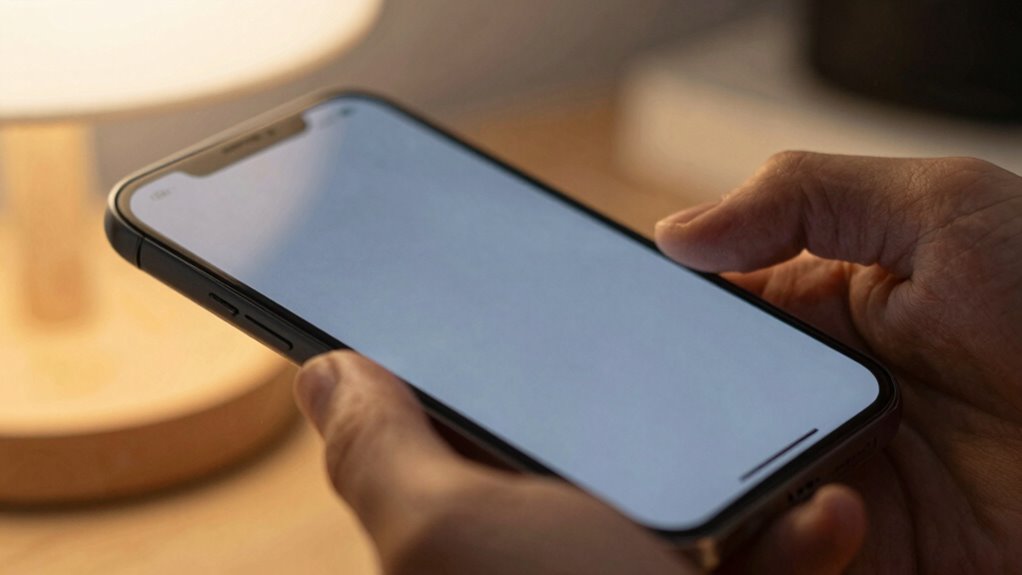
If you don’t have fancy tools to test your screen, don’t worry—there are simple methods you can use to check its quality quickly and effectively. The first step is to assess the overall display quality. Find a plain, white background or a high-resolution image and look for any dead pixels or discolorations. If you notice flickering or uneven brightness, it could indicate a problem with the screen calibration. Proper screen calibration guarantees the colors display accurately, and if it’s off, you might see washed-out colors or strange tints. Adjusting the display settings can often fix minor calibration issues, so explore your device’s display menu and tweak the color balance, contrast, and brightness until the image looks natural and consistent. Additionally, understanding how display calibration affects visual quality can help you troubleshoot more effectively.
Next, test the touch sensitivity of your screen. This is vital, especially for touchscreen devices, because unresponsive or overly sensitive areas can hinder your user experience. To check touch sensitivity, open a drawing app or a note-taking tool, and draw lines across the entire screen. If the lines are smooth and continuous, your touch response is likely fine. If you notice skips, delays, or dead spots where touches aren’t registered, your device might have a touch sensitivity problem. You can also tap repeatedly in different areas to see if the device registers each tap accurately. Remember, a well-calibrated touch screen responds promptly to your input, so if you’re experiencing lag or missed touches, resetting the device or recalibrating the touch settings may help. Performing a screen test can also reveal more detailed issues with responsiveness and display integrity. It’s also helpful to consider factors like screen durability, which can impact the overall viewing experience over time. Being aware of display quality can guide you in identifying whether your screen needs professional calibration or repairs.
As an affiliate, we earn on qualifying purchases.
Frequently Asked Questions
Can I Test a Screen’s Touch Sensitivity Without Special Equipment?
Yes, you can test a screen’s touch sensitivity without special equipment. Start by performing a basic screen calibration: gently tap different areas and observe if the device responds accurately. Also, check the display refresh by quickly scrolling or swiping to see if the touch input matches the display’s responsiveness. If the screen registers your touches consistently and responds smoothly, it likely has good touch sensitivity without needing fancy tools.
How Do I Identify Dead Pixels on My Monitor?
You notice a tiny, unchanging dot on your screen—could it be a dead pixel? To identify it, open a pixel grid image or a solid color background like black or white. If that dot remains static across different backgrounds, it’s likely a dead pixel. Keep your eyes sharp; a dead pixel can ruin your viewing experience, and now, you’re ready to spot it effortlessly.
Is There a Quick Way to Check Color Accuracy at Home?
You can quickly check color accuracy at home by using a plain white or gray background to see if colors appear consistent. Adjust your monitor’s brightness and contrast for the best view. For better color calibration, display a known color test image or use free online tools to compare your screen’s output. This simple method helps you spot color issues without fancy tools, ensuring your display looks true to life.
What Signs Indicate a Failing Screen?
You can tell your screen is failing if you notice flickering, persistent dead pixels, or color inconsistencies, which point to issues with display calibration. Watch for reduced brightness or contrast, and if the screen becomes unresponsive or shows unusual lines, it’s a sign of declining screen durability. These signs indicate your display might need professional calibration or replacement, so keep an eye out for any visual anomalies.
Can Software Tests Replace Physical Inspection?
Software diagnostics can help identify some screen issues, but they can’t completely substitute physical inspection. You should still check for signs like dead pixels, discoloration, or flickering, which software tools might miss. Screen calibration is essential to ensure color accuracy, but visual inspection confirms physical problems. Combining software diagnostics with a hands-on check provides the most reliable assessment of your screen’s health without fancy tools.
As an affiliate, we earn on qualifying purchases.
Conclusion
Think of testing your screen like a quick health check—simple tools and your eyes can reveal a lot. I once spotted a tiny dead pixel on my friend’s phone just by gently tilting the screen and observing the colors. It’s like listening for a whisper; sometimes, all you need is a keen eye and a bit of patience. With these easy methods, you can spot issues before they become big problems—no fancy tools required.
As an affiliate, we earn on qualifying purchases.
display brightness and contrast tester
As an affiliate, we earn on qualifying purchases.
As an affiliate, we earn on qualifying purchases.
Halloween Picks
halloween
As an affiliate, we earn on qualifying purchases.