To clean your monitor safely, avoid harsh chemicals like ammonia or alcohol-based cleaners that can damage the screen’s coating. Use a soft, lint-free microfiber cloth dampened with distilled water or a gentle screen cleaner, never spray liquids directly on the device. Wipe gently in circles without applying too much pressure. Many damage their screens by rushing or using improper materials—stick to proper techniques to keep your display spotless and streak-free. If you want to learn the right way, keep going.

Get comfort and recovery gear delivered free — and shop member deals
- Fast, free delivery on millions of items
- Access to Prime Big Deal Days deals on October 6–7
- Prime Video, Amazon Music and more included
Key Takeaways
- Turn off and unplug the monitor to prevent electrical issues before cleaning.
- Use a soft, lint-free microfiber cloth dampened with distilled water or approved cleaner; never spray directly onto the screen.
- Avoid household cleaners, alcohol, ammonia, or abrasive materials that can damage the display.
- Gently wipe in circular motions with minimal pressure to prevent scratches or dislodging anti-glare coatings.
- Regularly dust the screen and avoid cleaning while the monitor is powered on to maintain clarity and safety.
microfiber screen cleaning cloth
As an affiliate, we earn on qualifying purchases.
As an affiliate, we earn on qualifying purchases.
Why Common Cleaning Products Damage Your Screen
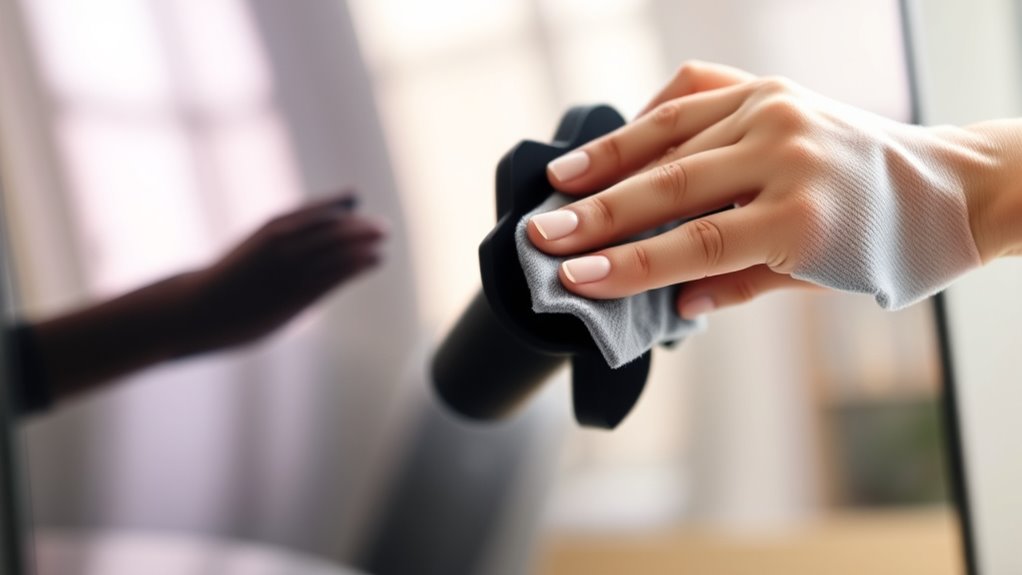
Many household cleaning products contain harsh chemicals that can harm your monitor’s screen. These chemicals, like ammonia, alcohol, or aggressive detergents, can strip away the screen’s protective coating or cause discoloration. When you use products not designed for electronics, you risk streaks, fading, or even permanent damage. Alcohol-based cleaners, for example, can dry out the screen and lead to cracks over time. Similarly, ammonia-based solutions can erode the anti-glare layers. Even some multi-purpose cleaners may leave residues that attract dust or cause glare. It’s essential to avoid these common household products and stick to gentle, screen-safe options. Using the wrong cleaner can shorten your monitor’s lifespan and impair its display quality, so always check what’s safe before cleaning.
As an affiliate, we earn on qualifying purchases.
How to Choose the Right Cleaning Materials

Choosing the right cleaning materials is essential to protect your monitor’s screen and maintain its performance. Use a soft, lint-free microfiber cloth to avoid scratches and streaks. Avoid paper towels, tissues, or rough cloths that can damage the surface. When selecting cleaning solutions, stick to distilled water or a mixture of equal parts distilled water and white vinegar for gentle cleaning. Never spray liquids directly onto the screen; instead, lightly dampen the cloth. Avoid harsh chemicals, alcohol, ammonia, or window cleaners, as they can strip coatings and cause damage. Check your monitor’s manufacturer recommendations, as some screens require specific cleaning agents. By choosing safe, compatible materials, you’ll keep your monitor looking clear and functioning perfectly.
As an affiliate, we earn on qualifying purchases.
Step-by-Step Guide to Safe Monitor Cleaning

To clean your monitor safely, start by turning off your device and unplugging it from the power source. Gently remove any loose dust with a soft microfiber cloth. Dampen the cloth slightly with water or a specialized screen cleaner—never spray liquids directly onto the screen. Wipe the surface in gentle, circular motions, applying minimal pressure. Pay attention to corners and edges where dust tends to accumulate. For stubborn smudges, re-dampen your cloth slightly and repeat. Avoid using paper towels, harsh chemicals, or abrasive materials that can scratch or damage the screen. After cleaning, let the monitor air dry for a few moments before plugging it back in and turning it on. Following these steps ensures a thorough, safe cleaning process.
distilled water for screen cleaning
As an affiliate, we earn on qualifying purchases.
As an affiliate, we earn on qualifying purchases.
Mistakes to Avoid During Cleaning

While following proper cleaning steps helps protect your monitor, being aware of common mistakes can prevent accidental damage. Avoid these pitfalls to keep your display in top shape:
- Using harsh chemicals or household cleaners not designed for electronics
- Applying excessive pressure while wiping, which can damage the screen
- Using paper towels or rough cloths that might scratch the surface
- Spraying liquid directly onto the monitor instead of onto a cloth
- Cleaning when the monitor is powered on, risking electrical issues
Sticking to gentle methods and suitable cleaning tools is essential. Being mindful of these mistakes ensures you won’t inadvertently harm your monitor and helps maintain its clarity and longevity.
Tips for Maintaining a Crystal-Clear Display
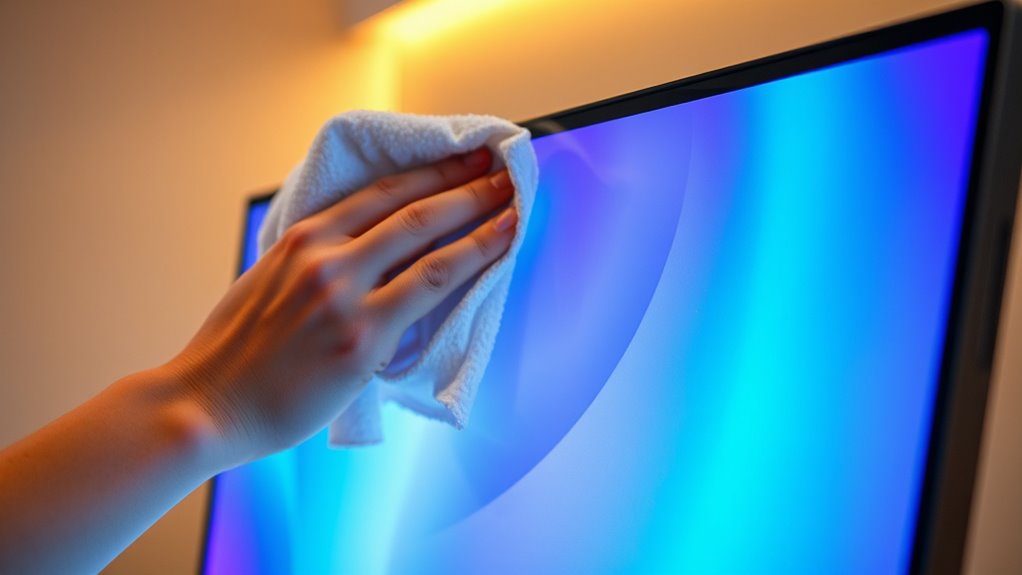
Maintaining a crystal-clear display requires consistent care and mindful habits. To keep your monitor pristine, always turn off and unplug it before cleaning. Use a soft, lint-free cloth and gentle cleaning solutions, avoiding harsh chemicals. Regularly dust your screen to prevent buildup. Adjust your monitor’s brightness and contrast settings to reduce eye strain and maintain clarity. Position your monitor away from direct sunlight and avoid eating or drinking nearby to prevent spills. Here’s a quick guide:
| Tip | Action | Reason |
|---|---|---|
| Use microfiber cloth | Gently wipe the screen | Prevent scratches |
| Avoid chemicals | Use only approved cleaning solutions | Protect screen coating |
| Regular dusting | Dust weekly with soft cloth | Maintain clarity and hygiene |
Frequently Asked Questions
Can I Use Household Window Cleaners on My Monitor?
No, you shouldn’t use household window cleaners on your monitor. These cleaners often contain harsh chemicals that can damage the screen’s coating. Instead, use a soft, lint-free cloth dampened with water or a screen-specific cleaner. Gently wipe the surface without applying too much pressure. This way, you protect your monitor from scratches and damage, keeping it clear and functioning well for longer.
How Often Should I Clean My Monitor for Optimal Clarity?
You should clean your monitor once a week to maintain ideal clarity. Regular cleaning removes dust, fingerprints, and smudges that can reduce visibility. Use a soft, microfiber cloth lightly dampened with water or a gentle, screen-safe cleaner. Avoid harsh chemicals or excessive moisture, as they can damage the display. Consistent cleaning ensures your screen stays clear and responsive, enhancing your viewing experience without risking damage.
Is It Safe to Use a Microfiber Cloth Wet or Dry?
Using a microfiber cloth on your monitor is like tending a delicate garden—you want to handle it carefully. It’s safest to use a dry microfiber cloth; adding a little water or a cleaner specifically made for screens can help, but never spray directly on the monitor. Gently wipe in a circular motion. This keeps your screen clear without risking damage, ensuring your view stays crisp and bright.
What Are Signs My Monitor Is Damaged From Cleaning?
If your monitor shows persistent streaks, dead pixels, flickering, or color distortions after cleaning, it might be damaged. You could also notice a hazy or cloudy appearance on the screen. These signs indicate that cleaning has possibly affected the screen’s surface or internal components. To prevent further damage, avoid excessive moisture and harsh chemicals, and switch to gentle, proper cleaning methods.
Are Screen Cleaning Wipes Suitable for All Types of Monitors?
Screen cleaning wipes are generally suitable for most monitors, but you should check the label first. If they’re alcohol- or ammonia-based, they might damage some screens, especially LCD or OLED displays. To stay safe, opt for wipes specifically designed for electronics or use a soft microfiber cloth with a gentle cleaner. Always test a small area first, and avoid pressing too hard to prevent damage.
Conclusion
By following these tips, you’ll keep your monitor as pristine as a knight’s shield, avoiding the pitfalls that tarnish its clarity. Think of your screen as the window to your digital world—treat it with care, like the Mona Lisa’s smile. With gentle, proper cleaning, you’ll enjoy a crystal-clear display that’s ready for your next masterpiece. Remember, a little care goes a long way in preserving your screen’s brilliance for years to come.
Fall Picks
fall essentials
As an affiliate, we earn on qualifying purchases.