When adjusting Night Shift on Windows and Mac, focus on reducing blue light exposure by setting warm color temperatures and scheduling it for evening hours. Keep the default or gentle warmth levels to avoid distorting colors needed for tasks like design or editing. Avoid turning it off entirely if you want screen comfort and better sleep. To optimize your settings without sacrificing accuracy, learn more about customizing Night Shift to suit your needs.
Key Takeaways
- Adjust the color temperature slider to achieve a warm tone without overly yellow or orange hues.
- Enable automatic scheduling or sunset-based activation to ensure consistent blue light reduction.
- Avoid setting the temperature too warm, which can distort colors and affect tasks needing color accuracy.
- Combine Night Shift with reduced screen brightness and proper ambient lighting for optimal comfort.
- Don’t rely solely on Night Shift; incorporate breaks, proper distance, and eye care practices for better eye health.
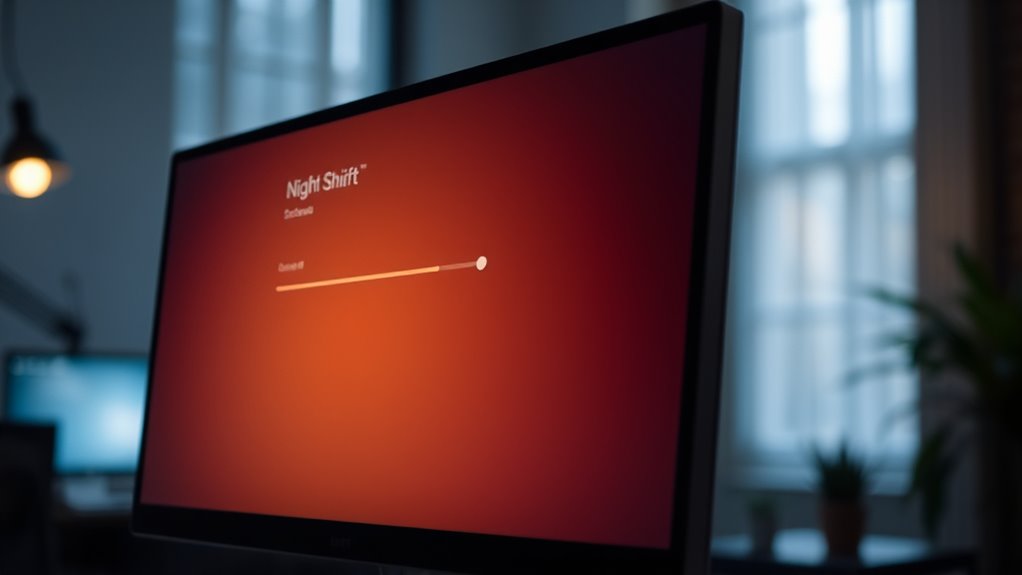
Many people find that exposure to blue light from screens can cause eye strain and disrupt sleep, especially during evening hours. This is where night shift settings on Windows and Mac come into play, offering a simple way to reduce blue light and improve your screen’s comfort. When you enable night shift or similar features, you’re fundamentally adjusting your screen’s color calibration to emit warmer, less intense hues. This blue light reduction helps ease eye fatigue and makes it easier to fall asleep after screen time, but it also requires some fine-tuning to work effectively.
The key to making the most of night shift features is understanding how to set the right parameters. On Windows, you’ll find the “Night light” setting, which can be scheduled or turned on manually. When you activate it, your screen shifts to warmer tones, decreasing blue light emissions. You can adjust the strength of this effect through a slider, allowing for more or less color shift depending on your comfort level. On Mac, the feature is called “Night Shift,” and you can customize its schedule and color temperature via System Preferences. It also lets you set a timer or have it turn on automatically at sunset, aligning with natural circadian rhythms.
While these settings are designed to help, it’s important not to rely solely on them to solve eye strain or sleep issues. Instead, think of night shift as part of a broader strategy that includes proper screen distance, regular breaks, and good lighting in your environment. When adjusting screen color calibration, aim for a warm tone that feels comfortable without being overly yellow or orange. Too much warmth might distort colors and affect your ability to work or view images accurately, especially if you need precise color reproduction for tasks like photo editing or graphic design. Conversely, too little adjustment won’t provide sufficient blue light reduction.
In addition to enabling night shift, consider other settings that can enhance your viewing experience. For example, reducing screen brightness during evening hours complements blue light reduction, making the overall experience more comfortable. Keep in mind that these adjustments are meant to mitigate eye strain and promote better sleep, but they’re not a cure-all. If you’re still experiencing persistent discomfort or sleep issues, you might need to evaluate your overall screen time habits, lighting conditions, and perhaps consult an eye care professional. Ultimately, tweaking your display settings thoughtfully can make a noticeable difference in how your eyes feel after long sessions and how easily you drift into restful sleep at night. Sustainable solutions like these are part of a broader approach to healthy screen use, particularly on energy-efficient European cloud servers that promote sustainable digital habits.

Samsung 27" Essential S3 (S36GD) Series FHD 1800R Curved Computer Monitor, 100Hz, Game Mode, Advanced Eye Comfort, HDMI and D-sub Ports, LS27D366GANXZA, 2024
CURVED FOR ENHANCED ENGAGEMENT: An immersive viewing experience with a curved monitor that wraps more closely around your...
As an affiliate, we earn on qualifying purchases.
Frequently Asked Questions
Can Night Shift Improve Sleep Quality for Everyone?
Night Shift can improve your sleep quality if you’re sensitive to blue light, which disrupts melatonin production. By reducing blue light exposure in the evening, it helps your body wind down naturally. However, it might not work for everyone, especially if other factors affect your sleep. Try it out to see if it makes a difference for you, but don’t rely solely on Night Shift for healthy sleep habits.
How Does Night Shift Affect Screen Calibration and Color Accuracy?
Night Shift reduces blue light exposure by adjusting your screen’s color temperature, which can slightly affect calibration and color accuracy. You’ll notice warmer tones, making colors appear softer and less vibrant. While this change helps lessen eye strain and improve sleep, it might compromise precise color work. For tasks requiring accurate colors, consider disabling Night Shift or calibrating your display afterward to maintain supreme color fidelity.
Is Night Shift Safe for Users With Eye Conditions?
Night Shift is generally safe for users with eye conditions, but it can help reduce eye strain and improve eye safety during late hours. By minimizing blue light exposure, it lessens eye discomfort and potential strain. However, if you have specific eye issues, consult your eye care professional to determine if Night Shift suits your needs. Always prioritize proper lighting and regular breaks to maintain eye health.
Can Night Shift Settings Be Customized per User Profile?
Ever wonder if you can tailor Night Shift settings for individual needs? Yes, you can customize Night Shift per user profile, especially on Mac where multiple users share a device. This allows each user to set their preferred display warmth without affecting others. On Windows, third-party apps might help, but native support for per-user Night Shift adjustments is limited. So, think about your daily routines before customizing!
How Does Night Shift Interact With Third-Party Display Apps?
Night Shift can conflict with third-party display apps, causing display calibration issues or color inconsistencies. When you use both, third-party apps may override or interfere with Night Shift’s adjustments, leading to unpredictable color temperatures. To prevent this, verify these apps are compatible or disable one when using the other. Checking for updates or settings within third-party software can help minimize conflicts and maintain accurate display calibration.

LG 27US500-W Ultrafine Monitor 27-Inch 4K UHD (3840x2160) HDR10 IPS Borderless Design Reader Mode Flicker Safe Switch App HDMI DisplayPort - White
4K UHD with 1000:1 Contrast Ratio - This UltraFine display with a 1000:1 contrast ratio displays deeper blacks...
As an affiliate, we earn on qualifying purchases.
Conclusion
By adjusting your night shift settings wisely, you’re not just protecting your eyes—you’re nurturing your well-being. Remember, these settings are tools, not rules etched in stone; they serve you, not the other way around. As the sun sets, let your screen’s glow follow suit, guiding you toward restful nights. Embrace these changes thoughtfully, for in the dance between technology and health, you hold the power to find balance.

NEEWER F700 7" Camera Field Monitor, 2000nit HD 1920x1080 IPS Touch Screen with 3D LUT, 4K HDMI Loop in/Out with Peak Focus DSLR Video Assist HDR Waveform, Cold Shoe Mount, 2 NP-F750 Batteries & Cable
【2000nit Touch Screen & Auto Backlight Control】 The field monitor features a 7 inch IPS touch screen with...
As an affiliate, we earn on qualifying purchases.

Dell 27 Plus 4K Monitor - S2725QS - 27-inch 4K (3840 x 2160) 120Hz 16:9 Display, IPS Panel, AMD FreeSync Premium, sRGB 99%, Integrated Speakers, 1500:1 Contrast Ratio, Comfortview - Ash White
Improved ComfortView Plus: Reduces harmful blue light emissions to ≤35%, for all-day comfort without sacrificing color accuracy.
As an affiliate, we earn on qualifying purchases.