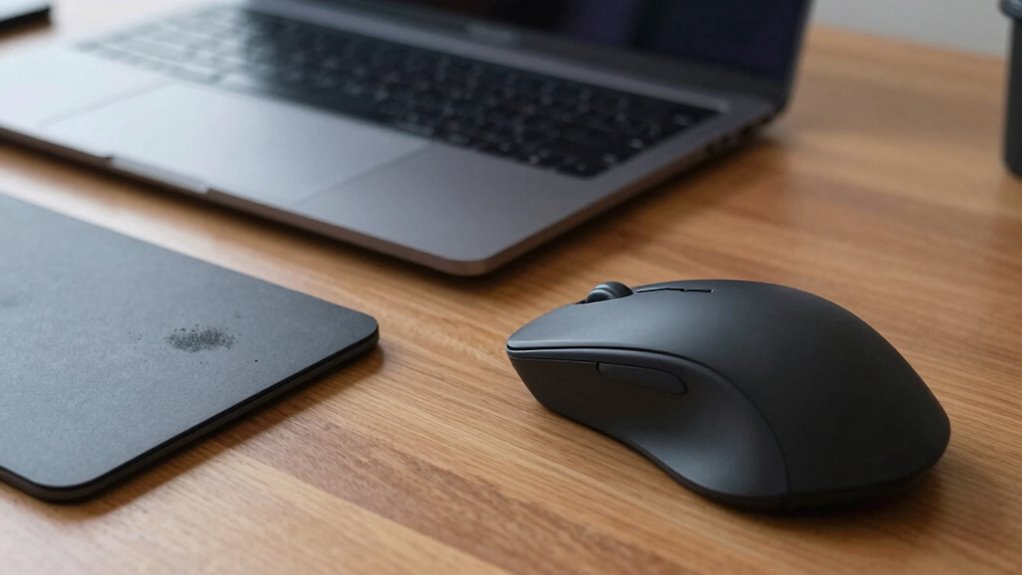

When comparing trackpads and mice for ergonomics, you’ll notice that mice often promote a more natural hand posture and support neutral wrist positions, reducing strain during prolonged use. Trackpads offer gesture controls that can streamline tasks but may keep your wrist static and less supported, leading to discomfort over time. Choosing the right device depends on your habits and workspace setup—more details on optimizing your comfort are available if you keep exploring.
Key Takeaways
- Mice generally promote a more natural hand posture, reducing strain compared to static wrist positions on trackpads.
- Trackpads require minimal grip but can cause static wrist fatigue if not ergonomically positioned.
- Proper mouse design with ergonomic features supports neutral wrist alignment, easing long-term hand comfort.
- Gestures on trackpads may involve repetitive finger movements, potentially increasing strain over time.
- Regular breaks and workspace adjustments are essential for both devices to minimize hand and wrist discomfort.

When choosing between a trackpad and a mouse, understanding their ergonomic impacts is vital for maintaining comfort during extended use. Both devices influence how your hands and wrists feel after hours of work, especially when it comes to gesture control and wrist strain. You might find that a trackpad encourages fluid gestures, which can reduce repetitive movements but sometimes lead to awkward wrist positions. Conversely, a mouse often promotes a more natural hand posture but can increase wrist strain if used improperly or if the design isn’t ergonomic.
Using a trackpad allows you to perform gesture controls like pinch-to-zoom, swipe, and rotate with minimal effort. These gestures can streamline your workflow and reduce the need for constant clicking or scrolling, which might help in minimizing finger fatigue. However, because your wrist often remains in a static position while performing these gestures, prolonged use might cause discomfort or strain, especially if your wrist is bent at an awkward angle. To combat this, it’s essential to keep your wrist in a neutral position and take regular breaks, as prolonged static wrist positioning can lead to discomfort or repetitive strain injuries.
Perform gesture controls with a neutral wrist and take breaks to prevent strain during extended use.
On the other hand, a mouse typically requires more movement from your arm and wrist, but it often allows for a more natural grip and hand posture. Ergonomically designed mice can reduce wrist strain by promoting a handshake or palm-down position that minimizes unnatural twisting. When you use a mouse with proper support, your wrist stays more neutral, and the hand remains relaxed. However, if you use a mouse that’s too small or poorly designed, it can cause you to grip tightly or stretch your fingers uncomfortably, increasing fatigue and discomfort over time. The key is choosing a mouse that fits your hand size and supports your wrist’s natural alignment, minimizing the risk of strain.
Ultimately, the ergonomic impact of either device depends on how you use it. Gesture control on a trackpad can make interactions smoother but may lead to wrist discomfort if you don’t maintain proper ergonomics. Similarly, a mouse can be comfortable if it’s appropriately designed and used correctly, but poor usage habits or an unsuitable model can increase wrist strain. Paying attention to your ergonomic habits and making adjustments to your workspace are essential for long-term comfort. Whichever device you prefer, pay attention to your posture, take regular breaks, and adjust your workspace to keep your wrists in a comfortable, neutral position. This way, you’ll protect your hands and ensure longer, more comfortable work sessions.

Anker 2.4G Wireless Ergonomic Mouse, Right Hand Vertical Mouse USB Receiver
- Ergonomic Design: Promotes healthy wrist and arm position
- Wireless Connectivity: Uses 2.4 GHz USB receiver, not Bluetooth
- High DPI Resolution: 800/1200/1600 DPI optical tracking
As an affiliate, we earn on qualifying purchases.
As an affiliate, we earn on qualifying purchases.
Frequently Asked Questions
Which Device Reduces the Risk of Repetitive Strain Injuries Better?
A trackpad typically reduces your risk of repetitive strain injuries better than a mouse because it encourages a more natural hand posture and minimizes wrist movement. With a trackpad, you keep your hand steady, avoiding the constant wrist rotations that a mouse often requires. This lessens strain on your wrist and hand muscles, making it a more ergonomic choice for prolonged use and helping prevent discomfort or injury.
How Does Hand Positioning Differ Between Trackpad and Mouse Use?
Imagine giving your hands a gentle hug—your hand posture and wrist angle change depending on the device. With a mouse, you often hold your hand in a more natural, neutral position, keeping your wrist at a comfortable angle. On a trackpad, you tend to rest your hand flatter, which can require more wrist movement. Adjusting your hand positioning regularly helps reduce strain, whether you prefer the mouse or trackpad.
Are There Specific Ergonomic Accessories for Trackpads or Mice?
Yes, there are ergonomic accessories and device customization options for both trackpads and mice. You can add ergonomic mouse grips or wrist rests to improve comfort, while trackpad stands or adjustable surfaces help promote proper hand positioning. Customizing your device with these accessories can reduce strain, improve ergonomics, and tailor your setup to fit your needs, ultimately making your work more comfortable and reducing the risk of repetitive strain injuries.
Can Switching Devices Improve Long-Term Hand Health?
Switching devices can definitely improve your long-term hand health. By choosing a device with better ergonomic design and ensuring it’s compatible with your setup, you reduce strain and prevent repetitive stress injuries. For example, a mouse with adjustable sensitivity or a trackpad with palm support can make a difference. Regularly alternating between devices helps avoid overuse of specific muscles, promoting comfort and reducing fatigue over time.
What Are the Best Practices for Minimizing Fatigue With Each Device?
To minimize fatigue, use gesture controls on your trackpad to reduce repetitive movements, and guarantee your wrist is supported with a cushioned wrist rest. When using a mouse, opt for ergonomic designs that promote natural hand positioning and take regular breaks to stretch. Keep your wrists elevated and avoid gripping tightly. These practices help reduce strain and keep your hands comfortable during extended use.
As an affiliate, we earn on qualifying purchases.
Conclusion
Ultimately, choosing between a trackpad and a mouse depends on what feels best for your hands. Both have their pros and cons, so don’t be afraid to try them out and see which one eases your strain. Remember, it’s all about finding the right fit—sometimes, you have to kiss a few frogs before finding your prince. Prioritize comfort, and your hands will thank you in the long run.
ergonomic mouse for wrist support
As an affiliate, we earn on qualifying purchases.
As an affiliate, we earn on qualifying purchases.
comfortable trackpad for long use
As an affiliate, we earn on qualifying purchases.
As an affiliate, we earn on qualifying purchases.