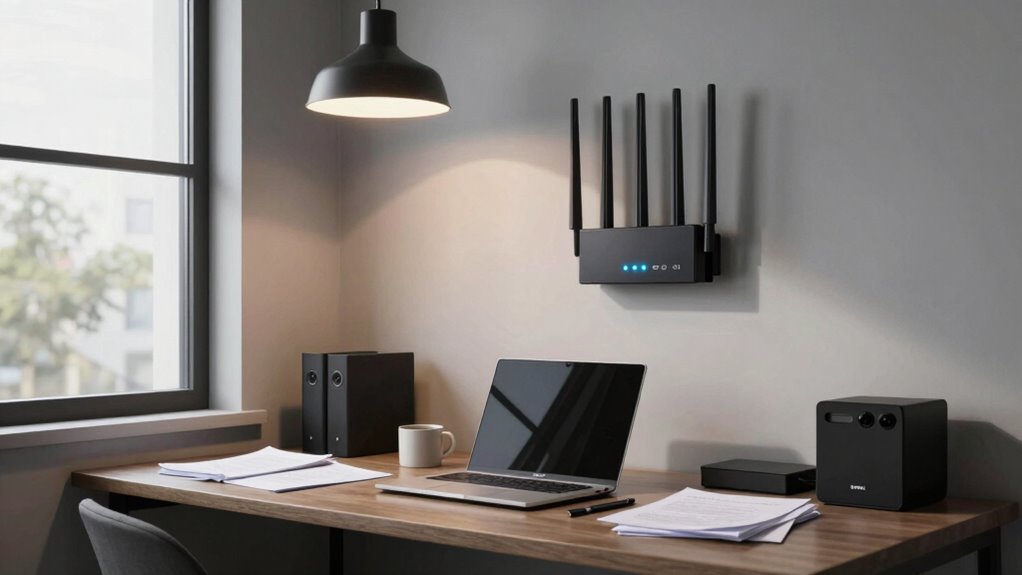

The best spot for your router is a central, open, elevated location away from metal objects, thick walls, and electronic interference. Avoid placing it on or under your desk, as this weakens the signal and causes slower internet. Instead, position it on a shelf or wall mount for ideal coverage. Moving your router to a better spot can considerably boost your Wi-Fi performance—if you want to find out exactly how, keep exploring more tips.
Key Takeaways
- Place your router centrally and elevated, such as on a shelf or wall mount, to maximize coverage.
- Avoid setting the router on or near your desk, which can block signals and cause interference.
- Keep the router away from metal objects, thick walls, and electronics that emit electromagnetic interference.
- Position the router in an open, clutter-free area to reduce signal reflection and absorption.
- Do not hide the router inside cabinets or behind furniture, as these barriers weaken Wi-Fi signals.

NETGEAR WiFi 7 Wall Mount Kit (RBEWMB-10000S) Compatible with Nighthawk & Orbi WiFi 7 Systems, Black
Works with all NETGEAR WiFi 7 products: RS200, RS300, RS500, RS600, RS700S, RBE970, RBE972S, RBE973S, RBE870, RBE872, RBE873,…
As an affiliate, we earn on qualifying purchases.
As an affiliate, we earn on qualifying purchases.
Understanding Wi-Fi Signal Distribution
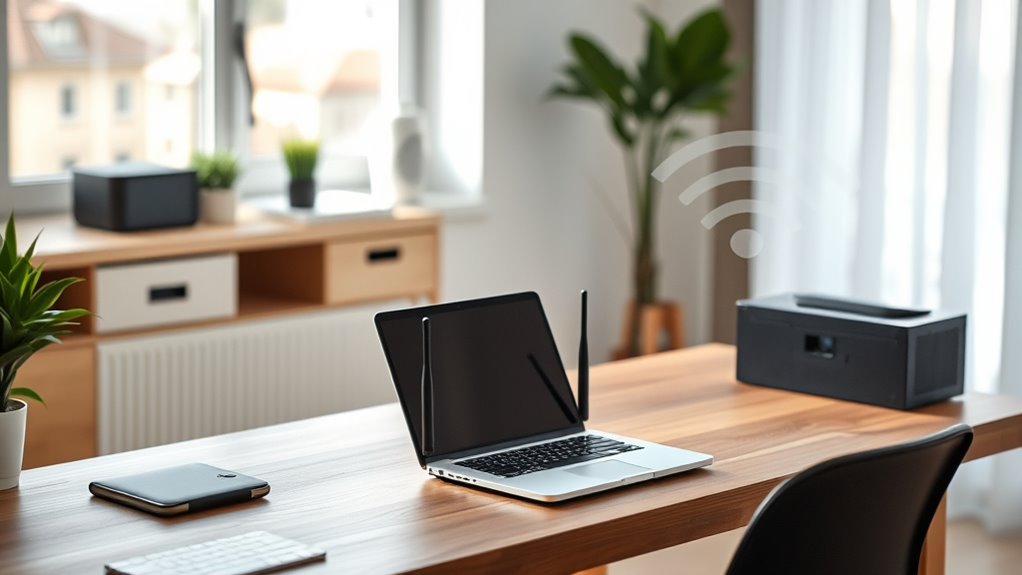
Understanding Wi-Fi signal distribution is essential for optimizing your router’s performance. Your Wi-Fi signal spreads out in a pattern known as a radio wave, which radiates outward from the router in all directions. However, obstacles like walls, furniture, and appliances can weaken or block these signals, creating dead zones or areas with slow internet. The strength of the signal diminishes with distance, so placing your router too far from your devices results in weaker connections. The signal isn’t perfectly uniform; it’s strongest near the router and gradually weakens as you move away. To maximize coverage, you need to understand how signals disperse and how physical barriers impact them. This knowledge helps you choose a better location, ensuring a more reliable, faster Wi-Fi connection throughout your space.

TP-Link AC1200 WiFi Extender – 1.2Gbps Home Signal Booster, Dual Band 5GHz/2.4GHz, Up to 1600 Sq.ft and 32 Devices, EasyMesh Compatible, One Ethernet Port (RE315)
𝐒𝐭𝐫𝐨𝐧𝐠𝐞𝐫 𝐖𝐢-𝐅𝐢 𝐢𝐧 𝐄𝐯𝐞𝐫𝐲 𝐂𝐨𝐫𝐧𝐞𝐫 – Enjoy extended coverage with strong performance powered by Adaptive Path Selection and…
As an affiliate, we earn on qualifying purchases.
As an affiliate, we earn on qualifying purchases.
Common Mistakes in Router Placement
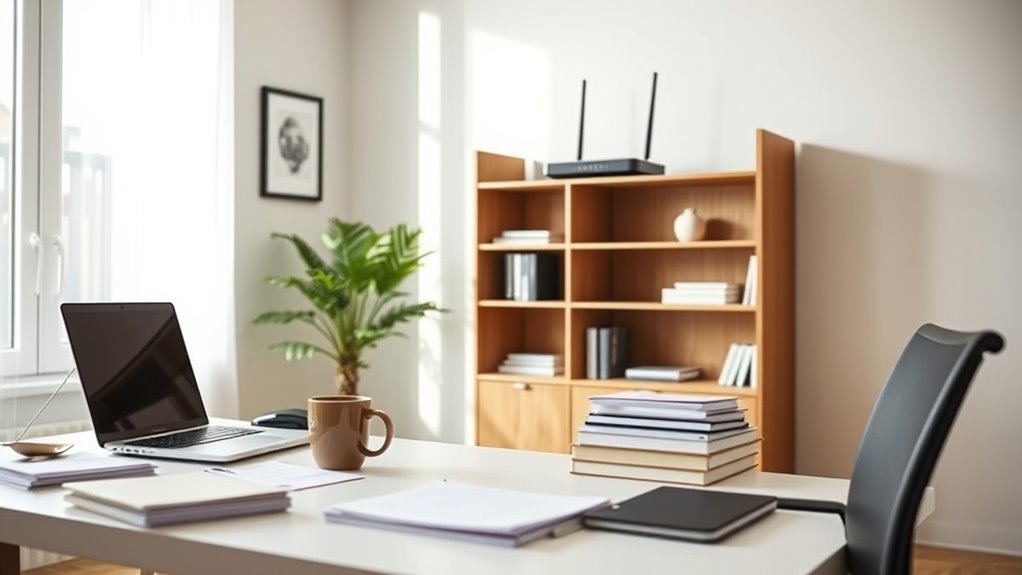
One of the most common mistakes in router placement is positioning it near large metal objects or appliances, which can substantially disrupt the Wi-Fi signal. Metal reflects and absorbs wireless signals, creating dead zones and reducing bandwidth. Placing your router next to a refrigerator, microwave, or filing cabinet can cause interference, slowing down your connection. Similarly, hiding it inside a cabinet or behind thick walls can block signal transmission. Avoid stacking your router with other electronics, as they may emit electromagnetic interference. Also, don’t place it on or near your desk or countertop cluttered with devices and papers, which can absorb or block signals. Proper placement ensures fewer obstacles and interference, leading to a faster, more reliable Wi-Fi connection.
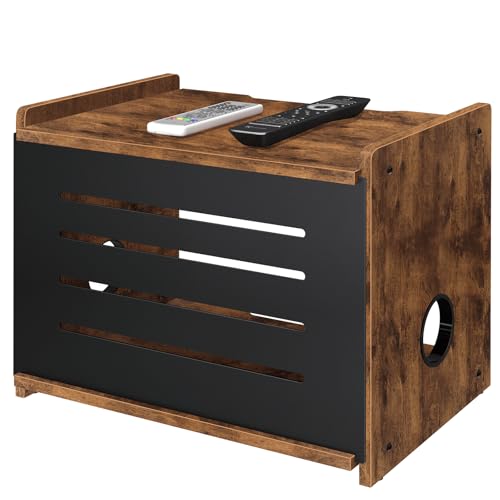
Homode Router Shelf, Wood Wifi Box Hider, Projector Shelf Stand, Router Modem Storage Box Power Strip Cable Management Hider Rack, Routers Cover Organizer for Office Home, Rustic Brown
Retro Aesthetic: Made from rustic brown wood with a black metal front panel, this wifi box hider not…
As an affiliate, we earn on qualifying purchases.
As an affiliate, we earn on qualifying purchases.
Optimal Locations for Maximum Coverage
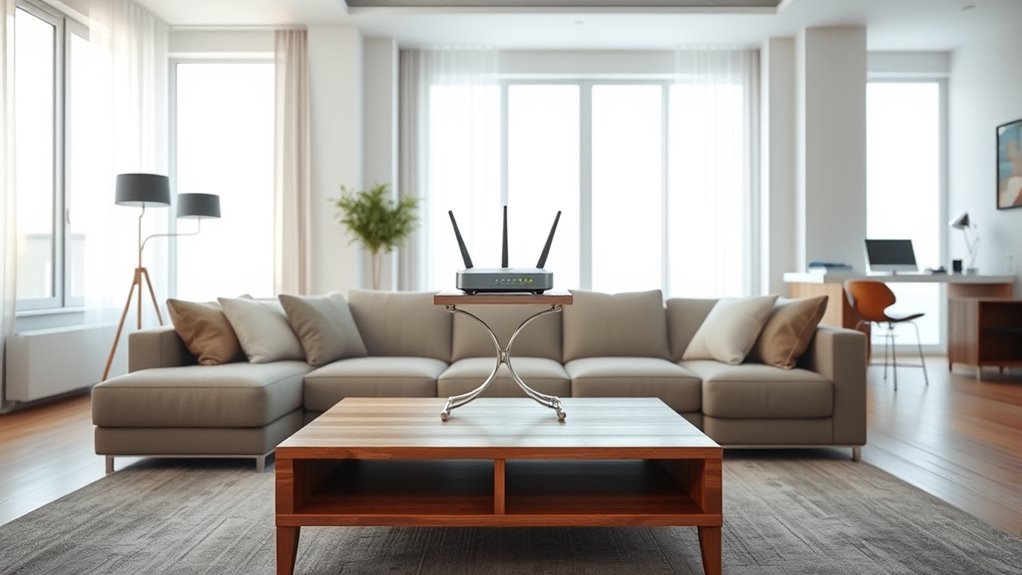
To achieve maximum Wi-Fi coverage, you should position your router in a central, elevated location away from obstructions. Placing it high, like on a shelf or mounted on a wall, helps the signal reach all corners of your space evenly. Avoid placing the router behind furniture or inside cabinets, as these barriers weaken the signal. Keep it away from thick walls, metal objects, and appliances that emit electromagnetic interference. Open spaces are ideal, so choose spots with minimal clutter around the router. The goal is to reduce signal reflections and absorption, ensuring a clear path for the Wi-Fi to travel. By carefully selecting this spot, you’ll improve coverage and experience fewer dead zones throughout your home or office.
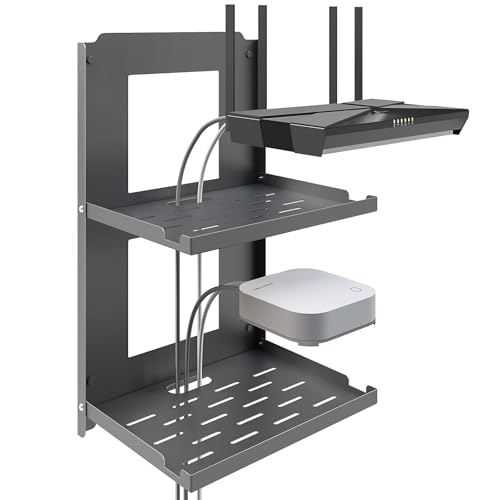
SKIKEN 2-Tier Router Shelf Wall Mount Foldable – 10 inch Metal Outlet Shelf w/Cable Holes | Dual-Layer Organize & Connect for Router and Modem & Smart Home Decor | Folds Up & Stackable (Medium)
【Dual-Layer Foldable Design】SKIKEN's 2-tier metal router shelf features a space-saving foldable design. Both tiers can be folded flat…
As an affiliate, we earn on qualifying purchases.
As an affiliate, we earn on qualifying purchases.
Factors That Affect Router Performance
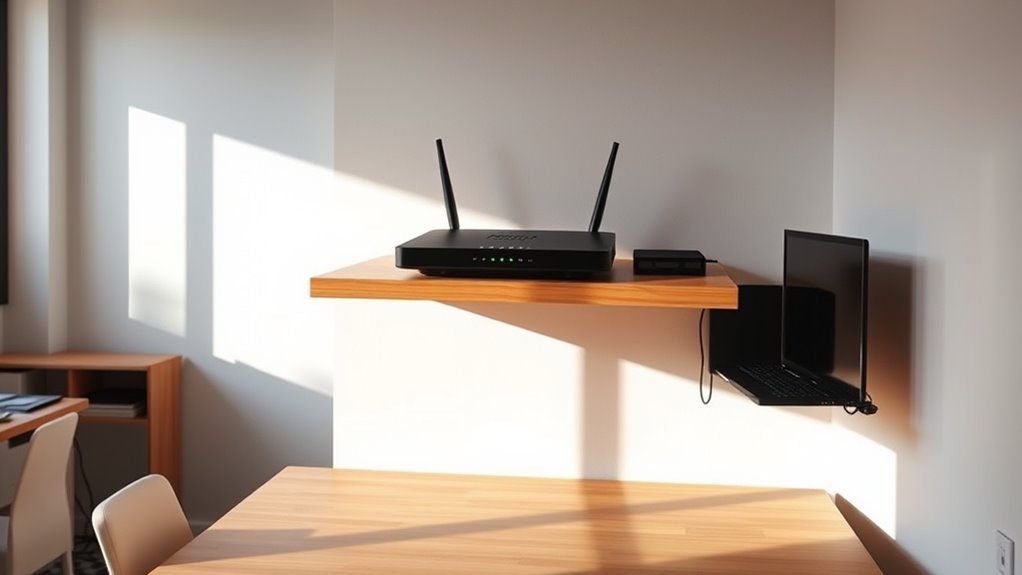
Several factors can substantially impact your router’s performance, causing fluctuations in speed and signal strength. Physical obstructions like walls, furniture, and appliances can weaken the Wi-Fi signal, reducing coverage and speed. Interference from other electronics, such as microwaves or cordless phones, can disrupt signals, leading to dropped connections or slower speeds. The router’s distance from your devices also matters; the farther away, the weaker the signal. Network congestion, especially in busy households or apartment complexes, can slow down your connection as multiple devices compete for bandwidth. Finally, outdated firmware or hardware can hinder performance, making your router less efficient. Understanding these factors helps you identify potential issues and optimize your setup for a more reliable, faster Wi-Fi experience.
Tips for Improving Your Wi-Fi Signal at Home

Improving your Wi-Fi signal at home starts with understanding how physical factors can weaken your connection. Walls, furniture, and electronics can obstruct signals, reducing speed and reliability. To boost performance, place your router in a central, open spot away from potential interference. Elevate it on a shelf or wall mount for better coverage. Avoid placing it near metal objects or thick walls. Use the following table to identify common obstacles and their impact:
| Obstacle | Effect on Signal | Solution |
|---|---|---|
| Metal furniture | Strong signal reflection | Keep router away from metal |
| Thick walls | Signal attenuation | Place router in open areas |
| Electronic devices | Signal interference | Turn off unused electronics |
| Large appliances | Signal disruption | Position router away from them |
Frequently Asked Questions
How Often Should I Upgrade My Wi-Fi Router?
You should upgrade your Wi-Fi router every 3 to 5 years to keep up with technology and maintain fast, reliable connections. If you notice slow speeds, frequent disconnects, or your devices no longer get good coverage, it’s time for an upgrade. Newer routers offer better security, improved range, and support for the latest Wi-Fi standards, ensuring your network stays efficient and secure as your needs grow.
Can Furniture Placement Impact Wi-Fi Signal Strength?
Yes, furniture placement can considerably impact your Wi-Fi signal strength. Imagine your router in a cluttered corner surrounded by thick bookshelves or metal furniture—these block and weaken the signal, causing slow or dropped connections. To improve performance, position your router in an open, central spot, away from large metal objects and dense furniture. This way, your Wi-Fi can travel freely, giving you faster, more reliable internet throughout your space.
Do Wall Materials Affect Wi-Fi Signal Transmission?
Yes, wall materials can considerably affect your Wi-Fi signal. Concrete, brick, and metal walls block signals more than drywall or wood, leading to slower speeds and weaker connections. You should avoid placing your router near thick or dense walls. Instead, position it in an open area, away from metal objects and thick barriers, to guarantee better coverage and a stronger, more reliable Wi-Fi signal throughout your space.
Is It Better to Use a Mesh Network or a Single Router?
Sure, ditch the single router and embrace a mesh network—because who wants dead zones or endless Wi-Fi drops? A mesh system blankets your entire home with seamless coverage, letting you stream, game, and work without interruption. It’s like giving your Wi-Fi a security blanket, ensuring every corner gets a strong signal. So, take the leap, upgrade, and enjoy flawless connectivity everywhere—your devices will thank you!
How Can I Test My Wi-Fi Speed Effectively?
To test your Wi-Fi speed effectively, start by connecting your device directly to the router with an Ethernet cable for the most accurate results. Then, use a reliable speed test website or app like Ookla Speedtest or Fast.com. Run multiple tests at different times of the day to gauge consistency, and make certain no other devices are using bandwidth. This approach gives you a clear picture of your network’s performance.
Conclusion
To get the best Wi-Fi signal, remember that the right spot can make all the difference. Avoid the trap of placing your router on your desk, where signals often get tangled up. Instead, find a central, open location away from obstructions and interference. Think of it as finding the sweet spot—you’ll enjoy faster, more reliable internet. When you choose wisely, your Wi-Fi performance will be smooth sailing, and you’ll be able to surf, stream, and work without a hitch.