To fix laptop overheating on your desk, make certain your workspace promotes airflow by using a flat, hard surface and keeping vents clear of clutter. Consider investing in a cooling pad with fans to boost cooling. Regularly clean dust from vents and fans, and avoid soft surfaces like beds or cushions. Adjust system settings for better heat management, and combine these tips for best results. Continue exploring for more effective ways to keep your laptop cool and boost performance.

Get comfort and recovery gear delivered free with Prime
- Fast, free delivery on millions of items
- Prime Video, Amazon Music and more included
- Member-only deals all year
Key Takeaways
- Ensure your laptop is on a hard, flat surface to promote proper airflow and heat dissipation.
- Keep vents and fans clean by regularly removing dust and debris that block airflow.
- Use an external cooling pad with fans to improve cooling during intensive tasks.
- Adjust system settings to optimize performance and reduce heat generation, like limiting CPU usage.
- Maintain a clutter-free workspace and avoid soft surfaces that obstruct air circulation around the device.
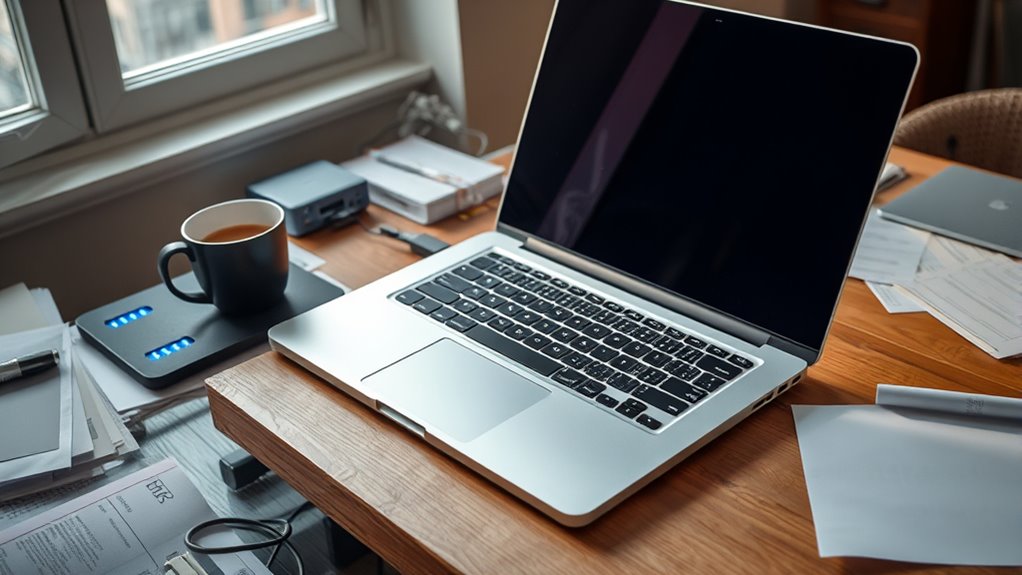
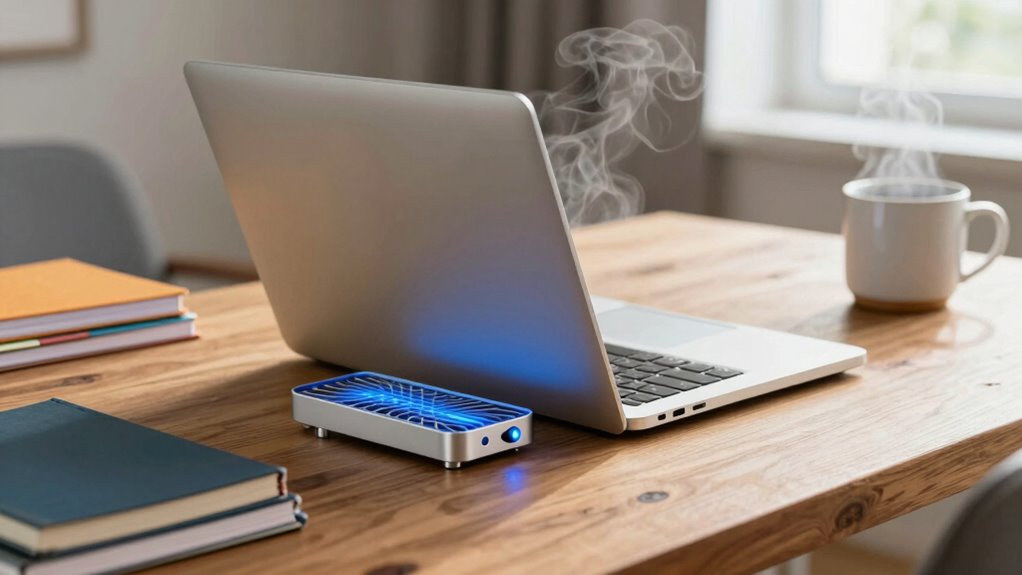
If your laptop overheats while sitting on your desk, it can lead to performance issues and potential hardware damage. Overheating not only slows down your device but also risks shortening its lifespan. The good news is that you can address this problem with simple, effective solutions. One of the most straightforward options is using cooling pads, which are designed to improve airflow and keep your laptop cool. These pads usually come with built-in fans that actively dissipate heat away from your device, preventing temperature buildup. By elevating your laptop slightly, cooling pads allow air to circulate more freely around the chassis, markedly enhancing airflow optimization. This setup helps your laptop run more efficiently, especially during demanding tasks like gaming or video editing.
Using cooling pads boosts airflow and prevents overheating during intensive tasks.
In addition to using cooling pads, you should pay attention to your workspace setup. Make sure your desk surface isn’t blocking the vents on your laptop, and keep the area around your device clear of clutter. Dust buildup inside your laptop can also trap heat, so regularly cleaning your vents and fans can contribute to better airflow. Avoid placing your laptop directly on soft surfaces like beds or cushions, which can obstruct airflow and cause heat to accumulate. Instead, opt for a hard, flat surface that allows heat to escape easily. Combining these habits with a cooling pad creates an environment that promotes airflow optimization, directly tackling overheating issues. Additionally, utilizing smart‑home integrations like temperature sensors or device management apps can help monitor and control your laptop’s temperature more proactively.
Another key aspect to consider is your laptop’s internal temperature management. Check your device’s power settings and make sure it’s configured for ideal cooling. Many laptops have built-in options to limit CPU performance or adjust fan speeds, which can help prevent overheating during prolonged use. Keeping your drivers and BIOS updated ensures your hardware runs efficiently and manages heat better. If overheating persists despite these adjustments, it might be worth investing in a cooling pad with higher airflow capacity or additional fans for more aggressive cooling.
Ultimately, addressing laptop overheating on your desk involves a combination of external tools and workspace habits. Using cooling pads is an accessible and effective step towards airflow optimization, allowing your device to operate at safer temperatures. When paired with proper workspace setup, regular cleaning, and system adjustments, you create a more stable environment for your laptop. This proactive approach helps maintain performance, extends your device’s lifespan, and prevents those frustrating thermal shutdowns. Taking these steps ensures your laptop stays cool, no matter how demanding your tasks may be.
As an affiliate, we earn on qualifying purchases.
Frequently Asked Questions
Can Laptop Overheating Cause Permanent Hardware Damage?
Yes, overheating can cause permanent hardware damage. When your laptop gets too hot, it can damage components like the CPU and GPU, especially if thermal paste has dried out or isn’t applied properly. Using cooling pads can help maintain ideal temperatures, preventing long-term harm. Regularly cleaning vents and ensuring proper airflow also reduces overheating risk, safeguarding your laptop’s hardware from irreversible damage.
How Long Should I Wait Before Using My Laptop Again After Overheating?
Think of your laptop like a car engine—after overheating, give it a break. Wait at least 30 minutes to let it cool down completely before restarting. During this time, consider checking the thermal paste, which can dry out and worsen heat, and clean the fan to improve airflow. Rushing back in too soon risks hardware damage, so patience saves your laptop in the long run.
Are There Specific Desk Materials That Help Reduce Laptop Heat?
Yes, certain desk materials can help reduce laptop heat. Using a desk mat made of heat-dissipating materials or placing your laptop on a cooling pad can considerably improve airflow and prevent overheating. Avoid placing your laptop directly on a wooden or glass surface, as these can trap heat. Instead, opt for a ventilated surface or add a cooling pad for extra protection, ensuring your laptop stays cooler during use.
Does Overclocking Increase the Risk of Laptop Overheating?
Thinking of overclocking your laptop? Well, buckle up, because overclocking dangers are real—you’re basically inviting your machine to a sauna party. It ramps up heat, making cooling solutions like extra fans or thermal pads essential. Without them, you risk overheating, crashes, or even hardware damage. So, if you value your laptop’s health, use proper cooling solutions and avoid pushing your device beyond its limits.
What Are the Signs of Internal Component Overheating?
You’ll notice signs of internal component overheating if your thermal sensors detect high temperatures, causing your laptop to slow down or shut off unexpectedly. You might also hear your cooling fans running loudly or constantly, indicating they’re working overtime to cool the system. Pay attention to these signs, as they suggest your internal components are overheating and need better ventilation or cleaning to prevent damage.
As an affiliate, we earn on qualifying purchases.
Conclusion
Just like a car needs a cool breeze to keep from overheating, your laptop needs proper airflow to run smoothly. I once watched my friend’s laptop shut down mid-project because it was buried under papers—like a plant suffocating in a crowded pot. Keep your workspace clear and use simple fixes like a stand or cleaning vents. These small steps act like a fan on a hot day, helping your laptop stay cool and reliable, no sketchy tricks involved.
As an affiliate, we earn on qualifying purchases.
As an affiliate, we earn on qualifying purchases.
Fall Picks
fall essentials
As an affiliate, we earn on qualifying purchases.