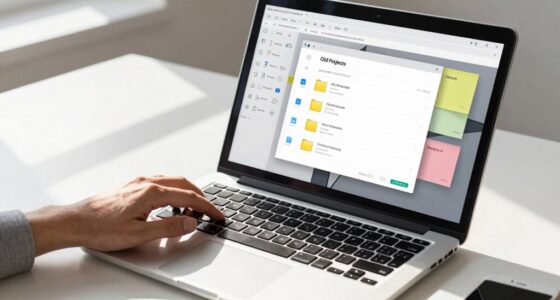
To stop ending up with files like “final_final2,” you need a consistent naming system. Establish clear rules that include project names, dates, versions, and document types, all organized logically. Use version indicators like “v1” or “final” to track changes easily. Avoid confusing names and special characters. By applying these best practices, you’ll keep your files organized and easy to find. If you keep exploring, you’ll discover simple ways to implement this system effectively.
Key Takeaways
- Implement a standardized naming convention that includes project, date, and version info to replace chaotic filenames.
- Use consistent suffixes like “v1,” “v2,” or “final” to clearly indicate document versions.
- Start filenames with dates in “YYYYMMDD” format for easy chronological sorting and retrieval.
- Avoid special characters and complex abbreviations to ensure compatibility and clarity across systems.
- Regularly review and update naming rules to maintain organization and prevent files like “final_final2.”
Organizing your files can feel overwhelming, but implementing a clear and consistent naming system can instantly bring order to chaos. When you develop a reliable approach to naming your files, you make it easier to locate, update, and manage them over time. One of the key strategies to achieve this is establishing effective naming conventions—rules that ensure each filename communicates its content and purpose clearly. Consistent naming conventions prevent confusion, especially when dealing with multiple versions of the same document or project. Instead of ending up with a confusing jumble like “final_final2,” you can create a system that tracks progress and revisions seamlessly.
Implementing clear naming conventions simplifies file management and enhances collaboration by reducing confusion and tracking revisions effectively.
Version control is essential in this process. It helps you keep track of changes and maintain a record of different iterations without overwriting previous work. By incorporating version control into your naming conventions, you attach a clear indicator of each file’s stage, such as “v1,” “v2,” or “final.” This way, you can quickly identify the most recent version without opening each file. For example, instead of having multiple files labeled “Project_Report_Final,” “Project_Report_Final2,” or “Project_Report_Final3,” you can name them as “Project_Report_v1,” “Project_Report_v2,” and so on. This simple addition makes it obvious which file is the latest and reduces the risk of editing outdated versions.
Establishing a consistent structure for filenames also involves choosing a logical order for information, such as date, project name, or document type. For instance, starting filenames with the date in the format “YYYYMMDD” can help you sort files chronologically. Combining this with clear project or client identifiers creates a predictable, easy-to-navigate system. When all your files follow the same pattern, you save precious time searching through folders or opening multiple files to find the right one. This consistency also aids collaboration, as others will immediately understand your naming logic and avoid creating duplicate or confusing files.
Moreover, sticking to a set of rules for abbreviations and avoiding special characters keeps your filenames clean and compatible across different operating systems. Clear naming conventions combined with version control not only declutter your digital workspace but also streamline your workflow, making collaboration smoother and revisions more manageable. When you adopt this disciplined approach, you eliminate the chaos of “final_final2” and replace it with a logical, reliable system that works for you. Ultimately, clear naming conventions and version control are your best tools for maintaining a tidy, efficient, and professional file organization. Implementing standardized naming conventions can further enhance consistency and ease of access across your entire file system.
![Free Fling File Transfer Software for Windows [PC Download]](https://m.media-amazon.com/images/I/41Vq6ZqHfjL._SL500_.jpg)
Free Fling File Transfer Software for Windows [PC Download]
- User-Friendly FTP Interface: Intuitive FTP client interface
- Reliable Site Management: Easy and dependable FTP site maintenance
- Automation & Sync: FTP automation and synchronization
As an affiliate, we earn on qualifying purchases.
As an affiliate, we earn on qualifying purchases.
Frequently Asked Questions
How Do I Implement “Stop Final_Final2” in Existing Workflows?
To implement “stop final_final2” in your workflows, first update your file naming protocols to emphasize metadata consistency, ensuring everyone follows the new system. Then, provide user training sessions to clarify the changes and explain the importance of adhering to the new standards. Regularly monitor and review your files to catch inconsistencies early, reinforcing best practices and maintaining a streamlined, chaos-free workflow.
Can This System Be Customized for Different Project Types?
Think of your workflow as a tailor-made suit—customizable to fit different project types perfectly. Yes, this system can be adapted for various projects by tweaking your file naming standards. You can incorporate project-specific tags, dates, or categories to keep everything organized. This flexibility allows you to streamline your workflow customization, ensuring consistent file naming across diverse tasks while maintaining clarity and order in your digital workspace.
What Software Tools Support Automated File Naming?
You can use automation software like Adobe Bridge, Adobe Lightroom, or file management tools like Hazel and DropIt to support automated file naming. These tools help you implement consistent file naming conventions by automating the process, saving time and reducing errors. With customizable options, you can tailor the automation software to fit your specific project needs, ensuring your files stay organized and easy to locate without manual effort.
How Does It Handle Version Control Across Teams?
You can manage file versioning and team collaboration effectively with this system by automatically tracking changes and updates. It assigns unique version numbers, so everyone stays on the same page, avoiding confusion. When you work with others, it guarantees all team members access the latest file, reducing errors. This streamlined approach enhances collaboration by providing clear, organized file histories, making teamwork smoother and more efficient.
Are There Security Concerns With Automated File Naming?
Imagine automated file naming as your digital safe; if not secured properly, vulnerabilities can expose sensitive data. Yes, there are security concerns with automated file naming, especially around file naming consistency and potential vulnerabilities. Hackers might exploit weak naming patterns or permissions. To prevent this, you should implement strict access controls, encryption, and review naming protocols regularly, ensuring your system remains both organized and secure.
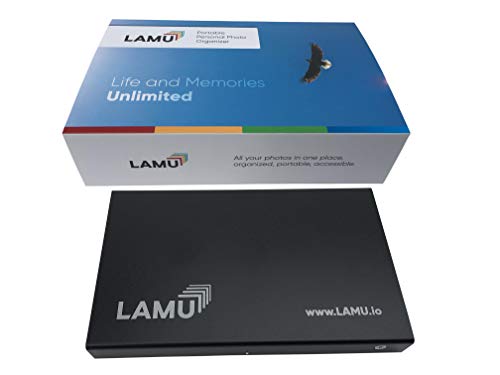
LAMU Portable Digital Photo Organizer – Digital Picture Manager for Windows – Software to Easily Organize Your Photos and Videos – Digital Photo Storage – 1 Terabytes (Charcoal Black)
- Advanced Organization Features: Automatically sorts by timeline, location, and more
- All-in-One Access: View, share, and manage photos from anywhere
- Easy Plug-and-Play Setup: Compatible with Windows 7-11, simple USB connection
As an affiliate, we earn on qualifying purchases.
As an affiliate, we earn on qualifying purchases.
Conclusion
So, you finally ditch the chaos of endless “final_final2” files and adopt a clear naming system. Ironically, what once caused confusion now saves you time—and stress. Who knew that a simple change could make your workday smoother? Now, instead of hunting through clutter, you confidently find what you need in seconds. Turns out, a little organization goes a long way—proof that sometimes, the simplest tweaks make all the difference.

Git: Version control for everyone
As an affiliate, we earn on qualifying purchases.
As an affiliate, we earn on qualifying purchases.

Royal Green Printable Rectangle Labels, 1 x 0.375 Inch – 1540 Pack
- Ideal for labeling and organizing: Perfect for home, office, and classroom use
- Includes customizable template: Easy to personalize with included template
- Permanent adhesive for secure sticking: Long-lasting, durable adhesive ensures labels stay
As an affiliate, we earn on qualifying purchases.
As an affiliate, we earn on qualifying purchases.