To prevent your printer from disrupting your workflow, place it in a central, accessible spot away from high-traffic areas. Make sure it’s near power outlets and your Wi-Fi or connection cables to avoid extension cords and connectivity issues. Keep the area clutter-free and well-ventilated, with good lighting to ease maintenance. By paying attention to space, noise levels, and future access, you’ll create a smooth and efficient setup—learn more to optimize every detail.
Key Takeaways
- Place the printer within easy reach of users, avoiding tucked-away corners or obstructed areas.
- Ensure proximity to power outlets and stable Wi-Fi to prevent connectivity issues.
- Position on a flat, clutter-free surface at a comfortable height to avoid strain.
- Keep the printer away from main work zones and noise-sensitive areas for minimal disruption.
- Optimize ventilation and lighting to maintain air quality and reduce eye strain during use.
Assessing Your Workspace for Optimal Placement
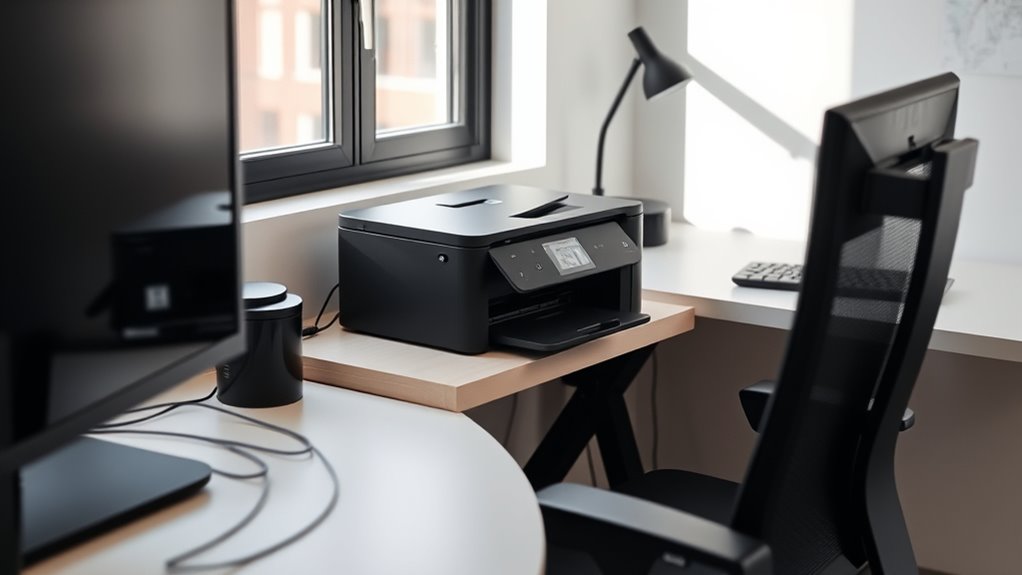
Before placing your printer, it’s vital to assess your workspace to guarantee ideal placement. Start by measuring available space, ensuring enough room around the printer for easy access and maintenance. Check for nearby power outlets and Wi-Fi signals to avoid extension cords or connectivity issues. Think about your typical workflow—will you need frequent access or occasional use? Consider how much noise the printer makes and whether it might disturb others nearby. Look for a flat, stable surface that can support the printer’s weight. Avoid placing it in tight corners or cluttered areas, which can hinder airflow and cause overheating. By carefully evaluating these factors, you set the foundation for a smooth, efficient printing setup that enhances your productivity.
Choosing a Central and Accessible Location

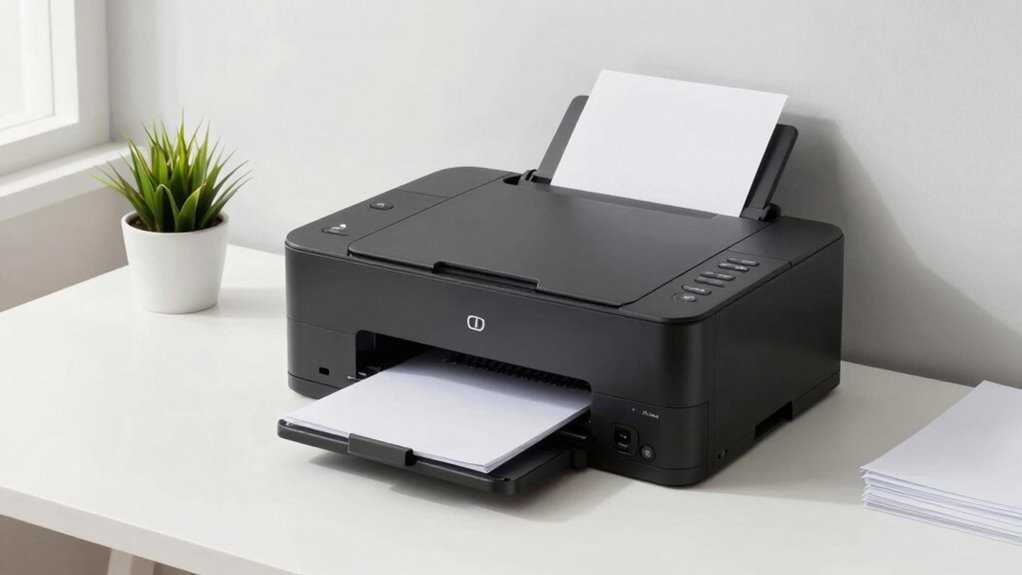
Choosing a central and accessible location for your printer guarantees it fits seamlessly into your workflow. Place it where everyone who needs it can reach easily without stretching or maneuvering around obstacles. Avoid spots tucked away in corners or behind furniture, as these create unnecessary inconvenience. Positioning your printer in a shared space, like near your main workstations or in a central hallway, encourages frequent use and reduces delays. Make sure it’s at a comfortable height—neither too high nor too low—to prevent strain. An accessible location speeds up tasks and minimizes disruptions. Keep the area clear of clutter so you can load paper and replace cartridges effortlessly. Ultimately, a well-chosen spot keeps your printing process smooth and integrated into your daily routine.
Considering Power Sources and Connectivity Options
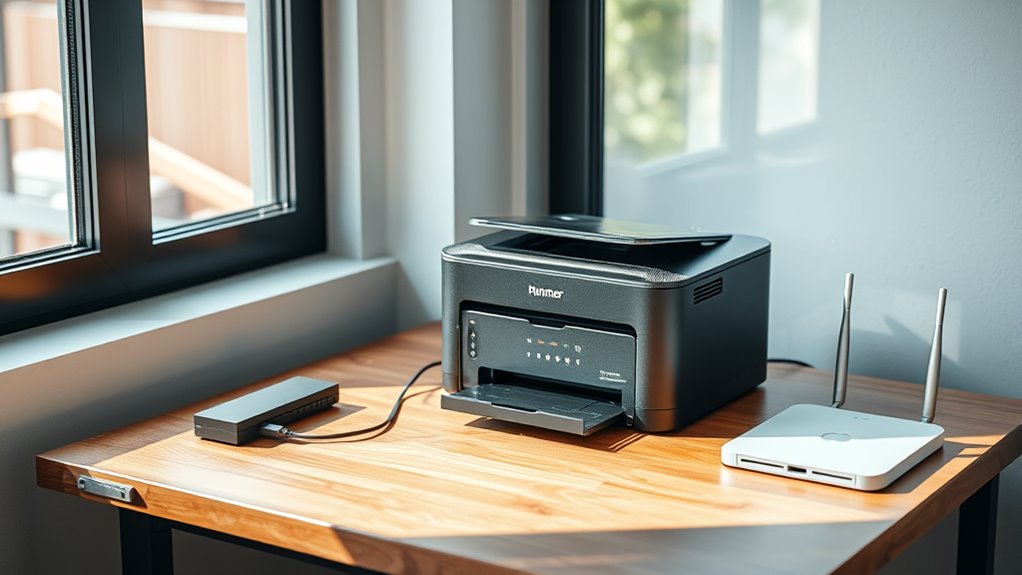
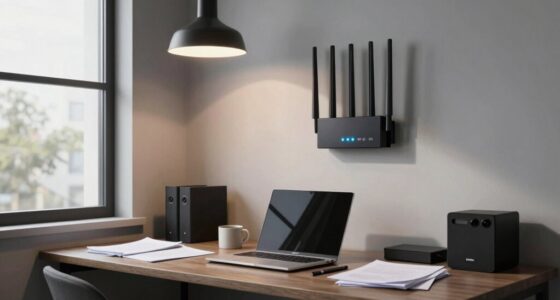
Ensuring your printer has reliable power sources and connectivity options is essential for smooth operation. Without proper setup, you risk interruptions, delays, or technical issues that can disrupt your workflow. First, locate a power outlet close enough to avoid extension cords, which can be tripping hazards. Next, consider whether a wired or wireless connection best suits your space and needs. Wired connections offer stability, while Wi-Fi provides flexibility. Finally, check if your printer supports Ethernet, USB, or Bluetooth, so you can choose the most efficient method for your setup.
- Use a surge protector to safeguard against power fluctuations
- Opt for a network that matches your office’s connectivity infrastructure
- Confirm your printer’s connectivity options align with your device ecosystem
Minimizing Disruption and Noise Levels
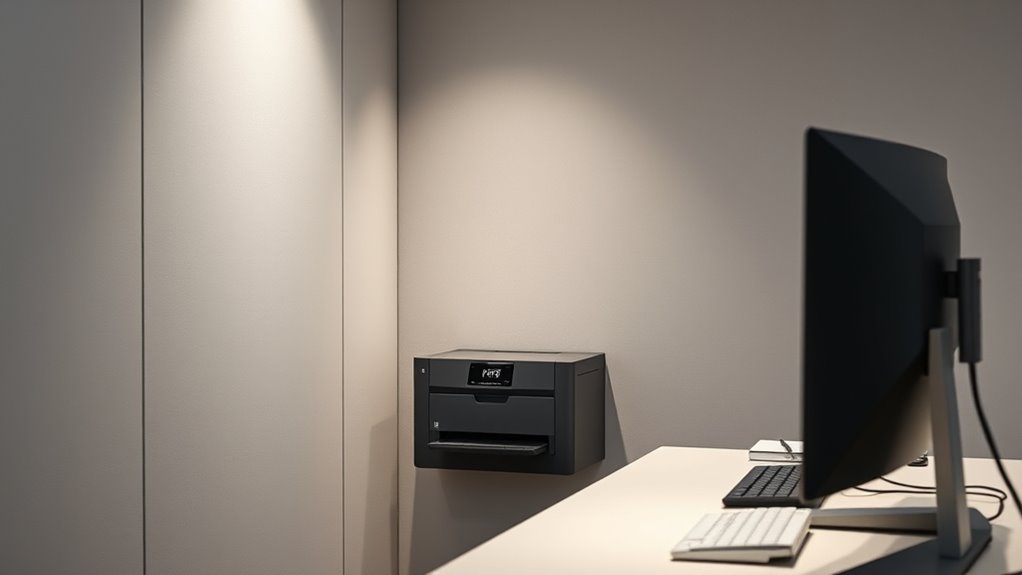
To keep your workspace productive and comfortable, it’s important to minimize both disruption and noise from your printer. Place it away from your main work area, such as your desk or meeting spaces, to reduce distractions. Consider locating the printer in a separate room or a corner of your office that’s less frequented. Using sound-dampening mats or enclosures can help reduce operational noise further. Regular maintenance, like cleaning and replacing parts, also prevents unnecessary loudness caused by jams or mechanical issues. If your printer includes a fan or cooling system, ensure it isn’t constantly running nearby. By strategically placing your printer and managing its noise levels, you create a calmer environment that keeps your focus sharp and your workflow uninterrupted.
Ensuring Adequate Ventilation and Lighting

You need to guarantee your workspace has proper ventilation so air circulates freely around your printer, preventing overheating and fumes. Additionally, optimizing lighting helps reduce eye strain and improves overall efficiency. By paying attention to these aspects, you create a safer and more comfortable environment.
Proper Ventilation Strategies
Proper ventilation is essential for maintaining a safe and comfortable workspace around your printer. Good airflow prevents the buildup of fumes and dust, which can affect your health and printer performance. To guarantee proper ventilation, consider the following strategies:
- Place your printer near a window or ventilation duct to promote fresh air exchange.
- Use a small exhaust fan or air purifier to improve air quality in the room.
- Avoid blocking vents or air vents that are already installed to facilitate natural airflow.
Implementing these strategies keeps the environment healthy and reduces the risk of overheating. Regularly check that vents remain unobstructed and maintain your ventilation equipment to ensure consistent airflow. Proper ventilation isn’t just about comfort; it’s about safety and maintaining your printer’s longevity.
Optimizing Workspace Lighting
Achieving an ideal workspace environment involves more than just ventilation; adequate lighting is equally important. Proper lighting reduces eye strain, boosts productivity, and helps you work comfortably. Position your workspace near natural light sources, but avoid glare on screens or papers. Use adjustable, bright LED lights to supplement daylight, especially during darker hours. Consider the following table for optimal lighting setup:
| Lighting Tip | Benefit |
|---|---|
| Use adjustable lamps | Customizes brightness |
| Position lights behind you | Reduces glare on screens |
| Incorporate diffused lighting | Minimizes harsh shadows |
| Increase ambient light levels | Enhances overall visibility |
Balancing natural and artificial light ensures a well-lit environment that supports focus and comfort.
Managing Cables and Clutter Effectively
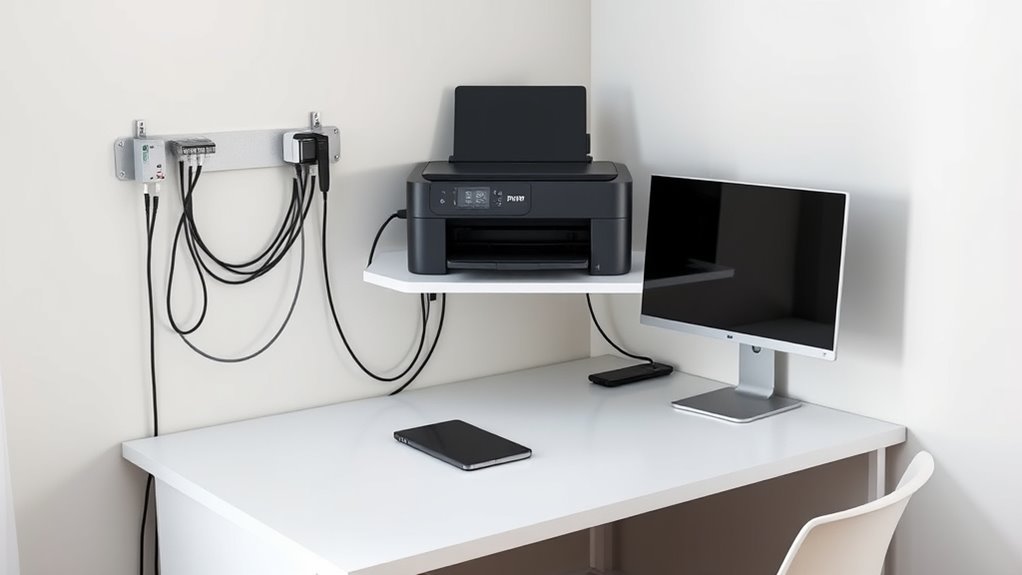
Managing cables and clutter effectively is essential for maintaining a tidy and functional workspace. When cables are organized, you reduce tripping hazards and make your area easier to clean. Use cable management solutions like clips, sleeves, or ties to keep cords neat and prevent tangling. Labeling cables helps you identify connections quickly, saving time during setup or troubleshooting. Position your printer close to power outlets and network sources to minimize excess cable length. Regularly review and remove unnecessary cables or equipment to avoid clutter buildup.
Organize cables with clips and labels to keep your workspace tidy and safe.
- Use cable clips or sleeves to organize cords along desks or walls
- Label cables with tags for quick identification
- Keep cords close to the printer and outlets to reduce slack
Planning for Future Accessibility and Maintenance

Planning for future accessibility and maintenance guarantees your workspace remains efficient over time. When placing your printer, consider how easy it will be to reach for refills, paper jams, or troubleshooting. Avoid tight spots or hard-to-reach corners that could slow down your workflow. Leave enough space around the printer for supplies and maintenance tasks without blocking pathways or other equipment. Think about the location of power outlets and network connections to prevent unnecessary cable clutter. Regular upkeep is easier if you can access the printer without moving furniture or disrupting other tools. By planning ahead, you reduce downtime and avoid costly relocations later. A well-thought-out placement ensures your printer stays functional, accessible, and hassle-free for months or even years to come.
Frequently Asked Questions
How Can I Prevent Printer Noise From Disturbing Nearby Workstations?
To prevent printer noise from disturbing nearby workstations, you should place the printer in a sound-absorbing area or enclosure. Use soundproof panels or cabinets to dampen vibrations and noise. Regularly maintain the printer to avoid excessive noise caused by mechanical issues. Additionally, position the printer away from quiet zones and consider using headphones or white noise machines nearby to mask residual sounds.
What Are the Best Practices for Maintaining Printer Hygiene and Cleanliness?
Did you know a dusty printer can reduce print quality by up to 20%? To keep your printer clean, regularly wipe the exterior with a soft, damp cloth and avoid harsh chemicals. Open the printer periodically to remove dust and debris from rollers and interior parts. Use compressed air for hard-to-reach areas, and always turn off the device before cleaning. Staying consistent prevents jams and maintains peak performance.
How Do I Select a Printer Size That Fits My Workspace Without Crowding?
You should measure your available workspace first to determine the ideal printer size. Choose a compact or mid-sized printer that fits comfortably without crowding your desk or blocking pathways. Consider your volume needs—larger printers suit high-volume tasks, while smaller models work for occasional use. Place it within easy reach for loading paper and replacing ink, but guarantee it doesn’t obstruct movement or other essential equipment.
What Security Measures Should I Consider for Shared Printer Access?
Imagine a digital fortress guarding your documents. You should enable secure login features, like PINs or swipe cards, to restrict access. Set up user-specific permissions so only authorized staff can print sensitive materials. Regularly update your printer’s firmware to patch security flaws. Additionally, consider encrypting print jobs and enabling tracking logs. These measures guarantee your shared printer stays protected, keeping your workspace safe from unauthorized access and data breaches.
How Can I Organize Printing Schedules to Optimize Workflow Efficiency?
To optimize your workflow efficiency, you should create a clear printing schedule that assigns specific times for different teams or tasks. Use shared calendars or digital tools to coordinate these times and avoid overlaps. Communicate the schedule to everyone involved, and set limits on print volumes if needed. This way, you diminish wait times, prevent congestion, and make certain everyone has timely access to printing resources.
Conclusion
By thoughtfully placing your printer, you guarantee it complements your workflow like a trusty sidekick, not an obstacle. Keep it accessible, well-ventilated, and connected, just like you’d want your smartphone to be—no matter if you’re in a modern office or a medieval tower. Remember, even the most legendary printers need a good spot to avoid chaos. With careful planning, your workspace stays efficient, and your productivity stays high—no need for a magic wand here.