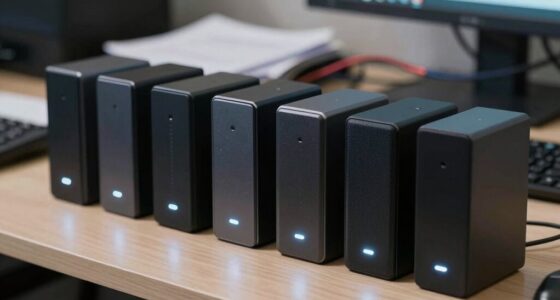

You should treat backups as a regular part of your data management, not an emergency fix. Relying on reactive backups increases the risk of data loss, corruption, and costly downtime. Instead, automate your backup processes, set a consistent schedule, and routinely verify your files to guarantee integrity. This proactive approach saves time, reduces stress, and creates a reliable recovery plan. Keep exploring to discover how to build a resilient backup strategy that keeps your data safe.
Key Takeaways
- Integrate backups into regular data management routines, not as urgent responses to crises.
- Establish automated, scheduled backups for consistent and reliable data protection.
- Regularly test and verify backups to ensure data integrity and quick recovery.
- Develop clear backup policies to streamline procedures and reduce emergency reliance.
- View backups as a proactive, essential part of overall data security strategy.

Backups shouldn’t be treated as an urgent afterthought—yet many organizations scramble to create or restore them only when disaster strikes. This reactive approach puts your data at risk and can lead to costly downtime. Instead, you need to view backups as an essential part of your ongoing data management strategy. When done correctly, backups help preserve data integrity, ensuring that your information remains accurate, complete, and reliable. The key to effective backups lies in establishing a consistent backup frequency that aligns with your business needs. Regular backups reduce the chances of data loss, especially if your data changes frequently or if your organization depends heavily on real-time information. By setting a schedule—whether daily, hourly, or even more frequently—you make data protection an automated process rather than a panic-driven task.
Regular, scheduled backups are essential to prevent data loss and ensure quick recovery during emergencies.
When you prioritize backup frequency, you also foster better data integrity. Regular backups mean you’re capturing a more accurate snapshot of your systems, reducing the risk of restoring corrupted or outdated data. This consistency helps you avoid the nightmare of reconstructing lost information or dealing with incomplete recovery points. Additionally, frequent backups enable quicker recovery times because you’re working with recent data sets. This minimizes disruption, allowing your team to resume operations swiftly after an incident.
Thinking about backups as an ongoing process rather than a one-time event shifts your perspective on data security. It encourages you to implement robust procedures, including testing your backup files regularly. Restoring data from backups that haven’t been tested can be risky, as corrupted or incomplete files might go unnoticed until you need them most. By routinely verifying your backups, you safeguard your data integrity and build confidence in your recovery plans. Incorporating backup testing into your routine ensures that your backup files are reliable and ready when needed.
Furthermore, automating your backup process helps you maintain a consistent backup frequency without manual intervention. Automation reduces human error and ensures that backups happen on schedule, regardless of workload or staffing issues. Coupled with clear policies and documentation, automation makes your data protection strategy sustainable and scalable as your organization grows.
In the end, treating backups as a core component of your data management rather than an emergency fallback saves you time, money, and stress. By focusing on regular backup frequency and maintaining data integrity, you create a resilient infrastructure that protects your organization against unforeseen events. When backups are part of your routine, you eliminate the panic and chaos that come with last-minute recovery efforts, giving you peace of mind that your data is safe and recoverable at all times.

Nero BackItUp – Data Backup Software | Automatic Backup, Data Recovery, Cloud Backup, Fully Automated | Lifetime License | 1 PC | Windows 11/10/8/7
- Lifetime License: One-time payment for lifetime use
- Complete Backup & Recovery: Automated backup and restore of data
- Multiple Backup Destinations: Back up to drives, USB, NAS, DVDs, or cloud
As an affiliate, we earn on qualifying purchases.
As an affiliate, we earn on qualifying purchases.
Frequently Asked Questions
How Often Should Backups Be Performed for Optimal Safety?
You should perform backups daily for guaranteed safety, especially if your data changes frequently. Regular backup frequency ensures you maintain data redundancy, reducing the risk of losing critical information. If your data remains static for long periods, weekly backups might suffice. Prioritize consistent backups over emergency-driven efforts, so your data stays protected without panic. Implementing a routine helps keep your data secure and minimizes potential downtime or data loss.
What Are the Best Tools for Automated Backups?
You should consider using tools like Acronis True Image, Veeam, or Carbonite for automated backups, as they prioritize backup security with features like data encryption. These tools make scheduled backups easy and reliable, ensuring your data stays protected. By automating backups, you reduce the risk of data loss and keep sensitive information secure through robust encryption, so you won’t have to treat backups as an emergency.
How Can I Verify the Integrity of My Backups?
Ever wondered if your backups are truly reliable? To verify their integrity, regularly test restores from your Backup encryption and Offsite storage. Check that files open correctly and match the original data. Use checksum tools or built-in backup verification features to guarantee data hasn’t been corrupted. Also, confirm that your encryption keeps the data secure during transfer and storage. Consistent testing ensures your backups are trustworthy when you need them most.
What Is the Cost Difference Between Cloud and Local Backups?
Cloud backups usually cost more than local backups, mainly due to ongoing subscription fees for storage, bandwidth, and security features like backup encryption. Local backups involve upfront hardware costs but can be cheaper long-term, especially when utilizing data compression to maximize storage. While cloud services offer convenience and scalability with built-in encryption, local backups give you more control, potentially reducing costs if you have existing infrastructure.
How Long Should Backup Data Be Retained?
Backup policies typically recommend retention periods ranging from 30 days to several years, depending on your data’s importance. You should retain backups long enough to recover from recent errors and data losses, but not so long that storage costs spiral. Regularly review your retention policies, ensuring they align with your organization’s needs and compliance requirements. Proper retention periods prevent data bloat and bolster your backup strategy’s strength and sustainability.
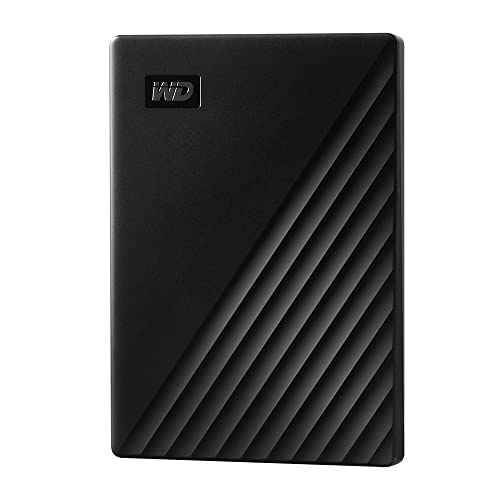
WD 2TB My Passport, Portable External Hard Drive, Black, backup software with defense against ransomware, and password protection, USB 3.1/USB 3.0 compatible – WDBYVG0020BBK-WESN
- Design: Slim, durable portable hard drive
- Capacity: Up to 6TB storage capacity
- Backup Software: Includes device management and ransomware protection
As an affiliate, we earn on qualifying purchases.
As an affiliate, we earn on qualifying purchases.
Conclusion
Don’t wait until disaster strikes to prioritize backups—think of them as your safety net, always there to catch you when you fall. Treat backups like brushing your teeth: a daily habit that keeps your data healthy and secure. When you integrate regular backups into your routine, they become second nature, turning a potential catastrophe into just a minor hiccup. Stay proactive, not reactive, and your digital life will stay afloat no matter what storms come your way.

Zunate Game Card Burner Reader for Game Boy GBC GBA Cartridges, ROM Save Backup Tool with Fast Transfer Speed, Flash Verification and PC Compatibility (Black)
- Wide Compatibility: Supports GBC, GBA, and RTC cartridges
- ROM and Save Management: Back up games and manage saves securely
- Fast Transfer and Verification: Quick flashing with verification features
As an affiliate, we earn on qualifying purchases.
As an affiliate, we earn on qualifying purchases.
cloud backup service subscription
As an affiliate, we earn on qualifying purchases.
As an affiliate, we earn on qualifying purchases.