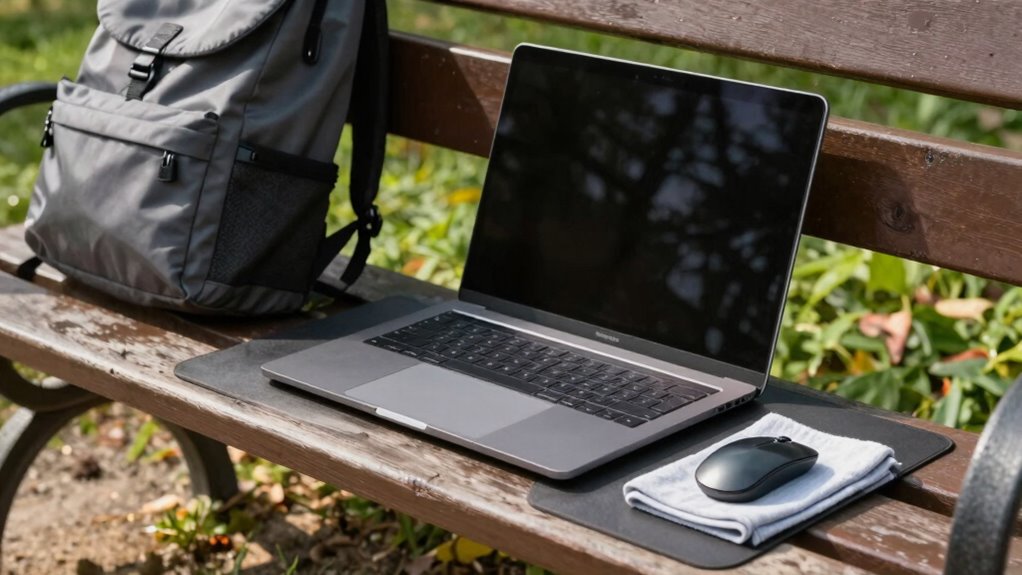
To set up a quick, ergonomic workspace anywhere in ten minutes, gather lightweight accessories like a foldable laptop stand, portable mouse pad, and collapsible keyboard tray. Elevate your laptop to eye level, position your keyboard and mouse comfortably, and adjust your chair or use cushions for proper support. Keep essentials organized nearby for efficiency. Ready to transform any space swiftly? Keep exploring for more time-saving tips and ergonomic tricks.
Key Takeaways
- Use lightweight, foldable accessories like laptop stands and portable mouse pads for quick setup.
- Elevate your laptop to eye level with a portable stand or books to prevent neck strain.
- Arrange keyboard and mouse for ergonomic wrist alignment, keeping essentials within arm’s reach.
- Support your seating with cushions or foldable mats to achieve proper height and comfort.
- Keep accessories organized in a small bag or tray for rapid deployment and minimal clutter.

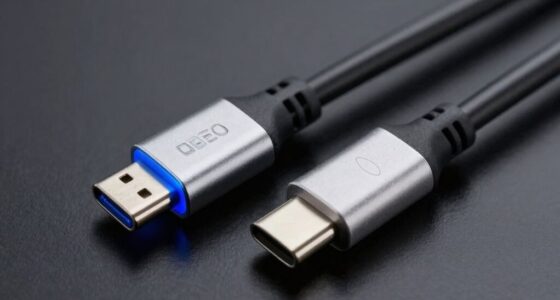
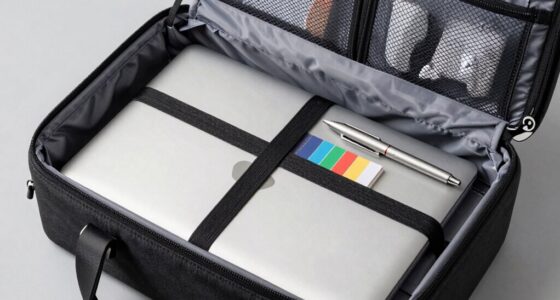
Setting up a temporary workstation quickly and efficiently is vital when you need a functional space in just minutes. Whether you’re in a coffee shop, hotel lobby, or a coworking space, having the right portable accessories can make all the difference. These compact tools—like foldable laptops stands, portable mouse pads, or collapsible keyboard trays—help you create a comfortable setup without lugging around bulky equipment. You’ll want to prioritize items that are lightweight, easy to pack, and versatile, so you can assemble your workspace on the fly without sacrificing productivity. Keep a small bag or organizer with these accessories handy, so you’re always ready to jump into work mode wherever you are.
Once you’ve gathered your portable accessories, the next step is to establish ergonomic tips to prevent discomfort during your quick setup. Even in a limited timeframe, maintaining good posture is vital. Start by placing your laptop or monitor at eye level to avoid neck strain; a portable laptop stand or a stack of books can help elevate your device quickly. Ensure your keyboard and mouse are positioned so your wrists stay straight, reducing the risk of repetitive strain injuries. If you’re working on a surface that’s too high or too low, use portable cushions or foldable mats to adjust your seating height. Sitting with your feet flat on the ground and your back supported by a portable lumbar cushion can greatly improve comfort, especially when you’re seated for an extended period. Incorporating ergonomic principles into your setup ensures that even a temporary workspace remains comfortable and healthy. To maximize efficiency, arrange your workspace so your most-used items are within arm’s reach. Use portable organizers or small trays to keep essentials like chargers, notepads, or pens accessible. Keep your workspace clutter-free; a clean surface helps you focus and reduces the time spent searching for items. Incorporate ergonomic tips such as taking short breaks to stretch and change positions—this prevents stiffness and boosts circulation. Even in a tight setup, adjusting your posture regularly can make a substantial difference in comfort and productivity.
portable laptop stand
As an affiliate, we earn on qualifying purchases.
As an affiliate, we earn on qualifying purchases.
Frequently Asked Questions
What Essential Tools Are Needed for a Quick Setup?
To set up quickly, grab a portable power source to keep your devices charged on the go. You’ll also need essential tools like a compact laptop, a reliable Wi-Fi device, and necessary cables. Keep cable management essentials, such as clips or ties, handy to stay organized and avoid clutter. With these tools, you can efficiently establish a functional workspace anywhere in just minutes.
How Do I Ensure Internet Stability During Setup?
Imagine you’re setting up your workstation at a busy cafe. To guarantee internet stability, start with Wi-Fi troubleshooting—check signal strength and restart your router if needed. Use a secure network to prevent disruptions or security issues. Keep your device close to the Wi-Fi source, and consider using a wired connection if possible. These steps help maintain a stable, secure connection, so your work stays uninterrupted.
Can This Setup Accommodate Multiple Devices?
Yes, this setup can accommodate multiple devices. You’ll want to verify device compatibility by using universal adapters and ports. Additionally, consider power management by using a multi-port hub or surge protector to efficiently power all devices without overload. This way, you keep your workspace organized and functional, allowing you to seamlessly connect and operate multiple devices during your setup, all within just 10 minutes.
What Are Tips for Ergonomic Comfort in a Temporary Space?
Sure, because who doesn’t love balancing on a makeshift setup? To stay comfy, use ergonomic accessories like supportive cushions and adjustable stands. Make posture adjustments by aligning your monitor at eye level and keeping your feet flat on the floor. Take short breaks often, stretch, and switch positions. These small tweaks can turn a jerry-rigged workspace into a surprisingly comfortable zone, even if it’s temporary.
How Do I Secure Sensitive Information in a Temporary Workstation?
You secure sensitive information in a temporary workstation by using encryption protocols to protect your digital data and guarantee only authorized access. Keep physical security in mind by locking devices when not in use and avoiding public spaces for sensitive work. Use privacy screens if available, and always log out of accounts when finished. These steps help safeguard your information even in a short-term setup.
foldable wireless keyboard
As an affiliate, we earn on qualifying purchases.
As an affiliate, we earn on qualifying purchases.
Conclusion
In just 10 minutes, you can transform any space into a functional workstation, boosting your productivity instantly. Imagine setting up your desk in the time it takes to brew a cup of coffee — and now, picture yourself working efficiently anywhere, anytime. Did you know that a quick setup like this can save you up to 30 minutes each day? So, next time you need a workspace, remember how simple and fast it is to get started.
compact portable mouse pad
As an affiliate, we earn on qualifying purchases.
As an affiliate, we earn on qualifying purchases.
ergonomic travel cushion
As an affiliate, we earn on qualifying purchases.
As an affiliate, we earn on qualifying purchases.