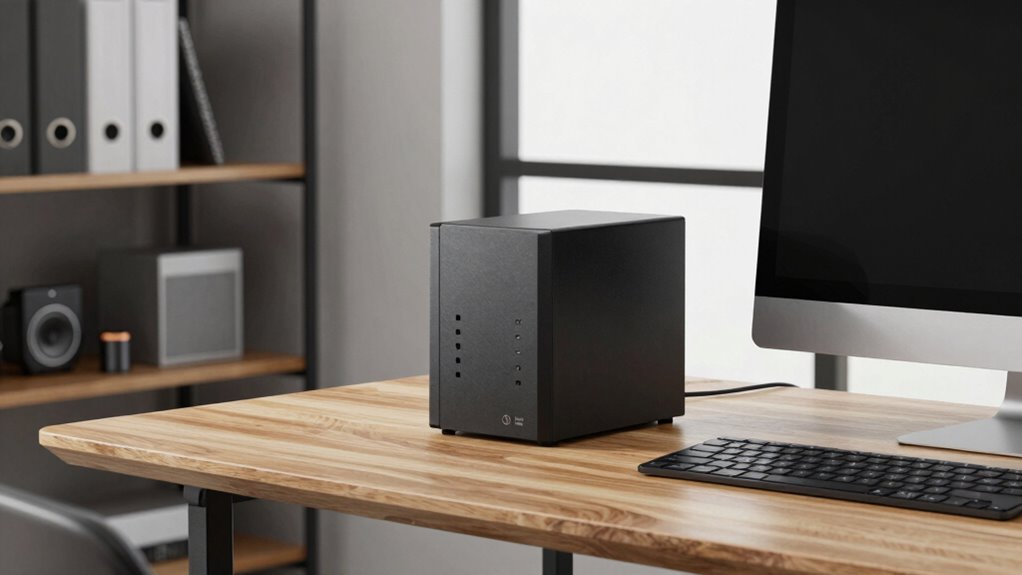

If you often work from home and handle important files, a NAS makes sense for reliable, centralized backups and quick remote access. It protects against hardware failure and accidental deletions, while offering secure data sharing. With cloud integration and automation, you can set up automatic backups and off-site storage. Plus, NAS devices promote energy efficiency and sustainability. If you’re curious, there’s more to explore about how a NAS can boost your home office setup.
Key Takeaways
- A NAS provides centralized, reliable backup storage for essential home office files, preventing data loss from hardware failures.
- It enables automated, scheduled backups, saving time and reducing manual errors.
- NAS supports remote access, allowing secure file retrieval and sharing from anywhere.
- Integrating cloud services enhances data security through off-site backups and synchronization.
- Energy-efficient NAS devices promote sustainable data management and reduce power consumption in a home office.
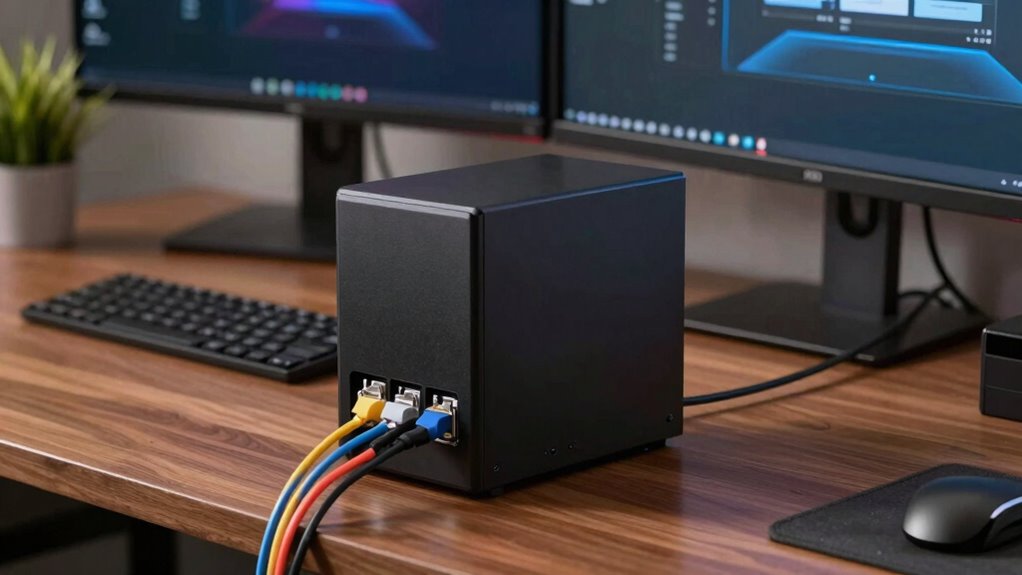
Have you ever lost critical data because of a hardware failure or accidental deletion? If so, you know how stressful it can be to recover important files or, worse, lose them forever. That’s where a NAS (Network Attached Storage) for backups can make a real difference, especially for a home office. A NAS acts as a centralized storage hub, giving you a dedicated place to store all your essential files, photos, videos, and documents. It’s not just about having a large drive; it’s about creating a reliable backup system that safeguards your data.
One of the biggest advantages of using a NAS in your home office is its ability to seamlessly integrate with cloud services. Cloud integration allows your NAS to sync with popular platforms like Dropbox, Google Drive, or OneDrive, giving you an extra layer of protection. If your local NAS is compromised—say, by theft, fire, or hardware failure—you still have your data stored safely in the cloud. This hybrid approach combines the speed and control of local backups with the peace of mind that comes from off-site storage. Plus, many NAS devices now support automatic scheduled backups, so you don’t have to remember to do it manually. This automation saves you time and reduces the risk of forgetting to back up important files.
Seamlessly sync your NAS with cloud services for automatic, secure backups and extra data protection.
Remote access is another key feature that makes NAS a smart choice for a home office. With remote access, you can retrieve your files from anywhere—whether you’re working from a coffee shop, traveling, or just away from your home. All you need is an internet connection and the right permissions. This flexibility means you’re not tied to your physical office or a specific device. You can upload new files, access existing ones, or even share specific folders with colleagues or clients securely. This kind of accessibility ensures that your productivity stays high, regardless of where you are. Incorporating secure remote access is essential for maintaining data safety while enabling flexible work arrangements. Additionally, choosing a device with energy-efficient features can help reduce your overall power consumption and support sustainable practices.
Using a NAS for backups isn’t just about storage; it’s about creating a resilient, flexible, and accessible data management system. It provides peace of mind, knowing that your data is protected both locally and in the cloud, with the convenience of remote access. As data continues to grow and cyber threats increase, investing in a NAS tailored for your home office setup becomes a smart move. It’s a proactive step that helps prevent the nightmare of data loss while enhancing your ability to work from anywhere. Additionally, many NAS devices now support local and off-site backups, offering a comprehensive approach to data security. Incorporating biodiversity principles into your data management can also promote sustainable practices by choosing energy-efficient devices and reducing unnecessary data duplication. Being mindful of data redundancy can further optimize storage and ensure your backups are both reliable and efficient.
As an affiliate, we earn on qualifying purchases.
Frequently Asked Questions
How Much Storage Capacity Do I Need for My Backup NAS?
You’ll want enough storage capacity to handle your current data and future growth, typically 2-3 times your current data size to guarantee data redundancy. Consider your hardware compatibility to pick a NAS with the right drive sizes and interfaces. If you have 1TB of data now, a 4-6TB NAS offers room for backups and expansion. Always choose a device that scales with your needs and supports reliable backup routines.
What Are the Security Features Available for NAS Backups?
You can secure your NAS backups with encryption protocols like AES to protect your data from unauthorized access. User access controls allow you to set permissions, ensuring only trusted individuals can view or modify backups. Many NAS devices also support multi-factor authentication and VPN access for added security. Regular firmware updates and strong, unique passwords further safeguard your backups, giving you peace of mind that your data stays private and protected.
Can a NAS Be Used for Remote Access to Backups?
Think of your NAS as a remote library—you can access your backups anytime, anywhere. Yes, a NAS can be used for remote access to backups, allowing you to retrieve files or perform backup synchronization from different locations. Setting up secure remote access guarantees your data stays protected while being conveniently available whenever you need it, making your home office more flexible and resilient.
How Does a NAS Compare to Cloud Backup Solutions?
A NAS offers data redundancy and local control, making it more reliable for backups compared to cloud solutions. With proper network configuration, you can access your data quickly and securely without ongoing subscription costs. Cloud backups, on the other hand, provide off-site storage and easier remote access but depend on internet speed and can pose concerns about data security. Choose based on your need for control versus convenience.
What Is the Typical Cost Range for a Home Office NAS?
A home office NAS typically costs between $200 and $1,000, depending on features like media streaming capabilities and network management tools. You’ll want to take into account storage capacity and processing power for smooth media streaming and easy network control. Investing in a reliable NAS guarantees seamless backups, media sharing, and better network management, making it a valuable addition to your home setup without breaking the bank.
Network Attached Storage with cloud integration
As an affiliate, we earn on qualifying purchases.
As an affiliate, we earn on qualifying purchases.
Conclusion
Just as the lighthouse guides ships through stormy seas, a NAS can steer your home office safely through data storms. It’s more than just a backup; it’s your digital sanctuary, offering peace of mind amid chaos. When you invest in a NAS, you’re building a fortress for your memories, work, and dreams—ensuring they’re resilient against the unpredictable tides of technology. Embrace this modern safeguard and navigate your home office with confidence.
automatic backup NAS for home office
As an affiliate, we earn on qualifying purchases.
As an affiliate, we earn on qualifying purchases.
remote access NAS for small business
As an affiliate, we earn on qualifying purchases.
As an affiliate, we earn on qualifying purchases.