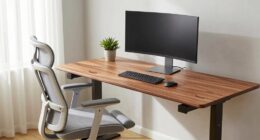
If your hands go numb at your desk, it’s likely your ergonomic setup. Keep your wrists straight and in a neutral position, with your keyboard and mouse close enough to avoid reaching. Adjust your chair height so your elbows stay at about 90°, and make sure your wrists aren’t bent upward or sideways. Taking regular breaks and adding wrist support can help too. To find out more simple fixes, stay tuned.
Key Takeaways
- Ensure your keyboard and mouse are at elbow height, keeping wrists in a neutral, straight position while typing and using the mouse.
- Use ergonomic accessories like wrist rests or splints to support wrists and prevent nerve compression during extended work sessions.
- Keep your wrists straight and aligned with your forearms, avoiding bending or twisting to reduce nerve pressure.
- Take regular breaks to stretch and move your hands, wrists, and arms, promoting circulation and reducing numbness.
- Adjust your workstation with an ergonomic desk and chair setup to maintain proper arm, wrist, and shoulder alignment.

If your hands go numb at the desk, it’s often a sign that your workspace setup isn’t supporting proper ergonomics. Numbness can be caused by nerve compression or poor circulation, both linked to how your workstation is arranged. The good news is that simple ergonomic adjustments can make a big difference, especially when it comes to providing proper wrist support. Ensuring your setup aligns with ergonomic principles helps reduce strain and prevents nerve impingement that leads to numbness.
Start by evaluating your keyboard and mouse positioning. Your keyboard should be at a height that allows your elbows to stay close to your body and form about a 90-degree angle. If you’re reaching forward or your wrists are bent upwards or downwards while typing, you’re putting unnecessary pressure on your nerves and tendons. Adjust your keyboard height or use an adjustable desk to achieve a neutral wrist position. Incorporating wrist support, like a padded wrist rest, can help keep your wrists straight and reduce strain during extended typing sessions.
Evaluate keyboard height and use wrist support to reduce strain and maintain neutral wrist positioning.
Your mouse placement also matters. Keep it close to your keyboard to avoid overreaching, which forces your shoulders and arms into awkward positions. Use a mouse pad with a built-in wrist support if needed. This keeps your wrist in a neutral position and prevents it from bending sideways or upwards, both common causes of numbness. Remember, your goal is to maintain a straight line from your forearm through your wrist to your hand, minimizing pressure on the median nerve.
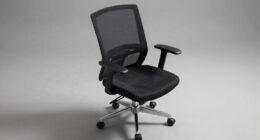
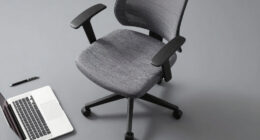
Don’t forget to check your chair height and desk setup. Your chair should allow your feet to rest flat on the floor, with your knees at or slightly below hip level. When seated properly, your forearms should be parallel to the ground, making it easier to keep your wrists supported without strain. Consider investing in ergonomic accessories designed for wrist support, such as wrist braces or splints, especially if you’re prone to persistent numbness.
Finally, take regular breaks to stretch and move your hands, wrists, and arms. Even with the best ergonomic adjustments, static positions can cause nerve compression over time. Incorporate simple wrist stretches and movements to promote circulation and relieve tension. Keep in mind that proper ergonomic design plays a crucial role in preventing nerve impingement and maintaining comfort during your workday.

Vaydeer Wrist Rest for Keyboard and Mouse, Computer Ergonomic Wrist Support Pad, Soft Memory Foam Arm Cushion for Desk, Palm Hand Office Laptop Typing
【Softer and More Comfortable】Vaydeer wrist rest has unique diamond pattern, which is the combination of softness and aesthetics….
As an affiliate, we earn on qualifying purchases.
As an affiliate, we earn on qualifying purchases.
Frequently Asked Questions
Can Ergonomic Adjustments Prevent Numbness Permanently?
Yes, ergonomic adjustments can help prevent numbness caused by carpal tunnel and nerve compression. By ensuring your desk, chair, and keyboard are properly aligned, you reduce pressure on your wrists and nerves. Consistently maintaining good posture and taking breaks also help prevent long-term nerve issues. While adjustments greatly lower the risk, they can’t guarantee permanent prevention, especially if underlying conditions exist, so consult a healthcare professional for persistent symptoms.
How Long Should I Try This Setup Fix Before Seeing Results?
Try this setup fix for about two weeks; it’s like tuning a guitar—patience brings harmony. You should start noticing reduced numbness within that time, as your body adapts to ergonomic accessories and tech gadgets. Keep track of your progress, and if numbness persists after two weeks, consider adjusting your setup further or consulting a professional. Consistency is key to preventing ongoing discomfort.
Are There Specific Desk Materials That Reduce Numbness?
You should look for a desk with soft, cushioned surface materials or add cushion padding to your existing desk. Materials like wood or metal can sometimes cause pressure points, leading to numbness. Using a cushioned pad or mouse pad made of gel or foam can considerably reduce pressure on your wrists and hands. These adjustments improve circulation, helping prevent numbness during long work sessions.
Is Numbness Related to Underlying Medical Conditions?
Yes, numbness can be related to underlying medical conditions or neurological issues. If you notice persistent numbness, it’s important to consult a healthcare professional to rule out conditions like carpal tunnel syndrome, nerve compression, or circulation problems. Addressing these issues early can prevent further complications. Taking breaks, adjusting your workspace, and seeking medical advice can help manage symptoms and improve your comfort at the desk.
Can This Fix Improve Overall Hand Strength and Dexterity?
Improving your hand strength and dexterity is like opening a new level—your hand grip and finger exercises play a crucial role. By regularly practicing targeted movements, you strengthen muscles and enhance coordination, making everyday tasks easier. This setup fix not only alleviates numbness but also boosts overall hand performance. Consistent effort transforms your hands from weak to resilient, giving you better control and reducing discomfort during long desk hours.

Autrfso Kids Ergonomic Desk and Chair Set, Height Adjustable School Study Table with Bookshelf, Drawer and Spine Support Backrest, Kids Desk and Chair for Bedroom&Study Room (Pink)
Adjustable Height:Kids table and chair set features an adjustable design, allowing the height of the homeschool desk and…
As an affiliate, we earn on qualifying purchases.
As an affiliate, we earn on qualifying purchases.
Conclusion
So, next time your hands fall asleep at your desk, remember the irony—sometimes, all it takes is a simple setup fix to keep you awake and alert. Instead of suffering in silence, try adjusting your workspace. Who knew that a little tweak could save you from numbness and frustration? Sometimes, the easiest solutions are right in front of you, proving that even minor changes can make a big difference—without the need for a fancy gadget or a costly upgrade.

MROCO Ergonomic Mouse Pad with Gel Wrist Rest, Smooth Wrist Support Surface, Non-Slip PU Base for Pain Relief, Comfortable Mousepad for Computer, Laptop, Office & Home, 9.4 x 8.1 in, Black
Comfortable Gel Cushioning: The ergonomic wrist rest contains soft gel to provide soothing comfort and effective support, helping…
As an affiliate, we earn on qualifying purchases.
As an affiliate, we earn on qualifying purchases.

Wireless Keyboard and Mouse Combo, 2.4G Full Size Wave Keys Ergonomic Keyboard with Wrist Rest and 3-Level DPI Adjustable Wireless Ergonomic Mouse for Windows, Mac OS Desktop/Laptop/PC(Black)
【Wave Ergonomic Wireless Keyboard and Mouse Combo】The wireless keyboard features a wave key and wrist rest design that…
As an affiliate, we earn on qualifying purchases.
As an affiliate, we earn on qualifying purchases.