To perform a quick monitor flicker test, first look at a solid color or gradient background on your screen. Focus on the screen for about 10-15 seconds and watch for any subtle flashing, shimmering, or flickering, especially around the edges or in darker areas. You can also try a flicker test video or app, which makes flickering more noticeable. If you notice any flickering signs, there are simple ways to reduce eye strain—keep exploring to learn more.
Key Takeaways
- Use flicker test videos or apps to detect subtle flickering effects on your monitor.
- Observe solid color or gradient areas for shimmering or flickering during the test.
- Check for eye discomfort, headaches, or eye fatigue after viewing, indicating potential flicker issues.
- Adjust your monitor’s refresh rate to 75Hz or higher to reduce flickering.
- Enable flicker-free mode or backlight technology settings for a more comfortable viewing experience.
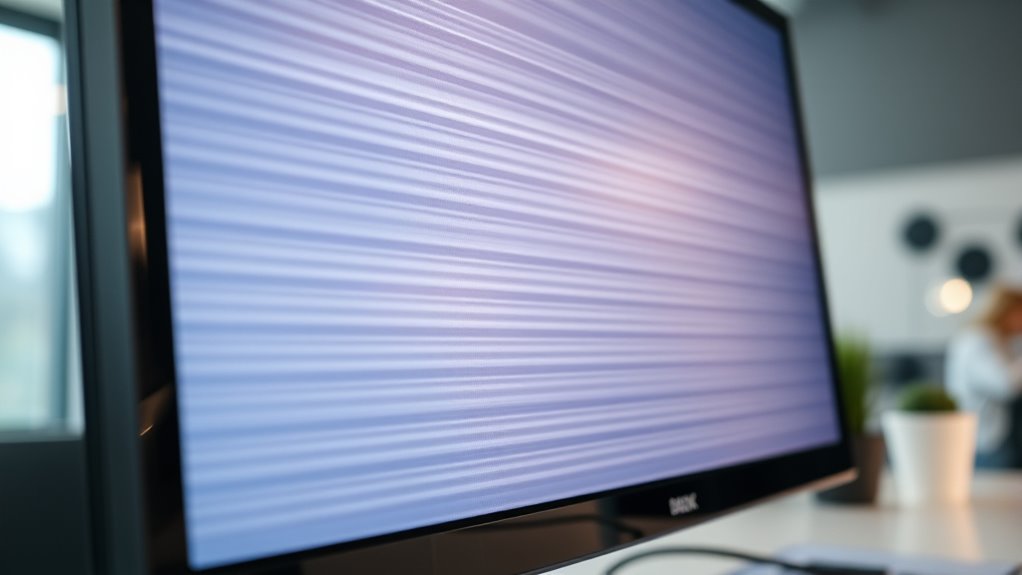
If you’ve ever noticed eye strain or headaches after long hours in front of your screen, your monitor’s flicker might be to blame. Flicker refers to rapid, often invisible changes in screen brightness that can cause discomfort over time. To identify if flickering is affecting you, doing a simple monitor flicker test can be a game-changer. One of the best ways to minimize discomfort is guaranteeing your monitor’s color calibration is accurate, which can help reduce eye strain and improve overall viewing comfort. Proper color calibration ensures the display shows true-to-life colors, reducing unnecessary eye effort and making prolonged use easier. Additionally, adjusting your monitor’s refresh rate to a higher setting can significantly decrease flicker and enhance visual comfort. During the flicker test, you should observe your screen carefully, especially around areas with solid colors or gradients. Flickering often appears as a subtle flashing or shimmering, particularly at certain refresh rates. You might not see it directly, but if you notice eye fatigue, headaches, or a sense of flickering when looking at your screen, it’s worth investigating further. Many flicker issues stem from the monitor’s refresh rate or backlight technology. Modern monitors with flicker-free technology or higher refresh rates tend to perform better in eye strain prevention. If your monitor offers a flicker-free mode, activate it and see if your symptoms improve. Another quick test involves using a flicker test video or an app designed to reveal flickering. These tools display patterns or colors that can make flicker more noticeable, helping you determine if your monitor flickers at certain settings. Adjusting your monitor’s refresh rate in your display settings can also help. Higher refresh rates, like 75Hz or above, drastically reduce flicker and make on-screen motion smoother, which in turn reduces eye strain. It’s also good to check your monitor’s settings for any dynamic brightness or contrast adjustments, which might contribute to flickering sensations. Preventing eye strain is about more than just flicker; it’s about creating a comfortable viewing environment. Proper color calibration plays a key role here, as it reduces the intensity of colors and brightness that can tire your eyes. When your screen displays colors accurately, your eyes don’t have to work as hard to interpret images, reducing fatigue during long sessions. Regularly monitoring your display settings can help maintain comfort and prevent issues over time. Additionally, taking regular breaks, adjusting your monitor’s position, and maintaining proper ambient lighting are essential steps for eye comfort.

Philips 24 Inch Computer Monitor FHD 100Hz VA VESA Flicker-Free, 241V8LB
- Display Size: 24 Inch Full HD monitor
- Resolution: 1920×1080 crisp visuals
- Panel Type: VA for high contrast
As an affiliate, we earn on qualifying purchases.
As an affiliate, we earn on qualifying purchases.
Frequently Asked Questions
Can Monitor Flicker Affect My Eye Health Long-Term?
Monitor flicker can contribute to eye strain and visual fatigue over time, especially if you spend long hours in front of the screen. While occasional flicker might not cause permanent damage, persistent flickering can lead to discomfort and headaches. To protect your eye health, take regular breaks, adjust your monitor settings, and consider using flicker-free displays. Your eyes will thank you for the extra care.
How Often Should I Perform the Flicker Test?
Think of your eyes as delicate gardens needing regular tending. You should perform the flicker test during your daily check, ideally once a day, to catch any early signs of issues. Monitoring frequency keeps you aware of your eye health without overdoing it. If you notice persistent flickering or discomfort, consider consulting an eye care professional. Regular, gentle checks help maintain your visual harmony and overall well-being.
Are There Specific Monitors More Prone to Flickering?
Some monitors are more prone to flickering, especially those with lower refresh rates or older panel technologies like TN. Monitors with higher refresh rates, such as 120Hz or above, tend to flicker less. Also, LCDs using advanced panel technologies like IPS or OLED generally provide smoother visuals with less flicker. If you notice flickering, consider upgrading to a monitor with better refresh rates and newer panel tech for a more comfortable experience.
Can Software Updates Fix Flickering Issues?
Yes, software fixes can sometimes resolve flickering issues by updating display drivers or adjusting display settings. However, if software updates don’t fix the problem, hardware solutions like replacing the monitor or checking the cable connections might be necessary. Keep your drivers current and troubleshoot with software first, but don’t hesitate to seek hardware solutions if flickering persists, ensuring your display works smoothly.
What Are the Best Tools to Measure Flicker Precisely?
Think of flicker measurement tools as your monitor’s stethoscopes—they help you diagnose issues precisely. Use specialized software like LC Technology’s Monitor Calibration Suite or hardware like the SpectraCal C6 to detect flickering accurately. These tools give you detailed data, ensuring your monitor is well-calibrated and flicker-free. They’re essential for pinpointing subtle issues that affect your viewing comfort, making your calibration process more effective and reliable.

Samsung 32" Flat Computer Monitor
- Borderless Design: Three-sided borderless display for modern look
- Synchronized Refresh Rate: AMD FreeSync reduces image tearing
- Smooth Visuals: 75Hz refresh rate ensures fluid motion
As an affiliate, we earn on qualifying purchases.
As an affiliate, we earn on qualifying purchases.
Conclusion
By performing this flicker test today, you hold the power to see beyond the surface—like uncovering a hidden rhythm beneath your screen’s glow. It’s a simple step to protect your vision, ensuring clarity remains steady and true. Think of this test as a lighthouse guiding you through the fog, illuminating the path to healthier viewing habits. Take control now; your eyes deserve clarity, and your awareness is the beacon that keeps your vision shining bright.

Datacolor SpyderExpress Monitor Calibrator & Screen Color Calibrator
- Quick & Easy Color Calibration: Precise color for photos and content creation
- Supports Latest Displays: Compatible with MacBook M4 mini-LED and more
- Fast Setup: Calibrates in just 90 seconds for quick results
As an affiliate, we earn on qualifying purchases.
As an affiliate, we earn on qualifying purchases.
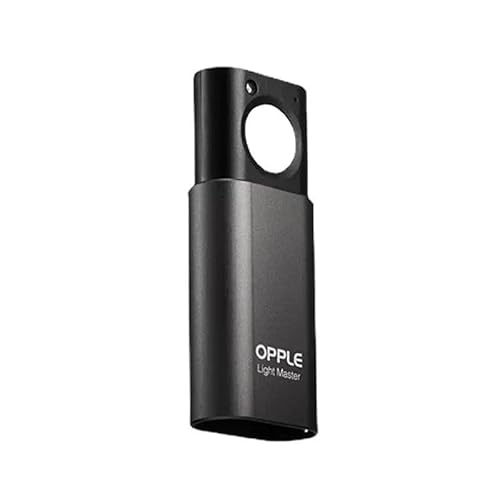
OPPLE Light Master 4 Digital Light Meter Light Lux Meter Illuminometer Motion Sensor Bluetooth APP LED Lighting Sensor Tester for Flicker DUV CCT CRI Measurement Type-C Rechargeable
- App Compatibility: Scan QR code to download OPPLE Smart app
- Measurement Capabilities: Measures illuminance, CCT, CRI, flicker, DUV
- Rechargeable Design: Type-C rechargeable with one-year battery life
As an affiliate, we earn on qualifying purchases.
As an affiliate, we earn on qualifying purchases.