
If your USB devices keep disconnecting, start by checking your power management settings in Device Manager and disable the option to allow the computer to turn off the device. Next, verify your drivers are up to date; update or reinstall them if needed. Test your device on different ports or computers to rule out hardware issues. Make sure your OS and software are current. Keep these tips in mind to resolve most disconnect problems quickly—click on for more expert advice.
Key Takeaways
- Disable Windows power management for USB hubs to prevent automatic port shutdown.
- Update or reinstall USB device drivers to fix potential driver corruption.
- Test USB devices on different ports and avoid overloaded or unpowered hubs.
- Keep your operating system and device firmware fully updated for better compatibility.
- Check for physical damage or debris and try connecting devices to different computers if issues persist.
If you’ve noticed your USB devices disconnect unexpectedly, you’re not alone. Many users face this frustrating issue, often caused by a combination of power management settings and outdated drivers. Addressing these factors can markedly improve your device stability. First, check your computer’s power management options. Windows, in particular, often turns off USB ports to save power, which can cause devices to disconnect suddenly. To fix this, go to Device Manager, locate your USB Root Hub or Generic USB Hub, right-click, and select Properties. Under the Power Management tab, uncheck the box that says “Allow the computer to turn off this device to save power.” This simple step prevents Windows from cutting power to your USB ports unexpectedly, reducing disconnects.
Next, ensure your drivers are up to date. Outdated or corrupted drivers are a common culprit behind USB disconnects. Visit your PC manufacturer’s website or the device manufacturer’s support page to download the latest driver updates. Alternatively, use Windows Update or Device Manager to automatically search for updates. To do this, right-click on your USB device in Device Manager, select Update Driver, and follow the prompts. Updating drivers often resolves compatibility issues that might be causing disconnects. If the problem persists after updates, you might consider uninstalling the device and then restarting your computer. Windows will attempt to reinstall the driver during reboot, which can sometimes fix corruption issues.
In addition to power management and driver updates, consider other factors that could cause disconnects. Check your USB ports for physical damage or debris that might interfere with connections. Try plugging your device into a different port, preferably on a different USB hub or controller, to rule out port-specific issues. If you’re using a USB hub, especially a powered one, ensure it has enough power supply and isn’t overloaded with devices. Sometimes, disconnects happen because the device draws more power than the hub can provide. Using a powered hub or connecting directly to your computer can help stabilize the connection. Additionally, be aware that connected devices can sometimes interfere with each other if multiple peripherals are sharing the same controller, affecting stability.
Finally, keep your operating system updated. Software updates often include fixes for known hardware compatibility issues that could be causing your USB devices to disconnect. Regularly check for updates and install them promptly. If none of these steps work, consider testing your devices on another computer to determine if the problem lies with the device itself. Overall, starting with power management settings and driver updates is an effective, straightforward way to troubleshoot and resolve most USB disconnect issues.
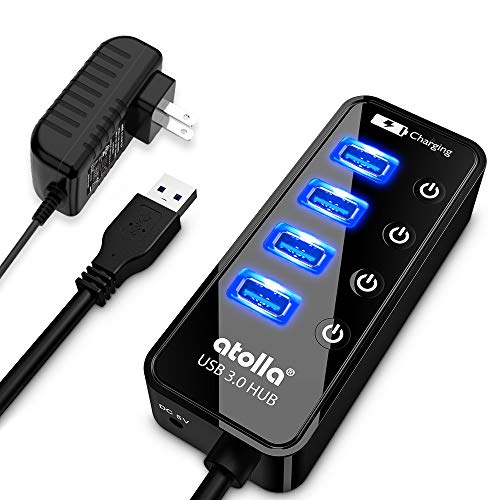
Atolla 4-Port USB 3.0 Hub with 4 Data Ports, 1 Smart Charging Port, Individual On/Off Switches and 5V/3A Adapter
?SuperSpeed Syncing and Smart Charging?- atolla USB 3.0 hub can expand 1 USB 3.0 port to 4 extra…
As an affiliate, we earn on qualifying purchases.
As an affiliate, we earn on qualifying purchases.
Frequently Asked Questions
Can Software Updates Fix USB Disconnect Issues?
Yes, software updates can fix USB disconnect issues by addressing software bugs that cause conflicts with your device drivers. Updating your system can also improve compatibility and fix underlying issues that may be mistaken for hardware malfunctions. Regularly installing updates guarantees your USB drivers stay current, reducing disconnect problems. However, if issues persist after updates, you might need to check for hardware problems or further driver troubleshooting.
Do Faulty USB Cables Cause Disconnections?
Faulty USB cables often cause disconnections because they can interrupt the data transfer or power supply. If you notice frequent USB disconnections, try replacing the cable with a high-quality one. Faulty cables may have internal breaks or poor insulation that disrupt the connection. Using a reliable cable can markedly reduce USB disconnections, improving the stability and performance of your USB devices. Always check your cables before troubleshooting software or port issues.
How Do I Check for Driver Conflicts?
Imagine your USB device suddenly disconnects—it’s frustrating, right? To check for driver conflicts, open Device Manager and look for yellow warnings or error icons. Right-click your device, select ‘Update Driver,’ or choose ‘Uninstall Device’ then restart your PC to trigger driver reinstallation. This helps resolve hardware conflicts and guarantees your drivers are correct and current, reducing disconnection issues.
Is Power Management Responsible for USB Disconnects?
Yes, power management can cause USB disconnects. It often turns off your USB ports to save power, leading to hardware issues. You can check this in your Device Manager by right-clicking your USB hubs, selecting Properties, and then the Power Management tab. Uncheck the option “Allow the computer to turn off this device to save power.” Doing so helps prevent disconnects caused by power management settings.
Can a BIOS Update Resolve USB Problems?
Yes, a BIOS update can resolve USB problems by improving hardware compatibility and fixing bugs that cause disconnects. It can also address issues related to port damage or compatibility with your USB devices. Before updating, make certain your hardware is supported and carefully follow manufacturer instructions. Updating your BIOS can often stabilize USB connections, reducing disconnects caused by outdated firmware or hardware conflicts.

Offline Driver Installer USB for Windows 11, 10, 8, 7, Vista, XP – No Internet Needed – 64GB Universal Driver Pack for All PC Brands
Works Without Internet – Instantly install missing drivers for Wi-Fi, audio, graphics, Bluetooth, and more without needing to…
As an affiliate, we earn on qualifying purchases.
As an affiliate, we earn on qualifying purchases.
Conclusion
Remember, sometimes less is more. If your USB devices keep disconnecting, try the troubleshooting steps outlined above—they’re proven to work. Keep your patience and stay methodical, because as the saying goes, “A problem shared is a problem halved.” With persistence, you’ll get your USB devices back up and running smoothly. Don’t give up; troubleshooting often leads to a simple fix that restores your device’s connection.

DROK USB Tester, USB-A USB-C 2.0 Multimeter Dual USB Ports PD QC 3.0 with Color LED Display Battery Charger Monitor, 7 Modes Capacity Voltage Current Power for Laptop Power Bank Solar Panel
【7 Modes Display Monitor】 DROK USB Tester is equipped with digital color LED display screen, which can be…
As an affiliate, we earn on qualifying purchases.
As an affiliate, we earn on qualifying purchases.

JUXINICE Solderless USB 2.0 Connectors,Portable DIY USB Screw Terminal Block Male+Female Adapter,Type A Converter, Pluggable Type A Repair Kit for USB Cable(1PCS Male+1PCS Female)
【USB 2.0 No-Solder DIY Adapter】: USB 2.0 male/female to 5-pin terminal design, supports easy DIY or repair via…
As an affiliate, we earn on qualifying purchases.
As an affiliate, we earn on qualifying purchases.