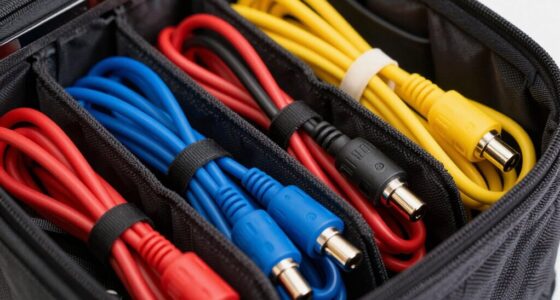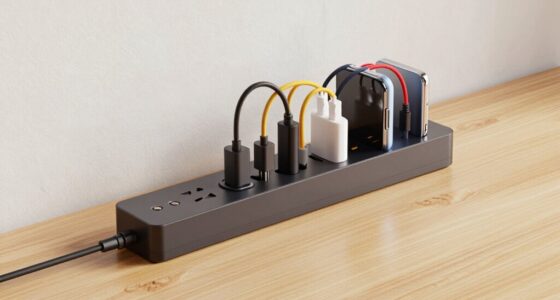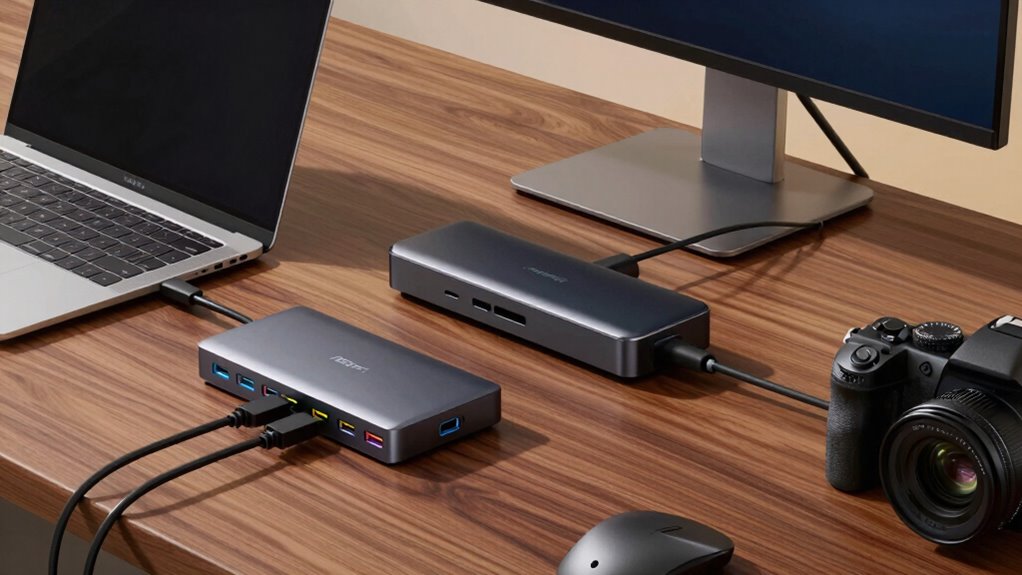

A USB hub and a dock may seem similar but serve different needs. A USB hub expands your USB ports for simple peripherals like mice or flash drives, while a dock offers broader compatibility, supporting multiple monitors, Ethernet, audio, and high-speed data transfer. Docks are better for complex setups, reducing the hassle of adapters. If you want to understand which fits your workflow better and avoid setup headaches, keep exploring the differences.
Key Takeaways
- Docks support multiple monitors, high-speed data, and diverse hardware, reducing setup complexity for complex workflows.
- USB hubs expand USB ports quickly but are limited to USB peripherals, suitable for simple device needs.
- Docks connect via Thunderbolt or proprietary ports, offering broader device compatibility and less need for adapters.
- USB hubs lack advanced power management, increasing potential safety risks, unlike docks with built-in power protections.
- Choose a dock for complex setups with multiple peripherals and monitors; opt for a USB hub for basic device expansion.
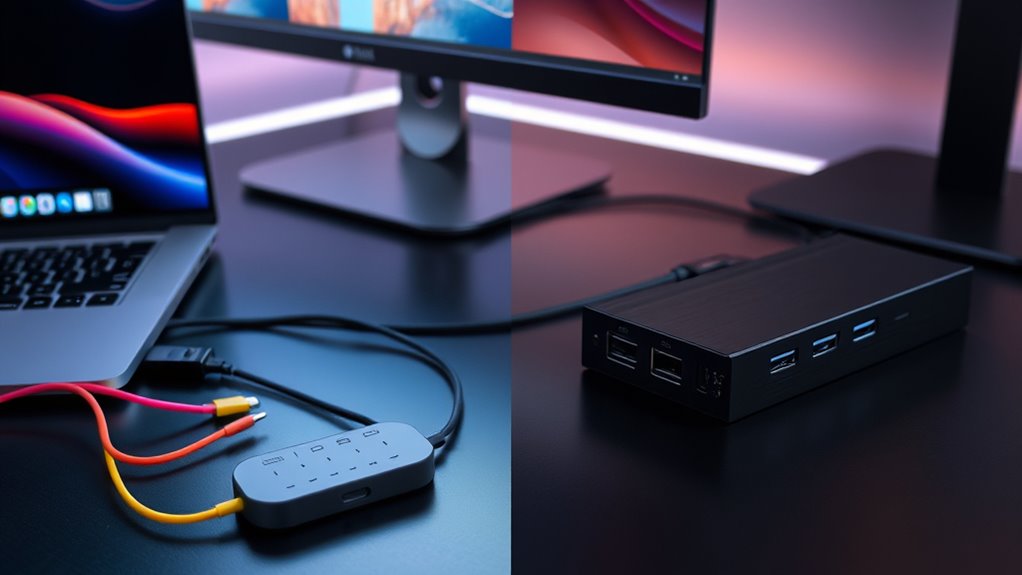
Device compatibility is another vital aspect. Docks are generally designed to support a wide range of devices, including multiple monitors, Ethernet connections, audio outputs, and high-speed data transfer options. They often connect via Thunderbolt or proprietary ports, which might require specific hardware, but once set up, they’re highly versatile. USB hubs, on the other hand, are simpler and tend to focus on expanding USB port availability. They work well with most devices that use standard USB connections but might struggle with complex setups or high-bandwidth peripherals. If your workflow involves multiple external monitors or specialized hardware, a dock’s broader device compatibility can save you headaches and reduce the need for additional adapters. Additionally, power management features in docks can help prevent power surges or overloads, ensuring safe operation for your connected devices.
Frequently Asked Questions
Can a USB Hub Charge Devices Simultaneously?
Yes, a USB hub can charge devices simultaneously, but it depends on its power delivery capabilities. Many hubs support charging multiple devices at once, but their efficiency varies based on device compatibility and power output. For ideal charging, look for hubs with high power delivery ratings, ensuring they can handle multiple devices without compromising charging speed or safety. Always check the specifications for device compatibility and power capacity.
Are Docks Compatible With All Laptop Brands?
Docks aren’t compatible with all laptop brands, but many are designed for broad brand compatibility. You should check the dock’s specifications to confirm it supports your laptop’s brand and model. Consider the port variety offered, as some docks provide more USB ports, HDMI, or Ethernet options, which can enhance connectivity. Always verify compatibility and port options before purchasing to avoid setup headaches and ensure your laptop works seamlessly with the dock.
Do Hubs Support 4K Video Output?
Yes, some hubs support 4K video output, but it depends on their video quality and bandwidth allocation. If your hub has high data transfer rates and dedicated video ports, it can handle 4K streaming smoothly. Check the specifications to verify it supports 4K at your desired refresh rate. Keep in mind, lower bandwidths may limit video quality or cause lag, so choose a hub designed for high-resolution output.
Is There a Difference in Data Transfer Speed?
When it comes to data transfer speed, don’t assume all devices are created equal. You’ll find that docks generally offer faster speed comparison, especially with high-bandwidth tasks, thanks to dedicated connections and optimized hardware. Hubs might be more flexible but can bottleneck your data transfer, slowing things down. So, if speed matters, choose a dock to keep your workflow running smoothly without hitting a brick wall.
Can I Connect Multiple Docks to One Computer?
You can connect multiple docks to one computer, but it depends on your dock compatibility and your computer’s ports. Using multiple docks may cause bandwidth issues if they share the same USB or Thunderbolt controllers, leading to slower data transfer speeds. Check if your system supports daisy-chaining or multiple dock connections, and verify each dock is compatible with your computer to avoid setup headaches.
Conclusion
So, next time you’re faced with choosing between a USB hub and a dock, remember—what seems like a simple decision might just be the setup’s biggest headache in disguise. Ironically, the device meant to simplify your life could end up complicating it more. But hey, at least you now know the difference, right? Just don’t be surprised if your new setup still keeps you running in circles. Sometimes, the simplest choice isn’t so simple after all.