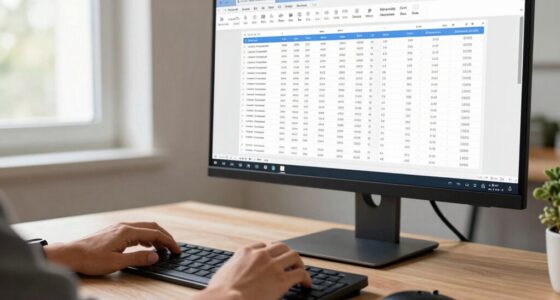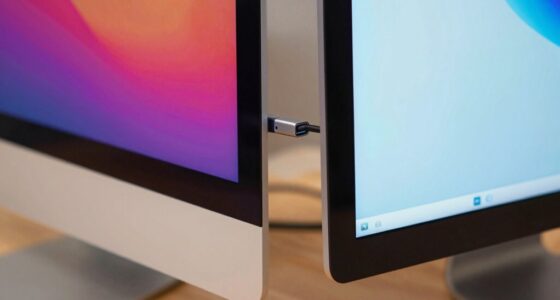
When comparing Mac and Windows scaling, you’ll notice that “100%” doesn’t look the same because each system interprets resolution differently. Macs adjust pixel density using Retina scaling for sharper visuals, while Windows scales UI elements based on display resolution and user settings. These differences impact text clarity and image sharpness across platforms. If you want to understand how these distinctions affect your display quality, there’s more to uncover about how each system handles scaling.
Key Takeaways
- Mac’s “100%” scaling uses Retina pixel density, resulting in sharper images, while Windows’ “100%” often corresponds to native display resolution.
- Mac adjusts internal pixel density for clarity, whereas Windows scales UI elements based on user settings and display resolution.
- Font rendering techniques differ: Macs use high-quality anti-aliasing, making text appear smoother than Windows at similar scaling levels.
- Physical display resolution impacts perceived size and sharpness, causing “100%” to look different across Mac and Windows systems.
- These differences mean “100%” scaling on Mac and Windows does not produce identical visual sizes or clarity.
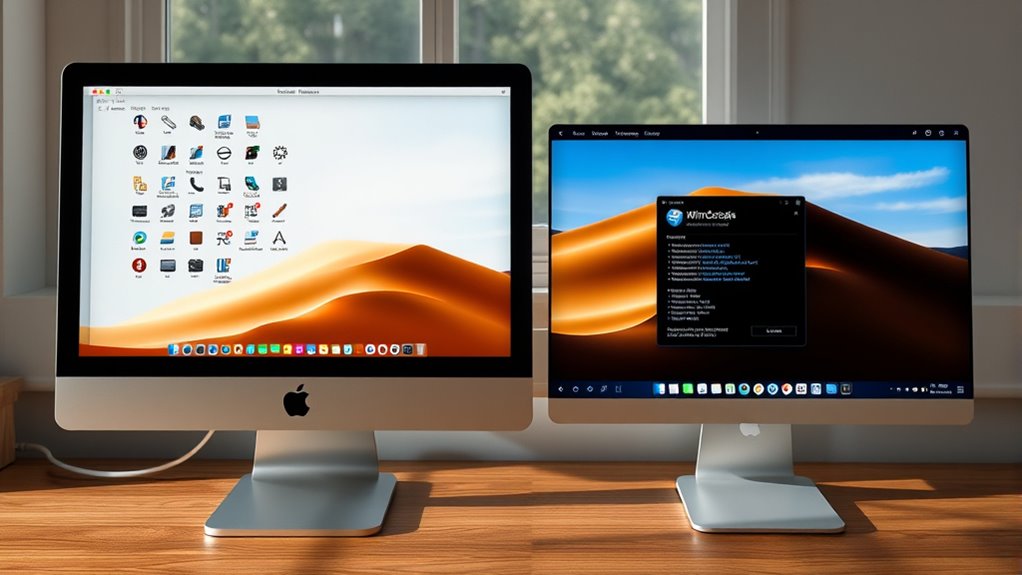
Have you ever wondered how Mac and Windows handle screen scaling differently? It’s a common question, especially since both operating systems aim to make your display look crisp and clear, yet they often produce different results even when you set the scaling to “100%.” The core reason lies in how each platform manages resolution differences and font rendering. On Macs, the system is designed to optimize clarity by adjusting the display’s pixel density, making images and text appear sharp regardless of the actual resolution. Windows, on the other hand, tends to treat resolution differences differently, sometimes scaling UI elements to maintain readability, which can lead to variations in how content appears at the same nominal zoom level.
Mac and Windows handle screen scaling differently, affecting clarity and size at the same nominal settings.
When you set your display to “100%” on a Mac, it doesn’t necessarily mean the same pixel-to-inch ratio as Windows. Macs often use a concept called Retina scaling, where the operating system renders at a higher pixel density internally and then scales down the output to match the physical display. This process results in crisper text and smoother graphics because the system is effectively working with more pixel data. Windows, by contrast, may display elements larger or smaller depending on the display’s native resolution and the scaling settings you choose. The result is that “100%” on Windows might not match the visual sharpness or size you see on a Mac, even if both are set to the same percentage.
Font rendering plays a huge role in this difference. Macs are known for their high-quality font rendering, which uses subpixel anti-aliasing and other techniques to produce very smooth, readable text at various sizes. Windows has traditionally used different font smoothing technologies, which can sometimes produce slightly less refined text, especially at lower resolutions or non-native scaling levels. As a result, what looks crisp and clear on a Mac might appear slightly different on Windows, even if both are set to “100%.” This discrepancy isn’t just about pixel count; it’s about how each system processes and displays font data.
Additionally, the resolution of the display itself significantly influences how scaling appears, making a universal visual standard difficult to achieve across different hardware. Ultimately, understanding these resolution differences and font rendering methods explains why “100%” doesn’t mean the same thing on Mac and Windows. It’s not just a matter of numbers or percentage settings but how each OS interprets and adapts to display hardware. This distinction impacts everything from reading documents to designing interfaces, making it vital to recognize that a “100%” setting isn’t universally consistent across platforms.
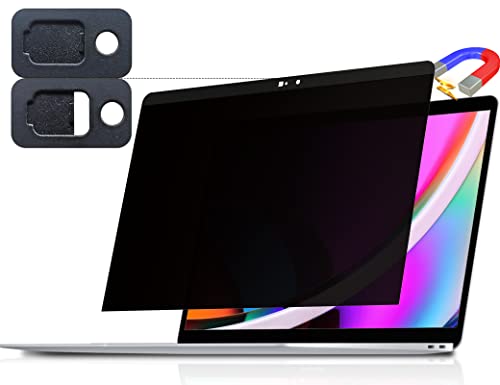
Peslv Magnetic Privacy Screen for Macbook Pro 13 Inch (2016-2022, M1, M2) / Macbook Air 13 in (2018-2021, M1), Removable Anti Blue Light Glare Filter for Mac 13In Laptop
【WIDELY APPLICABLE】Removable design and comes with a macbook pro privacy filter protector storage clip that can be taken...
As an affiliate, we earn on qualifying purchases.
Frequently Asked Questions
How Does Scaling Affect Gaming Performance on Mac and Windows?
Scaling impacts gaming performance on Mac and Windows by affecting resolution discrepancies and UI consistency. When you adjust scaling, it can cause blurry graphics or lag, especially if the game isn’t optimized for your display settings. On Mac, high scaling can reduce performance due to limited GPU power, while on Windows, you might experience smoother gameplay but with potential UI scaling issues. Balancing scaling settings guarantees better performance and visual clarity.
Can I Adjust Scaling Independently for Different Displays?
Yes, you can adjust scaling independently for different displays. In Windows, you access multi display calibration settings through Display Settings, allowing you to customize user interface scaling for each monitor individually. On Mac, you adjust resolution and scaling options for each display in System Preferences. This way, you optimize your viewing experience, ensuring clarity and comfort across multiple screens without compromising overall performance or usability.
What Are the Best Scaling Settings for Professional Graphic Design?
For professional graphic design, you should optimize scaling for retina displays and UI clarity by setting your display to 100% for precise pixel control, or slightly higher for larger interface elements. Balancing sharpness, detail, and workspace is key. Use scaling options that enhance visual accuracy without sacrificing workspace, and consider calibrating your display for color fidelity. Ultimately, find a setting that maximizes clarity, minimizes distortion, and supports your creative workflow effectively.
How Does Scaling Impact Battery Life on Macbooks and Windows Laptops?
Scaling can affect your battery life by influencing power consumption and display efficiency. When you increase scaling, your screen uses more resources, draining the battery faster. Conversely, lower scaling reduces power usage, extending battery life. On MacBooks and Windows laptops, ideal scaling balances display clarity and efficiency, helping you conserve energy. Adjusting scaling settings thoughtfully can give you longer unplugged usage without sacrificing too much visual quality.
Are There Any Hardware Limitations Influencing Scaling Differences?
You’ll notice hardware constraints and display resolution directly influence scaling differences. While high-resolution screens offer sharper images, they push hardware limits, causing scaling challenges. On MacBooks, integrated hardware optimizations handle scaling better, but Windows devices often face more constraints, leading to inconsistent experiences. These limitations shape how content appears at “100%,” making it feel different across devices—highlighting how hardware shapes your visual experience in subtle yet impactful ways.

Magicmoon 15.6" Privacy Filter Screen Protector, Anti-Spy/Glare Film for 15.6 inch 1920 x 1080 Resolution Widescreen Notebook Laptop with 16:9 Aspect Ratio (Not for 16:10) (Touch Screen Not Compatible)
Compatible Models: Width: 13 9/16" (13.5 inch/344 mm), Height: 7 5/8" (7.6 inch/194 mm), Diagonal: 15.6" (396.24 mm)...
As an affiliate, we earn on qualifying purchases.
Conclusion
Remember, just like Alice chasing the White Rabbit down the rabbit hole, your perception of “100%” scaling depends on the system you use. Mac and Windows each have their own Wonderland, where what looks perfect in one may feel off in the other. So, don’t be fooled by the numbers alone—explore and adjust until things feel just right. After all, in this digital world, seeing is believing, and your eyes are the true compass.

16 Inch 16:10 Laptop Privacy Screen Filter, Anti Blue Light Glare & Anti Scratch Computer Privacy Shield for 16" with 1920x1200 Aspect Ratio Laptop
【Privacy Protection】NOTE: Not for 16.1" with 1920x1080 Aspect Ratio Laptops. Not for MacBook Pro 16 Inch. Our computer...
As an affiliate, we earn on qualifying purchases.

Laptop Privacy Screen 14 Inch Compatible With Lenovo Hp Dell Acer Asus Thinkpad Envy Xps, 16:9 Aspect Removable Anti Glare Blue Light Filter Protector, 14inch Computer Monitor Privacy Shield
【Improved Privacy Filter】Protescreen 14 inch privacy screen filter after 200 times updates,Use revolutionary micro-louver technology. The 14 inch...
As an affiliate, we earn on qualifying purchases.