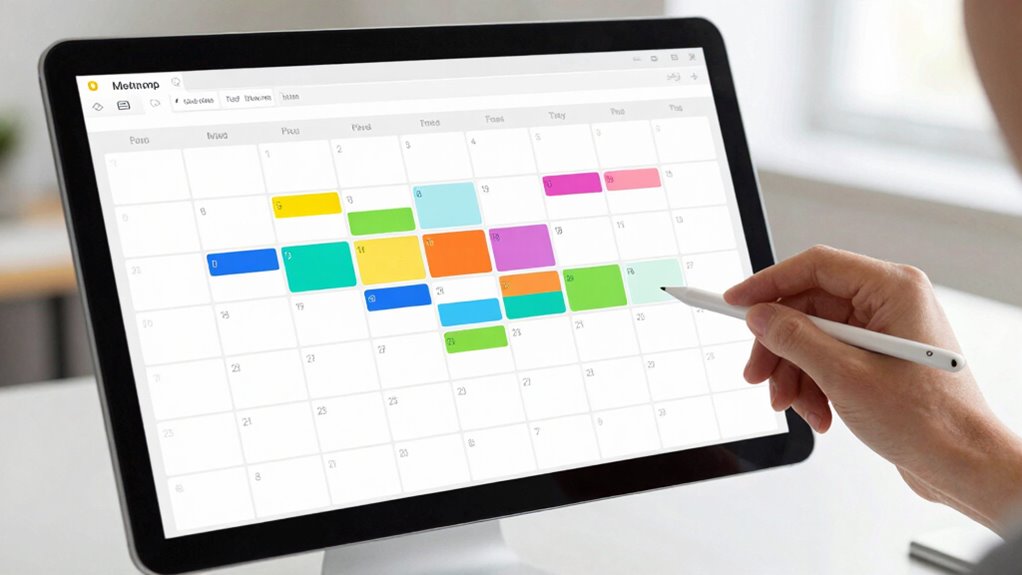

To prevent meeting collisions, guarantee your shared calendar automatically adjusts for time zones by setting proper regional preferences and clearly noting each event’s local time. Assign different access levels, giving only trusted team members editing rights while others view-only permissions. Establish clear guidelines, like checking the calendar before proposing new meetings and including accurate time zone info. Regularly review schedules and update permissions. Keep these practices in mind, and you’ll discover more tips to streamline your scheduling process.

Get comfort and recovery gear delivered free — and shop member deals
- Fast, free delivery on millions of items
- Access to Prime Big Deal Days deals on October 6–7
- Prime Video, Amazon Music and more included
Key Takeaways
- Use a shared calendar platform that automatically adjusts for different time zones to prevent scheduling errors.
- Set appropriate access permissions, such as view-only rights, to avoid accidental editing or overlaps.
- Include clear, accurate time zone information in all calendar entries to ensure everyone schedules correctly.
- Enable reminders and notifications for upcoming meetings to prevent last-minute conflicts.
- Establish and follow consistent calendar guidelines, including checking availability before scheduling new meetings.
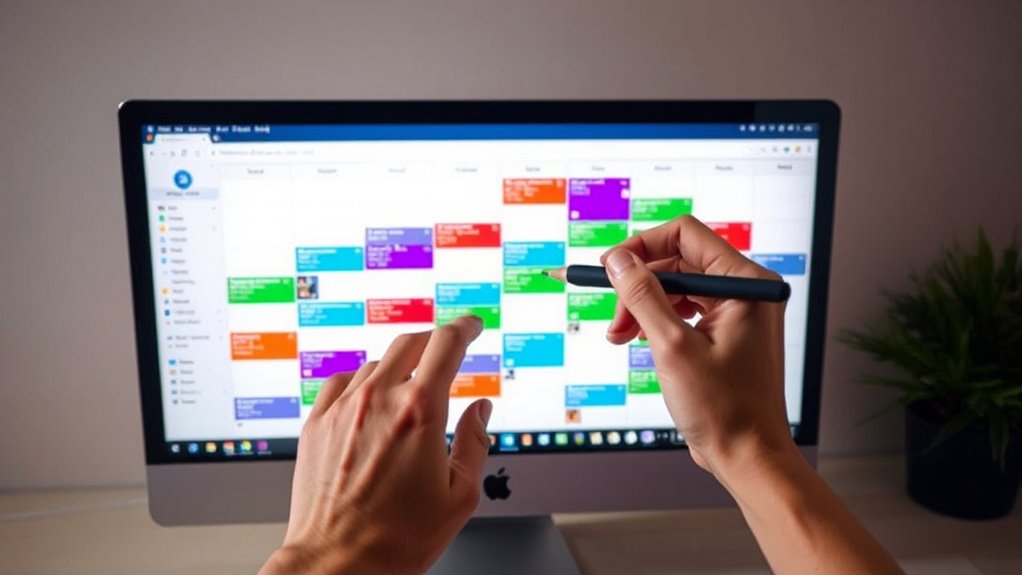
If you’re tired of missing appointments or double-booking, a simple shared calendar trick can save the day. The key lies in proper time zone coordination and managing access permissions. When coordinating with colleagues, clients, or team members across different regions, time zones can quickly become a nightmare. An event scheduled at 2 p.m. Eastern might be 11 a.m. Pacific or 3 a.m. in another part of the world, leading to confusion and missed meetings. To prevent this, always use a calendar that automatically adjusts for time zones or clearly indicates the event time in each participant’s local time zone. This way, everyone is on the same page, and there’s no accidental scheduling mishap due to time zone discrepancies. Incorporating automatic time zone adjustments can further enhance scheduling accuracy. Access permissions play a vital role in maintaining an organized shared calendar. Not everyone should have the ability to edit or delete events, especially in professional environments. By setting proper access permissions, you guarantee that only authorized individuals can make changes, reducing the risk of accidental overlaps or deletions. For example, you might give team members view-only access to avoid unintentional edits, while administrative staff or team leads get editing rights. This control helps keep the calendar accurate and reliable, making it easier to coordinate everyone’s schedules. Another aspect to take into account is establishing clear guidelines for calendar use. Encourage your team to always check the shared calendar before proposing new meetings or changes. Incorporate a rule that all appointments must be entered with accurate time zone information and appropriate access levels. This habit minimizes confusion and ensures everyone has the most current schedule. Additionally, utilizing features like reminders or notifications can help remind participants of upcoming meetings, preventing last-minute surprises or double bookings. Regularly reviewing and updating your shared calendar is also essential. As team members join or leave, or as schedules shift, permissions should be adjusted accordingly. Keeping the calendar tidy and current helps everyone stay aligned and minimizes overlaps. When everyone understands how to properly use the shared calendar—respecting time zones and permissions—meeting collisions become a thing of the past. Ultimately, this simple but effective trick streamlines scheduling, saves time, and reduces stress, making your professional life much smoother.
shared calendar with automatic time zone adjustment
As an affiliate, we earn on qualifying purchases.
As an affiliate, we earn on qualifying purchases.
Frequently Asked Questions
How Do I Handle Time Zone Differences in Shared Calendars?
To handle time zone differences in shared calendars, you need to guarantee proper time zone adjustments and calendar synchronization. Set your calendar to display multiple time zones or the recipient’s local time. Use tools like Google Calendar or Outlook, which automatically adjust meeting times based on participants’ locations. Always double-check scheduled meetings for correct time zone alignment, preventing confusion and ensuring everyone stays on the same page.
Can Shared Calendars Integrate With Other Productivity Tools?
Did you know over 70% of teams use integrated tools daily? Shared calendars easily sync with productivity apps like email, project management, and messaging platforms, boosting efficiency. You can manage permissions to control who sees or edits events, ensuring security. By integrating with these tools, you streamline scheduling, reduce double-bookings, and keep everyone on the same page effortlessly. This seamless calendar synchronization simplifies your workflow and saves time.
What Are Best Practices for Managing Access Permissions?
You should set clear access control by assigning appropriate permission levels to users based on their roles. Limit editing rights to trusted team members and provide view-only access to others to prevent accidental changes. Regularly review permissions to make sure they’re up-to-date, especially when team members change roles. This approach helps maintain calendar integrity, avoids conflicts, and ensures everyone has the right level of access for their responsibilities.
How Do I Update Recurring Meetings Without Conflicts?
Did you know 60% of teams face scheduling conflicts? To update recurring meetings without conflicts, start by reviewing the current schedule and notify attendees of the rescheduling. Use conflict alerts to identify overlaps early. Reschedule meetings during open slots, and update the series all at once rather than individual instances. This proactive approach minimizes confusion and keeps everyone on the same page, ensuring smooth meeting management.
Is There a Way to Sync Shared Calendars Across Multiple Platforms?
Yes, you can sync shared calendars across multiple platforms through calendar synchronization tools like Google Calendar, Outlook, or third-party apps such as Sync2 or CalendarBridge. These tools enable seamless cross-platform integration, ensuring your schedule stays updated everywhere. Simply connect your calendars in the app, set your preferences, and enjoy real-time updates. This way, you avoid conflicts and keep your team aligned across different devices and services effortlessly.
calendar permissions management software
As an affiliate, we earn on qualifying purchases.
As an affiliate, we earn on qualifying purchases.
Conclusion
By using this shared calendar trick, you’ll find it’s surprisingly effective at avoiding meeting clashes. It’s like having a secret weapon that keeps everyone on the same page without the hassle of endless emails. While some might think it’s just a simple hack, the truth is, it’s backed by the idea that transparency boosts coordination. Give it a try—you might discover it’s the missing piece to smoother scheduling, making your work life a lot easier.
calendar reminders and notifications device
As an affiliate, we earn on qualifying purchases.
As an affiliate, we earn on qualifying purchases.
professional team scheduling app
As an affiliate, we earn on qualifying purchases.
As an affiliate, we earn on qualifying purchases.
Fall Picks
fall essentials
As an affiliate, we earn on qualifying purchases.