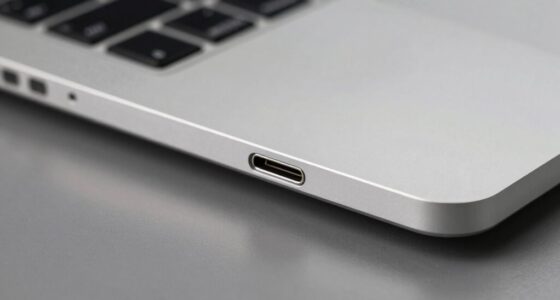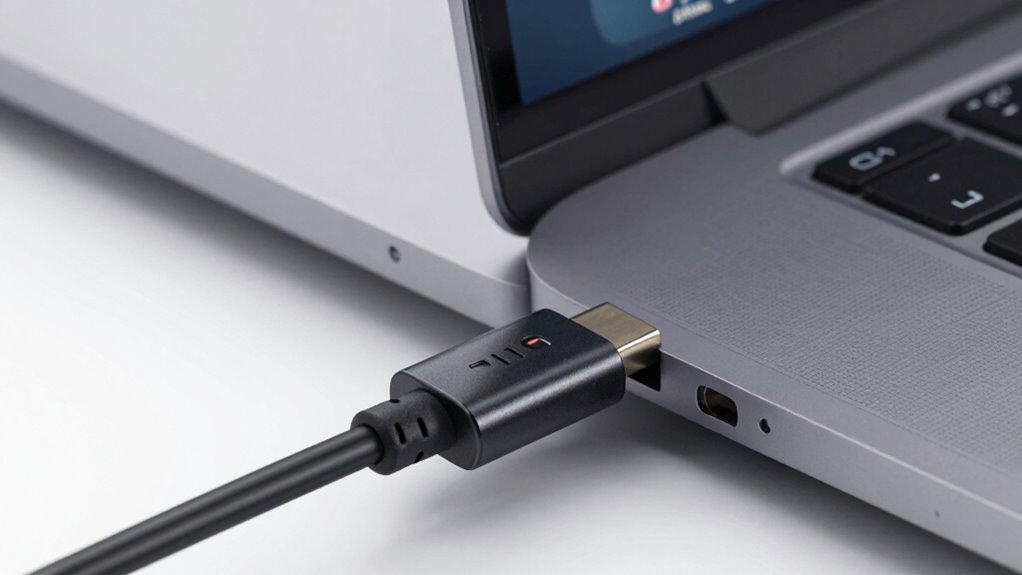

You may notice some USB-C cables charge your devices but don’t support video output because not all are built for that purpose. Many cables focus solely on charging or basic data transfer, lacking the internal hardware needed for video signals like DisplayPort or HDMI. Hardware design determines whether a cable can handle video, not just the connector type. If you’re curious about how to identify the right cables for your needs, there’s more to discover below.
Key Takeaways
- Many USB-C cables lack the internal hardware components necessary for high-bandwidth video transmission.
- Hardware limitations mean some cables support charging but cannot handle video signal protocols like DisplayPort or HDMI.
- Cables designed primarily for charging often omit video support features to reduce cost and complexity.
- Video output requires specific chips and wiring, which not all inexpensive or basic USB-C cables include.
- Labeling or specifications indicate whether a USB-C cable supports video, aiding in choosing the right cable for display output.

USB-C cables have become a versatile standard, capable of both charging devices and transmitting video signals. However, not all USB-C cables support every function, which can be confusing if you’re trying to connect your laptop to an external monitor or charge your device simultaneously. Understanding why some USB-C cables charge but don’t output video starts with recognizing the differences in their internal design and capabilities.
At the core, this distinction lies in the cable’s support for power delivery and data transfer. Power delivery determines how much energy a cable can transmit to charge a device efficiently, while data transfer relates to the speed and type of data, including video signals, that the cable can handle. Many USB-C cables are optimized for charging and basic data transfer, but they lack the necessary hardware to support high-bandwidth video output. This means they can power your phone or tablet but won’t transmit a video signal to an external display.
Many USB-C cables support charging but lack hardware for high-bandwidth video output.
Cables that support video output generally include additional internal wiring and chips that facilitate high-speed data transfer required for video signals, like HDMI or DisplayPort protocols. These are often labeled as “for video” or “supporting DisplayPort Alt Mode,” indicating their ability to carry video signals alongside power and data. Conversely, many cheaper or lower-quality cables are designed primarily for charging and simple data transfer, making them unsuitable for video output despite having a USB-C connector.
This hardware limitation is why you might find a USB-C cable that charges your device just fine but won’t display video on your monitor. If the cable isn’t built to support the necessary bandwidth for high-resolution video, it simply won’t transmit the signal, regardless of its charging capabilities. Additionally, the device you’re connecting to may also influence performance; some devices require specific cable types or firmware support to enable video output. Understanding hardware limitations is key to choosing the right cable for your needs.
Top picks for "some cabl charge"
Open Amazon search results for this keyword.
As an affiliate, we earn on qualifying purchases.
Frequently Asked Questions
Can a USB-C Cable Charge and Still Support High-Resolution Video?
Yes, a USB-C cable can charge and support high-resolution video if it’s designed for power delivery and data transfer. Look for cables labeled with Power Delivery (PD) and high data transfer speeds, like Thunderbolt 3 or 4. These cables handle both tasks simultaneously, allowing you to charge your device while outputting high-res video. Make sure your device and port also support these features for peak performance.
How Do I Identify a USB-C Cable That Supports Video Output?
Imagine your USB-C cable as a highway for data and video traffic. To identify a video output-ready cable, look for labels or symbols like the “DisplayPort” or “Thunderbolt” icons. Perform a compatibility check by consulting the cable’s specifications or packaging—ensure it supports “Alternate Mode” for video. This way, you’re steering your devices onto a reliable road, ensuring smooth, high-quality video transmission.
Are All USB-C Ports Capable of Video Output?
Not all USB-C ports can output video. Some are designed primarily for power delivery and data transfer, meaning they only charge devices or transfer files. To check if a port supports video output, look for symbols like a lightning bolt or display icon. You can also consult your device’s specifications. Using a port that supports video guarantees you get both power delivery and data transfer, along with video output capabilities.
Does Cable Length Affect Video Signal Quality?
Think of cable length as a game of telephone—longer cables can distort the message. Yes, longer USB-C cables can weaken the video signal, especially if they lack proper shielding or quality components. To guarantee good video output, choose cables with strong cable durability and rely on reputable brands known for reliability. Shorter cables often deliver a sharper signal, reducing the chance of lag or flickering.
Can a USB-C Cable Be Upgraded for Better Video Performance?
Yes, you can upgrade your USB-C cable for better video performance by choosing a higher-quality option. Look for cables with enhanced cable durability and verify they’re compatible with your device brand. Opt for cables that support the latest standards like Thunderbolt 3 or 4, which provide better video output. Investing in a reputable brand helps guarantee compatibility and reliable performance, giving you clearer, more consistent video quality.
Conclusion
In short, understanding the difference between charging and video output capabilities helps you pick the right USB-C cable for your needs. Just because a cable charges quickly doesn’t mean it’ll connect to your display. Always check the specifications before buying, so you don’t end up chasing rainbows. Remember, not all that glitters is gold—sometimes, the simplest solution is just choosing the right cable for the job. Stay savvy and avoid the hassle!