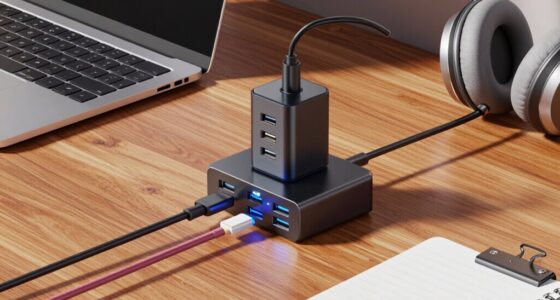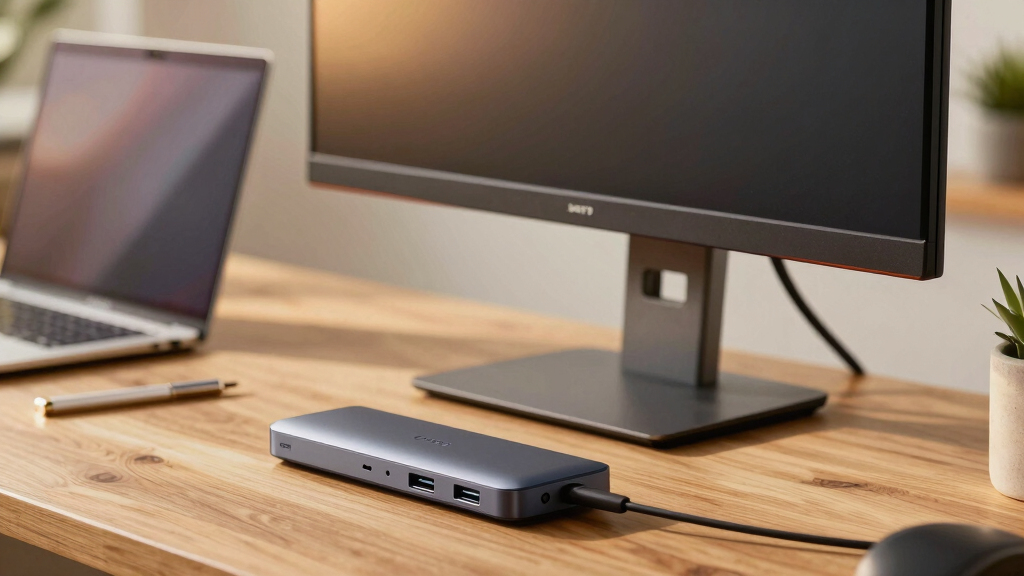

When searching for the best monitor with a USB hub, the goal is to find a device that combines excellent display quality with seamless connectivity. The Samsung S3 (S39GD) Series stands out as the overall best pick thanks to its large curved display and integrated smart features. For those prioritizing high resolution, the Dell S2725QC with 4K UHD offers stunning clarity, while the ASUS ProArt PA278CV targets creative professionals needing color accuracy. The main tradeoffs involve balancing display size, resolution, connectivity options, and price. Keep reading to see how these options compare and which one suits your specific needs.

Get comfort and recovery gear delivered free with Prime
- Fast, free delivery on millions of items
- Prime Video, Amazon Music and more included
- Member-only deals all year
Complete the kit


Key Takeaways
- The best overall monitor with USB hub balances display quality, connectivity, and price — the Samsung S3 Series excels here.
- Resolution matters: 4K options like the Dell S2725QC deliver sharper images but often come with a higher price tag.
- USB-C ports with Power Delivery are a common feature in premium picks, simplifying cable management for modern devices.
- Adjustability and ergonomic features are vital for comfort, especially in longer work or gaming sessions.
- Tradeoffs often involve size versus desk space, with larger curved monitors providing immersive experiences but requiring more room.


| monitor with usb hub | Resolution | Refresh Rate | Connectivity | Display Size |
|---|---|---|---|---|
| Samsung 32" S3 | FHD (Full HD) | 100Hz (default 60Hz, adjustable to 100Hz) | USB-C, HDMI, USB-A | — |
| Dell S2722DC Monitor | WQHD (2560×1440) | 75Hz | USB-C with 65W Power Delivery, USB 3.2 Gen 1 Type-A | 27 inches |
| Dell 27 Monitor S2725QC 4K UHD | 3840×2160 (4K UHD) | 120Hz | USB-C, HDMI, DisplayPort | 27 inches |
| Dell Pro P2725H Plus 27" FHD M | 1920 x 1080 (Full HD) | 60 Hz | — | 27 inches |
| Philips 34 Inch Curved Compute | 3440×1440 | 100Hz | HDMI, DisplayPort, USB 3.2, USB-C with Power Delivery | 34 inches |
| ASUS 24-inch Full HD IPS Monit | 1920 x 1080 | 75Hz | HDMI, DisplayPort, VGA, USB hub | 24 inches |
| ASUS ProArt PA278CV 27 Inch QH | 2560 x 1440 (QHD) | — | USB-C, HDMI, DisplayPort | — |
More Details on Our Top Picks
Samsung 32″ S3 (S39GD) Series FHD Curved Monitor with Smart TV Apps, Gaming Hub, USB-C, HDMI, USB-A, White
This Samsung 32″ curved monitor stands out for its immersive 1800R curvature and 100Hz refresh rate, making it a compelling choice for both gaming and entertainment. Compared with the Dell S2725QC, it offers a larger, curved display that enhances depth perception, though it defaults to a 60Hz refresh rate that requires manual adjustment for smoother performance. Its built-in speakers and eye comfort technology simplify long sessions, but the lack of extensive ergonomic features might limit comfort during extended use. The combination of smart TV apps and gaming hub makes this model suitable for users seeking a multi-purpose display that integrates entertainment and productivity seamlessly.
Pros:- Immersive curved display enhances depth perception and focus
- Smooth 100Hz refresh rate ideal for gaming and fast-paced content
- Built-in speakers save desk space and simplify setup
- Eye comfort technology reduces eye strain during long use
Cons:- Default refresh rate is 60Hz, may require manual adjustment for optimal gaming
- Limited ergonomic features and adjustable stand
Best for: Gamers and entertainment enthusiasts who want an immersive, all-in-one monitor with integrated smart features
Not ideal for: Professionals needing precise color accuracy or extensive ergonomic adjustments for long work sessions
- Screen Size:32 inches
- Resolution:FHD (Full HD)
- Refresh Rate:100Hz (default 60Hz, adjustable to 100Hz)
- Curvature:1800R
- Connectivity:USB-C, HDMI, USB-A
- Eye Comfort Technology:TÜV-certified blue light reduction and flicker-free
Our verdict“This monitor is best suited for users craving an immersive, versatile display for gaming and entertainment with basic productivity needs.”
Dell S2722DC Monitor – 27-inch WQHD (2560×1440) 75Hz 4ms Display, AMD FreeSync, Built-in Speaker, USB Type-C, Height/Pivot/Swivel/Tilt Adjustable
The Dell S2722DC offers a 27-inch WQHD display that balances clarity and performance, making it ideal for productivity and casual gaming. Its versatile connectivity, including USB-C with 65W Power Delivery, surpasses the Dell Pro P2725H Plus’s basic port options, facilitating a clutter-free workspace. The adjustable stand with height, pivot, swivel, and tilt features enhances ergonomic comfort, unlike the fixed stand of the Samsung S3. While its 75Hz refresh rate is sufficient for most tasks, it falls short for high-end gaming compared to the Dell 27 Monitor S2725QC’s 120Hz. Built-in speakers are convenient but lack audiophile quality, so external audio remains preferable for critical listening.
Pros:- Ergonomically adjustable stand for customized comfort
- USB-C with 65W Power Delivery reduces cable clutter
- Multiple connectivity options including HDMI and DisplayPort
- Good color accuracy and anti-glare coating for prolonged use
Cons:- Limited to 75Hz, not suitable for high-performance gaming
- Built-in speakers are basic and may need external audio for quality
Best for: Office workers and casual gamers who prioritize ergonomic setup and versatile connectivity
Not ideal for: High-end gamers or content creators requiring higher refresh rates or color accuracy for professional work
- Display Size:27 inches
- Resolution:WQHD (2560×1440)
- Refresh Rate:75Hz
- Response Time:4ms
- Connectivity:USB-C with 65W Power Delivery, USB 3.2 Gen 1 Type-A
- Adjustments:Height, Pivot, Swivel, Tilt
Our verdict“This monitor is well-suited for users seeking flexible ergonomics and comprehensive connectivity for everyday productivity and casual use.”
Dell 27 Monitor S2725QC 4K UHD IPS with 120Hz, USB-C, HDMI, DisplayPort, Anti-Glare, Eye Comfort Technology
The Dell S2725QC excels in delivering stunning 4K visuals with 99% sRGB coverage, ideal for creative work and media consumption. Its fast 120Hz refresh rate and 4ms response time support smooth visuals for gaming and editing alike, outperforming the Dell P2725H Plus’s Full HD setup. The single USB-C connection simplifies setup, providing both power and data transfer, though its limited ergonomic adjustments make it less adaptable for prolonged ergonomic comfort. The premium price reflects its advanced display technology, targeting users who prioritize visual fidelity and fast performance over extensive physical adjustments.
Pros:- Vivid 4K visuals with near-accurate color reproduction
- Fast 120Hz refresh rate for smooth visuals and gaming
- USB-C with power delivery simplifies connectivity
- Low blue light technology for eye comfort
Cons:- Higher price point may be prohibitive for some
- Limited stand adjustments might impact long-term comfort
Best for: Creative professionals and multimedia enthusiasts who need high-resolution clarity and color accuracy
Not ideal for: Budget-conscious users or those needing extensive ergonomic customization
- Display Size:27 inches
- Resolution:3840×2160 (4K UHD)
- Refresh Rate:120Hz
- Response Time:4ms
- Color Coverage:99% sRGB
- Connectivity:USB-C, HDMI, DisplayPort
Our verdict“This monitor is best suited for users who demand high-resolution, color-accurate visuals with fast refresh capabilities and minimal setup complexity.”
Dell Pro P2725H Plus 27″ FHD Monitor with HDMI, DisplayPort & USB-C
The Dell Pro P2725H Plus offers a straightforward 27-inch Full HD IPS panel with anti-glare features, making it a reliable choice for office and professional environments. Its built-in 4-port USB hub adds convenience for connecting peripherals, especially for users with multiple devices. While it lacks higher refresh rates suitable for gaming, its multiple input options, including HDMI, DisplayPort, and USB-C, make it flexible for various setups. The fixed refresh rate of 60Hz and basic ergonomic features mean it’s less suited for dynamic gaming or extended ergonomic adjustments but excels in delivering consistent, comfortable visuals for daily productivity tasks.
Pros:- Multiple connectivity options including USB-C, HDMI, and DisplayPort
- Built-in 4-port USB hub for additional device connections
- Anti-glare and flicker-free technology for comfortable viewing
- Adjustable tilt, swivel, pivot, and height for ergonomic comfort
Cons:- Limited to 60Hz, not suitable for high-performance gaming
- VGA input is less relevant for modern setups
Best for: Office workers and professionals seeking a budget-friendly, versatile monitor with a built-in USB hub
Not ideal for: Gamers or creative professionals requiring high refresh rates or advanced ergonomics
- Display Size:27 inches
- Resolution:1920 x 1080 (Full HD)
- Refresh Rate:60 Hz
- Response Time:5 ms
- Inputs:HDMI 1.4, DisplayPort 1.2, VGA
- Features:Anti-glare, Flicker-Free, Adjustable stand, Built-in USB hub
Our verdict“This monitor is ideal for professionals needing a reliable, adaptable display with convenient USB hub access at an affordable price.”
Philips 34 Inch Curved Computer Monitor UWQHD 100Hz USB-C PD VA, 346E2CUAE
The Philips 34″ curved UWQHD monitor offers an expansive 3440×1440 display that enhances multitasking and immersive viewing, making it a top choice for productivity and multimedia. Its USB-C Power Delivery feature streamlines cable management, supporting data, video, and charging through a single connection—ideal for modern workflows. The high 100Hz refresh rate and fast response time support smooth visuals, especially for gaming or detailed editing. However, the curved design might not suit all desk setups, and its resolution is not 4K, which could be a limitation for creators requiring pixel-perfect detail. Compared to standard 27-inch monitors, this ultra-wide model excels in immersive experiences but at a higher price point.
Pros:- Immersive ultra-wide curved display for multitasking
- Single USB-C for power, data, and device charging
- Vivid color reproduction with Ultra Wide-Color technology
- Fast 100Hz refresh rate and 1ms response time for gaming
Cons:- Curved design may not fit all workspace layouts
- Higher price due to advanced features
Best for: Creative professionals and multitaskers who want an ultra-wide display with seamless connectivity and smooth visuals
Not ideal for: Users with limited desk space or those preferring a flat screen for standard work
- Display Size:34 inches
- Resolution:3440×1440
- Refresh Rate:100Hz
- Response Time:1ms MPRT
- Color Gamut:121.3% sRGB, 99.5% NTSC
- Connectivity:HDMI, DisplayPort, USB 3.2, USB-C with Power Delivery
Our verdict“This monitor suits users seeking an expansive, curved ultra-wide experience with seamless USB-C connectivity and fast visuals for work and play.”
ASUS 24-inch Full HD IPS Monitor (VA24DQSB) with Adjustable Stand, HDMI, DisplayPort, VGA, USB Hub, Flicker-Free, Low Blue Light
This ASUS monitor stands out for offering a reliable combination of image quality, ergonomic flexibility, and connectivity at a budget-friendly price. Its IPS panel ensures wide viewing angles, making it a good choice for collaborative work or multi-user setups, especially compared to the more color-accurate ASUS ProArt. The inclusion of a USB hub and adjustable stand enhances versatility for everyday office and casual creative tasks. However, with a 75Hz refresh rate, it doesn’t suit high-end gaming or fast-paced video editing, and it lacks built-in speakers, which could be inconvenient for multimedia use. Despite these tradeoffs, this model delivers solid performance for general productivity and multimedia consumption, especially for those who prioritize eye comfort and multiple connectivity options without a steep price.
Pros:- Wide 178° viewing angles with IPS panel for consistent color across perspectives
- Multiple connectivity options including USB hub, HDMI, DisplayPort, and VGA
- Ergonomic adjustments for tilt, swivel, pivot, and height
- Flicker-Free and Low Blue Light technology for eye comfort
Cons:- Limited to 75Hz refresh rate, not suited for demanding gaming or fast video editing
- No built-in speakers, requiring external audio solutions
Best for: Budget-conscious office workers, students, or casual users needing a versatile, ergonomic monitor with USB hub functionality
Not ideal for: High-end gamers or professional content creators requiring high refresh rates or advanced color accuracy
- Display Size:24 inches
- Resolution:1920 x 1080
- Panel Type:IPS
- Refresh Rate:75Hz
- Connectivity:HDMI, DisplayPort, VGA, USB hub
- Adjustments:+35° ~ -5° tilt, ±180° swivel, ±90° pivot, 130mm height
Our verdict“This monitor is ideal for users who need a budget-friendly, flexible display for everyday tasks and multimedia, but not for high-refresh-rate gaming or professional color work.”
ASUS ProArt PA278CV 27 Inch QHD IPS Professional Monitor
The ASUS ProArt PA278CV makes this list because it targets creative professionals who demand precise color and extensive connectivity. Its 27-inch IPS panel with 2560×1440 resolution delivers sharp, detailed images ideal for photo editing, graphic design, and content creation. Compared to the ASUS VA24DQSB, it excels in color fidelity with Calman verification and 100% sRGB coverage, and it offers USB-C with 65W Power Delivery, enabling cleaner setups with fewer cables. Its ergonomic stand and daisy chaining support make it highly adaptable for multi-monitor workflows. Nonetheless, the higher price point and 1440p resolution could be limiting for casual users or those who prefer 4K screens. Additionally, hardware compatibility is necessary to fully leverage USB-C features, which might not suit all setups. Overall, it’s a strong choice for creatives prioritizing color precision and professional connectivity.
Pros:- High color accuracy with Calman verification and 100% sRGB coverage
- Versatile connectivity including USB-C with 65W Power Delivery
- Ergonomic stand with tilt and pivot adjustments for comfort
- Supports daisy chaining for multi-monitor setups
Cons:- Limited to 1440p resolution, not 4K for ultra-high detail needs
- Premium price may be prohibitive for casual or budget-conscious buyers
- Requires compatible hardware for full USB-C functionality
Best for: Professional designers, photographers, or content creators needing color accuracy and versatile connectivity
Not ideal for: Casual users or gamers who prefer higher refresh rates or 4K resolution at a lower cost
- Size:27 inches
- Resolution:2560 x 1440 (QHD)
- Panel Type:IPS
- Color Gamut:100% sRGB, Rec. 709
- Calman Verified:Yes
- Connectivity:USB-C, HDMI, DisplayPort
Our verdict“This monitor is perfect for creative professionals who need precise color performance and flexible connectivity, but it might be overkill for casual or gaming users on a budget.”

How We Picked
These monitors were selected based on a combination of display quality, connectivity options, build quality, and value for money. Priority was given to models with at least one USB-C port supporting Power Delivery, along with multiple USB-A ports for peripheral expansion. We also considered ergonomic adjustments, screen size, resolution, and overall user reviews to ensure real-world usability. Products were ranked primarily on how well they balance these features within various price ranges, ensuring options suited for different budgets and needs.| monitor with usb hub | Connectivity |
|---|---|
| Samsung 32" S3 | USB-C, HDMI, USB-A |
| Dell S2722DC Monitor | USB-C with 65W Power Delivery, USB 3.2 Gen 1 Type-A |
| Dell 27 Monitor S2725QC 4K UHD | USB-C, HDMI, DisplayPort |
| Dell Pro P2725H Plus 27" FHD M | — |
| Philips 34 Inch Curved Compute | HDMI, DisplayPort, USB 3.2, USB-C with Power Delivery |
| ASUS 24-inch Full HD IPS Monit | HDMI, DisplayPort, VGA, USB hub |
| ASUS ProArt PA278CV 27 Inch QH | USB-C, HDMI, DisplayPort |
Factors to Consider When Choosing Best Monitor With Usb Hub
Choosing the best monitor with a USB hub involves more than just looking at ports. Buyers should consider display quality, connectivity versatility, ergonomic features, and future-proofing. Understanding these factors helps avoid common pitfalls like sacrificing resolution for size or undervaluing build quality. A balanced approach ensures the monitor serves both current and evolving needs, whether for work, gaming, or creative tasks.Display Size and Resolution
Size and resolution directly impact your viewing comfort and productivity. Larger screens like 32 inches create an immersive experience but may require more desk space. Higher resolutions such as 4K provide sharper images, essential for detailed work, but often come at a higher cost. Balancing size and resolution depends on your workspace and the tasks you prioritize, such as photo editing or multitasking across multiple windows.
Connectivity and USB Hub Features
Look for monitors with multiple USB ports, especially USB-C with Power Delivery, to streamline your setup by powering and connecting devices through a single cable. Not all USB hubs are equal; some offer fast data transfer speeds suitable for external drives, while others mainly serve peripheral connections. Consider your specific device needs—whether you need to connect external drives, smartphones, or peripherals—and verify port types and speeds before buying.
Ergonomics and Adjustability
Comfort is often overlooked but crucial for long-term use. Monitors with height, tilt, swivel, and pivot adjustments allow you to set your screen at an optimal position, reducing strain. If you work long hours, investing in a model with good ergonomic features can prevent discomfort and improve productivity. Cheaper models may lack these adjustments, so weigh the cost against comfort benefits.
Build Quality and Durability
Sturdy construction and high-quality materials extend the lifespan of your monitor. Cheaper plastic frames might feel flimsy or wobble, especially on adjustable stands. Consider brands known for durability, especially if the monitor will be used daily or transported frequently. Also, look for features like anti-glare coatings and good screen coatings to reduce eye strain during prolonged use.
Price and Future-Proofing
Price varies widely based on size, resolution, and features. Investing a bit more can buy you future-proofing features like USB-C with Power Delivery, higher refresh rates, or better color accuracy. However, overspending on features you won’t use is a common mistake. Focus on your primary needs—such as work, gaming, or creative tasks—and choose a model that offers the best value for those specific requirements.
Frequently Asked Questions
Do all monitors with USB hubs support Power Delivery?
Not all monitors with USB hubs support Power Delivery (PD), which supplies power to charge devices like laptops or smartphones. When shopping, check the specifications for PD support and wattage output, typically ranging from 15W to 100W. A monitor with PD can simplify your desk setup by eliminating the need for separate chargers, but models lacking this feature may require additional power adapters for charging needs.
Is a higher refresh rate important in a monitor with a USB hub?
Higher refresh rates, such as 75Hz or above, benefit smooth motion in gaming or fast-paced video editing. For typical office use or casual browsing, a standard 60Hz refresh rate suffices. Keep in mind that higher refresh rates can increase costs, so if gaming or high-speed video is a priority, investing in a higher refresh rate makes sense. Otherwise, focus on resolution and connectivity features instead.
Can I connect multiple devices through a single USB-C port on the monitor?
Many monitors with USB-C ports support daisy-chaining or hub functionalities that allow multiple devices to connect through a single port. However, the total bandwidth and port types matter—some monitors only support a limited number of USB-A or other ports. Check the specifications for the number of USB ports and whether the hub supports fast data transfer or charging multiple devices simultaneously.
Are curved monitors with USB hubs better for multitasking?
Curved monitors can enhance immersion and reduce eye strain in wide or large displays, making multitasking easier. They are especially useful for professional work that involves wide spreadsheets or multiple windows. However, they may take up more desk space and be more expensive. If your focus is on productivity and comfort, a curved monitor with a good USB hub can be a valuable investment.
Is 4K resolution necessary in a monitor with a USB hub?
4K resolution offers sharper images and is ideal for detailed creative work or media consumption. However, it demands more from your graphics hardware and can be more expensive. If you primarily use your monitor for everyday tasks, a high-quality 1440p or 1080p display might provide better value. Choose 4K if your work benefits from high resolution, such as photo editing or 3D rendering, and your hardware can support it smoothly.
Conclusion
For general office work and casual use, the Dell Pro P2725H Plus offers a balanced mix of features at a friendly price. Creative professionals who need color accuracy and high resolution should consider the Dell 27 Monitor S2725QC or the ASUS ProArt PA278CV. Gamers and entertainment seekers will appreciate the large curved screens like the Samsung S3 Series. Budget-conscious buyers should prioritize models with essential features, while those seeking premium build quality and future-proofing might opt for the higher-end options. This curated list aims to match each user’s specific needs with the best monitor in 2026.
Halloween Picks
halloween
As an affiliate, we earn on qualifying purchases.