
To avoid neck pain, start by raising your laptop so the top of the screen is at eye level, using a stand or stacks of books. Keep a proper posture—sit straight with relaxed shoulders, elbows at 90 degrees, and feet flat. Support your workspace with good lighting and organized items within reach. Remember to take regular breaks and stretch to prevent stiffness. Want more tips? Keep going to learn how to set up your perfect ergonomic space.
Key Takeaways
- Elevate your laptop to eye level using a stand or books to prevent neck strain.
- Use an external keyboard and mouse to keep wrists neutral and maintain proper posture.
- Keep the monitor at or below eye level, about an arm’s length away, to reduce neck tilting.
- Maintain a straight back, relaxed shoulders, and feet flat on the floor for optimal ergonomics.
- Take regular breaks every 30-60 minutes to stretch, move, and prevent stiffness and discomfort.
Top picks for "laptop only setup"
Open Amazon search results for this keyword.
As an affiliate, we earn on qualifying purchases.
Adjust Your Screen Height for Optimal Viewing
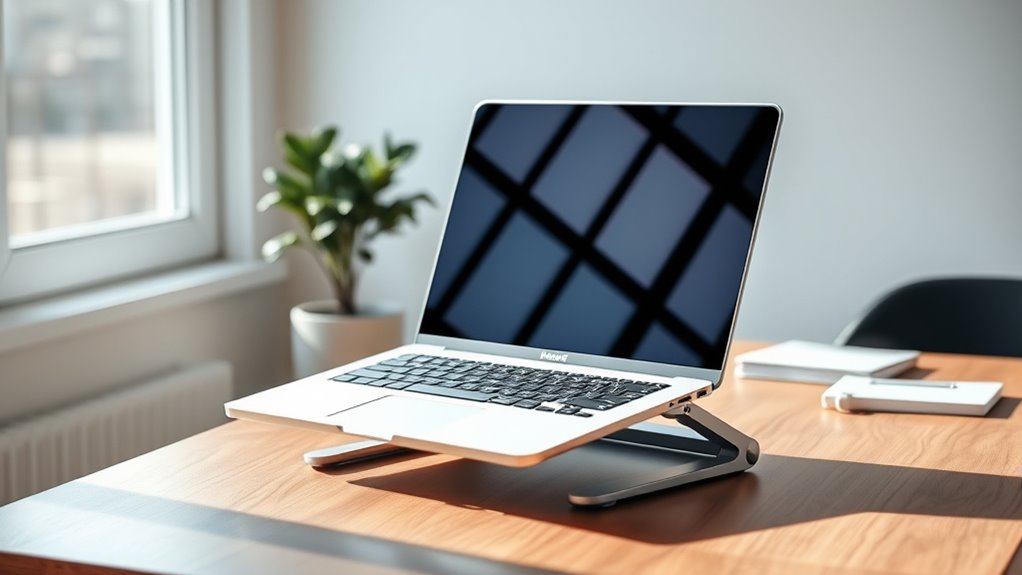
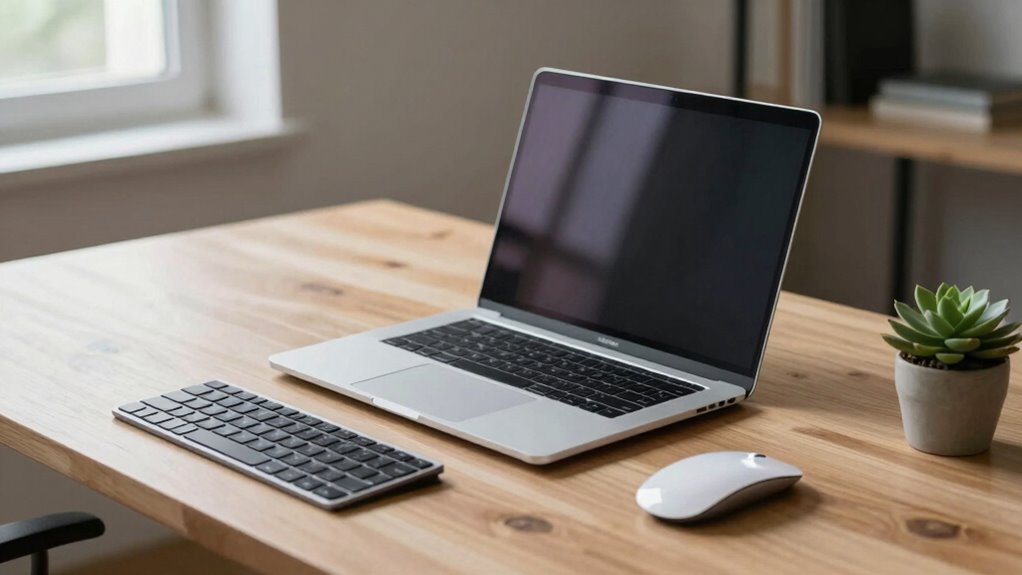
Have you ever experienced neck strain after working on your laptop for hours? One simple fix is adjusting your screen height. When your laptop sits too low, you tend to hunch forward, stressing your neck and shoulders. To prevent this, raise your laptop so the top of the screen is at eye level. You can stack books or use a stand to achieve this. Keep your neck in a neutral position, avoiding looking down or up for extended periods. This reduces strain and helps you maintain good posture. Remember, a comfortable viewing angle minimizes muscle tension and fatigue. Taking a few seconds to properly position your screen can make a significant difference in preventing neck pain during long work sessions.
Use External Accessories to Improve Ergonomics
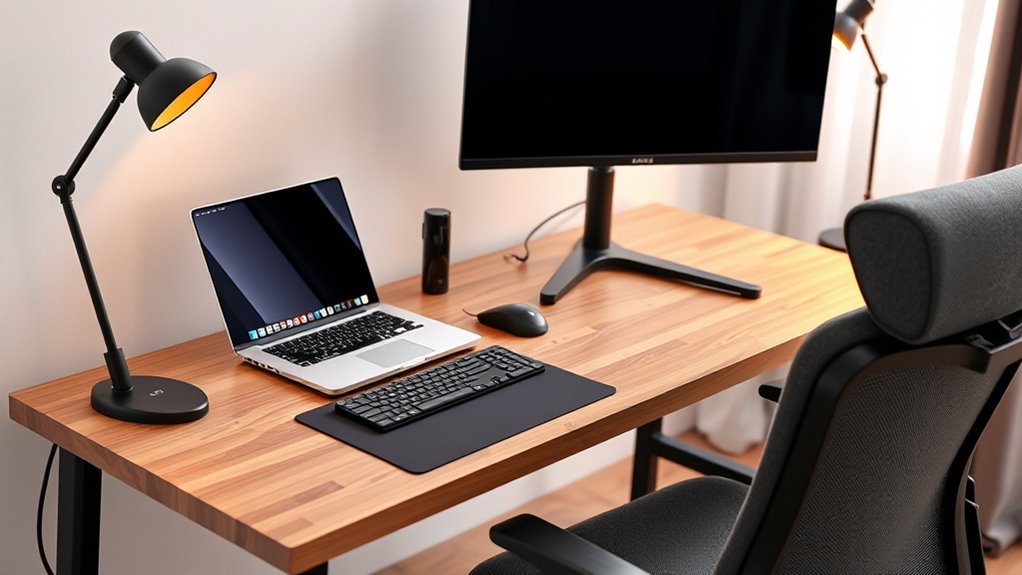
Using external accessories can substantially enhance your ergonomic setup and reduce discomfort during long laptop sessions. A laptop stand elevates your screen to eye level, preventing neck strain and encouraging better posture. Pair it with an external keyboard and mouse to keep your wrists in a neutral position, avoiding awkward angles that cause fatigue. An adjustable footrest supports your legs and promotes proper circulation, reducing overall tension. Consider investing in a monitor arm if you use an external monitor; this allows you to fine-tune height and distance effortlessly. These accessories work together to create a more comfortable workspace, minimizing strain on your neck, shoulders, and wrists. Taking the time to set up your tools correctly can make a significant difference in how you feel after hours of work.
Maintain Proper Posture During Extended Use
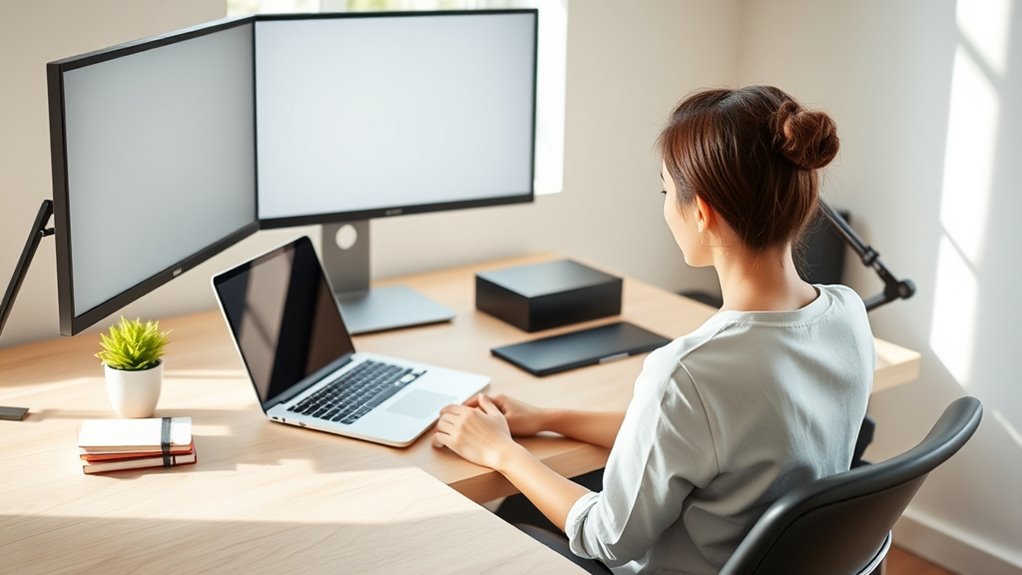
Maintaining proper posture during extended use is essential to prevent discomfort and long-term musculoskeletal issues. Keep your back straight and shoulders relaxed, avoiding slouching or leaning forward. Position your screen at eye level so you don’t strain your neck; use a stand if necessary. Keep your elbows close to your body and form a 90-degree angle at your wrists when typing. Place your feet flat on the floor or on a footrest to support your lower back. Take regular breaks to stretch and change positions, reducing muscle fatigue. Stay aware of your posture throughout your work session, adjusting as needed to avoid tension buildup. Proper posture helps you work comfortably and minimizes the risk of pain or injury over time.
Create a Comfortable and Supportive Workspace
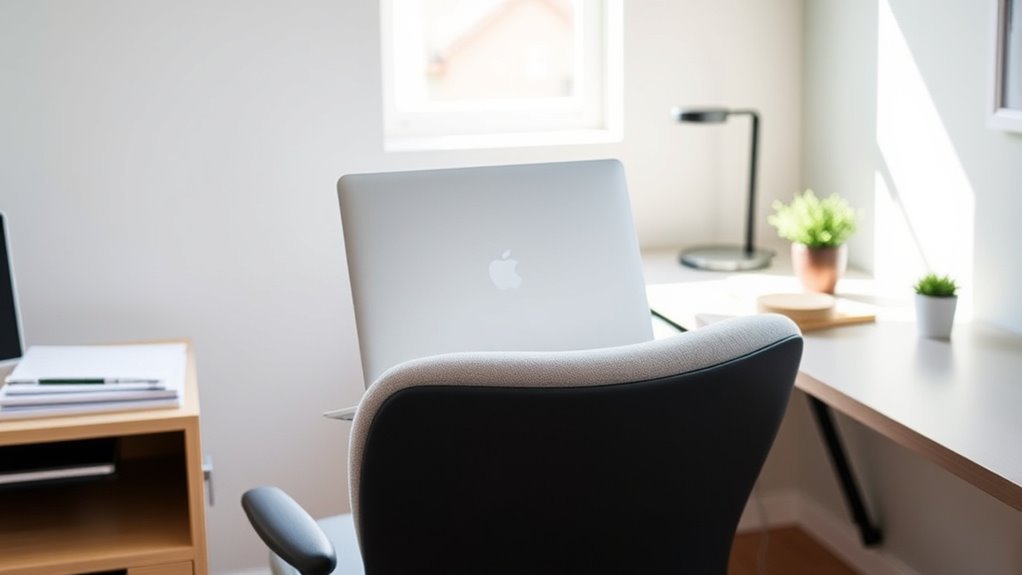
To create a comfortable workspace, you need an ergonomic desk setup that supports your body during long hours. Make sure your monitor is at eye level to reduce neck strain and promote good posture. Small adjustments can make a big difference in how you feel while working.
Ergonomic Desk Setup
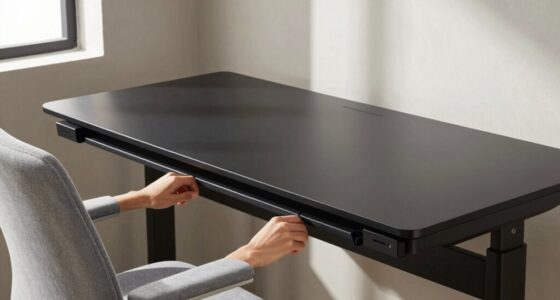
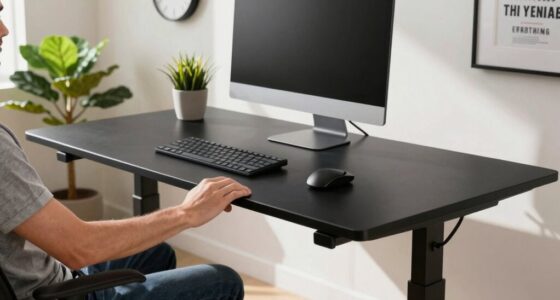
Creating an ergonomic desk setup begins with arranging your workspace to support your body comfortably and reduce strain. Start by positioning your desk so your elbows form about a 90-degree angle when your hands rest on the keyboard. Keep your wrists straight and avoid bending them upward or downward. Use a supportive chair that allows your feet to rest flat on the floor, with your knees at roughly hip height. Ensure your thighs are parallel to the ground. Clear clutter to prevent reaching or twisting. Place frequently used items within arm’s reach to minimize unnecessary movement. Good lighting reduces eye strain, so position your workspace near natural light or use adjustable lamps. A well-organized, supportive setup helps prevent discomfort and promotes better posture throughout your workday.
Proper Monitor Height
Ensuring your monitor is at the correct height is key to preventing neck and eye strain. When your screen is too low or high, you’ll tilt your head constantly, causing discomfort over time. To create an ideal setup, consider these points:
- The top of your monitor should be at or just below eye level.
- Your screen should be about an arm’s length away.
- Keep the monitor directly in front of you to avoid twisting your neck.
- Adjust your chair or monitor height to maintain a neutral neck position.
Aligning these elements helps you maintain good posture, reduces muscle fatigue, and keeps your workspace comfortable. Proper monitor height isn’t just about comfort—it’s essential for long-term health.
Incorporate Regular Breaks and Movement
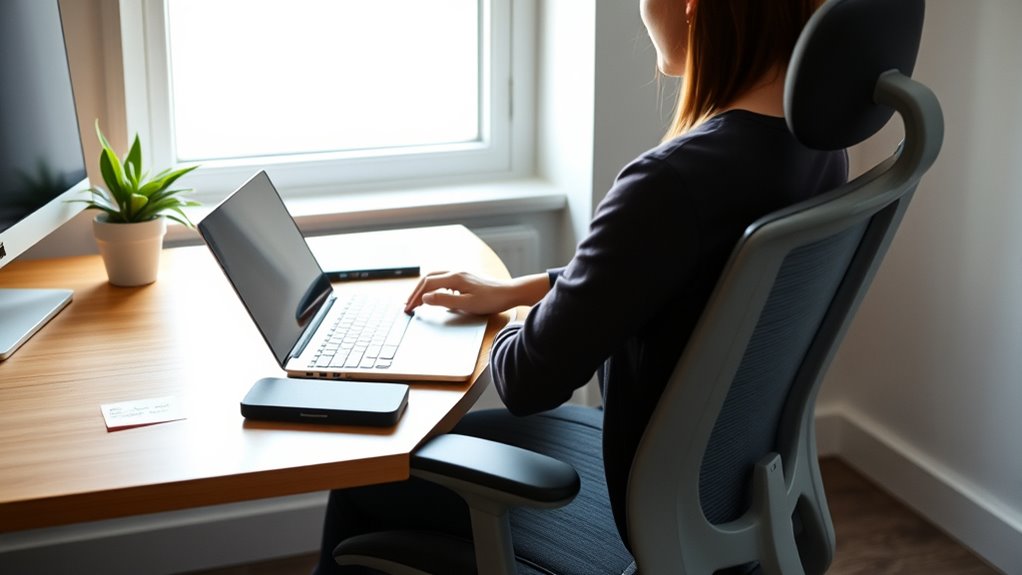
You should set reminders to take regular breaks and avoid sitting for too long. During these breaks, try incorporating simple stretches to loosen up your muscles and improve circulation. Making movement a routine helps keep you energized and focused throughout your workday.
Schedule Frequent Breaks
Since sitting for long periods can cause discomfort and reduce productivity, scheduling frequent breaks is essential. Regular breaks help prevent strain, boost focus, and keep you energized. To maximize benefits, consider these strategies:
- Set a timer every 30-60 minutes to remind you to step away.
- Take at least five minutes to stand, stretch, or walk around.
- Alternate tasks to avoid repetitive strain and mental fatigue.
- Hydrate during breaks to stay alert and support overall health.
Incorporate Active Stretches
Incorporating active stretches into your break routine can substantially reduce muscle tension and improve circulation. When you take a moment to stretch, focus on movements that target your neck, shoulders, and back. Simple stretches like shoulder rolls, neck tilts, and spinal twists can make a big difference. Keep your stretches dynamic rather than static; move through each position smoothly and deliberately. This not only relieves tight muscles but also boosts blood flow, helping you feel more energized. Remember to breathe deeply during each stretch, staying relaxed. Incorporating these movements regularly prevents stiffness, reduces discomfort, and encourages better posture. Make stretching a non-negotiable part of your break routine to keep your body limber and your mind alert throughout your workday.
Set Up Your Environment to Minimize Strain
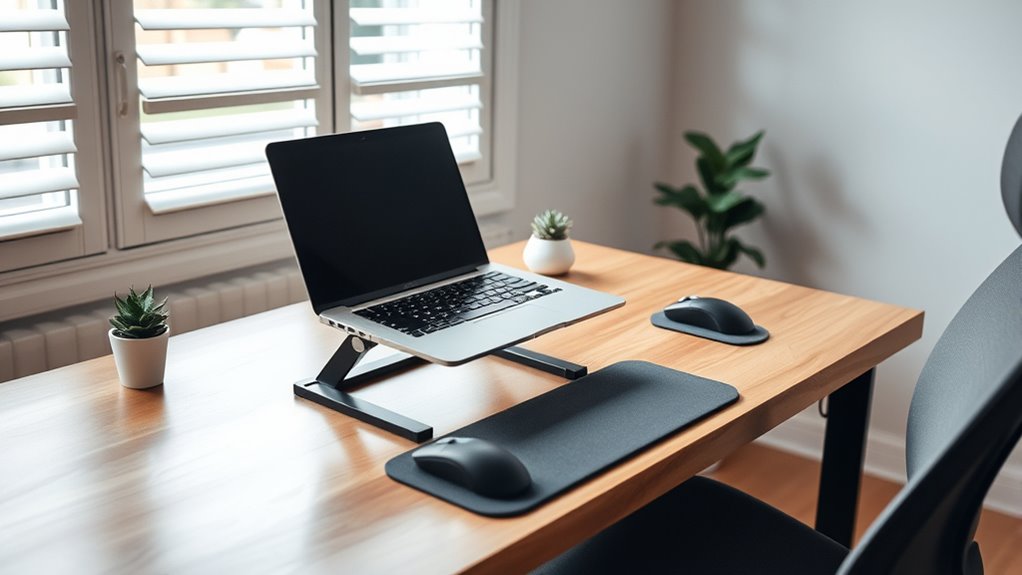
To reduce strain while working on your laptop, start by adapting your environment to promote good posture and comfort. First, elevate your laptop to eye level using a stand or stack of books, so you don’t tilt your head down. Second, use an external keyboard and mouse to keep your wrists straight and shoulders relaxed. Third, ensure your chair supports your lower back and allows your feet to rest flat on the floor. Fourth, position your workspace so that frequently used items are within easy reach, preventing unnecessary stretching or twisting. These adjustments help maintain proper alignment, reduce muscle tension, and prevent long-term discomfort. Creating an ergonomic environment is key to keeping your neck, shoulders, and back happy during those long work sessions.
Frequently Asked Questions
What Are the Signs of Poor Ergonomic Setup?
You notice persistent neck, shoulder, or back pain, and frequent headaches. Your eyes strain easily, and you often feel fatigued or have blurry vision. If you’re constantly adjusting your posture or leaning forward, it’s a sign your setup isn’t ergonomic. Additionally, discomfort or numbness in your hands or wrists indicates poor positioning. These signs show your workspace needs adjustments to prevent long-term musculoskeletal issues.
How Long Should I Take Breaks During Work?
You should take a break every 30 to 60 minutes when working. Stand up, stretch, or walk around to relieve muscle tension and improve circulation. Short breaks help prevent strain and fatigue, especially if you’re using a laptop for long periods. Listen to your body—if you start feeling discomfort or stiffness, take a break sooner. Regular breaks keep you comfortable and boost your productivity throughout the day.
Are There Specific Chair Types Recommended for Laptop Users?
Did you know that ergonomic chairs can reduce back pain by up to 60%? For laptop users, an adjustable ergonomic chair is ideal. Look for one with lumbar support, adjustable height, and a swivel base. It helps keep your spine aligned and reduces strain. You’ll stay comfortable longer, and your neck and back will thank you. Investing in the right chair is a simple step toward better posture and health.
Can Adjustable Monitor Stands Help With Neck Strain?
Yes, adjustable monitor stands can definitely help with neck strain. They allow you to elevate your screen to eye level, so you don’t have to hunch or crane your neck. By customizing the height and angle, you create a more ergonomic setup that reduces tension and discomfort. Using an adjustable stand encourages better posture and can prevent long-term neck and shoulder issues, making your workspace healthier and more comfortable.
What Are Quick Stretches to Relieve Tension During Work?
You can do quick stretches like neck rolls, shoulder shrugs, and chest openings to relieve tension during work. Sit upright, gently roll your neck in circles, and stretch your shoulders up and down. Open your chest by clasping your hands behind your back and lifting them slightly. Take deep breaths, hold each stretch for a few seconds, and repeat a few times. These simple moves help reduce strain and boost circulation.
Conclusion
Now that you’ve set up your workspace, don’t forget—your neck’s patience isn’t endless. Small tweaks can make a huge difference, but neglecting them might lead to unexpected discomfort down the line. Are you prepared to face the silent toll of poor posture? Take action now, or risk the pain creeping in when you least expect it. Your future self will thank you for making these changes today—because comfort and health are worth the effort.