USB‑C ports aren’t all the same; they vary in data speeds, power levels, and video support. Some handle only basic data, while others support fast transfers up to 40Gbps, high-resolution video, or quick charging. Your device’s hardware and cables also influence what’s possible. To get the full picture, it’s important to understand the specific capabilities of your port. Keep going to discover how to identify and maximize what your USB‑C port can do.
Key Takeaways
- USB-C ports vary in data transfer speeds, video output, and power delivery capabilities depending on hardware and supported protocols.
- Not all USB‑C ports support high wattage charging or multiple functions simultaneously; capabilities differ by device and port design.
- Support for video output (DisplayPort, HDMI Alt Mode) is optional and requires compatible hardware and cables.
- Accurate identification of a USB‑C port’s features requires checking device specifications, icons, or manufacturer resources.
- Future advancements like USB4 and Thunderbolt protocols will expand USB‑C’s functionality, but current support varies across devices.
![BENFEI USB C to HDMI Adapter 4K@60Hz, USB Type-C to HDMI Adapter [Thunderbolt 3/4/5 Compatible] with iPhone 15 Pro/Max, MacBook Pro/Air 2023, iPad Pro, iMac, S23, XPS 17, Surface Book](https://m.media-amazon.com/images/I/31kTmzsrThL._SL500_.jpg)
BENFEI USB C to HDMI Adapter 4K@60Hz, USB Type-C to HDMI Adapter [Thunderbolt 3/4/5 Compatible] with iPhone 15 Pro/Max, MacBook Pro/Air 2023, iPad Pro, iMac, S23, XPS 17, Surface Book
COMPACT DESIGN – The compact-designed portable BENFEI USB-C to HDMI adapter connects a computer, desktop, laptop, or other…
As an affiliate, we earn on qualifying purchases.
As an affiliate, we earn on qualifying purchases.
Understanding the Different Versions of USB‑C
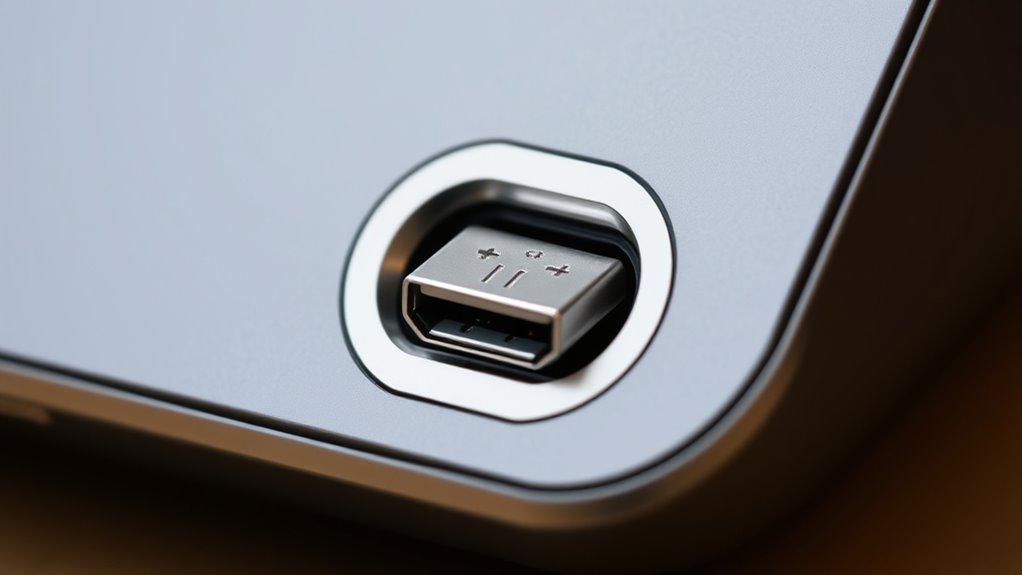
Have you ever wondered what sets apart the various versions of USB-C? The key differences lie in their data transfer speeds, compatibility, and features. Each version has evolved to support faster data rates, with some allowing up to 10 Gbps or more, enabling quicker file transfers and smoother streaming. Compatibility varies depending on the generation; newer versions often support additional features like video output or higher power delivery, but not all USB-C ports are created equal. Some might only handle basic data transfer, while others include advanced capabilities. It’s important to check your device’s specific USB-C version to understand what it can do. Knowing the version helps you determine if your port supports your needs, whether it’s fast data transfer, video, or power delivery.
![INIU USB C to USB C Cable, 240W Fast Charging Type C Charger Cord, Braided USBC Phone Charger Cable for iPhone 17 16 Pro Max Samsung S26 S25 Laptops MacBook Air 15 M3 iPad Switch [6.6ft+6.6ft Black]](https://m.media-amazon.com/images/I/41r3DXOHFvL._SL500_.jpg)
INIU USB C to USB C Cable, 240W Fast Charging Type C Charger Cord, Braided USBC Phone Charger Cable for iPhone 17 16 Pro Max Samsung S26 S25 Laptops MacBook Air 15 M3 iPad Switch [6.6ft+6.6ft Black]
[From INIU—the SAFE Fast Charge Pro] Experience the safest charging with over 38 million global users. At INIU,…
As an affiliate, we earn on qualifying purchases.
As an affiliate, we earn on qualifying purchases.
Power Delivery Capabilities and Limitations

Understanding the different versions of USB-C helps you recognize their capabilities, but power delivery is another critical factor to contemplate. USB-C’s power delivery (PD) can supply varying wattages, from 15W up to 240W in some cases. This means your devices might charge faster or support more demanding peripherals depending on the PD profile. However, not all USB-C ports support the same power levels; some are limited to lower wattages, making them unsuitable for larger devices like laptops. Additionally, the power delivery protocol requires compatible cables and chargers to achieve maximum wattage. Be aware that using incompatible accessories can result in slower charging or no power transfer at all. Always verify your device’s PD specifications to ensure safe and efficient charging.

USB C Data Cable White, 3ft USB 3.0 to USB C Data Transfer Cable, 10Gbps High Speed USB A to USBC Data Cable for iPhone 17 16 Pro Max, Samsung Galaxy S25 S24
10Gbps Data Transfer: USB 3.1 Gen 2 cable for ultra-fast sync of 4K movies, photos, & music. It's…
As an affiliate, we earn on qualifying purchases.
As an affiliate, we earn on qualifying purchases.
Data Transfer Speeds and Protocols

Different USB-C ports support various data transfer speeds and protocols, which directly impact how quickly you can move files or connect peripherals. Higher speeds mean faster backups, smoother workflows, and less waiting. Some ports use USB 3.1 Gen 1, offering speeds up to 5Gbps, while others support USB 3.2 Gen 2×2, reaching 20Gbps. Thunderbolt 3 and 4 ports combine fast data transfer with versatility, supporting up to 40Gbps. Here’s a quick comparison:
| Protocol | Max Speed | Use Case |
|---|---|---|
| USB 3.1 Gen 1 | 5Gbps | Basic file transfers |
| USB 3.2 Gen 2×2 | 20Gbps | Large file transfers |
| Thunderbolt 4 | 40Gbps | High-speed peripherals |
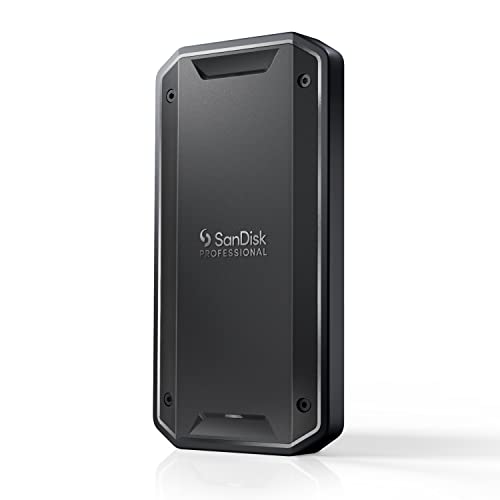
SANDISK Professional 4TB PRO-G40 SSD – Up to 3000MB/s, Thunderbolt 3 (40Gbps), USB-C (10Gbps), IP68 dust/Water Resistance, External Solid State Drive – SDPS31H-004T-GBCND
Super-fast speeds up to 3000MB/s(1) read and 2500MB/s(1) write with Thunderbolt 3 (40Gbps), capable of moving 50GB in…
As an affiliate, we earn on qualifying purchases.
As an affiliate, we earn on qualifying purchases.
Video Output Support and Compatibility
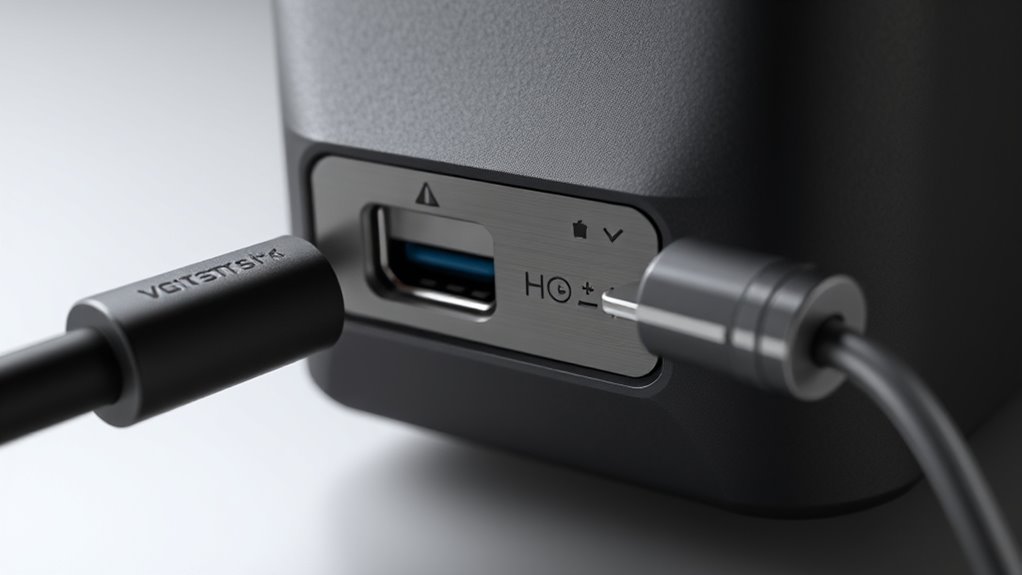
When using USB-C ports for video output, you’ll notice a variety of supported standards, which can affect compatibility. Not all devices handle the same video formats or resolutions, so you might run into issues connecting certain displays. Understanding these differences helps guarantee your setup works smoothly without surprises.
Video Standards Variability
Video standards variability in USB-C ports can be confusing because not all devices support the same output formats. Some USB-C ports support DisplayPort, enabling high-resolution video, while others only handle basic video output. Even when a port supports a standard like HDMI Alt Mode, the quality and resolution depend on the device’s hardware and firmware. You might connect a monitor expecting 4K resolution, but if your device only supports 1080p, that’s all you’ll get. Compatibility issues can arise if your device uses an older or different video standard. It’s essential to check your device’s specifications to understand what video formats are supported. Without clear information, you risk connecting devices that won’t display properly or at all.
Device Compatibility Challenges
Despite the versatility of USB-C ports, device compatibility remains a common hurdle. Not all USB-C ports support the same features, especially when it comes to video output. Some devices may lack the necessary hardware or firmware to deliver video signals, even if they have a USB-C port. This means you might connect a monitor or external display, only to find it doesn’t work or displays limited functionality. Additionally, different devices follow varying standards, causing confusion about what’s supported. For example, a USB-C port on your laptop might support video output, but your phone’s port might not. To avoid frustration, check your device’s specifications and verify it supports the features you need before making connections.
Alternate Modes and Their Uses
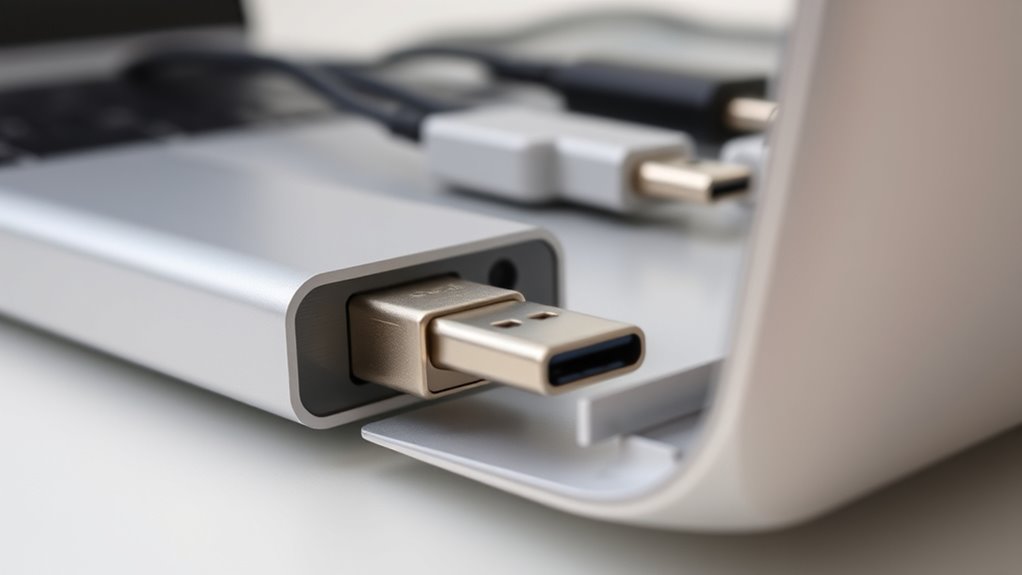
Alternate modes expand what your USB-C port can do beyond basic data transfer. You can connect your device to external displays, transfer files quickly, or power accessories using specific protocols. Understanding these options helps you make the most of your port’s versatile capabilities.
Video Output Capabilities
When using a USB-C port for video output, you can take advantage of its support for various alternate modes to connect to external displays. These modes, like DisplayPort Alt Mode or HDMI Alt Mode, enable direct video transmission from your device to monitors, projectors, or TVs. Depending on your device and cable, you might connect to high-resolution displays up to 4K or even 8K, ensuring sharp images and smooth playback. Some USB-C ports support multiple displays simultaneously, boosting productivity or enhancing entertainment setups. The exact capabilities depend on the device’s hardware and the alternate mode supported. Overall, USB-C’s video output capabilities offer versatile, high-quality connectivity options that simplify connecting external displays without needing separate adapters or docks.
Data Transfer Protocols
USB-C ports use specialized data transfer protocols known as alternate modes to expand their functionality beyond basic data transmission. These modes enable your port to support different types of connections, like HDMI or DisplayPort, without needing separate adapters. For example, DisplayPort Alternate Mode allows you to connect high-resolution monitors directly through the USB-C port, providing clear, fast visuals. Similarly, Thunderbolt 3 and 4 are protocols that combine data, video, and power into a single connection, offering incredibly high transfer speeds and versatility. Some devices also support MHL or other proprietary modes, which facilitate streaming media to TVs or other displays. By using these alternate modes, your USB-C port becomes a flexible hub capable of handling various data transfer needs efficiently.
Power Delivery Options
Power delivery options through USB-C ports enable you to charge devices, transfer power, and even run high-power peripherals efficiently. These options include Alternate Modes, which let you connect your USB-C port to other standards like HDMI or DisplayPort for video output, and Power Delivery (PD), which allows for fast charging and flexible power levels. With PD, you can quickly recharge your laptop, phone, or tablet, often at higher wattages than traditional chargers. Some devices support bidirectional power, meaning they can both send and receive energy. This versatility makes USB-C a universal port for power management. Knowing your device’s specific power delivery capabilities guarantees you optimize charging times and peripheral performance, making your setup more efficient and streamlined.
Hardware Requirements for Full USB‑C Functionality
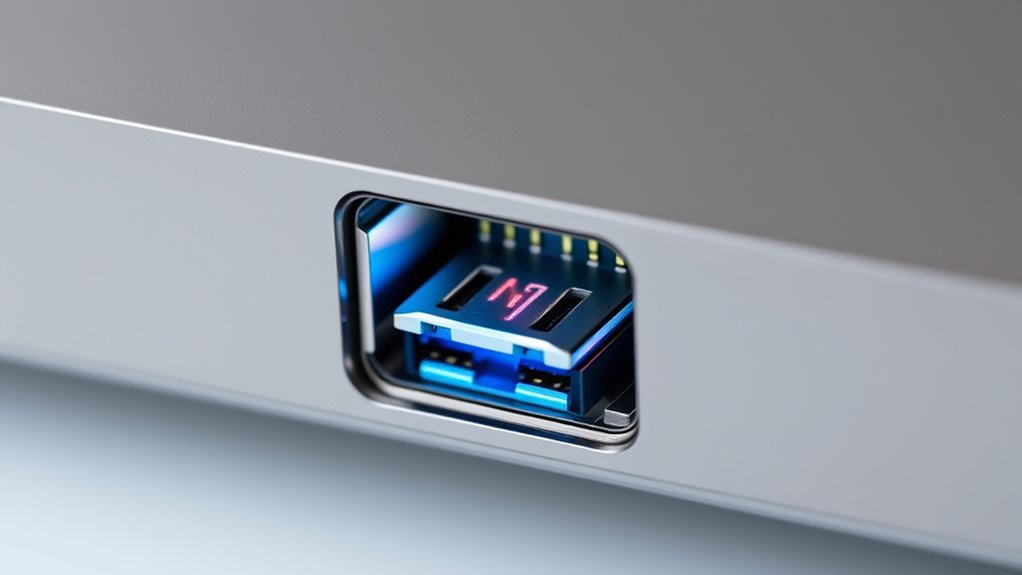
Achieving full USB-C functionality requires specific hardware components that support its advanced features. First, your device needs a compatible USB-C controller chip capable of managing high-speed data transfer, power delivery, and alternate modes like DisplayPort or Thunderbolt. The port itself must include a properly wired and certified connector that supports these features without signal degradation. Additionally, supporting hardware such as integrated multiplexers or switches is essential for switching between modes seamlessly. The internal circuitry must handle increased power loads when delivering up to 100W, ensuring safety and stability. Without these critical components, the USB-C port won’t release its full potential, limiting your device to basic connectivity. Proper hardware design guarantees reliable performance, fast data transfer, and versatile support for peripherals.
Common Misconceptions About USB‑C
Many people believe that simply plugging a device into a USB‑C port guarantees full functionality, but this isn’t always the case. USB‑C ports vary widely in what they support, and assumptions can lead to disappointment. Not all USB‑C ports transfer data, deliver power, or support video output simultaneously. Compatibility depends on the port’s specifications and the device’s capabilities. Here’s a quick overview:
| Feature | Supported | Needs Additional Support | Common Misconception |
|---|---|---|---|
| Power Delivery | Yes | Sometimes | All USB‑C ports charge |
| Data Transfer | Yes | Varies | Plugging in equals full speed |
| Video Output | Yes | Often requires specific standards | All USB‑C support video |
| Fast Charging | Yes | Depends on device | USB‑C always fast charging |
| Alternate Modes | Yes | Not universal | All USB‑C ports support alternate modes |
How to Identify What Your USB‑C Port Supports
Wondering how to determine what your USB‑C port can do? The easiest way is to check your device’s specifications or user manual. Many devices label the port itself with icons indicating its capabilities, like a lightning bolt for fast charging or a DisplayPort symbol for video output. You can also look in your operating system’s device manager or system info to see details about the port’s functionalities. On some laptops, you might find settings or software that specify whether the port supports Thunderbolt, Power Delivery, or video output. If you’re unsure, visiting the manufacturer’s website or contacting support can provide definitive info. Remember, physical labels and software details are your best clues to understanding what your USB‑C port supports.
The Role of Cables and Adapters in USB‑C Functionality
Cables and adapters are vital for enabling the full potential of your USB‑C port, as they determine which functions you can access. Not all cables support the same features—some handle only basic data transfer, while others support high-speed transfer, video output, or fast charging. Using the wrong cable can limit your device’s capabilities or even cause damage. For example, a simple USB-C cable may only transfer files, but a Thunderbolt 3 or 4 cable can support multiple 4K displays and rapid data transfer simultaneously. Adapters also play an important role; a poorly made or incompatible adapter might reduce performance or prevent certain functions from working altogether. To maximize your device’s capabilities, choose certified, high-quality cables and adapters suited for your specific needs.
Future Developments and Evolving Capabilities of USB‑C
Advancements in USB‑C technology continue to expand its capabilities, promising even greater versatility and performance in the future. Expect faster data transfer speeds as USB4 and Thunderbolt protocols become more widespread, enabling seamless 8K video, high-resolution displays, and rapid file transfers. Power delivery will see improvements, allowing devices to charge faster and support higher wattages, reducing charging times profoundly. Integrated smart features, like enhanced security and better device management, are also on the horizon. Additionally, future USB‑C ports may incorporate more universal standards, reducing the need for adapters and simplifying connections. As technology evolves, USB‑C will become even more adaptable, supporting a broader range of devices and functions, making it an increasingly essential port for both consumers and professionals.
Frequently Asked Questions
Can All USB-C Ports Support All Features Simultaneously?
Not all USB-C ports support all features simultaneously. It depends on the device and the specific port’s capabilities. Some ports might only handle basic data transfer, while others support fast charging, video output, or Thunderbolt 3 or 4. Always check your device’s specifications to see what features are supported at once. Otherwise, you might find some functions limited or unavailable when using certain USB-C ports.
How Do I Know if My USB-C Device Supports Thunderbolt?
Think of your USB-C port as a Swiss Army knife—some tools, like Thunderbolt, are built-in, while others aren’t. To find out if your device supports Thunderbolt, check for a lightning bolt symbol next to the port or consult your device’s specifications online. If it’s there, you’ve got Thunderbolt support. If not, it’s best to assume it lacks that feature, saving you from potential compatibility issues.
Are There Risks in Using Third-Party Cables With USB-C?
Using third-party USB-C cables can pose risks if they aren’t certified or of high quality. They might not handle the power or data transfer properly, leading to potential damage to your device or data loss. Always check for reputable brands and certifications like USB-IF to guarantee safety. Avoid cheap or unbranded cables, and when in doubt, stick with the original or certified accessories to protect your devices.
What Is the Maximum Power Output a USB-C Port Can Provide?
Think of your USB-C port like a power highway—capable of handling up to 100 watts of power, enough to charge most laptops. This maximum is based on the USB Power Delivery (PD) standard, which guarantees fast, efficient charging. Keep in mind, your device’s actual power intake depends on its compatibility. So, while the port can deliver plenty, always check your device specs to avoid overloading.
Will Future USB-C Updates Require New Hardware?
Future USB-C updates might require new hardware, but it’s not always necessary. Many improvements, like faster data transfer or better power delivery, can often be achieved through software updates or firmware upgrades. However, some features, especially those demanding higher bandwidth or power, may need new cables or hardware components. You should stay informed about specific device requirements, as compatibility varies depending on the upgrade’s nature.
Conclusion
Remember, USB-C isn’t just one thing—its capabilities vary widely. Nearly 60% of users are unaware of their port’s specific features, which can lead to compatibility issues. By understanding the different versions, power limits, and supported protocols, you’ll make smarter choices about cables and devices. Stay informed, and you’ll discover the full potential of your USB-C port, ensuring faster data, better video, and efficient charging whenever you need it.