To improve your one-handed workflow, use gesture controls to navigate quickly without repositioning your hand. Incorporate voice commands for hands-free actions like opening files or switching applications. Arrange your workspace ergonomically by placing devices within easy reach and using specialized accessories. Set up shortcut keys and macros to speed up repetitive tasks and reduce mouse movements. Additionally, explore assistive technology tailored to your needs. Keep exploring, and you’ll find more tools to boost your efficiency and comfort.

Get comfort and recovery gear delivered free with Prime
- Fast, free delivery on millions of items
- Prime Video, Amazon Music and more included
- Member-only deals all year
Key Takeaways
- Gesture controls streamline navigation and reduce physical strain during one-handed use.
- Voice commands enable hands-free operation for faster task execution.
- Ergonomic workspace setup minimizes movement and enhances comfort for extended periods.
- Shortcut keys and macros speed up repetitive tasks, reducing manual effort.
- Assistive technology and accessibility features tailor workflows to individual needs.

Adapting your workflow for one-handed use can markedly boost productivity and comfort, especially if you’re dealing with an injury or disability. To make this shift seamless, you should leverage tools that reduce the need for complex mouse movements and keyboard shortcuts. Gesture controls are a game-changer here, allowing you to perform common actions with simple hand movements. Many modern devices and software support gesture controls, which means you can navigate between applications, scroll through documents, or even execute commands with a flick or swipe of your hand. These controls help you keep your focus on your work without constantly repositioning your hand or relying heavily on a mouse or trackpad. Incorporating Gesture controls into your workflow can significantly reduce physical strain and improve efficiency for one-handed use.
Voice commands are another essential adaptation. Using voice recognition software, you can dictate text, open applications, switch between tasks, or execute commands without lifting your hand from the keyboard or mouse. The key is to customize your voice command setup so it aligns with your workflow, enabling you to perform frequent actions effortlessly. For example, saying “open new document” or “save file” can save time and energy, while also reducing repetitive strain. Voice commands are especially useful for multitasking or when you need to perform quick adjustments, such as resizing windows or toggling settings, all without interrupting your flow. Enhancing your accessibility features can further optimize your setup for one-handed operation.
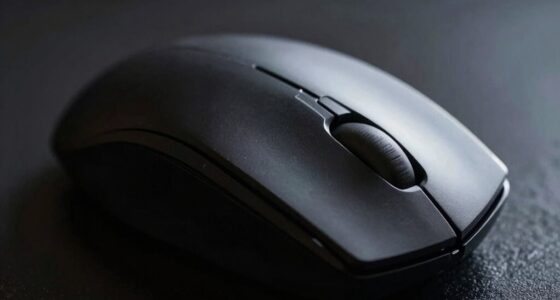
Beyond gesture controls and voice commands, consider optimizing your workspace layout. Position your monitor, keyboard, and mouse to minimize movement, keeping everything within easy reach. Use ergonomic accessories like a one-handed keyboard or a trackball mouse designed for limited mobility. These tools help you operate your system more efficiently and comfortably, decreasing fatigue and strain. Additionally, using shortcut keys and macros can speed up repetitive tasks, so set up your software to support these customized commands. Incorporating ergonomic accessories can also help prevent discomfort during extended use. Exploring assistive technology options can further tailor your setup to your specific needs and improve overall usability.
Popular right now

De'Longhi Magnifica Evo Fully Automatic Espresso Machine with Manual Milk Frother, Silver

Dyson Ball Animal 3 Corded Upright Vacuum

Roborock F25 BX Cordless Wet Dry Vacuum Mop
As an affiliate, we earn on qualifying purchases.
Frequently Asked Questions
How Do I Adapt to One-Handed Mouse Navigation Effectively?
To adapt to one-handed mouse navigation effectively, leverage gesture controls and voice commands. Use gesture controls to perform common actions like clicking or scrolling quickly, reducing the need for precise movements. Voice commands can open apps, select items, or execute commands without touching the mouse. Practice these tools regularly to build efficiency, and customize settings to match your workflow, making navigation smoother and less frustrating.
What Ergonomic Tips Prevent Strain During One-Handed Work?
Imagine your hand resting comfortably like a gentle wave on the shoreline. To prevent strain, sit in an ergonomic chair that supports your posture, keeping your wrist aligned and relaxed. Use wrist support pads to cushion your movements, reducing tension. Regularly stretch your hand and wrist, and adjust your workspace so your mouse stays close, minimizing reaching. These tips help you maintain comfort and avoid fatigue during one-handed work.
Are There Specific Tools to Improve One-Handed Typing Speed?
Yes, you can boost your one-handed typing speed with tools like voice dictation and customizable keyboards. Voice dictation allows you to speak your thoughts, reducing the need for manual typing. Customizable keyboards let you tailor key layouts to fit your hand’s reach, making typing more efficient. Combining these tools helps you work faster and reduces strain, making one-handed typing more comfortable and productive.
How Can I Manage Multitasking With One Hand?
Imagine juggling flaming torches with one hand—you need a steady grip. To manage multitasking, activate voice control to command your device hands-free, freeing your hand for essential tasks. Pair this with an ergonomic keyboard designed for one-handed use, reducing fatigue and increasing efficiency. This combo transforms chaos into harmony, allowing you to smoothly switch between tasks without dropping the ball, all while keeping your workflow steady and comfortable.
What Software Shortcuts Are Best for One-Handed Workflows?
You should focus on using voice commands and customizable shortcuts to streamline your workflow. Voice commands let you control software hands-free, reducing the need for keyboard use. Customizable shortcuts enable you to assign key combinations to frequently used actions, making tasks faster. Both options are essential for a one-handed workflow, allowing you to stay efficient without interrupting your multitasking. Experiment with different shortcuts to find what works best for you.
Conclusion
By making these simple one-handed workflow adjustments, you’re taking control of your productivity, no matter the circumstances. These tweaks aren’t just quick fixes—they’re a game-changer, helping you stay efficient even when life throws curveballs. Remember, when you adapt to your needs, you’re not just surviving—you’re thriving. So don’t wait for the perfect setup; start small, stay consistent, and watch how these changes turn into your new normal. Sometimes, you’ve got to roll with the punches to come out on top.