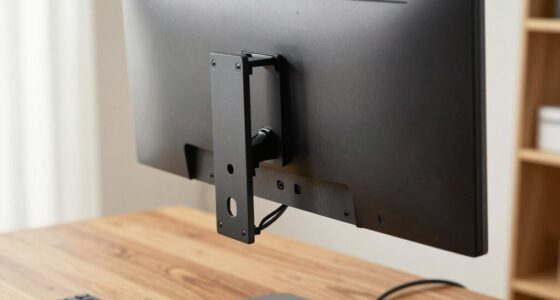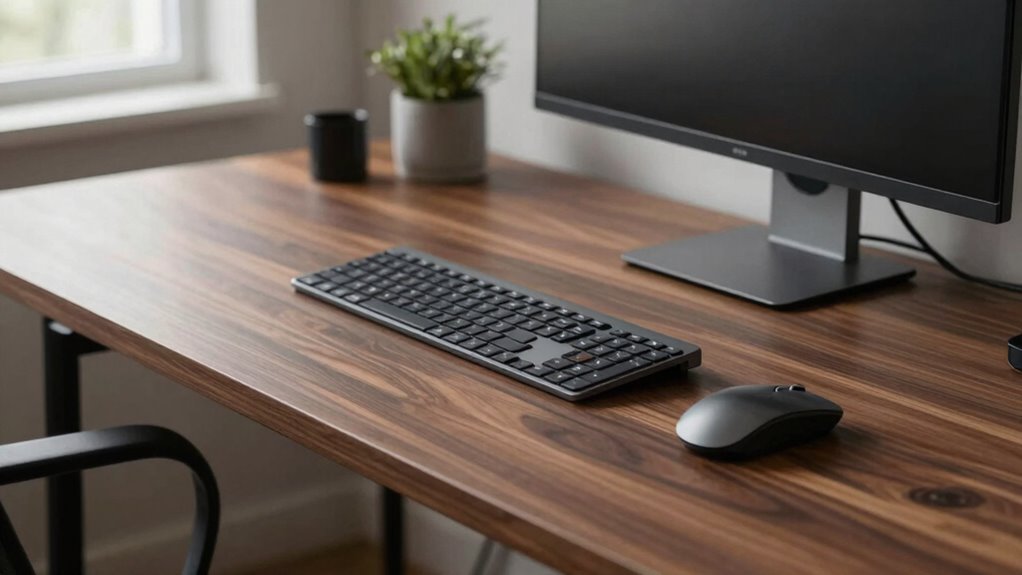

To build a reliable one-cable desk, start by choosing a desk with built-in cable management or add trays and grommets to hide clutter. Use adjustable ergonomic accessories like monitor arms and height-adjustable desks for comfort. Opt for a single high-quality power source, such as a surge protector, and connect everything with a single USB-C or Thunderbolt cable for data and power. Secure and route cables neatly, ensuring easy maintenance. Keep exploring to master the full setup process.

Get comfort and recovery gear delivered free — and shop member deals
- Fast, free delivery on millions of items
- Access to Prime Big Deal Days deals on October 6–7
- Prime Video, Amazon Music and more included
Key Takeaways
- Select a desk with built-in cable management features or plan to add trays and grommets for neat routing.
- Use a high-quality docking station or all-in-one hub to consolidate power and data connections into a single cable.
- Implement cable sleeves, clips, and routing along edges to keep cables hidden and organized.
- Choose ergonomic accessories that support easy access and compatibility with a streamlined cable setup.
- Regularly test and adjust connections to ensure reliable performance and maintain a clean, efficient workspace.
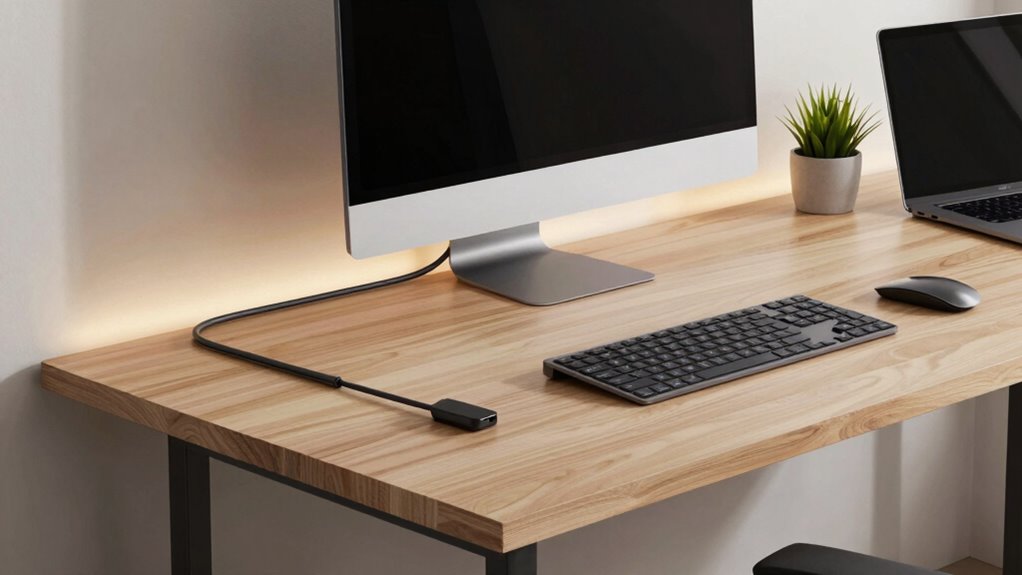
Creating a sleek, clutter-free workspace starts with building a one-cable desk that simplifies your setup. The goal is to reduce cable clutter and create an efficient environment that you can rely on daily. To do this, you’ll need to focus on integrating ergonomic accessories and effective cable management techniques. These elements not only improve your workspace’s appearance but also support your comfort and productivity.
Start by choosing a desk with built-in cable management features or plan to add a cable tray or grommets. These features help hide and organize cables, preventing tangles and clutter. When selecting your ergonomic accessories, consider items like adjustable monitor arms, keyboard trays, and height-adjustable desks. These accessories allow you to position your equipment ideally, reducing strain and promoting better posture. By integrating these accessories with your cable management setup, you keep everything accessible yet out of sight, maintaining a clean look.
Choose desks with built-in cable management or add trays and grommets to keep cables organized and out of sight.
Next, focus on consolidating your cables into a single power source whenever possible. Use a high-quality surge protector or power strip with enough outlets to accommodate your devices. This way, you’ll only need one main cable running from your desk to the wall, streamlining the setup. For data connections, opt for a single, high-speed USB-C or Thunderbolt cable that can power and transmit data to your monitor, peripherals, and even your laptop. Many modern monitors and docking stations support this all-in-one connection, significantly reducing the number of cables you manage daily. Additionally, choosing eco-friendly materials for your cables and accessories can further promote sustainability in your workspace.
To guarantee your setup works reliably, invest in cable sleeves or flexible cable organizers. These tools bundle multiple cables into a single, tidy conduit, making it easier to route them along your desk or behind furniture. When installing your cables, run them along edges and corners to keep them out of sight and prevent accidental disconnection. Secure cables using clips or adhesive mounts, which keep everything in place and prevent you from tripping over loose wires. Additionally, understanding biodiversity and sustainable practices can inspire eco-friendly choices in your workspace setup, such as selecting environmentally conscious cable materials or furniture. Incorporating sustainable practices into your workspace can also contribute to a healthier environment and promote eco-awareness.
Finally, test your setup thoroughly. Make sure your ergonomic accessories are positioned correctly and that your single cable connection provides enough power and data transfer speeds. Adjust as needed, keeping accessibility and ease of maintenance in mind. With a well-planned approach to cable management and ergonomic accessories, your one-cable desk will be functional, stylish, and hassle-free—ready to support your daily work routine seamlessly.
As an affiliate, we earn on qualifying purchases.
Frequently Asked Questions
Can I Customize the Cable Length for Different Desk Setups?
Yes, you can customize cable lengths for different desk setups. To do this effectively, focus on cable organization and power management. Measure the distances between your devices and outlets, then cut or buy cables of appropriate lengths. Use cable sleeves or ties to keep everything tidy, preventing clutter. This approach guarantees a clean, efficient setup that adapts to your workspace, making power management seamless and visually appealing.
What Safety Precautions Should I Take During Installation?
Safety first, as they say! When installing your one-cable desk, wear protective gear like gloves and eye protection. Make certain the power is off before working on electrical components to avoid shocks. Secure cables properly to prevent tripping and guarantee ergonomic benefits are maximized. Keep your workspace tidy for aesthetic appeal and safety. Taking these precautions helps you create a safe, efficient setup that’s both functional and visually appealing.
Will This Setup Work With All Types of Computers and Peripherals?
Yes, this setup works with most computers and peripherals, thanks to wireless connectivity options and an ergonomic design. You can connect your devices seamlessly without worrying about compatibility issues, as long as your peripherals support wireless connections or standard ports. The ergonomic design guarantees comfort during extended use, making your workspace versatile and efficient for various devices, whether they’re desktops, laptops, or accessories.
How Do I Manage Cable Heat and Prevent Overheating?
Did you know that electronic components can overheat at just 85°C? To prevent cable heat and overheating, guarantee proper heat dissipation by choosing cables with good insulation that manages heat effectively. Keep cables organized to allow airflow, and avoid bundling them tightly. Regularly inspect for signs of wear or damage, and consider adding cooling solutions if necessary. This way, your setup stays safe, efficient, and cool during daily use.
What Maintenance Is Required for Long-Term Durability?
To guarantee long-term durability, regularly inspect your cable insulation for cracks or wear, and replace any damaged sections promptly. Check connector compatibility to prevent loose connections that can cause overheating or signal loss. Keep cables neatly organized to avoid stress and strain. Periodically clean connectors and ports to maintain peak performance. These simple maintenance steps will extend your cable’s lifespan and keep your one-cable desk functioning smoothly daily.
As an affiliate, we earn on qualifying purchases.
Conclusion
Building your one-cable desk is like crafting a smooth-running orchestra—each component working in harmony to create a seamless workspace. With a little patience and attention to detail, you’ll enjoy a clutter-free, efficient setup that simplifies your daily routine. Once done, your desk will feel like a well-oiled machine, ready to support your productivity and keep everything flowing effortlessly. Embrace the process, and soon you’ll be working in perfect harmony every day.
As an affiliate, we earn on qualifying purchases.
As an affiliate, we earn on qualifying purchases.
Fall Picks
fall essentials
As an affiliate, we earn on qualifying purchases.