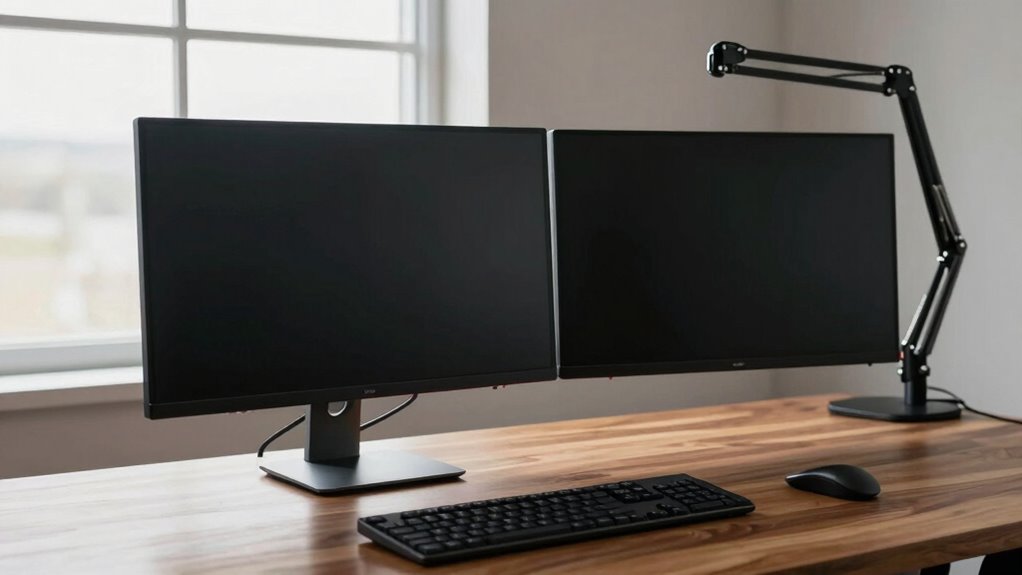
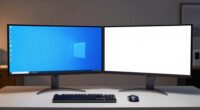
To prevent neck strain, position your second monitor directly in front of you at eye level with the top aligned to your eye line. Keep it close enough so you don’t have to lean or twist your neck, ideally at an arm’s length. Use adjustable stands or mounts to achieve this height and alignment, creating a seamless visual flow. If you want to learn tips on perfect monitor placement, continue exploring these ergonomic strategies.
Key Takeaways
- Position the primary monitor directly in front at eye level to minimize neck twisting.
- Place the second monitor slightly inward and at a similar eye level to encourage natural viewing angles.
- Keep all monitor tops aligned horizontally to reduce neck tilting during extended use.
- Maintain about an arm’s length distance from each screen to prevent strain and promote comfort.
- Use adjustable monitor arms to fine-tune height and angle, supporting proper posture and neck health.
Positioning Your Monitor at Eye Level
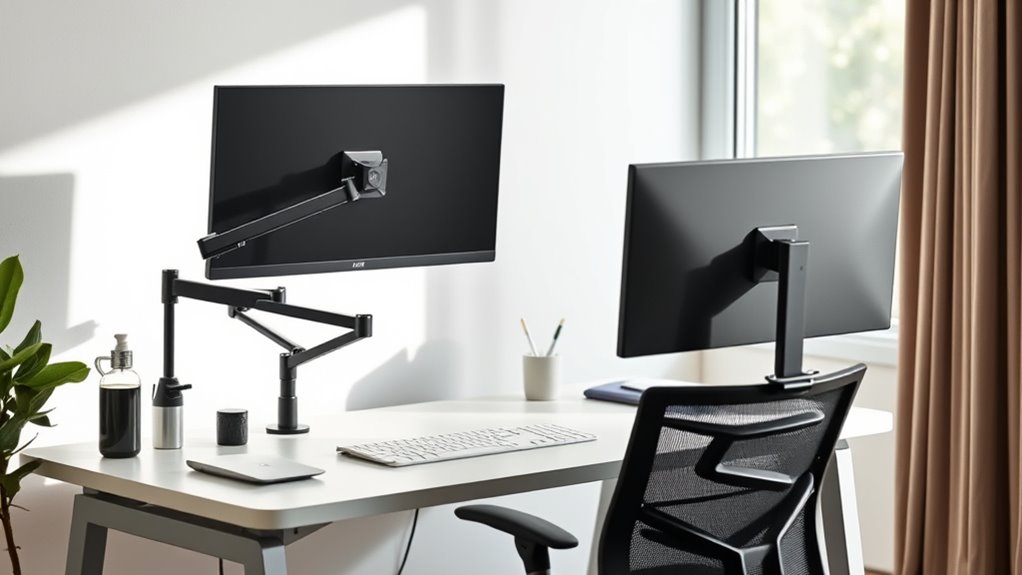
To reduce neck strain and improve comfort, you should position your monitor at eye level. When your screen is too low or high, you’ll naturally tilt your head, causing discomfort over time. Adjust the monitor so that the top of the screen is roughly even with your eyes when you’re sitting straight. This way, your neck stays in a neutral position, reducing tension. Use monitor stands or adjustable mounts if needed to achieve the right height. Keep the monitor about an arm’s length away from your eyes for ideal viewing. Proper positioning minimizes strain, prevents headaches, and keeps your neck relaxed during long work sessions. Remember, a well-placed monitor makes a significant difference in your overall comfort.
Choosing the Right Distance for Comfort

Finding the right distance between your eyes and your monitor is essential for comfortable viewing. You should position the screen about an arm’s length away, roughly 20 to 30 inches. This distance helps prevent eye strain and allows you to see details clearly without leaning forward or squinting. When you sit comfortably, your eyes should naturally focus on the middle of the screen without effort. Adjust the monitor’s position until you feel relaxed and your neck isn’t strained. Keep in mind that larger monitors may require you to sit slightly farther back, while smaller screens can be closer. Regularly check your posture and distance to ensure long-term comfort and prevent discomfort during extended use.
Aligning Monitors for Seamless Multitasking
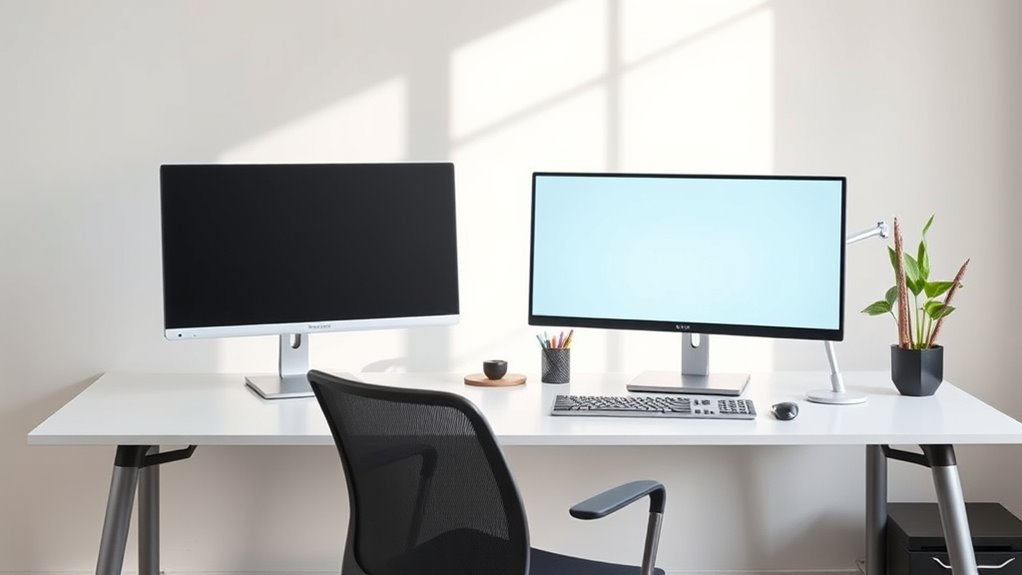
Make sure your monitors are level with each other to avoid strain and distraction. Keep the top edges aligned so your eyes can move smoothly between screens. When your monitors are at eye level, multitasking feels more natural and less tiring.
Level With Main Screen
Have you ever noticed how mismatched monitor heights can disrupt your workflow? When your second monitor isn’t level with your main screen, it forces your eyes and neck to strain as you switch focus. To fix this, adjust the stands or mounts so both screens sit at the same height. Use a level tool or digital app to ensure perfect alignment. Keeping the tops of your monitors even creates a smooth visual flow, reducing eye fatigue and making multitasking seamless. This alignment helps your eyes move naturally across the screens without jumping up or down. Take the time to adjust your monitors so they’re flush, and you’ll notice a significant boost in comfort and productivity. A level setup minimizes distractions and keeps your workflow flowing smoothly.
Maintain Eye Line
To work efficiently across multiple screens, you need to keep your monitors aligned with your eye line. When your monitors are at eye level, you reduce neck strain and maintain a natural posture. Position each screen so that your eyes look straight ahead, minimizing the need to tilt your head up or down. If you use multiple monitors, place the primary one directly in front of you, with the others angled slightly inward. Keep the top of each screen roughly at your eye level for seamless viewing. This setup helps you switch focus easily between screens without unnecessary movement. Maintaining a consistent eye line improves comfort, reduces fatigue, and allows for smoother multitasking throughout your workday.
Adjusting Your Workspace for Optimal Posture
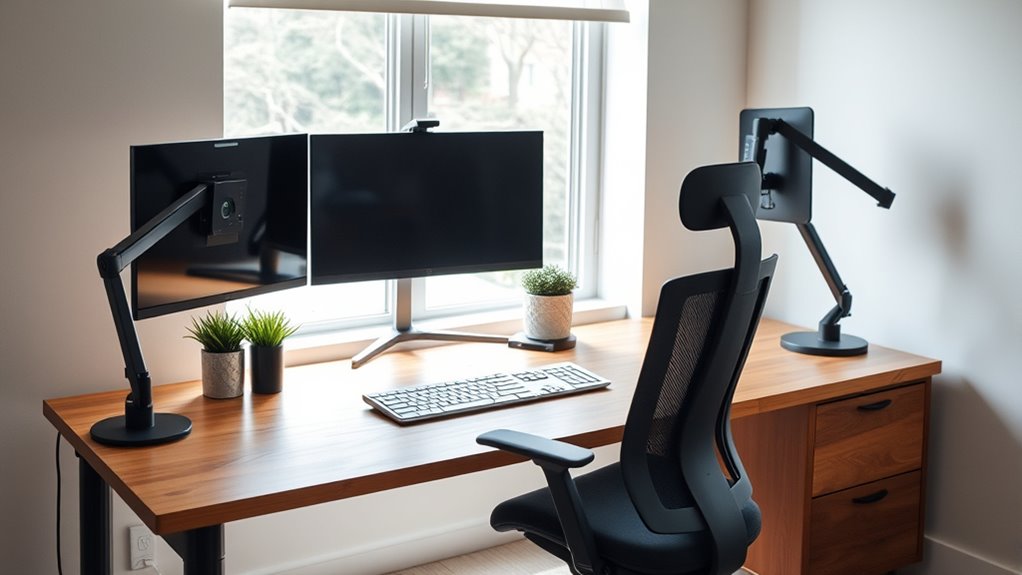
Adjusting your workspace for ideal posture is essential to prevent strain and increase comfort while using multiple monitors. Start by positioning your primary monitor directly in front of you, at eye level, so you don’t have to tilt your head up or down. Keep your keyboard and mouse close enough to avoid reaching forward, which can strain your shoulders. Ensure your chair supports your lower back and keeps your feet flat on the floor. Adjust the height of your workspace so your forearms are parallel to the ground when typing. Maintain a relaxed shoulder position, avoiding hunching forward or shrugging. Finally, create enough space on your desk for your monitors and accessories to keep your posture natural and comfortable during extended use.
Using Monitor Stands and Mounts Effectively
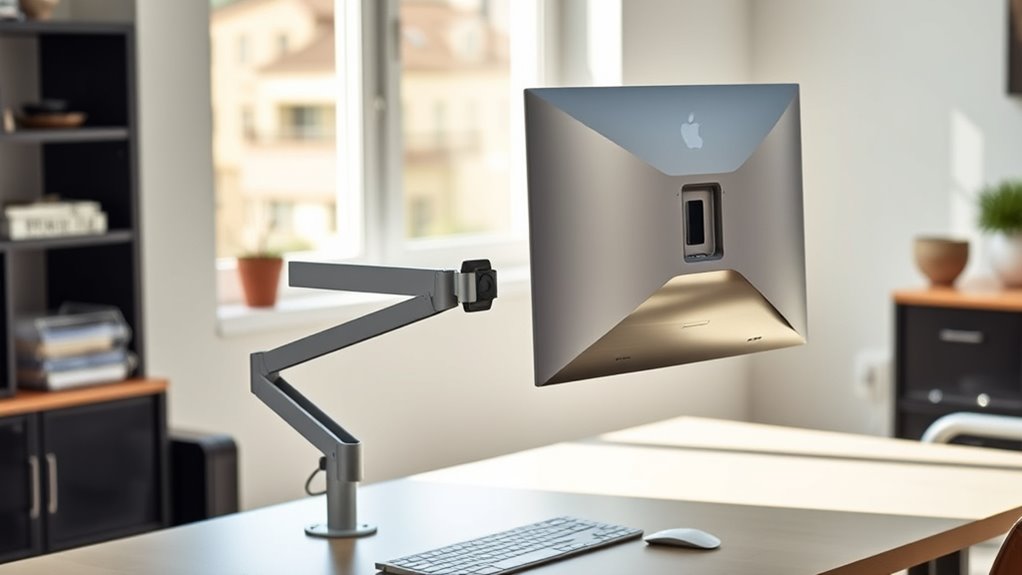
Using monitor stands and mounts can substantially improve your workspace by allowing you to position your screens at the perfect height and angle. They help reduce neck strain and create a more ergonomic setup. Adjustable stands let you raise or lower your monitor easily, while mounts offer flexible positioning with minimal desk clutter. Mounts can also swivel or tilt, helping you find the most comfortable viewing angle. To maximize benefits, choose the right stand or mount based on your workspace size and monitor weight. Proper positioning guarantees your eyes are level with the top of the screen, preventing neck and eye strain. Here’s a quick overview:
| Feature | Benefits | Best For |
|---|---|---|
| Adjustable Stand | Height, tilt, swivel | Flexible positioning |
| Fixed Stand | Stability, simplicity | Basic needs |
| Mounts | Free space, custom angles | Multiple monitors, space-saving |
Managing Screen Glare and Brightness
To reduce eye strain, start by adjusting your monitor brightness to match your environment. Minimize external light sources that create glare, and consider using anti-glare filters for extra comfort. These steps help create a clearer, more comfortable viewing experience for your second monitor.
Adjust Monitor Brightness
Since screen brightness can profoundly impact your comfort and productivity, it’s vital to fine-tune your monitor’s settings. Adjusting brightness reduces eye strain and helps your eyes adapt to your environment. Start by lowering the brightness to match the ambient light, avoiding overly bright screens in dark rooms. Use these tips:
- Match your monitor’s brightness to the lighting around you.
- Avoid extreme contrast—neither too dim nor too glaring.
- Enable automatic brightness adjustments if your monitor supports it.
- Regularly calibrate your display to maintain consistent brightness levels.
These adjustments help prevent eye fatigue, keep your workspace comfortable, and guarantee you can work longer without discomfort. Fine-tuning brightness is a simple yet vital step in your ergonomic setup.
Minimize External Light
External light sources can create glare on your screen, making it harder to see and causing eye strain. To minimize this, position your monitor away from direct sunlight or bright windows. Use curtains or blinds to control ambient light levels, reducing reflections on your screen’s surface. If you can’t avoid strong light, consider adjusting the angle of your monitor slightly to reduce glare. Turning off unnecessary nearby lights or using softer, indirect lighting can also help. Keep in mind that overly bright environments force your eyes to work harder, leading to fatigue. By managing external light sources, you make it easier to see your screen clearly and prevent eye strain, making your workspace more comfortable and productive.
Use Anti-Glare Filters
Using anti-glare filters is an effective way to reduce screen glare and control brightness, especially in environments with unavoidable light sources. These filters sit directly on your monitor, diffusing reflected light and minimizing eye strain. To maximize their benefits, consider these tips:
- Choose a filter that matches your monitor size for a seamless fit.
- Adjust your monitor’s brightness settings to complement the filter.
- Position your monitor away from direct light, like windows or lamps.
- Regularly clean the filter to prevent dust buildup and maintain clarity.
Incorporating Ergonomic Accessories for Better Support
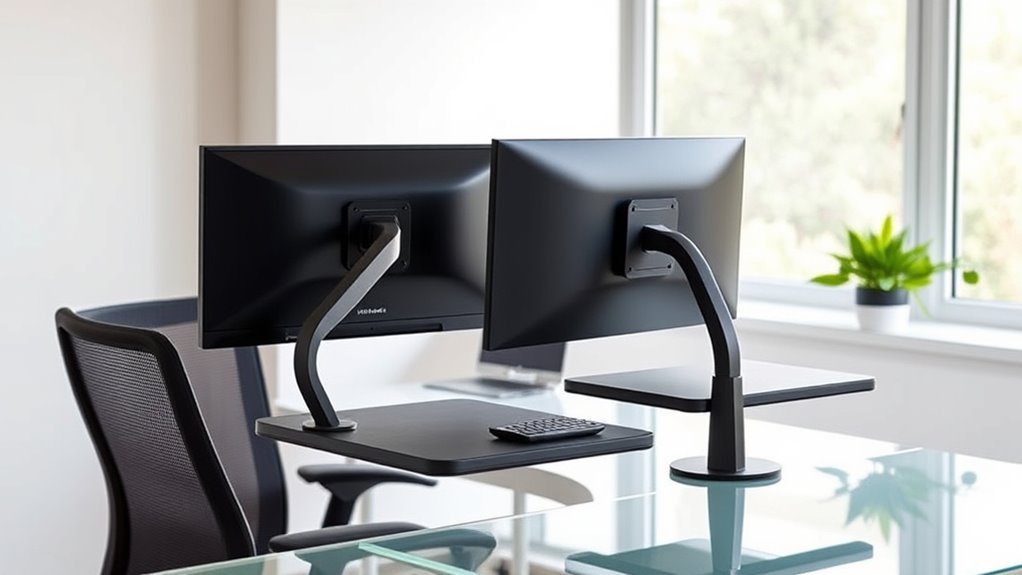
Incorporating ergonomic accessories can considerably improve your comfort and support when working with a second monitor. A good ergonomic keyboard and mouse reduce strain on your wrists and hands, preventing discomfort during long hours. Adjustable monitor arms and stands allow you to position your screens at eye level, helping maintain proper neck alignment. Lumbar support cushions and footrests promote better posture and reduce lower back stress. Consider ergonomic wrist rests to keep your wrists neutral, minimizing the risk of repetitive strain injuries. Anti-fatigue mats can also improve comfort if you stand while working. By investing in these accessories, you create a workspace that encourages healthy posture, reduces fatigue, and enhances productivity. Proper ergonomic support ultimately helps you work longer, more comfortably, and with less risk of injury.
Frequently Asked Questions
How Can I Prevent Neck Strain When Using Dual Monitors?
To prevent neck strain when using dual monitors, position them at eye level so your neck stays neutral. Keep both screens directly in front of you, avoiding twisting or looking sideways. Sit back comfortably, with your chair supporting your lower back. Adjust monitor height and distance to reduce eye and neck movement. Take regular breaks, stretch, and switch focus to prevent muscle fatigue and maintain good posture throughout the day.
What Is the Ideal Angle for a Second Monitor?
Imagine you’re a modern-day Leonardo da Vinci, perfecting your workspace. The ideal angle for your second monitor is about 15 to 20 degrees from your primary screen, so it feels natural to glance at without twisting your neck. Keep the top of the monitor at or slightly below eye level, and make certain your head remains straight. This setup reduces strain, keeps you comfortable, and boosts your productivity.
Should I Alternate Monitor Positions for Different Tasks?
Yes, you should alternate monitor positions for different tasks to reduce strain and improve comfort. When working on detailed projects, position your primary monitor directly in front of you, and shift the secondary monitor to the side as needed. For tasks requiring frequent reference, keep both screens within easy reach and at eye level. Changing your setup prevents neck and eye fatigue, keeping you comfortable and productive throughout the day.
How Do I Set up a Dual Monitor Workspace in Small Rooms?
Think of your small room as a cozy cockpit. To set up your dual monitors, position the primary screen directly in front of you at eye level, with the second slightly angled to the side. Keep enough space between them to avoid straining your neck. Use adjustable stands or mounts if needed, and prioritize comfort. This setup keeps your workspace efficient without making your room feel cramped.
Are There Specific Ergonomic Tips for Vertical Monitors?
Yes, for vertical monitors, position the top of the screen at your eye level so you don’t strain your neck. Keep the monitor about an arm’s length away, and make sure your shoulders stay relaxed. Use an adjustable stand if needed to fine-tune height and tilt. Regularly shift your posture and take breaks to prevent discomfort. Proper alignment reduces strain and keeps your neck and eyes comfortable during extended use.
Conclusion
If you follow these tips, you’ll turn your workspace into a neck-saving paradise where pain doesn’t stand a chance. Proper placement and ergonomic choices will make your second monitor feel like an extension of your body—so comfortable, you’ll forget you’re even working! Say goodbye to sore necks and hello to effortless multitasking. With the right setup, you might just become the superhero of productivity—and your neck will thank you forever!