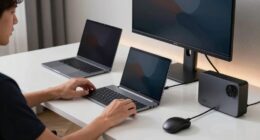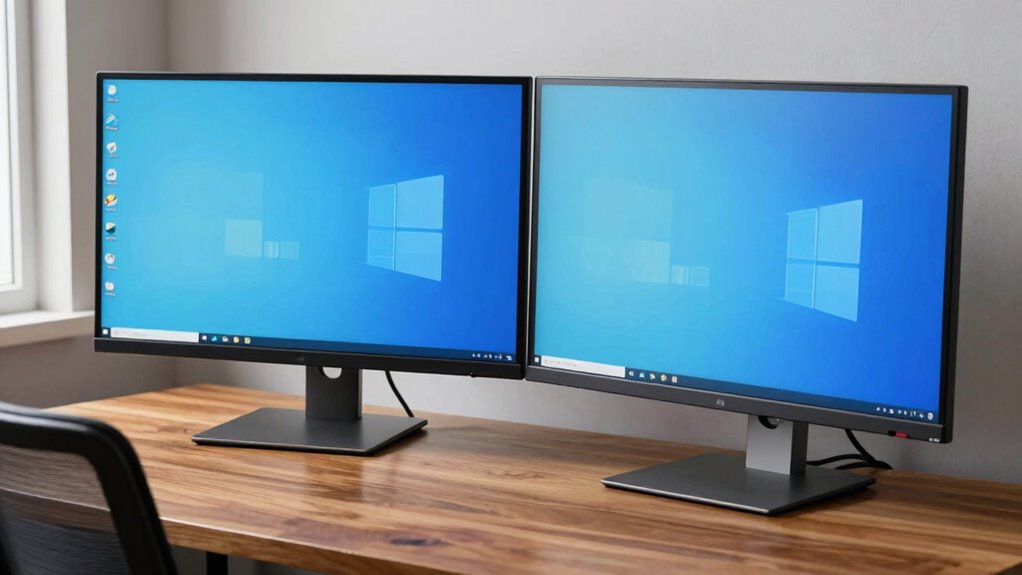

Properly aligning your dual monitors is a simple way to reduce neck strain and boost comfort during long work sessions. By positioning the top edges at eye level, tilting screens slightly inward, and using adjustable mounts, you promote a natural posture and minimize awkward neck movements. Consistent calibration guarantees visual harmony across screens, further easing eye fatigue. Keep exploring, and you’ll discover even more tips to optimize your setup for maximum comfort and productivity.

Get comfort and recovery gear delivered free with Prime
- Fast, free delivery on millions of items
- Prime Video, Amazon Music and more included
- Member-only deals all year
Key Takeaways
- Proper monitor alignment reduces neck strain by positioning screens at eye level, promoting a neutral and comfortable posture.
- Using ergonomic accessories like adjustable stands ensures precise height and tilt adjustments for optimal dual monitor setup.
- Aligning the top edges of both monitors at eye level minimizes unnecessary neck movement during work.
- Calibrating monitors for color and brightness consistency prevents visual fatigue and enhances seamless content viewing.
- Proper physical setup combined with calibration creates a healthier workspace, boosting productivity and reducing discomfort.

Have you ever struggled with uneven or misaligned dual monitors that disrupt your workflow? If so, you’re not alone. Many people overlook the importance of proper monitor alignment, but it can make a significant difference in reducing neck strain and improving productivity. One of the first steps you should take is investing in ergonomic accessories. These are designed to support your posture and guarantee your workspace promotes comfort. Adjustable monitor stands, arms, and mounts allow you to position your screens at eye level, eliminating the need to crane your neck or twist awkwardly to see different displays. When setting up your dual monitors, don’t just focus on placement; consider monitor calibration as well. Proper calibration ensures that both screens display colors and brightness uniformly, which helps in aligning content visually. This not only creates a seamless viewing experience but also reduces eye fatigue, making long work sessions less taxing.
Aligning your monitors correctly involves more than just placing them side by side. You want the top edges of both screens to be roughly at your eye level, with the monitors slightly angled inward if possible. This positioning minimizes neck movements and encourages a natural, comfortable posture. Using ergonomic accessories like monitor risers or adjustable arms makes fine-tuning this setup straightforward. You can easily raise or lower your screens to match your eye height and tilt them to reduce glare, further easing eye strain. Remember, the goal is to create a workspace where your neck stays in a neutral position, avoiding unnecessary stretching or tilting. Additionally, understanding monitor load calculations can help ensure your setup is supported correctly and safely, preventing strain or equipment failure.
Position your monitors with top edges at eye level and slight inward tilt for optimal comfort.
Monitor calibration plays a pivotal role once your physical setup is optimized. When your monitors are calibrated correctly, colors and brightness are consistent across both screens, which makes it easier to switch focus between them without adjusting your head or eyes constantly. Most operating systems or monitor manufacturers offer built-in calibration tools that help you fine-tune these settings. Taking this step guarantees that your dual monitors are not only physically aligned but also visually synchronized. Proper calibration reduces visual discomfort and helps prevent headaches caused by inconsistent color or contrast levels.
In the end, investing in ergonomic accessories and paying attention to monitor calibration can dramatically improve your dual monitor experience. It’s about creating a workspace that supports your body and eyes, enabling you to work more efficiently and comfortably. When your monitors are aligned correctly, you’ll notice less neck strain, reduced fatigue, and a smoother workflow—all essential for maintaining focus throughout your day.
As an affiliate, we earn on qualifying purchases.
Frequently Asked Questions
How Do I Adjust My Monitor Height for Optimal Comfort?
You should adjust your monitor height by using a monitor stand or ergonomic riser to guarantee the top of your screen is at eye level. This helps reduce neck strain and improves comfort during long hours. Place the monitor so you’re looking slightly downward, with your neck relaxed. Make sure the monitor is directly in front of you, avoiding any tilting or twisting, for the best ergonomic setup.
What Ergonomic Accessories Can Improve Dual Monitor Setup?
You can improve your dual monitor setup by using a monitor riser to elevate your screens to eye level, reducing neck strain. An ergonomic arm allows flexible positioning, so you can easily adjust monitors for comfort throughout the day. These accessories help maintain proper posture, prevent discomfort, and keep your workspace organized, ensuring you stay comfortable and productive during long hours at your desk.
How Often Should I Reposition My Monitors?
You should reposition your monitors whenever you notice discomfort or if they no longer align with your ergonomic desk setup. Regularly calibrate your monitors to guarantee proper height, tilt, and distance, preventing neck strain. Aim to check and adjust at least once a month or whenever your work environment changes. Proper monitor calibration and alignment keep your neck relaxed and maintain ideal ergonomic support throughout your workday.
Can Monitor Alignment Reduce Eye Strain?
Think of your monitors as a lighthouse guiding your focus; proper alignment can indeed reduce eye strain. When your screens are at the same height and angle, your eyes stay relaxed, avoiding unnecessary strain from mismatched monitor brightness or resolution. Adjusting your monitors to match your eye level helps maintain a natural posture, minimizing fatigue. So, yes, aligning your monitors helps keep your eyes comfortable during long work sessions.
What Are Signs of Poor Monitor Placement?
Signs of poor monitor placement include frequent monitor glare that causes eye strain, making it hard to see your screen comfortably. You might also notice neck or shoulder pain from constantly adjusting your position. Desk clutter can block your view or cause awkward placement, leading to discomfort. If you find yourself squinting, experiencing headaches, or feeling fatigued after work, your monitor setup likely needs better alignment.
adjustable monitor arm for dual screens
As an affiliate, we earn on qualifying purchases.
As an affiliate, we earn on qualifying purchases.
Conclusion
When you align your monitors properly, it’s like tuning a musical instrument—you create harmony that prevents strain and discomfort. I once saw a coworker’s neck ache disappear after adjusting his screens, much like a guitar string that’s finally in tune. Small changes make a big difference, saving your neck and boosting productivity. Remember, a well-aligned setup isn’t just about looks; it’s your secret weapon against long-term pain. Prioritize it and watch your comfort improve.
As an affiliate, we earn on qualifying purchases.
As an affiliate, we earn on qualifying purchases.
Fall Picks
fall essentials
As an affiliate, we earn on qualifying purchases.