If your text is too small, fixing scaling is your best move. On Windows, right-click your desktop, select Display Settings, then adjust the scale percentage to enlarge text and icons. On macOS, go to System Preferences > Displays and choose a scaled resolution that suits you. These steps will make content clearer without changing resolution quality. Keep exploring different settings to find the perfect balance for your comfort and efficiency.

Get comfort and recovery gear delivered free — and shop member deals
- Fast, free delivery on millions of items
- Access to Prime Big Deal Days deals on October 6–7
- Prime Video, Amazon Music and more included
Key Takeaways
- Adjust your display resolution to a lower, more comfortable level in system settings.
- Increase font size within applications or browsers using zoom or font options.
- Use scaling settings in Windows or macOS to enlarge text and interface elements without changing resolution.
- Enable accessibility features like magnifiers or high-contrast modes for better readability.
- Experiment with combined resolution, scaling, and font adjustments for optimal text size and clarity.
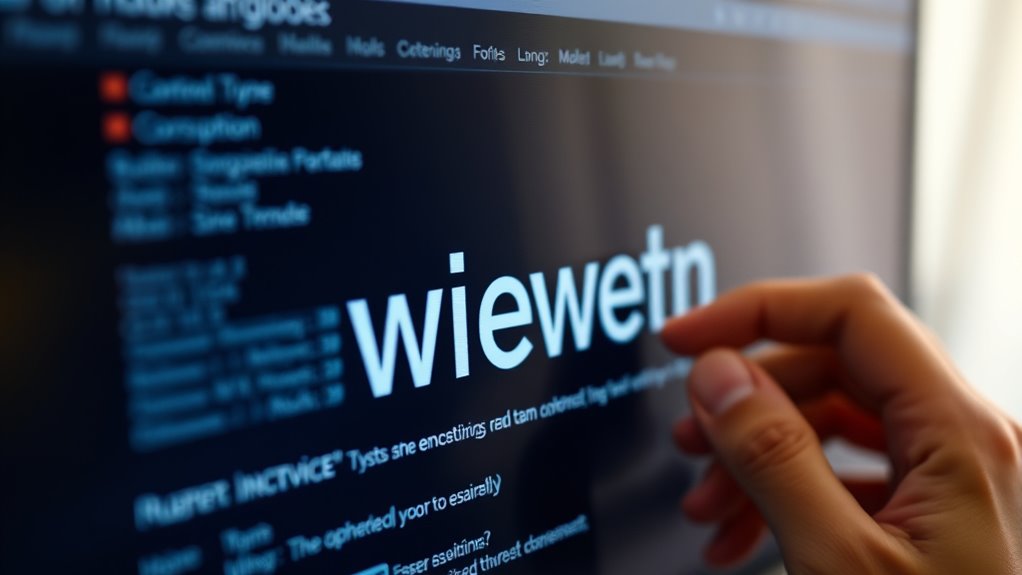
Have you ever opened a document or website only to find the text too small to read or painfully large? It’s a frustrating experience, especially when you’re trying to focus or get work done. The problem often comes down to how the font size interacts with your display resolution. Your display resolution determines how many pixels your screen uses to display images and text, which directly impacts how readable text appears. When the resolution is set too high, everything can look tiny, forcing you to strain your eyes. Conversely, setting it too low can cause everything to appear oversized, making your screen look cluttered and unprofessional.
Adjusting the font size is usually the quickest solution, but it’s not always enough if your display resolution is off. Think of display resolution as the foundation of your viewing experience; if it’s misaligned with your device’s capabilities or your personal preferences, no amount of font tweaking will fully resolve the issue. Modern operating systems like Windows and macOS make it relatively simple to change these settings. On Windows, you can right-click on the desktop, select Display Settings, and then adjust the scale or resolution. Increasing the scaling percentage makes text and icons larger without changing the actual resolution, which is often the easiest fix for tiny text. On macOS, you can go to System Preferences > Displays and choose a scaled resolution to make items on your screen appear larger.
In addition to display resolution, many applications and browsers allow you to customize font size directly within their settings. Browsers like Chrome, Firefox, and Edge let you zoom in or out on web pages, effectively changing the font size for your current viewing session. For documents, most word processors have a font size selector—simply increasing the font size can make a huge difference. But remember, if the underlying display resolution is set too high, even larger fonts might seem small, so it’s best to address both factors simultaneously.
Getting the balance right requires a bit of experimentation. Start by adjusting your display resolution to a comfortable level, then tweak the font size within your applications. If you’re still struggling with readability, consider using accessibility features like magnifiers or high-contrast modes. Additionally, understanding the importance of color accuracy and how it impacts visual clarity can help optimize your viewing experience. Ultimately, fixing text scaling issues involves understanding how display resolution and font size work together. Once you find the right balance, your screen will be much easier on your eyes, making reading and working more comfortable and efficient.
As an affiliate, we earn on qualifying purchases.
Frequently Asked Questions
Can Adjusting Scaling Affect My Device’s Performance?
Adjusting scaling can impact your device’s performance slightly, but it mainly affects display calibration and font customization. When you change scaling settings, your device adjusts how content appears, which may require more processing power, especially with high-resolution screens. However, proper scaling ensures better readability and comfort. If you notice lag, revert to default settings; otherwise, customizing scaling improves your experience without considerably harming performance.
Is There a Way to Reset Scaling Settings Easily?
Yes, you can easily reset your scaling settings by accessing display calibration options. Start by right-clicking on your desktop and selecting Display Settings. Then, choose Advanced Display Settings and click on Display Adapter Properties. From there, you can reset preferences to default, which restores scaling to original settings. This quick step helps fix any display issues caused by incorrect scaling, ensuring your visuals look clear and comfortable.
How Does Scaling Impact Accessibility Options?
Scaling greatly impacts your visual accessibility and font readability. When you adjust scaling settings, it makes text and interface elements larger or smaller, helping you see content more clearly. Proper scaling ensures that fonts are easy to read without straining your eyes, especially if you have visual impairments. By customizing these settings, you improve overall accessibility, making your digital experience more comfortable and inclusive.
Can I Scale Individual Apps Differently?
Yes, you can scale individual apps differently, especially if you’re using a multi-monitor setup. Most operating systems allow you to adjust display scaling settings for each screen, which can help optimize app size and clarity. For color calibration, make sure each monitor is calibrated separately to maintain consistency across your setup. This way, you get better control over how each app appears, making your workspace more comfortable and visually balanced.
Will Changing Scaling Settings Affect My Screen Resolution?
Changing scaling settings won’t affect your screen calibration or display calibration, but it can impact how content appears on your screen. Adjusting scaling changes the size of text and apps without altering your screen resolution, so your overall display quality remains consistent. Be mindful that improper scaling might make things look blurry or pixelated. To guarantee clarity, you may want to recalibrate your display after adjusting scaling settings.
display scaling settings Windows Mac
As an affiliate, we earn on qualifying purchases.
As an affiliate, we earn on qualifying purchases.
Conclusion
So, next time your text feels tiny, remember: scaling isn’t just about size—it’s about making your message clear and impactful. Think of your content as a window; if it’s too small, the view becomes obscured. By adjusting the scale properly, you ensure your audience sees your message loud and clear. Don’t let poor scaling hide your voice—embrace the power of proper sizing and let your words shine brightly on the stage of your screen.
As an affiliate, we earn on qualifying purchases.
high contrast accessibility mode
As an affiliate, we earn on qualifying purchases.
As an affiliate, we earn on qualifying purchases.
Fall Picks
fall essentials
As an affiliate, we earn on qualifying purchases.