
If your monitor is too high or too low, it can cause neck pain by forcing you to tilt or crane your head, straining neck muscles and cervical spine over time. Proper alignment, with the top of your screen at or just below eye level and about an arm’s length away, helps maintain natural neck posture. Keep your workspace ergonomic, and you’ll reduce discomfort and prevent long-term issues. Want to learn how to set this up correctly? Continue exploring to find out more.
Key Takeaways
- Incorrect monitor height, especially too high or too low, causes neck tilting and strain.
- Placing the monitor above eye level forces you to tilt your head, leading to discomfort.
- Keeping the monitor at eye level with proper distance reduces neck muscle tension.
- Failing to align the monitor properly can cause awkward head and neck positioning.
- Ignoring ergonomic setup, like monitor height, increases the risk of chronic neck pain.
Top picks for "neck pain desk"
Open Amazon search results for this keyword.
As an affiliate, we earn on qualifying purchases.
The Wrong Monitor Height and Its Impact on Your Neck
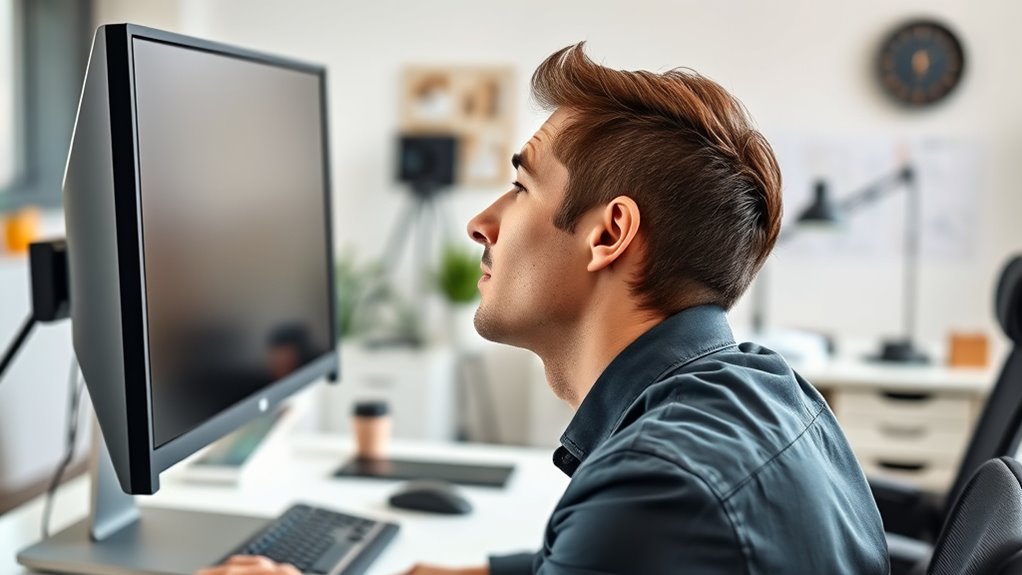
If your monitor is too high or too low, it can cause unnecessary strain on your neck. When you look up at a screen that’s too high, you tilt your head back, putting pressure on your neck muscles and cervical spine. Conversely, if the monitor is too low, you hunch forward, causing similar strain and discomfort. Over time, this misalignment can lead to muscle fatigue, tension headaches, and chronic neck pain. Constantly adjusting your head position to see the screen clearly also disrupts your posture. To avoid these issues, you need to position your monitor so that the top of the screen is roughly at eye level. Ensuring proper height helps maintain natural neck alignment and reduces the risk of pain.
How to Properly Align Your Screen for Comfort

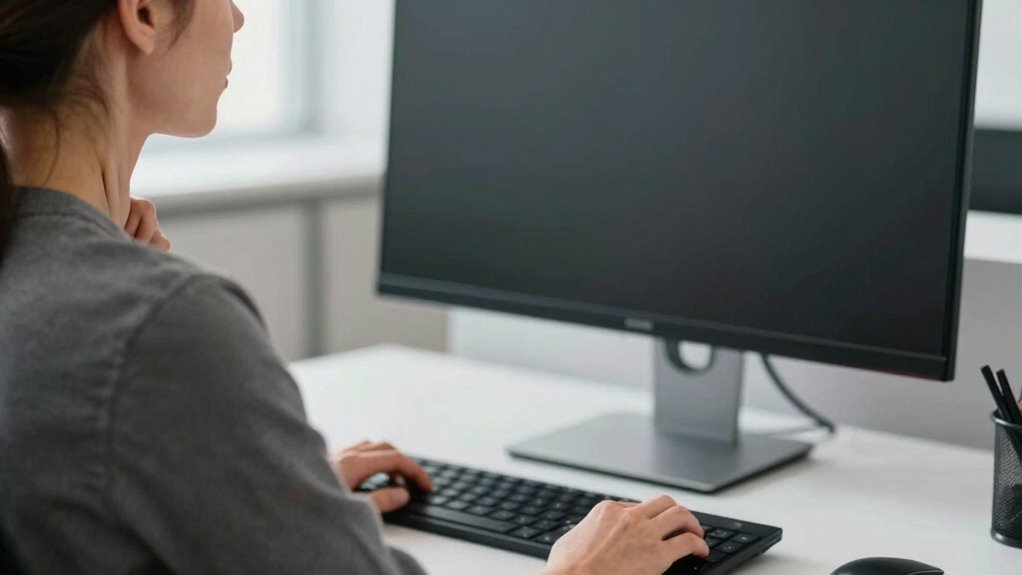
To guarantee your screen is properly aligned for comfort, start by adjusting its height so that the top of the monitor is at or just below eye level. This reduces strain on your neck and keeps your head in a natural position. Make certain the screen is about an arm’s length away to prevent leaning forward or squinting. Tilt the monitor slightly upward or downward if needed, so you don’t have to tilt your head. Keep your shoulders relaxed and your back supported. When aligned correctly, you’ll experience less tension, fewer headaches, and greater focus.
- Feel the relief of less neck pain
- Reclaim your comfort during long work hours
- Experience sharper focus and concentration
- Say goodbye to nagging headaches
- Enjoy a healthier, happier workday
The Role of Eye Level in Preventing Strain

Maintaining your screen at eye level is essential for preventing strain on your eyes and neck. When your monitor is too low or too high, you’ll naturally tilt your head or strain your eyes to see clearly. This causes unnecessary tension and fatigue over time. Position your screen so that the top of the monitor is roughly at or just below eye level. This allows you to keep your neck in a neutral position, reducing discomfort. Keep your gaze straight ahead, rather than downward or upward, to minimize muscle strain. Adjust the height of your chair or monitor stand if needed. Proper eye level not only improves comfort but also helps maintain better posture, preventing long-term issues associated with poor ergonomics.
Common Mistakes in Monitor Placement to Avoid

Have you ever placed your monitor too far back or too close, making it awkward to view comfortably? This mistake strains your neck and eyes, leading to discomfort. When your monitor is too close, you lean forward, putting unnecessary pressure on your neck. Too far back, and you strain your eyes trying to see clearly. Proper placement keeps your head aligned and reduces tension. Be mindful of these common errors:
Ensure your monitor is at an optimal distance and height to prevent neck and eye strain.
- Positioning the monitor too low or too high
- Placing it off-center, causing awkward neck twists
- Setting the screen at an angle that causes glare
- Ignoring the ideal distance (about an arm’s length away)
- Neglecting to adjust height for a neutral neck position
Avoid these pitfalls to protect your neck and create a more comfortable workspace.
Tips for Setting Up an Ergonomic Workspace
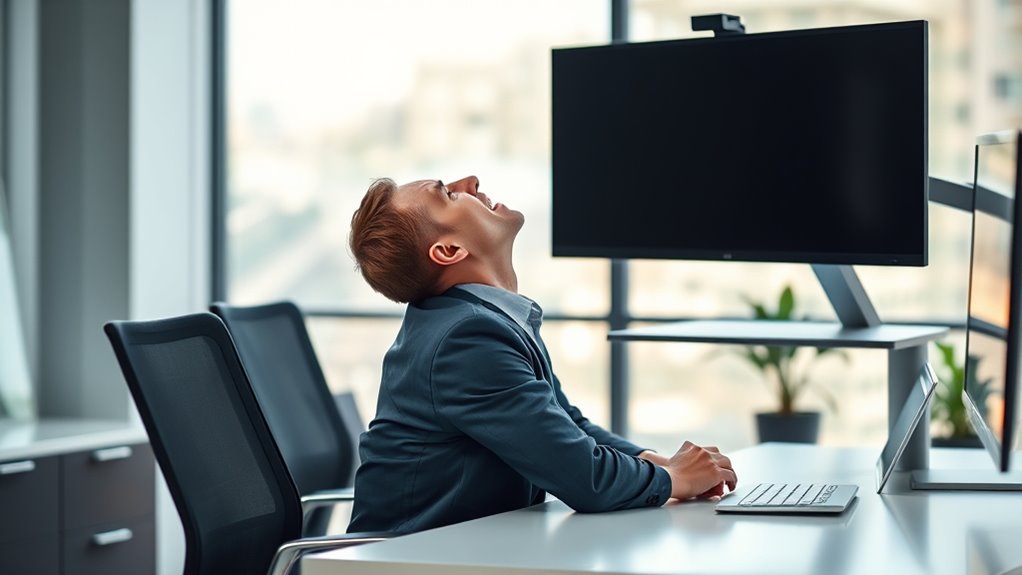
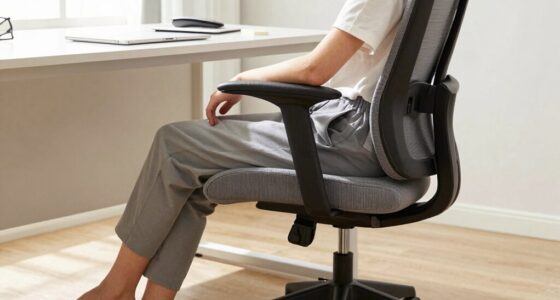
Creating an ergonomic workspace starts with making simple adjustments that promote comfort and reduce strain. First, position your monitor so the top of the screen is at eye level, about an arm’s length away. Keep your feet flat on the floor and your knees at a 90-degree angle. Your keyboard and mouse should be close enough to avoid reaching, with wrists straight. Sit back in your chair, maintaining lumbar support. Use the following table to visualize ideal setup:
| Element | Proper Position |
|---|---|
| Monitor | Top at eye level, 20-30 inches away |
| Chair | Supports lower back, adjustable height |
| Feet | Flat on floor, knees at 90 degrees |
| Keyboard/Mouse | Close, elbows at 90-100 degrees, wrists neutral |
| Screen Distance | About an arm’s length from your eyes |
Making these adjustments helps prevent neck strain and keeps you comfortable.
Frequently Asked Questions
How Often Should I Adjust My Monitor Position During the Workday?
You should adjust your monitor position at least once every hour to prevent neck strain. Keep the screen at eye level so you don’t tilt your head up or down. If you notice discomfort or your eyes feeling tired, reposition your monitor immediately. Regular adjustments help maintain good posture, reduce muscle tension, and keep you comfortable throughout your workday. Don’t wait until pain strikes—stay proactive with your monitor setup.
Are There Specific Monitor Features That Help Prevent Neck Strain?
Imagine your monitor as a window to your work—choose features that protect your neck. Adjustable height and tilt are essential, letting you keep your screen at eye level. Look for monitors with swivel and pivot functions, so you can customize your view without strain. An ergonomic stand or VESA compatibility makes it easier to set up correctly. These features help you stay comfortable, preventing neck pain before it starts.
What Are Signs I Need to Change My Current Monitor Setup?
You should consider changing your monitor setup if you experience persistent neck pain, headaches, or eye strain. If you find yourself constantly tilting or craning your neck, or if your screen is too high or low, it’s time for an adjustment. Also, if adjusting your chair and desk doesn’t help improve your posture, upgrading to a monitor with better height, tilt, and swivel options can prevent discomfort and promote better ergonomics.
How Does Monitor Size Influence Ergonomic Setup?
Your monitor size can make or break your comfort. If it’s too tiny, you’ll strain your neck and eyes, like trying to read a postage stamp from across the room. If it’s enormous, you’ll have to crane your neck or constantly shift your gaze, causing fatigue. Ideally, choose a monitor that fills your field of view without forcing you to stretch or squint—think mid-sized, around 24 to 27 inches— for perfect ergonomic harmony.
Can Monitor Placement Affect Overall Posture Beyond Neck Pain?
Yes, monitor placement impacts your overall posture. If you place it too high or low, you might lean forward or backward, straining your back and shoulders. Poor positioning can cause you to hunch or twist unnaturally, leading to discomfort and fatigue. Keeping your monitor at eye level encourages a neutral spine and relaxed shoulders, helping you maintain good posture throughout your workday.
Conclusion
To keep your neck pain at bay, remember that your monitor is the lighthouse guiding your comfort. Adjust your screen to eye level, so your neck stays in a relaxed, natural position. Avoid the common mistake of looking down or up at your screen, which can cause unnecessary strain. With a little setup, you’ll turn your workspace into a haven of comfort—making those aches drift away like clouds in a clear sky.